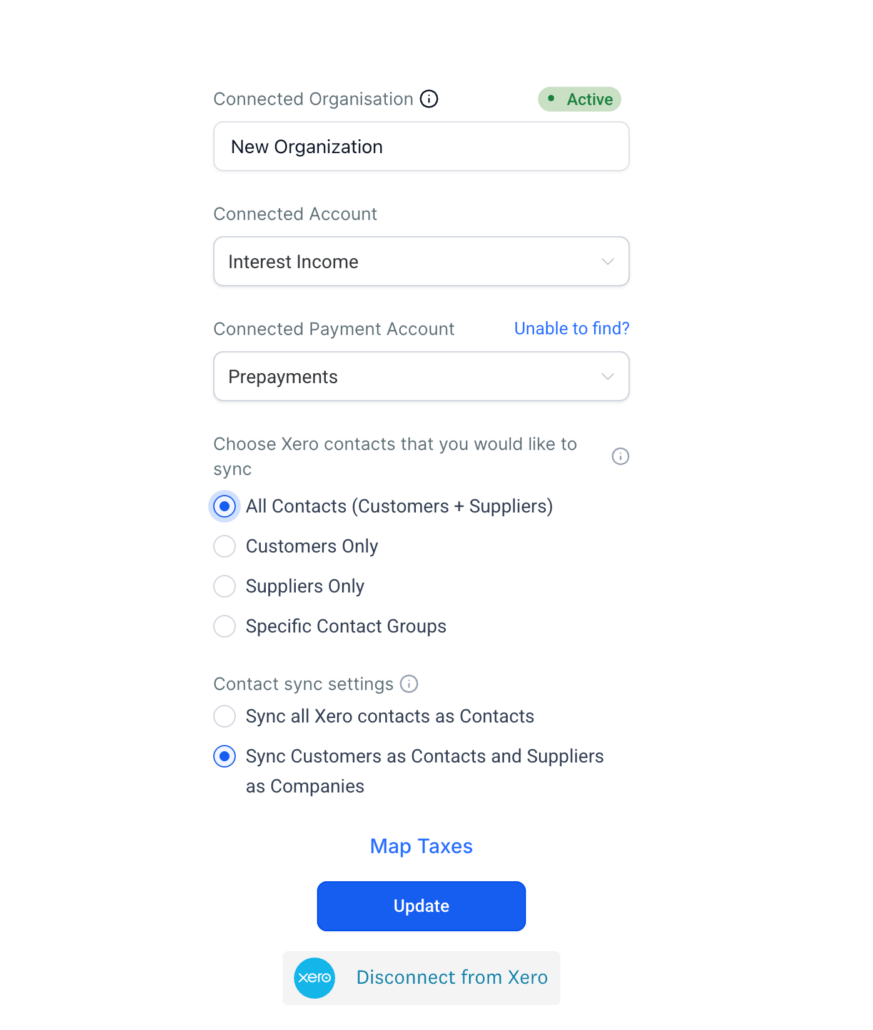
Xero Sync – Smarter Sync Control Is Here
Sync only the contacts you want, precisely where they belong.
By connecting Xero to Clixio, you now have complete control over which contacts are synced and where they will appear. Say goodbye to unwanted vendors and suppliers cluttering your CRM.
Previously, when you connected Xero, every active contact was automatically imported—without any filtering or choice. This led to a flood of vendors, suppliers, and unnecessary contacts in your Clixio contact list. Even worse, suppliers—those you pay—were mixed in with your actual customers and leads, making your CRM less trustworthy and harder to manage.
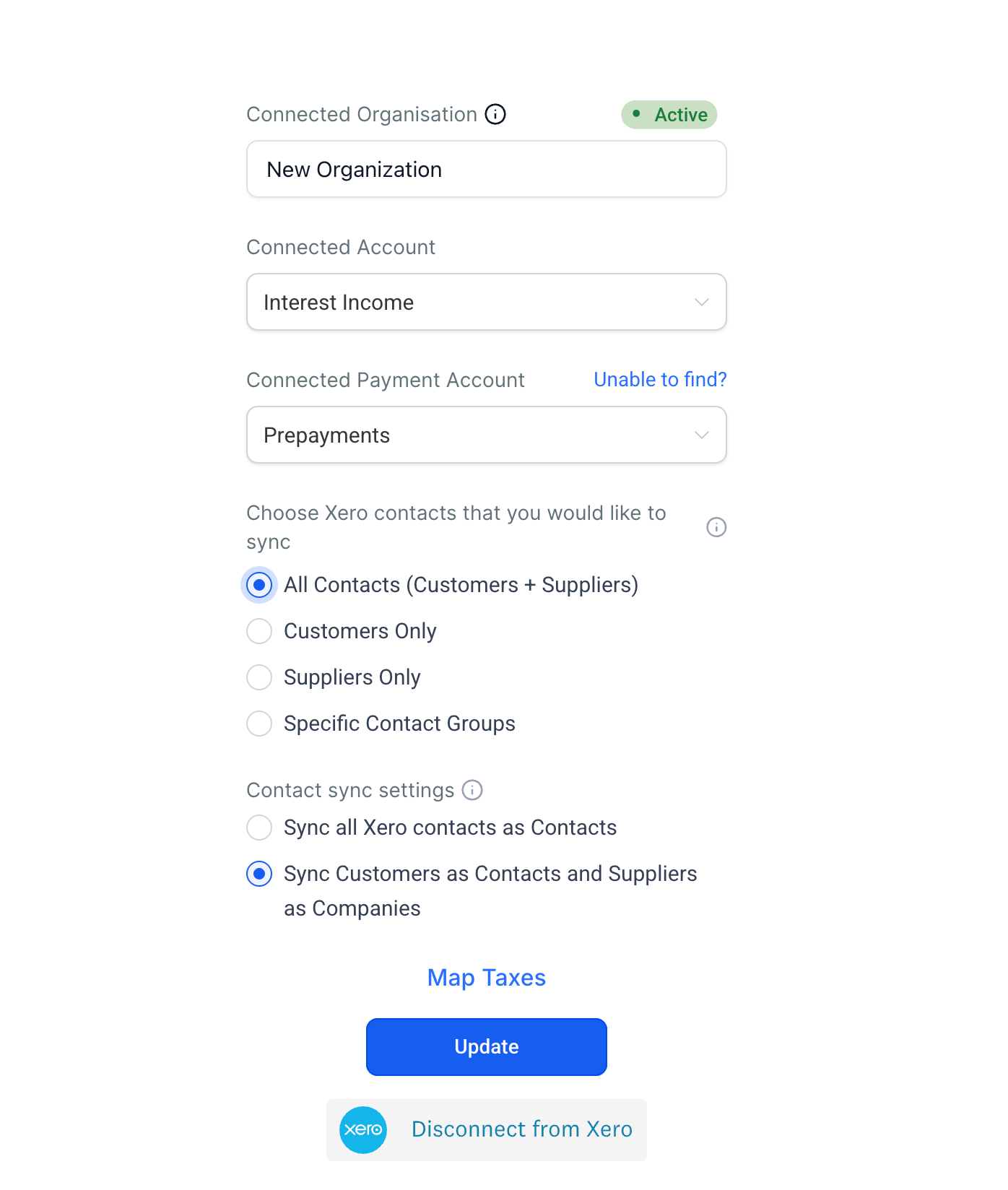
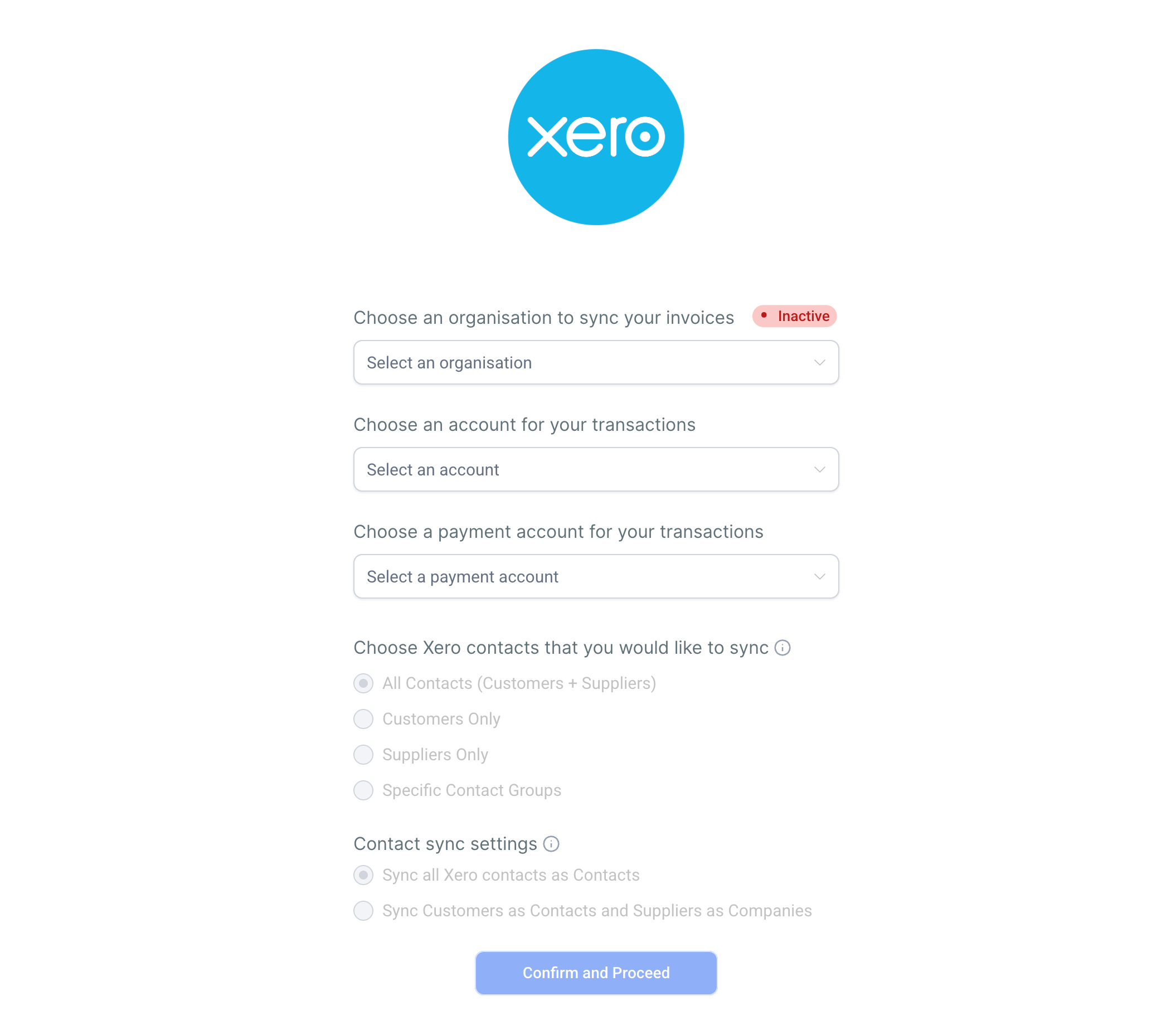
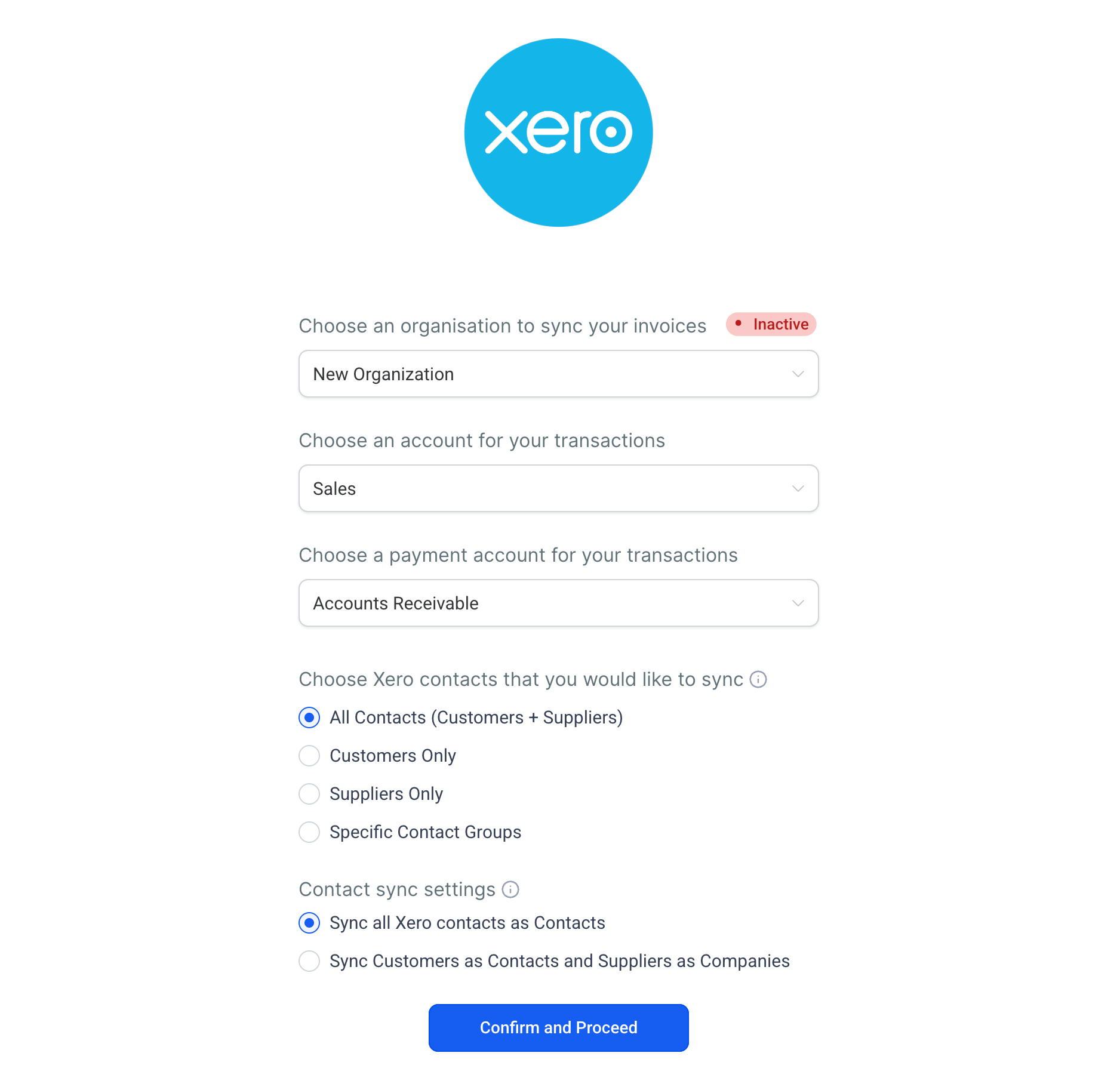
Now, two new settings on your Xero connection screen provide precise control over your contact sync. You can select exactly which contacts come into Clixio and determine how suppliers are handled—whether they should be mixed with contacts or kept separate as business records. Your existing setup will remain unchanged unless you choose to opt in.
How This Supercharges Your Business
How to Get Started
- Navigate to Payments → Invoices & Estimates → Accounting Sync.
- Click Manage on your connected Xero account.
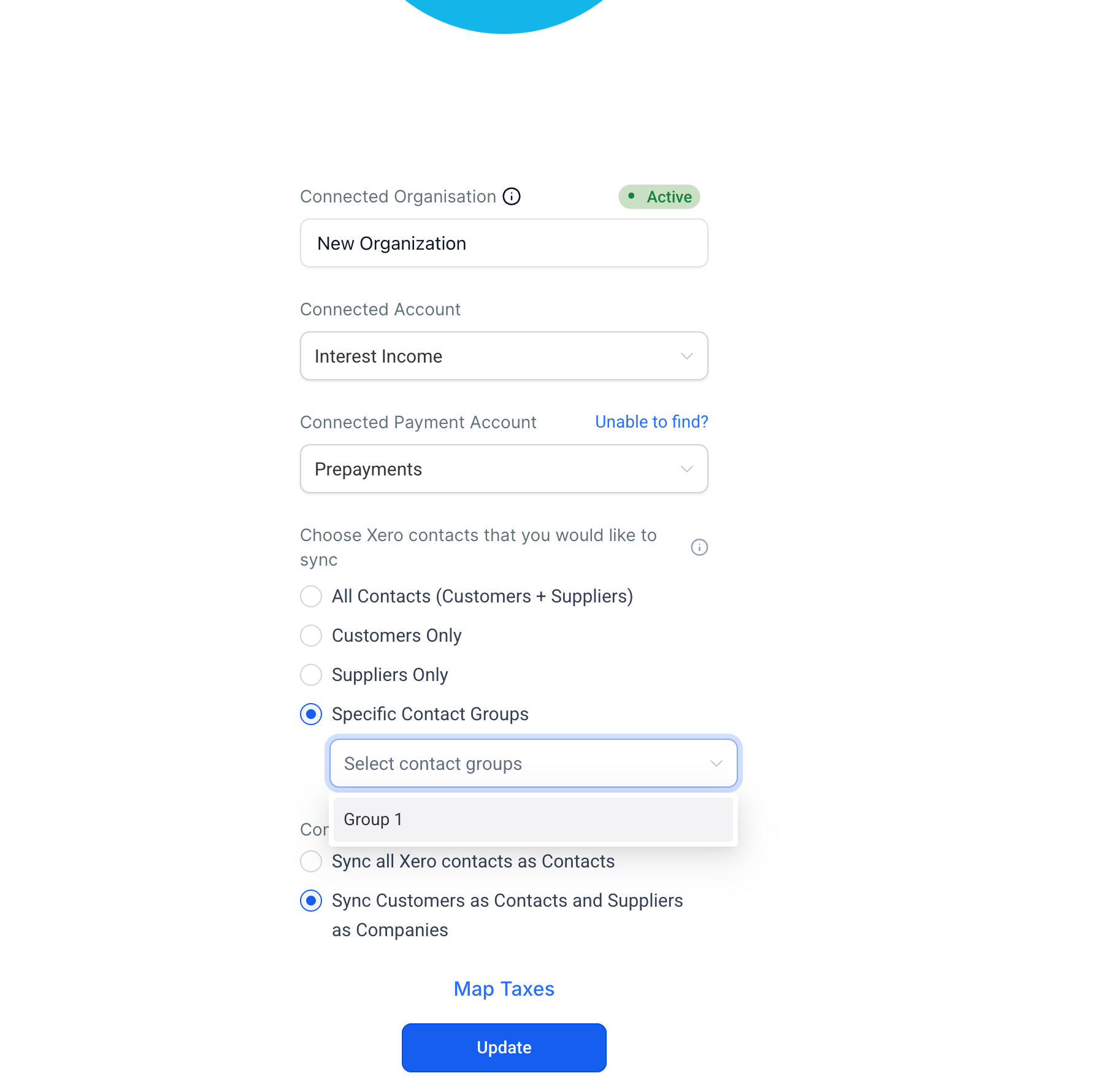
- Set “Which contacts to sync”—choose from All Contacts, Only Customers, Only Suppliers, or one or more specific Xero contact groups.
- Set “How suppliers are handled”—select All to Contacts (default) or Split by type to route suppliers to business records.
- Save your preferences. Your next sync will reflect the new settings.
- Available on web only.
- Applies to Xero only—QuickBooks and Wave contact sync settings are not yet configurable.
- Both settings default to the original behaviour—existing integrations remain unaffected until you opt in.
- “Split by type” routes suppliers to business records, not the standard contact list.
- Contact group filtering requires existing Xero contact groups to be set up on the Xero side first.