
WhatsApp Calling is now Generally Available (Web + Mobile)
Web
and the
mobile app
.
> When a customer is stuck, frustrated, or ready to buy, a two-minute call is far more effective than twenty messages. Now, you can make that call without leaving the thread.
📞 Voice, right inside the conversation
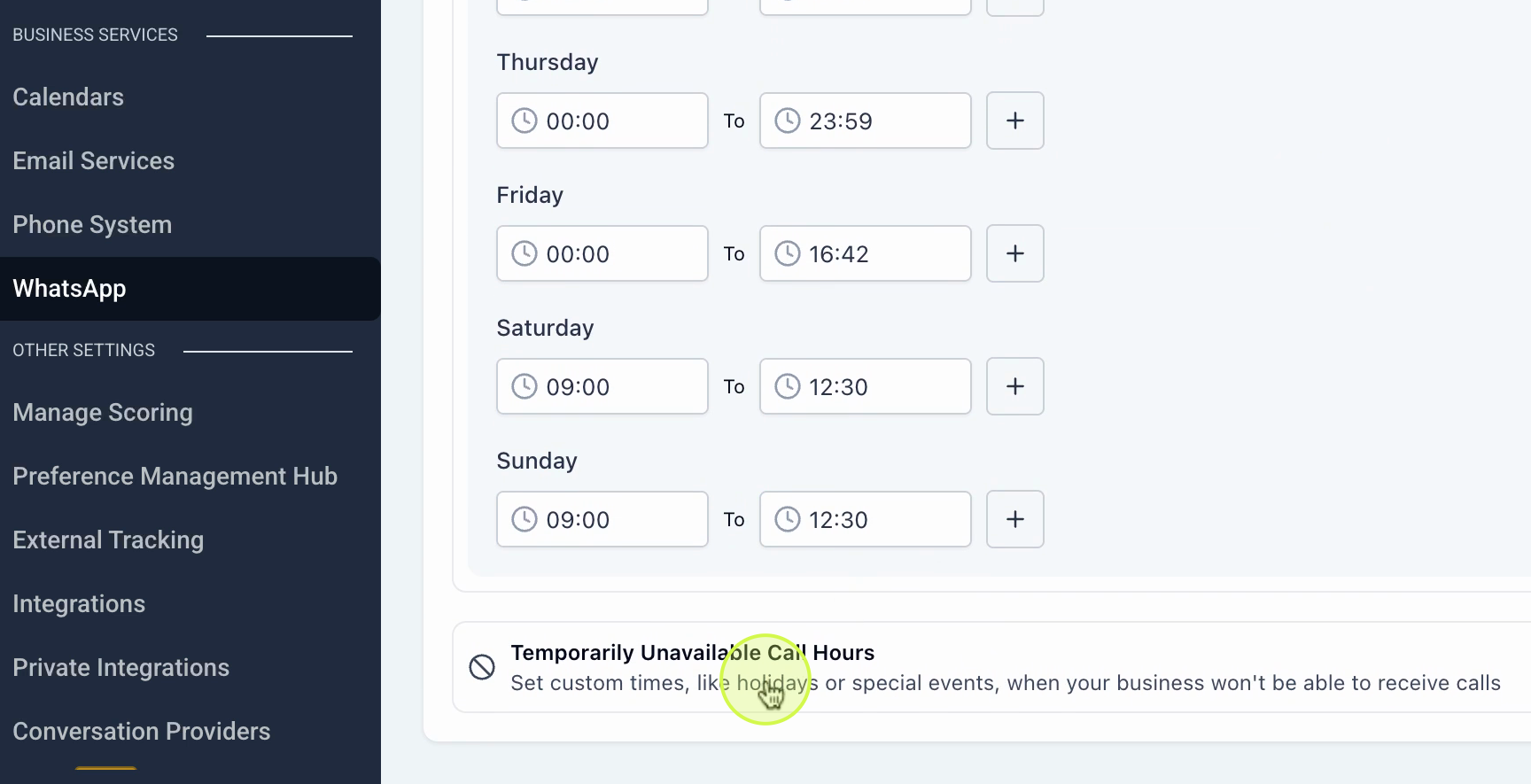
⏰ Control when and how you take calls
📊 Log and report every call
-
Call disposition:
Tag the outcome of each WhatsApp call from the Call Summary, triggering the appropriate follow-up automatically. Choose from your customisable disposition list and track results in Call Reporting.
connected
state, a WABA messaging limit at the
2,000 tier or higher
, and a phone number
not on coexistence
.
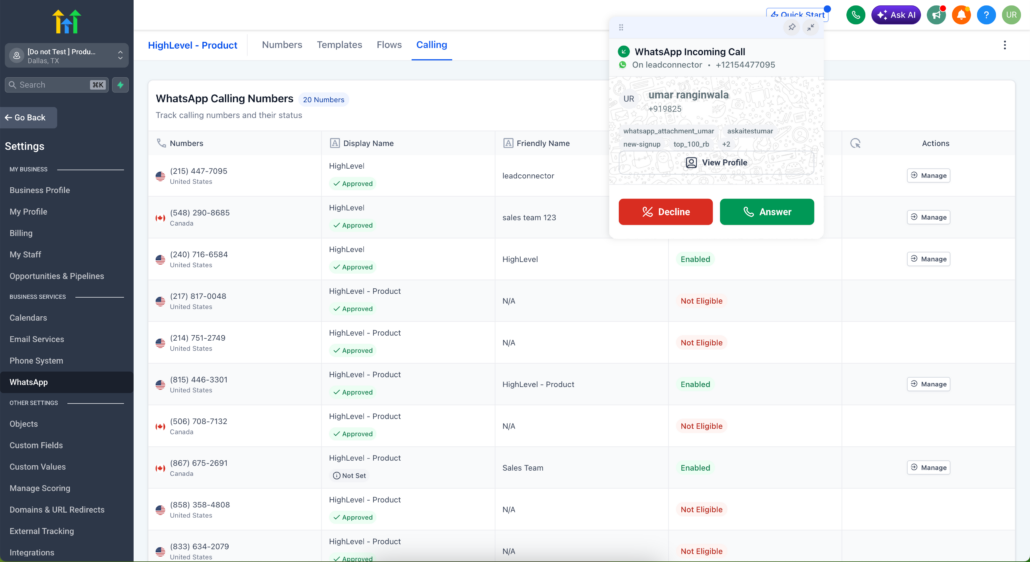
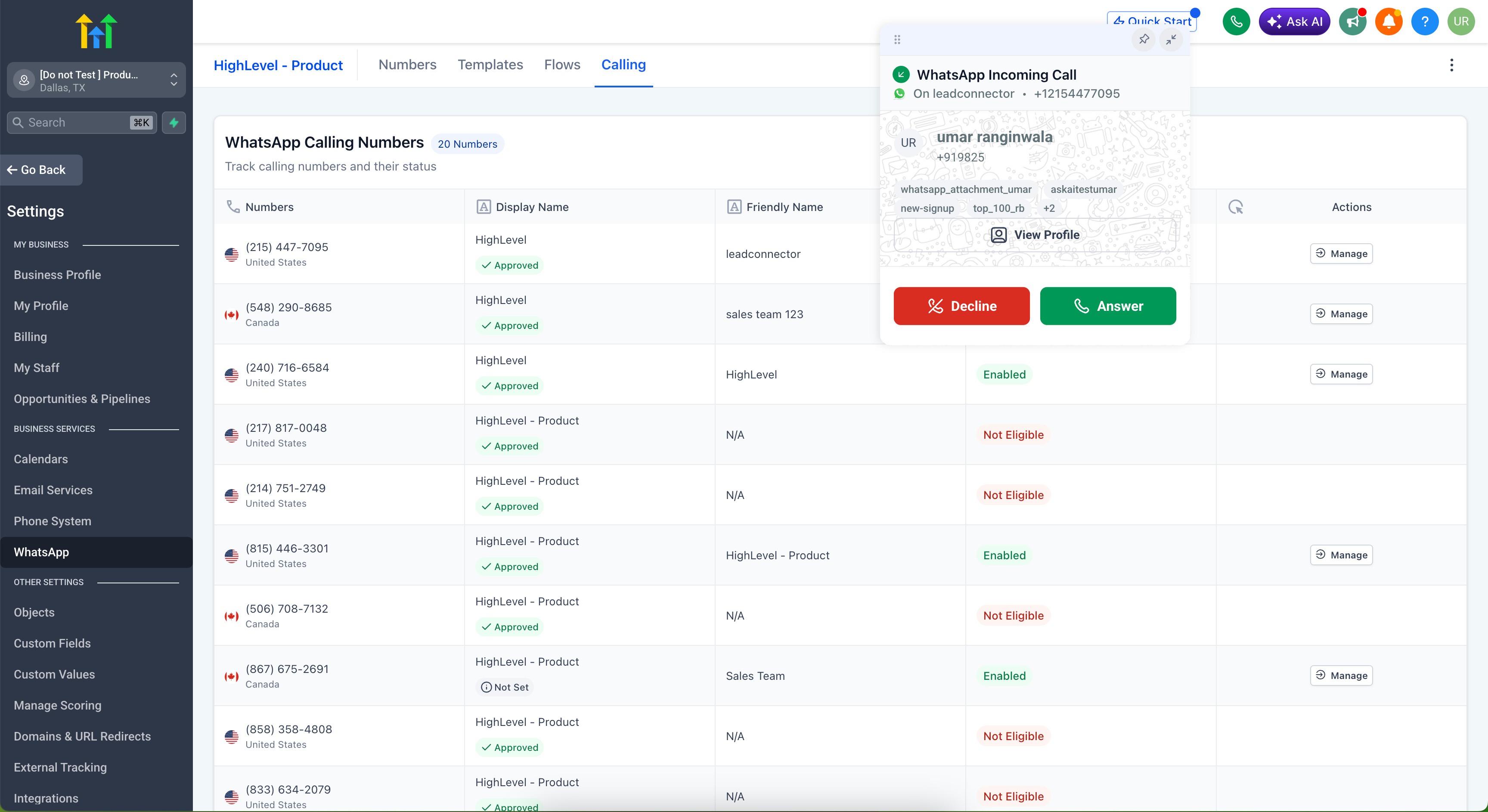
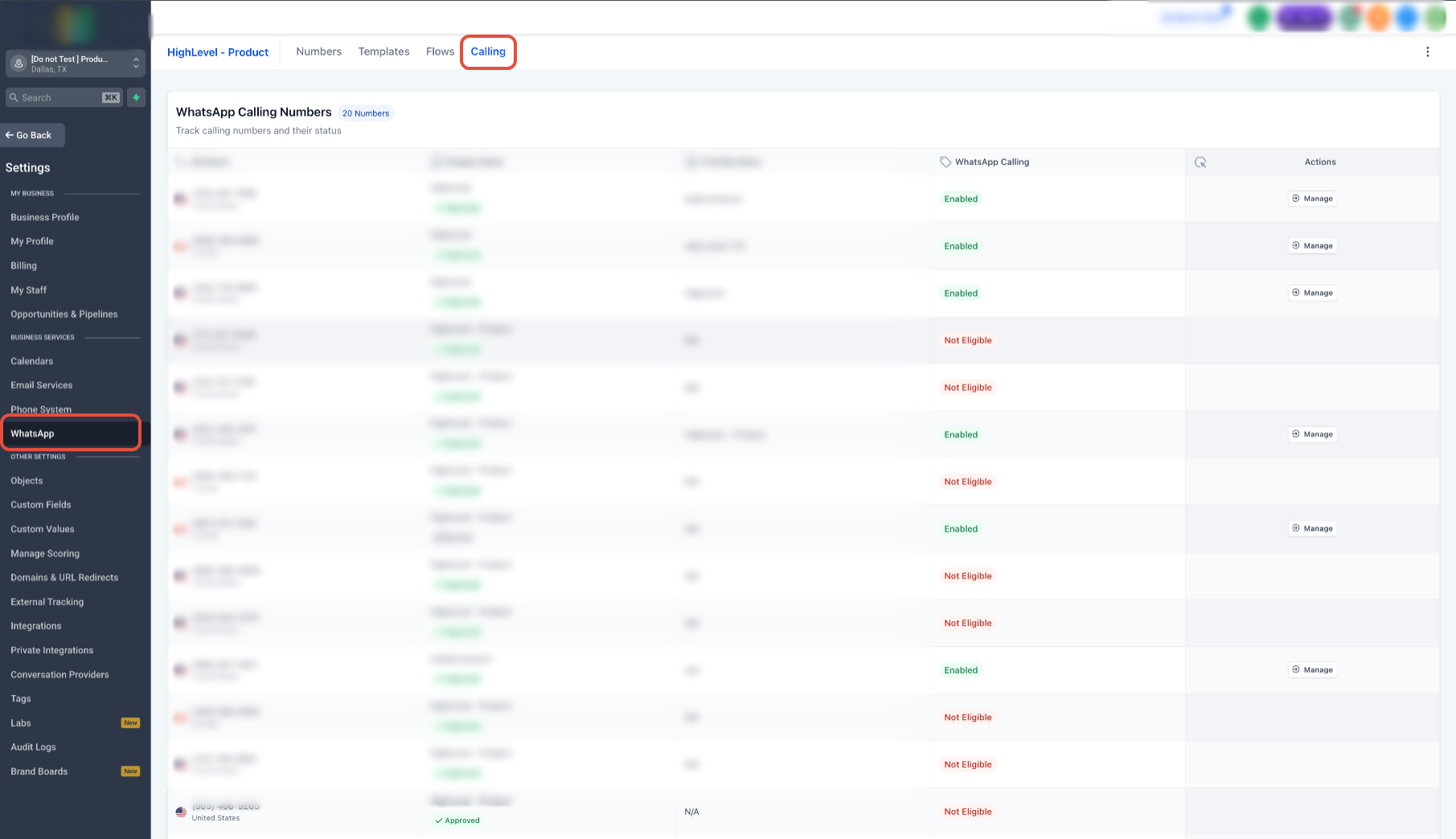
- Go to
Settings > WhatsApp > Calling
and select your
phone number
.
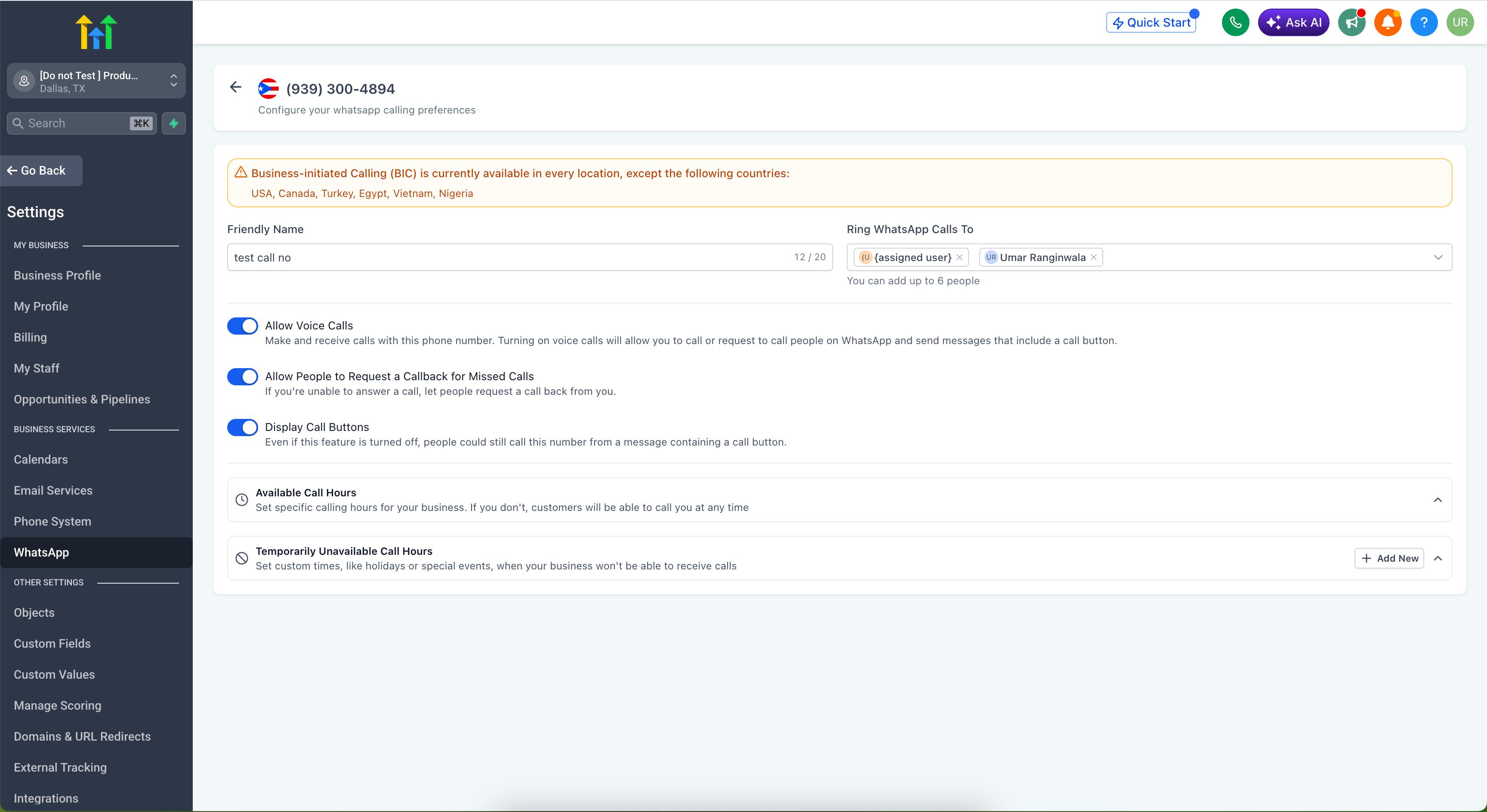
- Set a
Friendly Name
and choose who calls ring to under
Ring WhatsApp Calls To
(up to 6 people).
- Turn on
Allow Voice Calls
to make and receive calls.
- Optionally enable
Allow People to Request a Callback for Missed Calls
and
Display Call Buttons
.
- Set
Available Call Hours
and
Temporarily Unavailable Call Hours
to control your availability.
- Update to
Clixio
or
LeadConnector v4.18+
(whitelabel apps: request an app update).
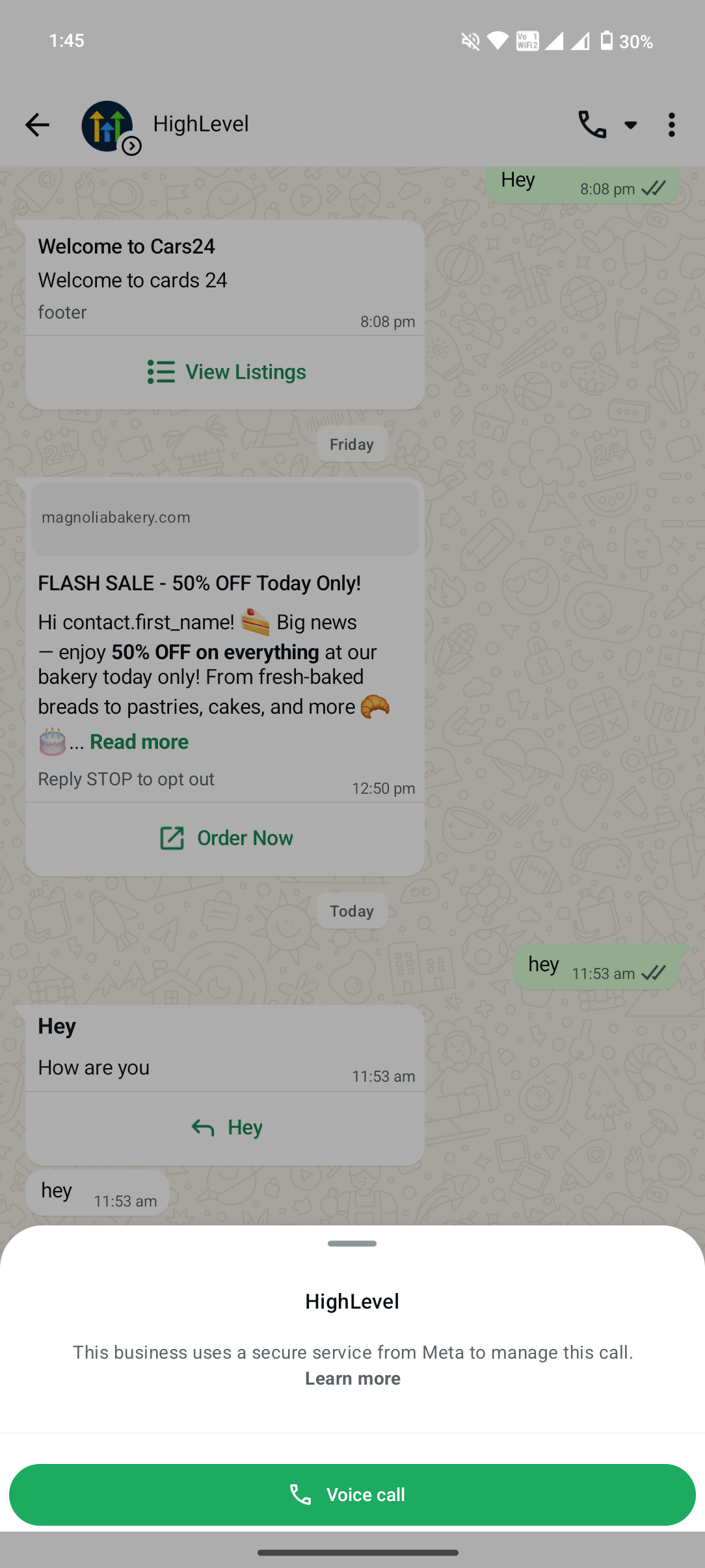
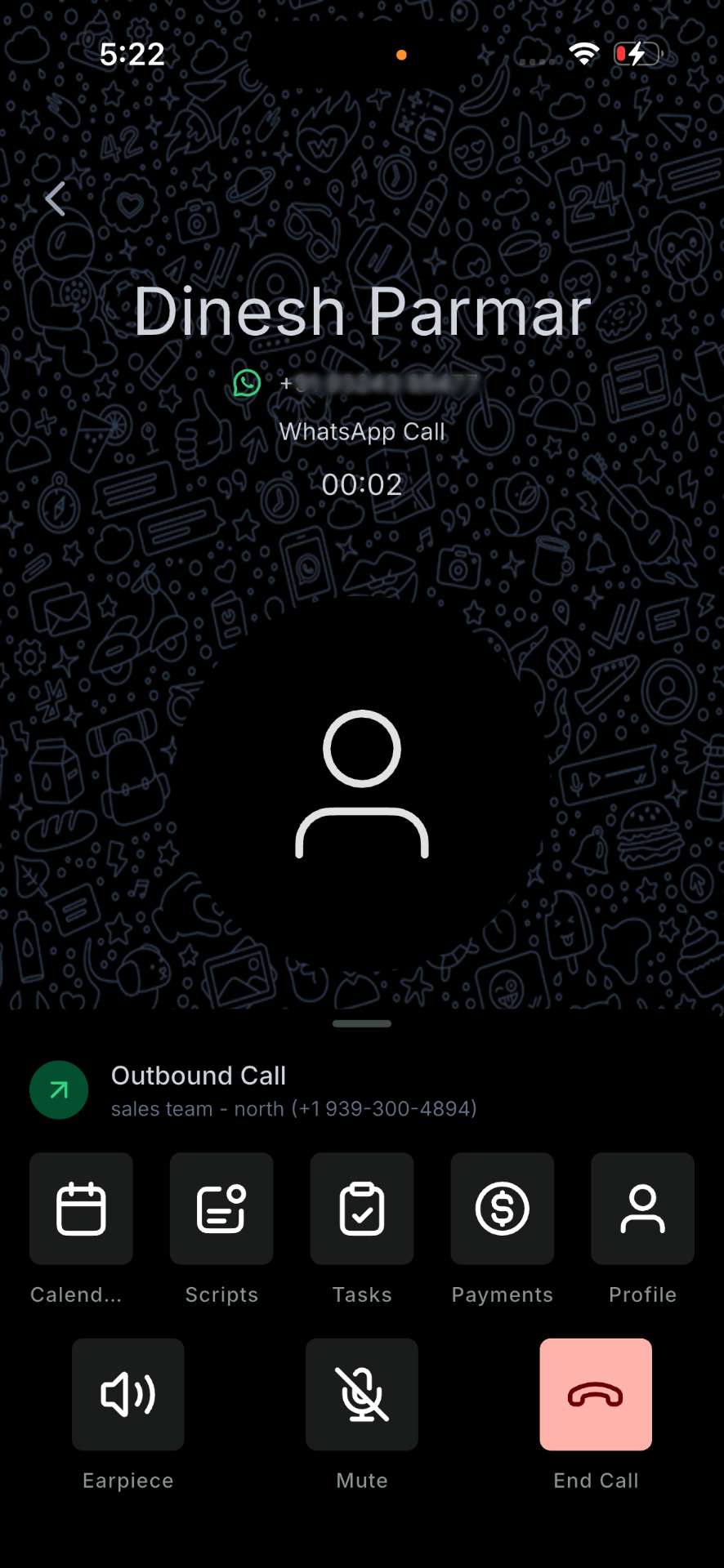
- Open a conversation and tap the
call button
.
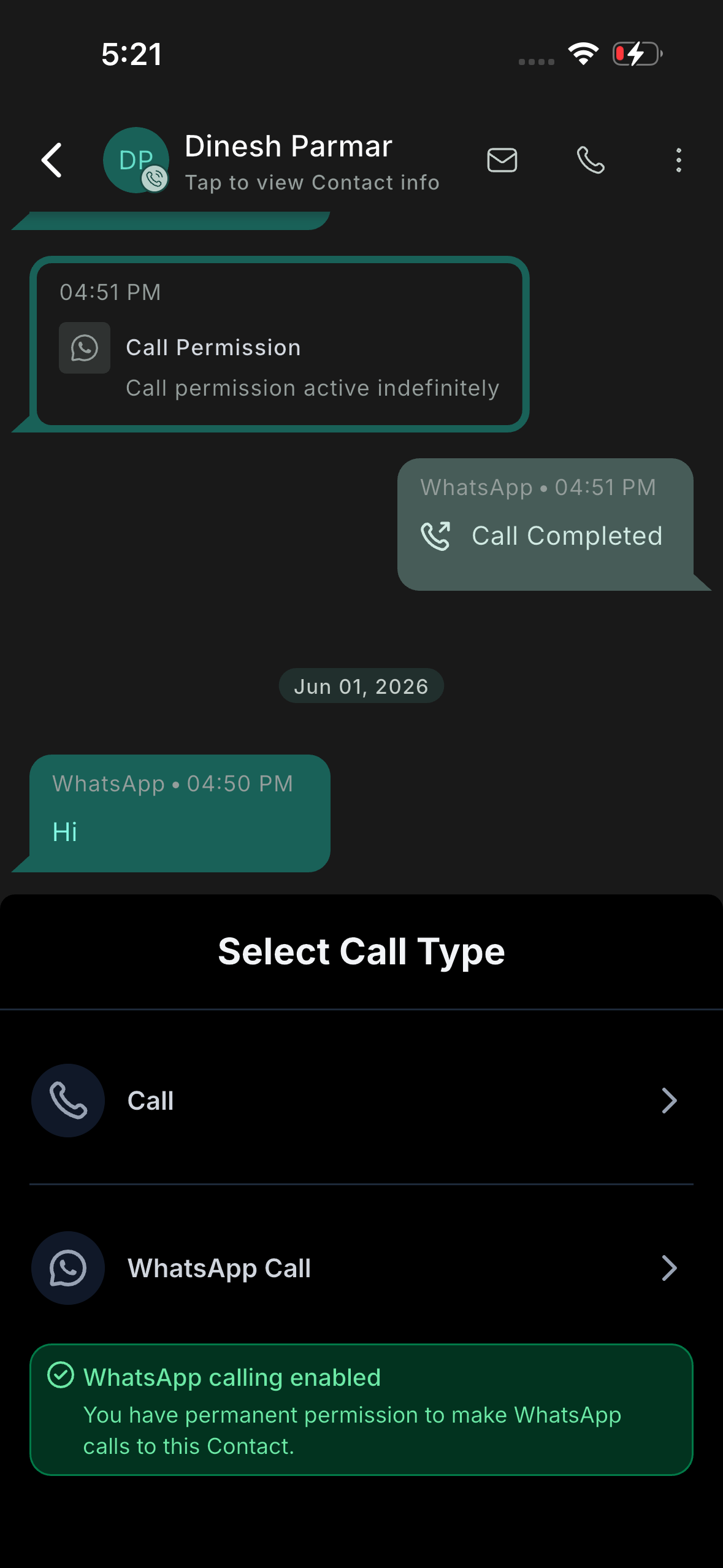
- Select
WhatsApp Call
in the
Select Call Type
sheet and connect.
6 team members
to the
Ring WhatsApp Calls To
list, and an inbound call will ring all of them simultaneously, so the first available person can respond. No missed calls due to one representative stepping away.
You have two ways to route:
-
Named users:
Add specific individuals (e.g., your Sales Team) who should always receive calls on this number.
-
{assigned user} token:
Automatically direct calls to the contact’s assigned representative, ensuring customers reach the person who is already familiar with them instead of entering a general queue.
Friendly Name
to label each configuration (for example, “Sales Team” or “Front Desk”) to ensure numbers are easy to manage as you expand across sub-accounts.
Call Summary
, allowing your team to capture the outcome with a single tap and trigger the necessary next step without leaving the conversation. Once a call ends, the summary displays the contact, the number, the call status (e.g.,
Completed
), and the call duration, prompting the agent to select a
Custom Disposition
.
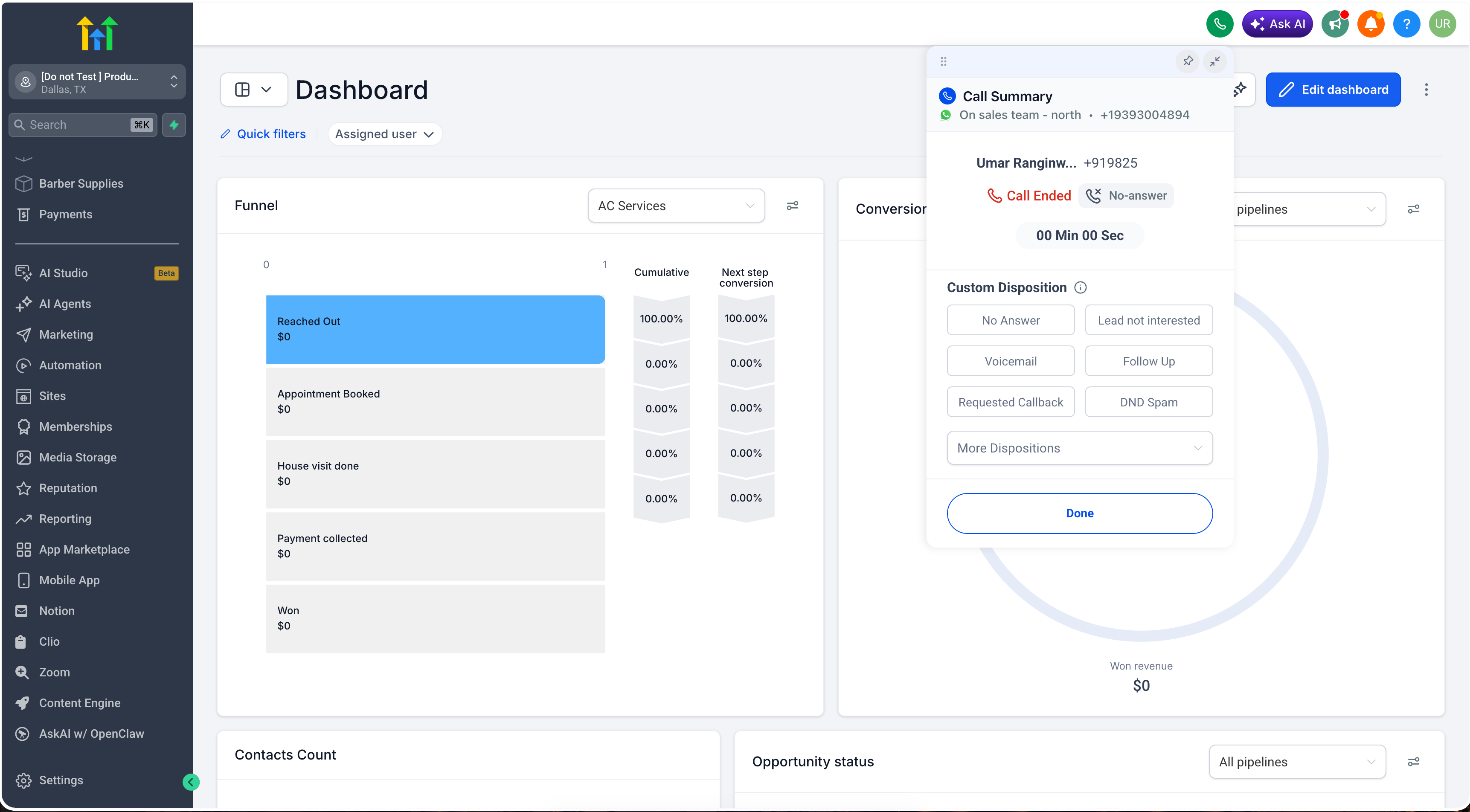
Built-in and fully customisable
No Answer
,
Lead not interested
,
Voicemail
,
Follow Up
,
Requested Callback
, and
DND Spam
. Sub-account administrators can edit these or add new ones under
Settings > Phone System > Voice > Call Dispositions
, up to
10 per sub-account
. Agents select one upon the call’s conclusion. Logging is optional, with one outcome saved per call to keep your data organised.
Trigger workflows automatically
Automation
, add a
Call Details
trigger, set the filter to
Custom Disposition
, and define which outcomes activate which follow-ups, such as sending a follow-up SMS or email, scheduling an appointment, or adding the contact to a pipeline or campaign.
Track outcomes in reporting
Reporting > Call Reporting
as a Call Disposition column and filter. This enables you to see outcomes by user or team and identify patterns (for instance, how many calls concluded with “Requested Callback”).
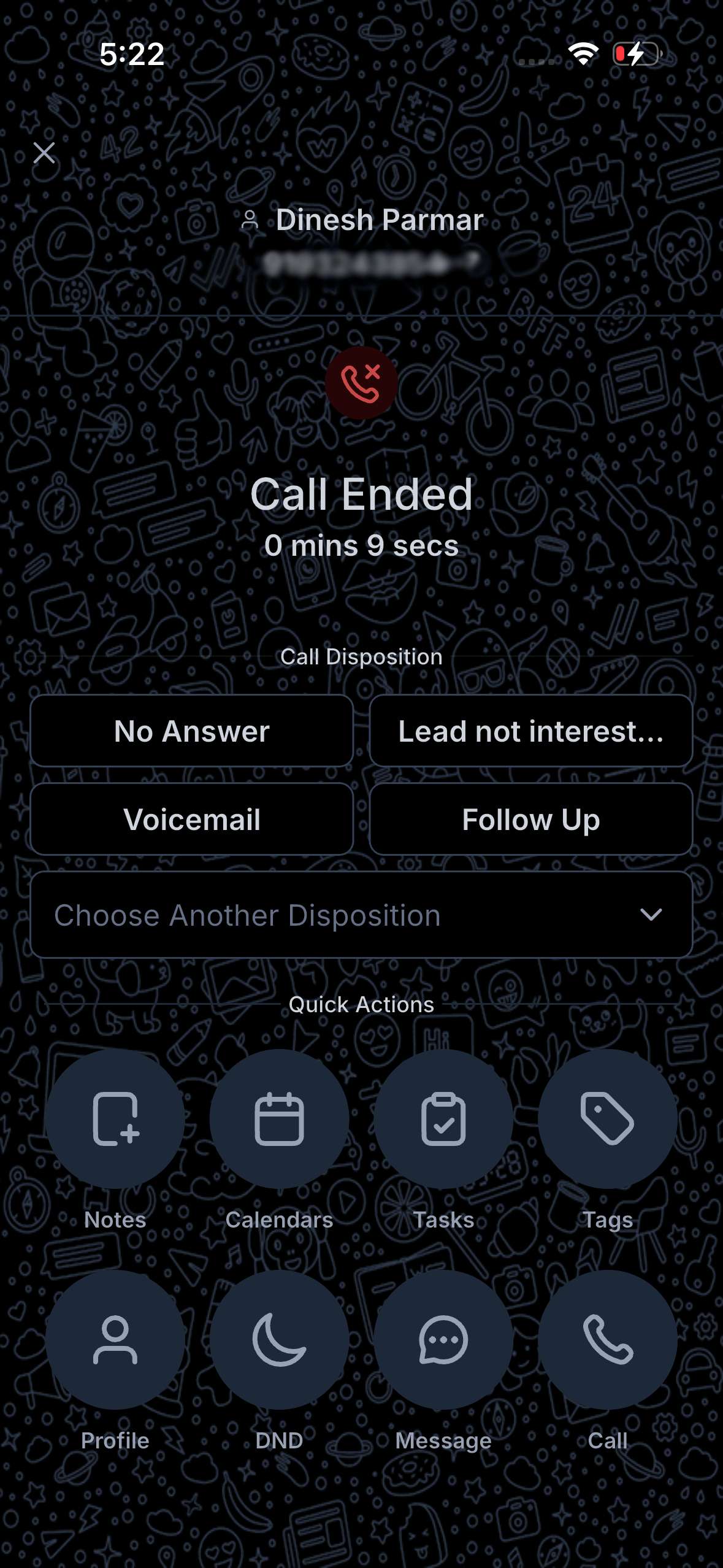
Custom Dispositions are live on the mobile app for both iOS and Android. You can choose the outcome directly from the call end screen. Please note that on mobile, disposition options only appear when the selected sub-account matches the call’s location, so use the Switch option if you take calls across multiple sub-accounts.
Why it matters:
-
Cleaner pipeline data:
Every call outcome is captured at the source, not reconstructed from memory later.
-
Instant follow-up:
Dispositions activate workflows, automating the next SMS, task, or appointment.
-
Better reporting:
Understand how voice calls navigate leads through your sales funnel and where they may stall.
WhatsApp protects users from unsolicited calls, making the rules contingent on who initiates the call.
When a customer calls you (inbound):
No permission is required. As long as
Allow Voice Calls
is enabled, customers can call your WhatsApp number at any time, from any location where WhatsApp is available.
When you call a customer (business-initiated):
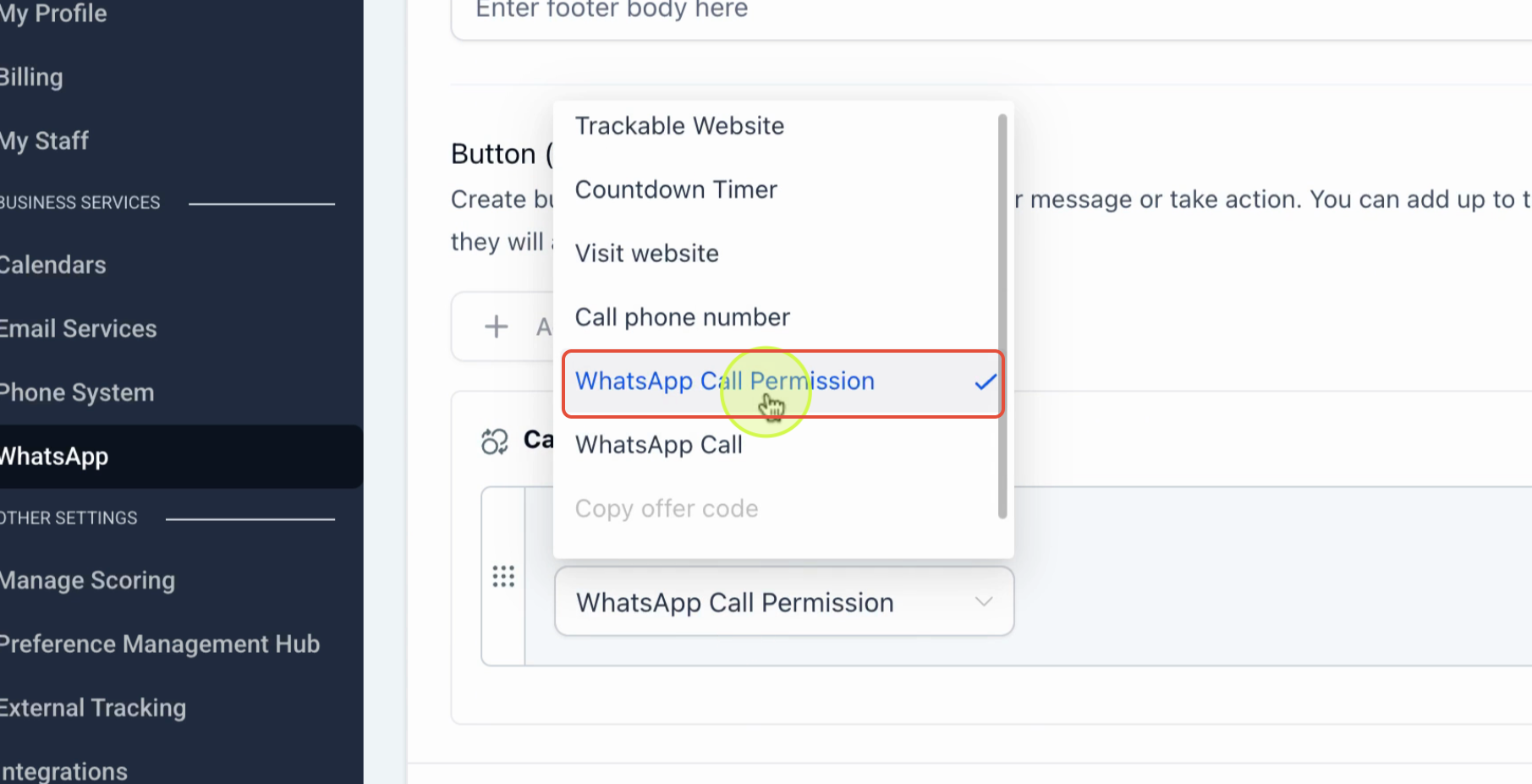
You need to obtain the customer’s permission first. Currently, permission is solicited through a
template message
containing a call permission request. The customer can accept with a tap, allowing you to call them within that permission window.
When the customer receives the request, they can choose how to respond:
-
Always allow calls:
Granting indefinite permission to call them.
-
Temporarily allow calls:
Providing limited permission, valid for
7 days
.
-
Not now:
Declining the request.
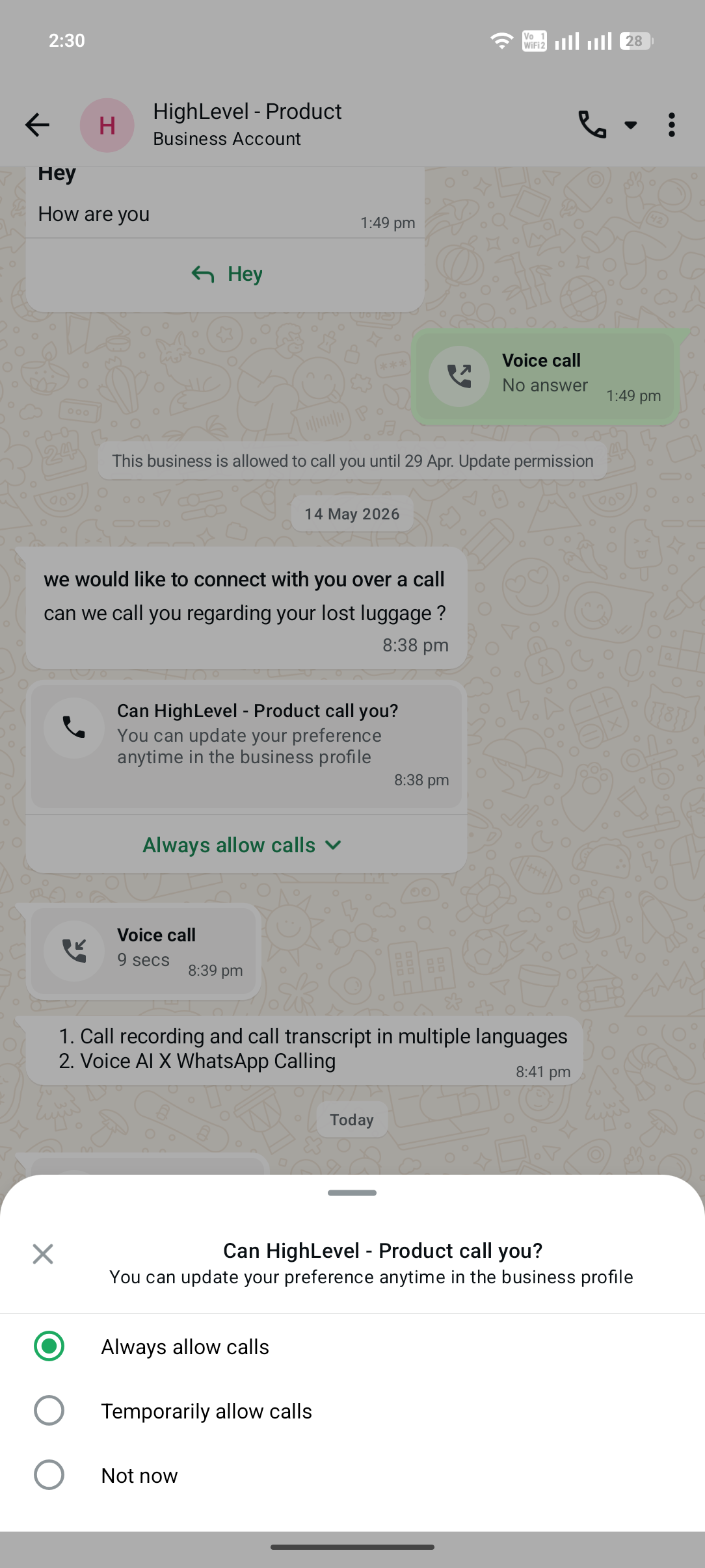
Customers may update their preferences anytime from the business profile, with WhatsApp displaying the expiry date of your permission. Once granted, keep in mind these guidelines:
- You may send
one permission request every 24 hours
, and up to
two requests within any 7-day period
if the customer has not responded.
- If
4 consecutive calls go unanswered
, the permission is automatically revoked, requiring you to request again.
These limits are set by WhatsApp, not by Clixio.
the USA, Canada, Turkey, Egypt, Vietnam, and Nigeria
, where WhatsApp currently prohibits it. In these countries, you can still receive inbound WhatsApp calls and display call buttons, allowing customers to reach you with a single tap.
Messaging is becoming the primary channel for customer conversations, with voice being the crucial component needed to address complex or high-intent moments. Keeping calls within WhatsApp allows your team to retain full context and a complete record, rather than moving customers to a separate line and losing continuity.
- Faster resolution of intricate queries, concluded in one call instead of lengthy back-and-forths.
- Higher conversion rates on high-intent leads, contacted at their moment of readiness to engage.
- Reduced drop-offs due to channel switching, with an entire and documented history of every conversation.