Triggers & Actions: Smoother Integration Setup with Field Previews
We have introduced a unified integration experience for workflow actions and triggers. Integration-powered steps now display the required fields upfront, guide users to connect the appropriate account without leaving the workflow, and support multiple connected accounts where applicable.
Integration Connection Process
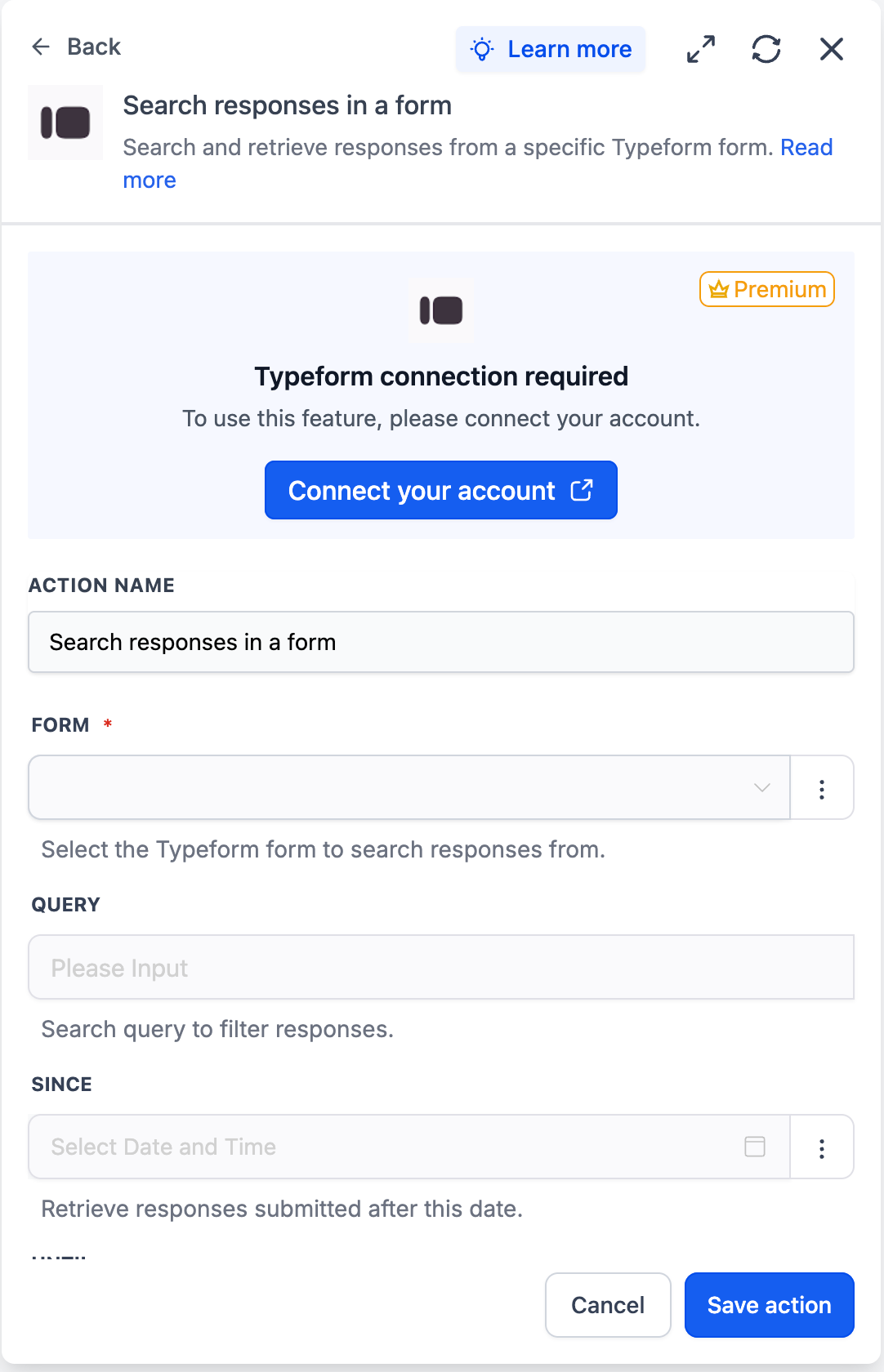
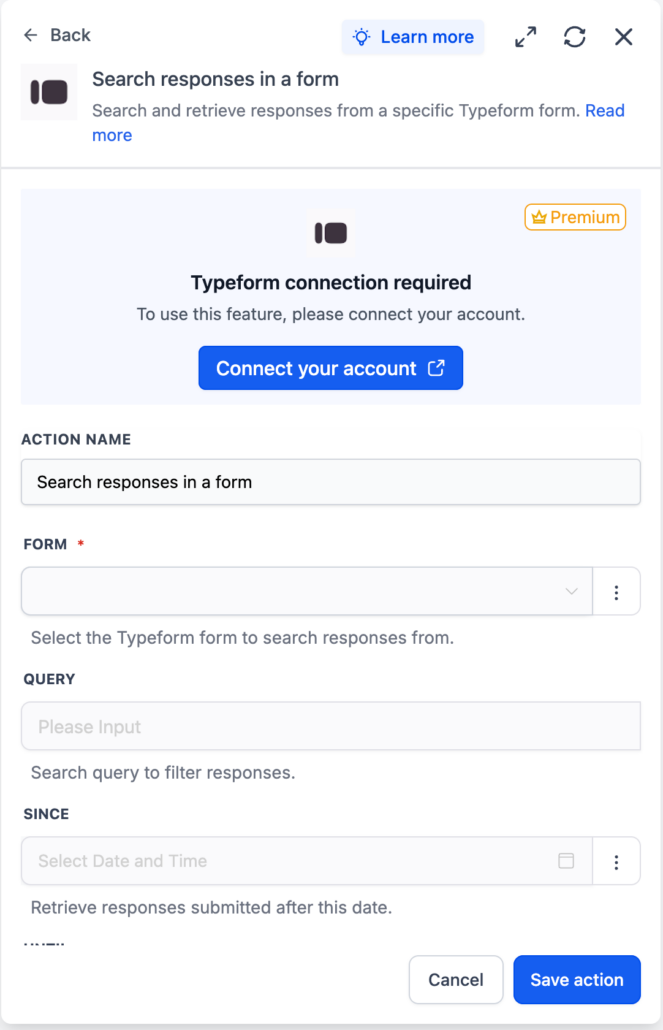
When an integration is not connected, the action or trigger panel now features a connect banner and a preview of the fields in a locked state. Clicking on “Connect your account” will open the integration setup in a new browser tab, allowing users to complete the connection without losing their workflow setup. Once connected, the fields unlock, and the selected account appears directly in the action or trigger.
Steps to Connect an Account
- Open an integration-powered action or trigger within a workflow.
- Click “Connect your account” if no account is currently connected.
- Select the connected account and configure the fields accordingly.
Previously, users often encountered missing integrations only after saving a workflow, with minimal guidance on how to rectify the issue. They also could not see the supported fields or options for an integration before connecting an account, which complicated the evaluation of actions from scratch. This update reduces setup errors, allows users to remain within their workflow context, and enhances the comprehensibility and adoption of integration-powered actions.
User Experience Improvements
- A user opens a Typeform action from a workflow template. They can now view all available fields in this integration as a preview, which can be updated after connecting their account.
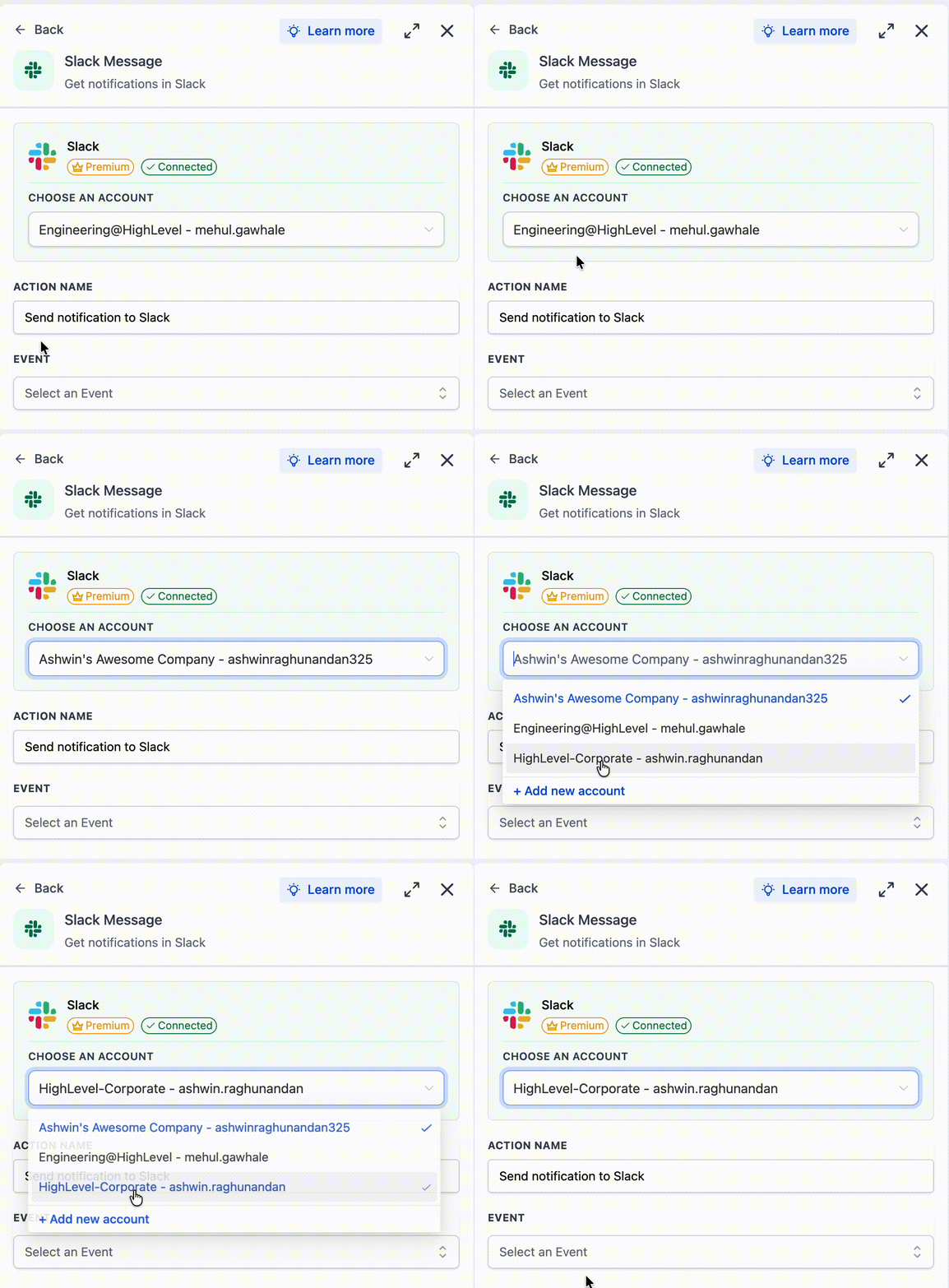
- A user opens a Slack action with multiple connected accounts. They select the appropriate account from the dropdown menu, and the available connections reload for that account.
Key Features
- Available field options now appear as a preview before an integration is connected.
- If a connected account is removed or becomes invalid, the step returns to a locked connection-required state.
- Some applications load fields incrementally after connection, based on previous selections, if fetching information is necessary.
- Dynamic fields that are contingent on the selected account may reset when the account changes.