Trigger a Workflow within Conversation AI
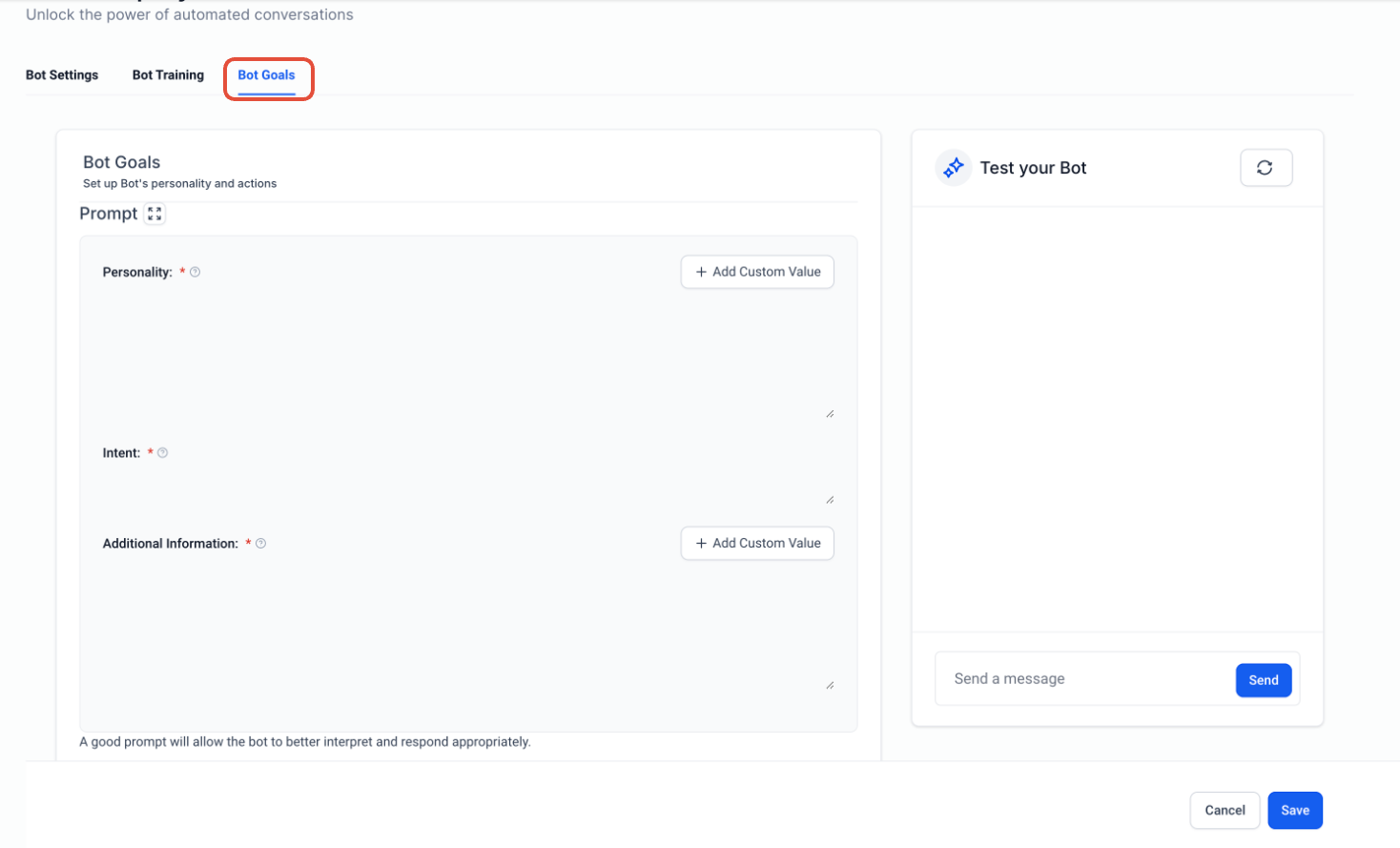
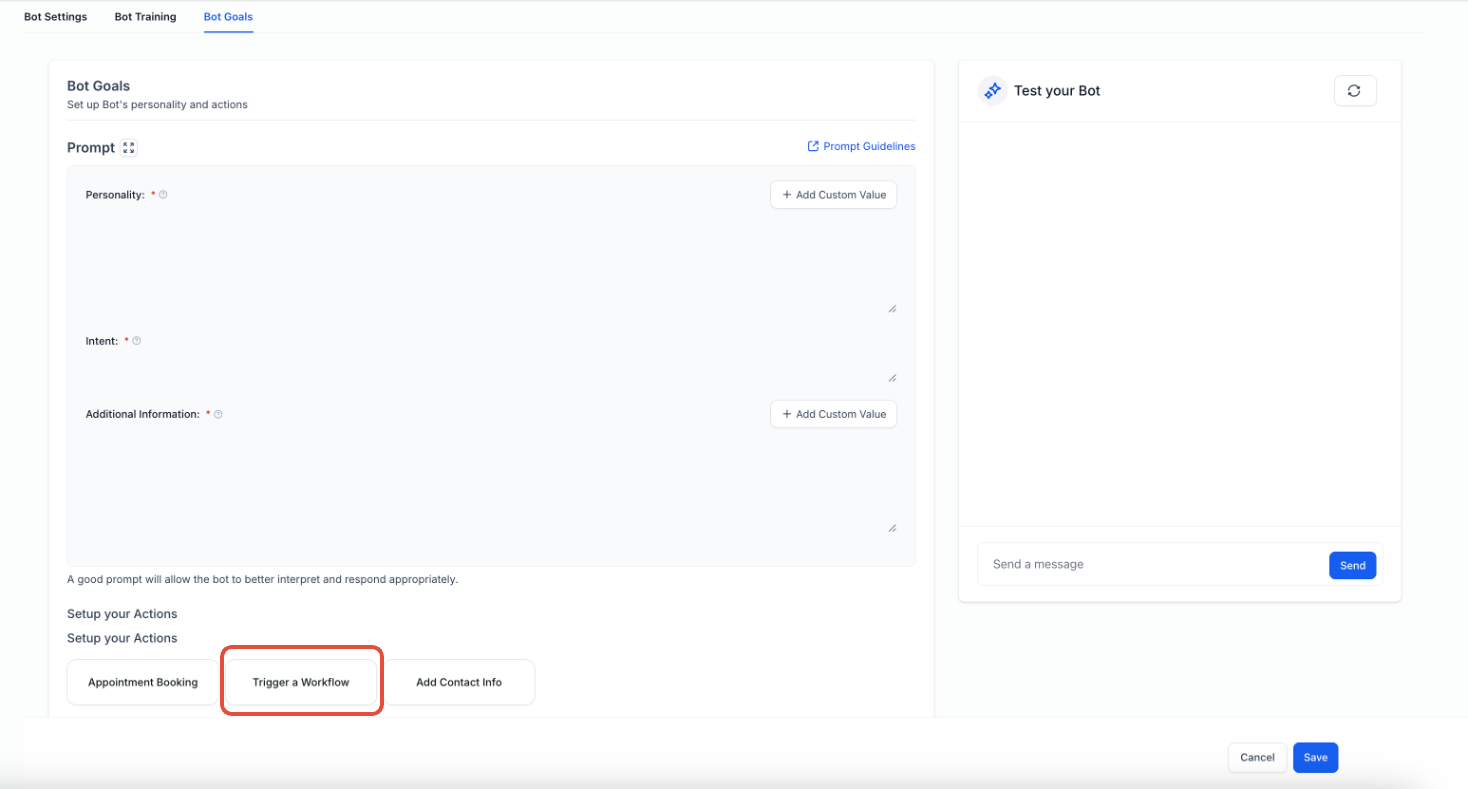
We’ve introduced the “Trigger a Workflow” feature, allowing users to automate specific actions by linking workflows within AI conversations. When a defined condition is met during a customer interaction, the AI bot automatically triggers the selected workflow.
Trigger a Workflow
The “Trigger a Workflow” feature allows users to:
- Define conditions within AI conversations that will automatically trigger workflows.
- Select published workflows for specific triggers, ensuring seamless automation.
- Customise conditions to ensure workflows align with user intent.
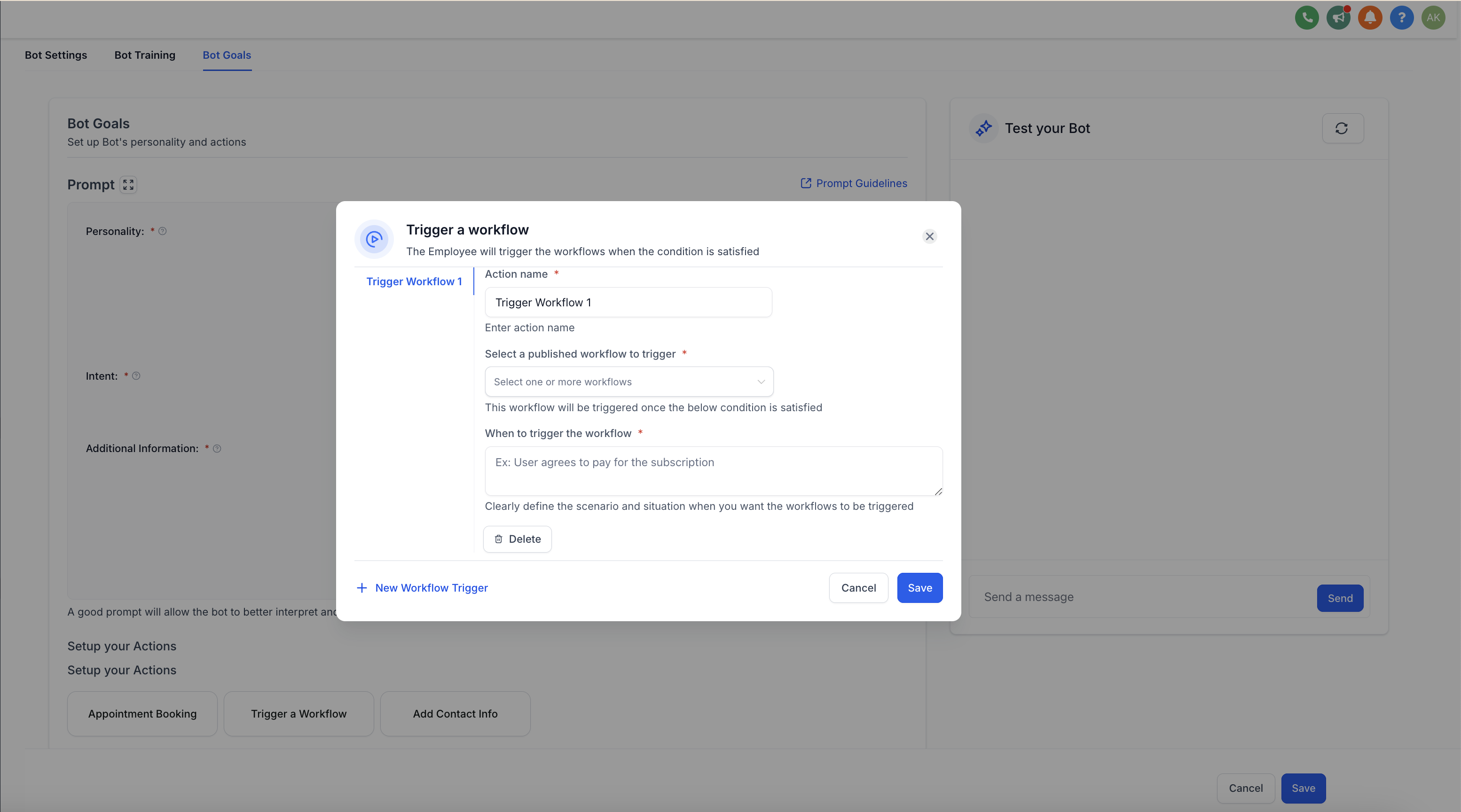
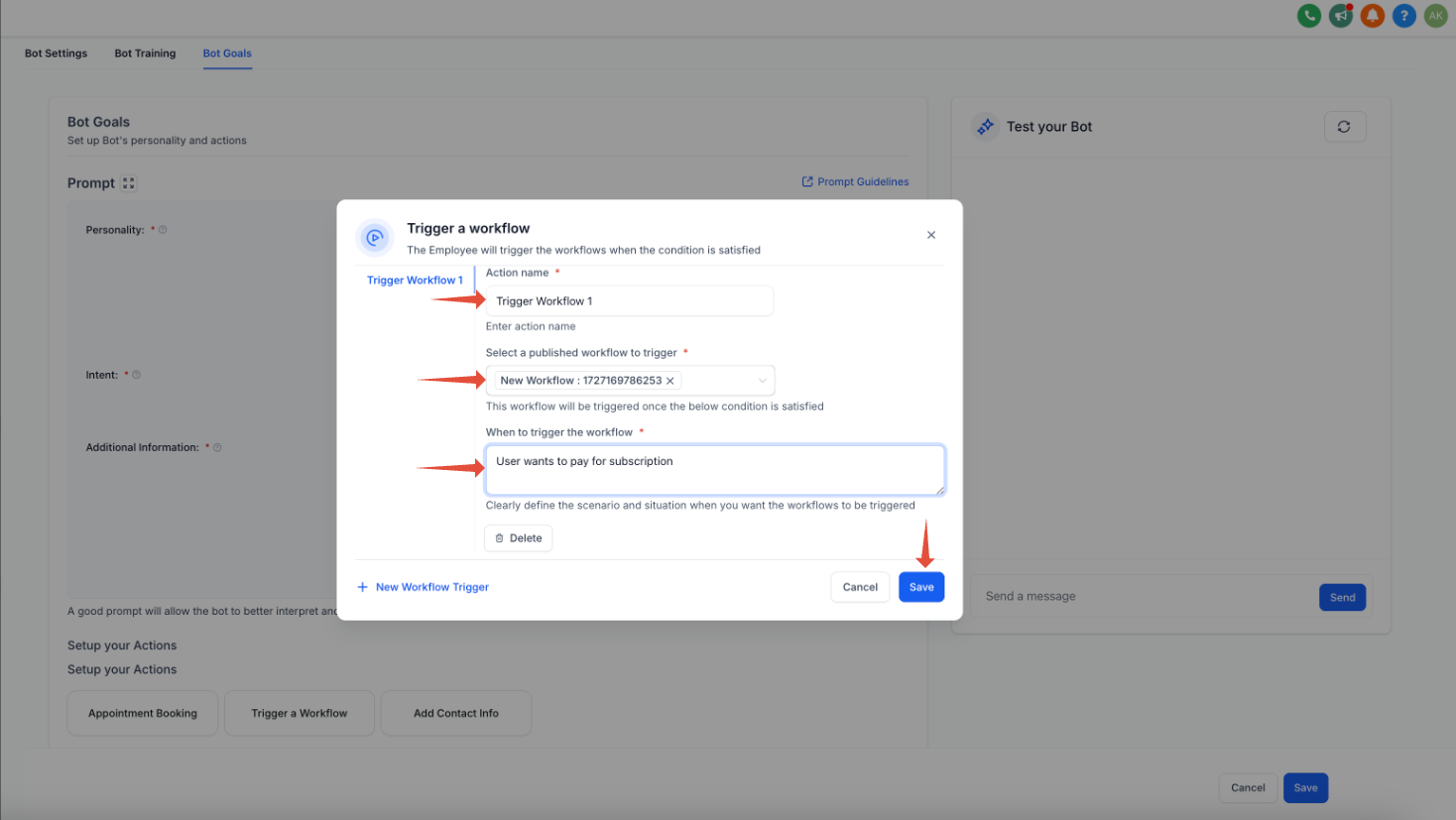
Follow these steps to configure the workflow trigger:
- Action Name:
Assign a unique action name, e.g., “Subscription Workflow”, to identify the workflow easily.
- Select a Workflow to Trigger:
From the dropdown menu, choose a published workflow. Ensure the workflow is published before configuration.
- Trigger Condition:
Provide a short description of the condition that will trigger the workflow. For example:
- “Customer wants to purchase the subscription”
- “Customer wants to “
This description ensures the AI bot recognises and triggers the workflow appropriately during the conversation.
- Click Save to finalise your configuration.
Once completed, the bot will automatically trigger the specified workflow whenever the condition is met, streamlining the process and improving efficiency.
Example 1: Workflow Trigger for Subscriptions
Trigger a workflow when a customer expresses interest in purchasing a subscription.
Solution:
- Create a workflow.
- Select the trigger condition: “Customer wants to purchase the subscription”.
- Add the action: Trigger a Workflow.
- Select the published workflow: “Subscription Workflow”.
- Save the configuration.
This ensures that whenever the AI detects the customer’s intent to subscribe, the workflow is triggered automatically.
Example 2: Workflow Trigger for Appointments
Trigger a workflow when a customer expresses interest in booking an appointment.
- Create a workflow.
- Select the trigger condition: “Customer wants to book an appointment”.
- Add the action: Trigger a Workflow.
- Select the published workflow: “Appointment Workflow”.
- Save the configuration.
This setup ensures that the workflow is triggered seamlessly whenever a customer shows interest in booking an appointment during the conversation.
Important Notes for Using Trigger Conditions
- Crafting Effective Trigger Conditions:
When defining trigger conditions like “Customer wants to pay for a subscription” or “Customer wants to book an appointment”, ensure the prompt is written in a way that:
- The bot naturally leads the conversation to ask related questions.
- The customer’s response aligns with the trigger condition.
For example, if the condition is “Customer wants to book an appointment”, structure the prompt so that the bot asks “Would you like to book an appointment?” or similar, encouraging the condition to arise naturally in the conversation.
- Handling Duplicate Trigger Conditions:
If a trigger condition matches multiple simultaneous conditions (e.g., update contact info and trigger a workflow), the AI will determine which action to execute. For instance:
- Update Contact Info: Updates the date of birth when the user provides their DOB.
- Trigger a Workflow: Triggers a workflow when the user provides their DOB.
In such cases, the execution depends on the AI’s prioritisation, as both conditions share the same trigger.
- Triggering Conditions from Bot or User Responses:
A trigger condition can be activated based on responses from either the bot or the user. This flexibility ensures that workflows can be triggered regardless of whether the condition arises from the bot leading the conversation or the user initiating it.
- Avoid Duplicating the trigger condition for same bot