Media Library Integration in AI Studio
AI Studio Integration with Media Library
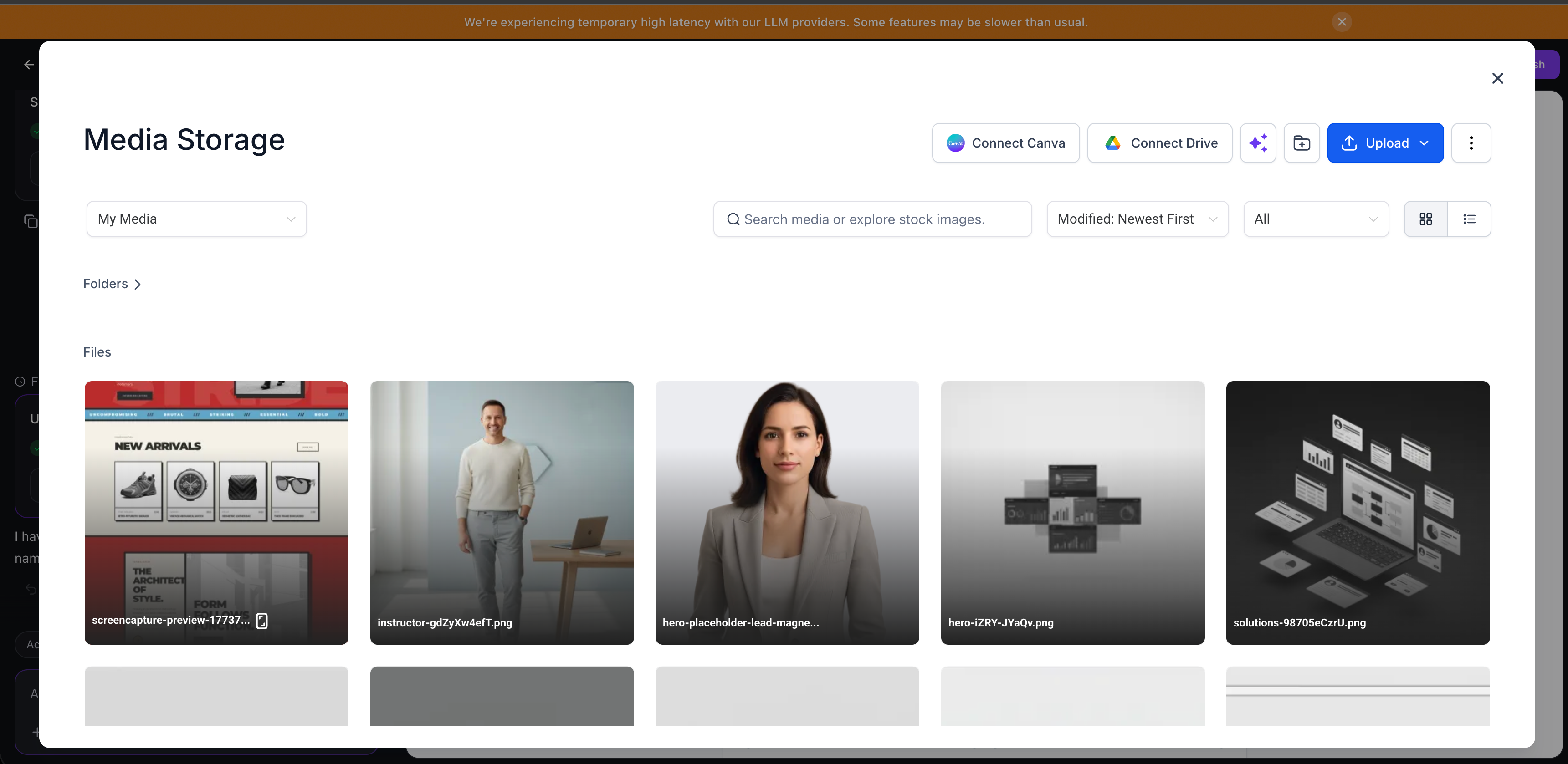
AI Studio now integrates seamlessly with your Media Library. Whether you’re in chat, Visual Edits, or the Publish section, you can easily browse and reuse existing images and assets. You can choose reference images to guide the AI, insert asset links into your prompts, swap images while editing a page, and configure your site’s favicon and social images. Direct uploads from your device remain available as well.
Any assets you use will remain with the project, ensuring that remixed projects and snapshots carry their media along.
Builders expressed a desire to use assets from their Media Library without leaving AI Studio or needing to re-upload files while maintaining brand consistency. Integrating the Media Library into chat, Visual Edits, and Publish makes managing assets easier and ensures consistent imagery, even when projects are remixed or shared via snapshots.
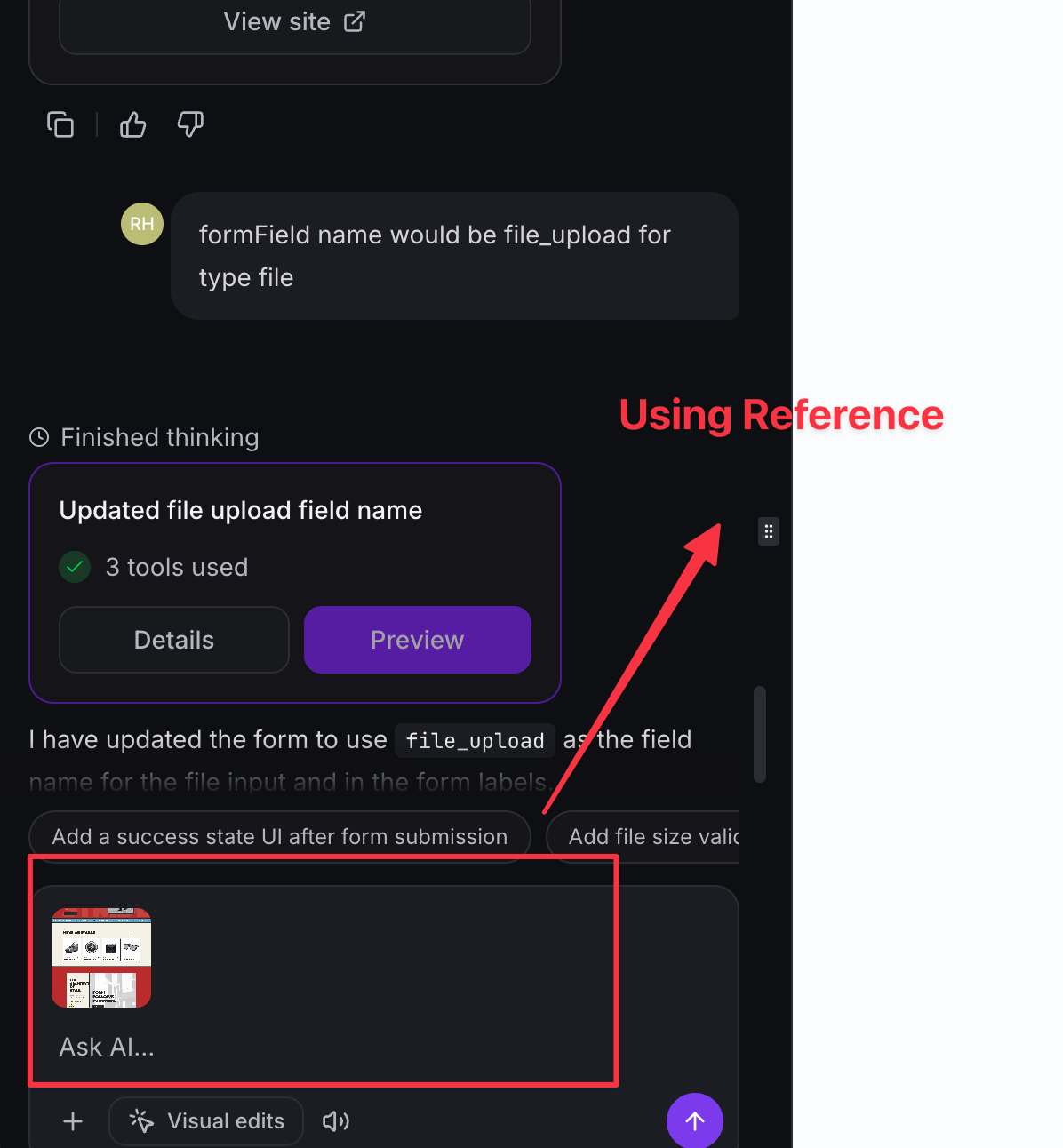
- Media Library Reference Images in Chat – Browse and attach existing Media Library images as references, allowing the AI to better align with your brand visuals without the need to re-upload.
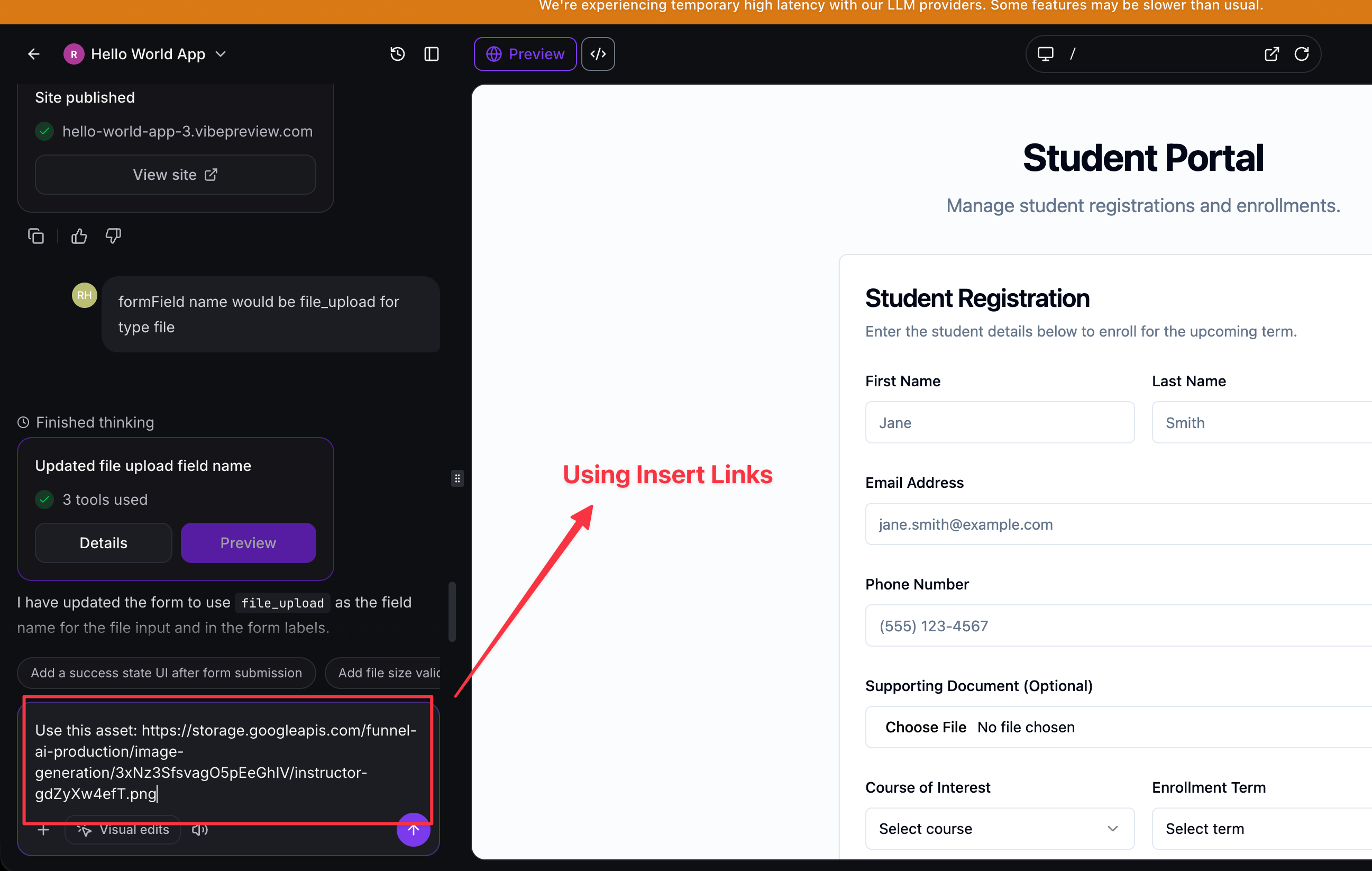
- Insert Media Library Asset Links – Add Media Library URLs for images, documents, videos, or audio directly into your AI prompts.
- Swap Images in Visual Edits from Media Library – While editing a page, select an image element and replace it with an asset from your Media Library.
- Publish Images from Media Library – Set your favicon and social or OG images by selecting files from your Media Library in the Publish modal.
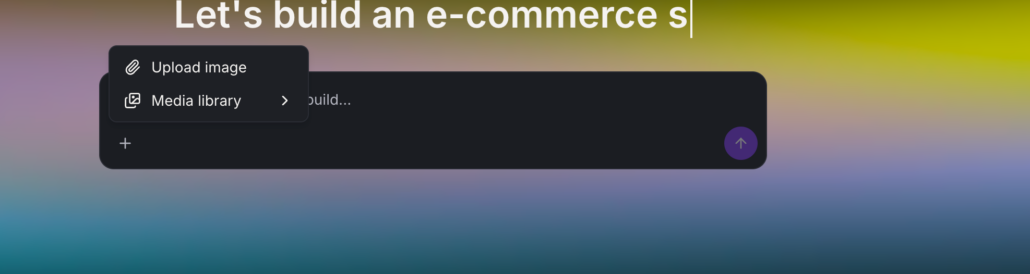
- Device Uploads – You can still upload, paste, or drag-and-drop images directly in chat if the asset is not already in your Media Library.
- Assets Travel with Your Project – Any assets you utilise remain attached to the project when remixed or loaded from a snapshot.
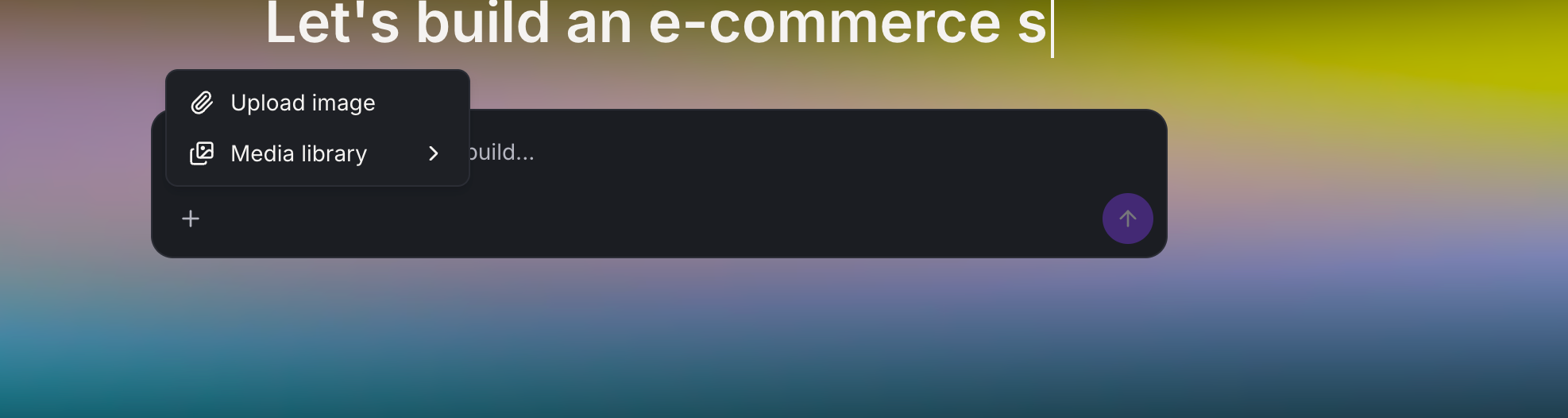
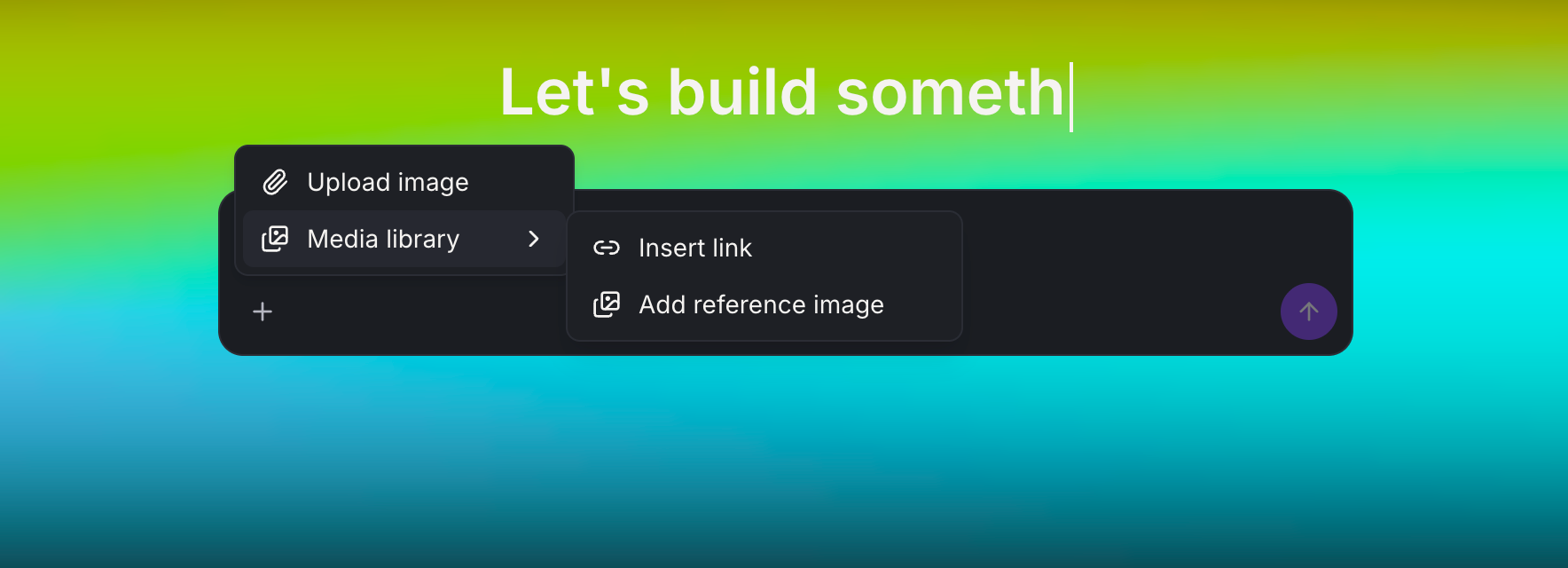
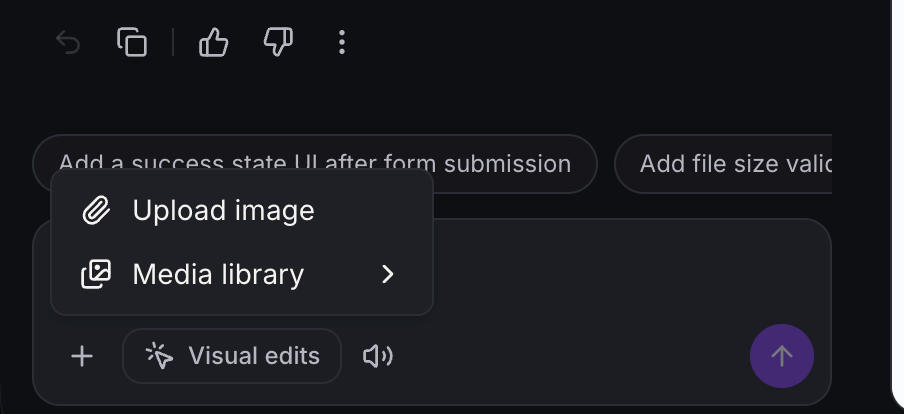
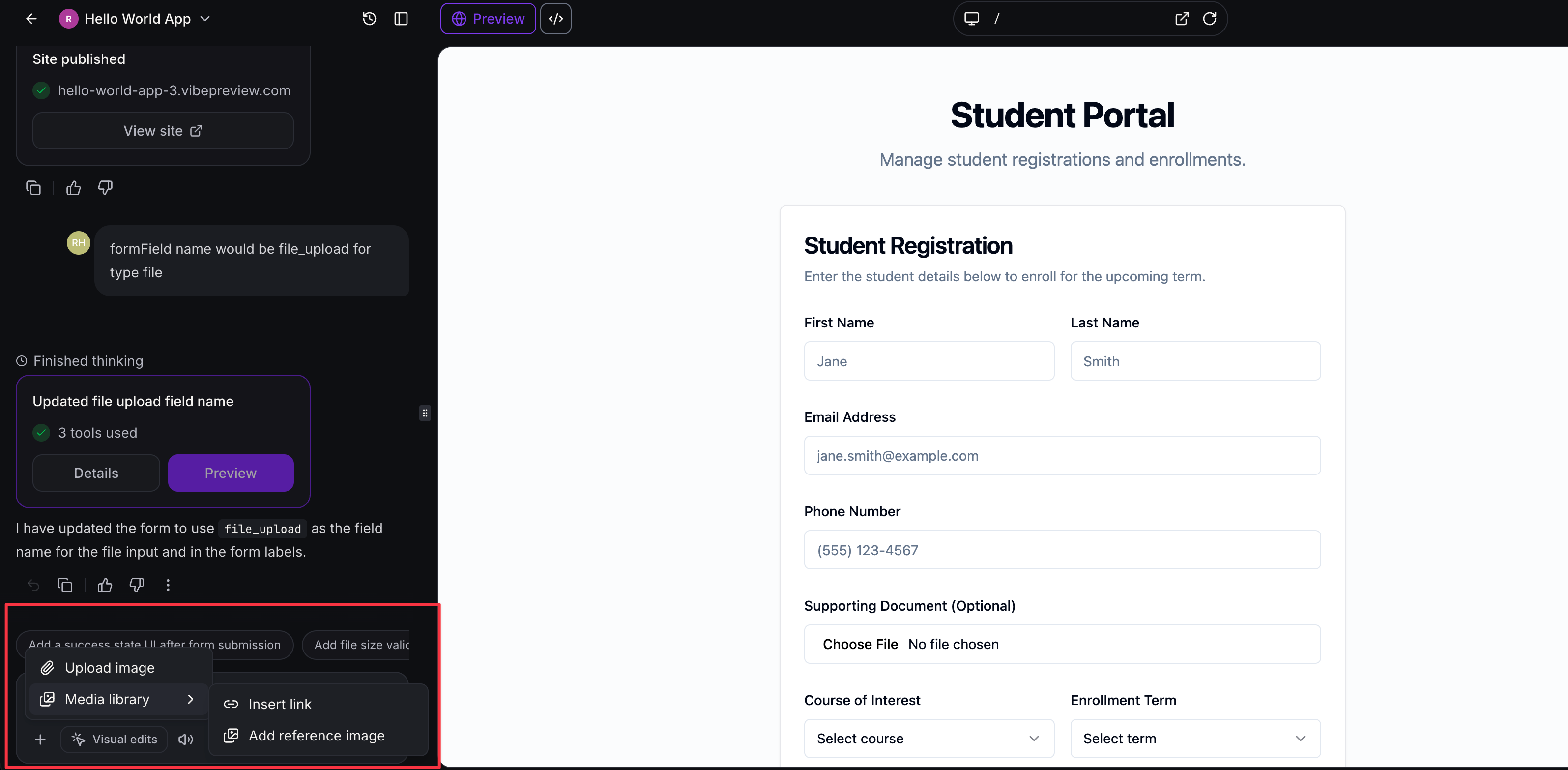
- Chat – Open the + attach menu, select Media Library, then add a reference image or insert a link. You can also upload from your device, paste, or drag files into the composer.
- Visual Edits – Select an image element on the page and click the Media Library button next to the Image URL field to choose a replacement.
- Publish – In Publish settings, use the Media Library option for the favicon and social image fields, or upload from your device.
- You can still upload files directly from your device when necessary.
- Media used in AI Studio remains with the project when it is remixed or loaded from a snapshot.
- This feature helps maintain consistency in branding and assets across different builds.