Jira: Workflow actions and triggers
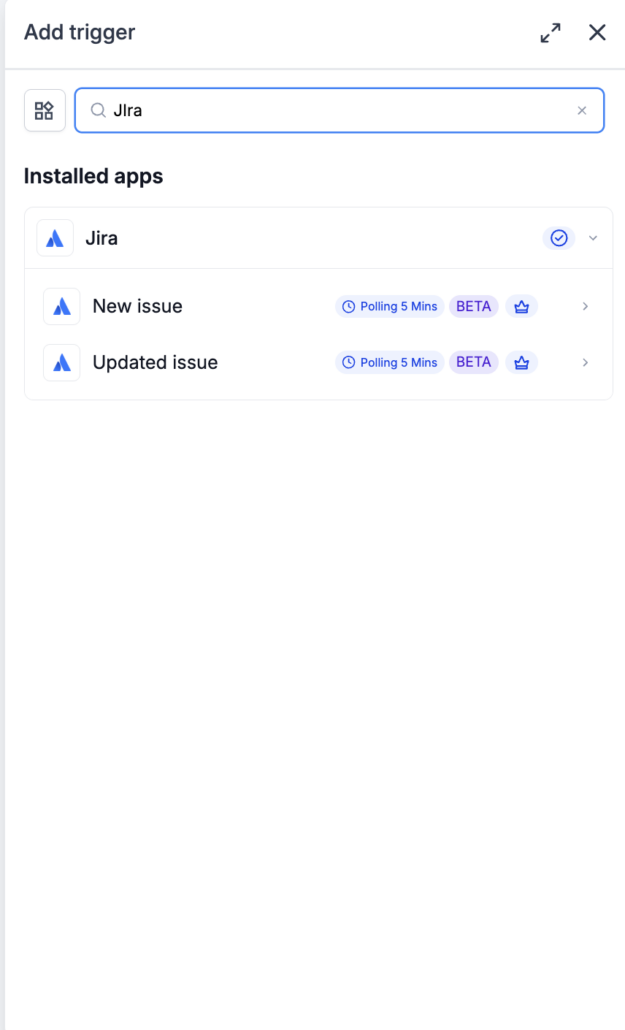
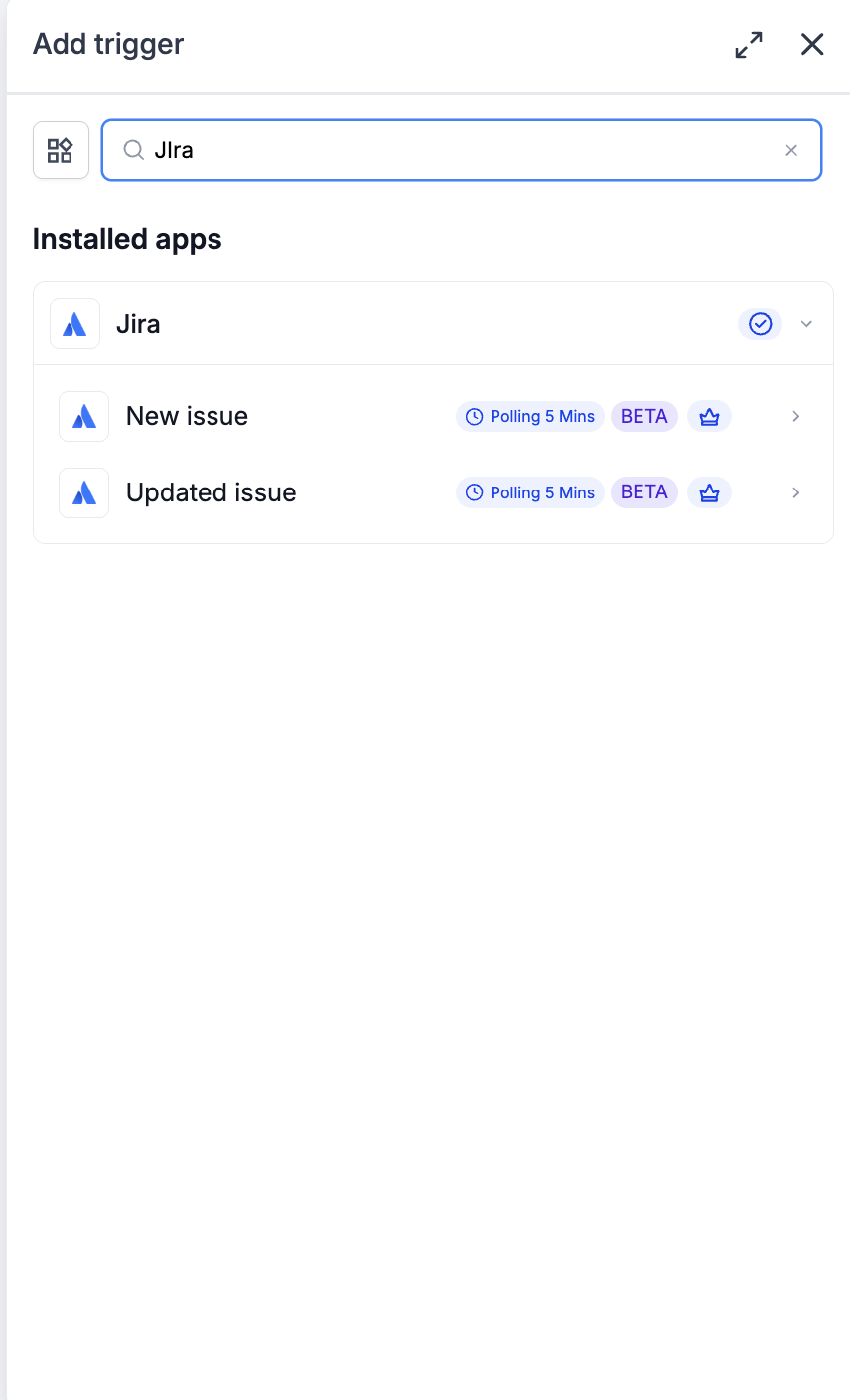
We have introduced Jira as a native integration in Workflows. Customer-facing automations can now respond when new issues are created or existing issues are updated in Jira. This integration also allows for a range of actions to be driven back to Jira, including: creating, updating, linking, commenting, watching, attaching files, logging work, and moving to sprint.
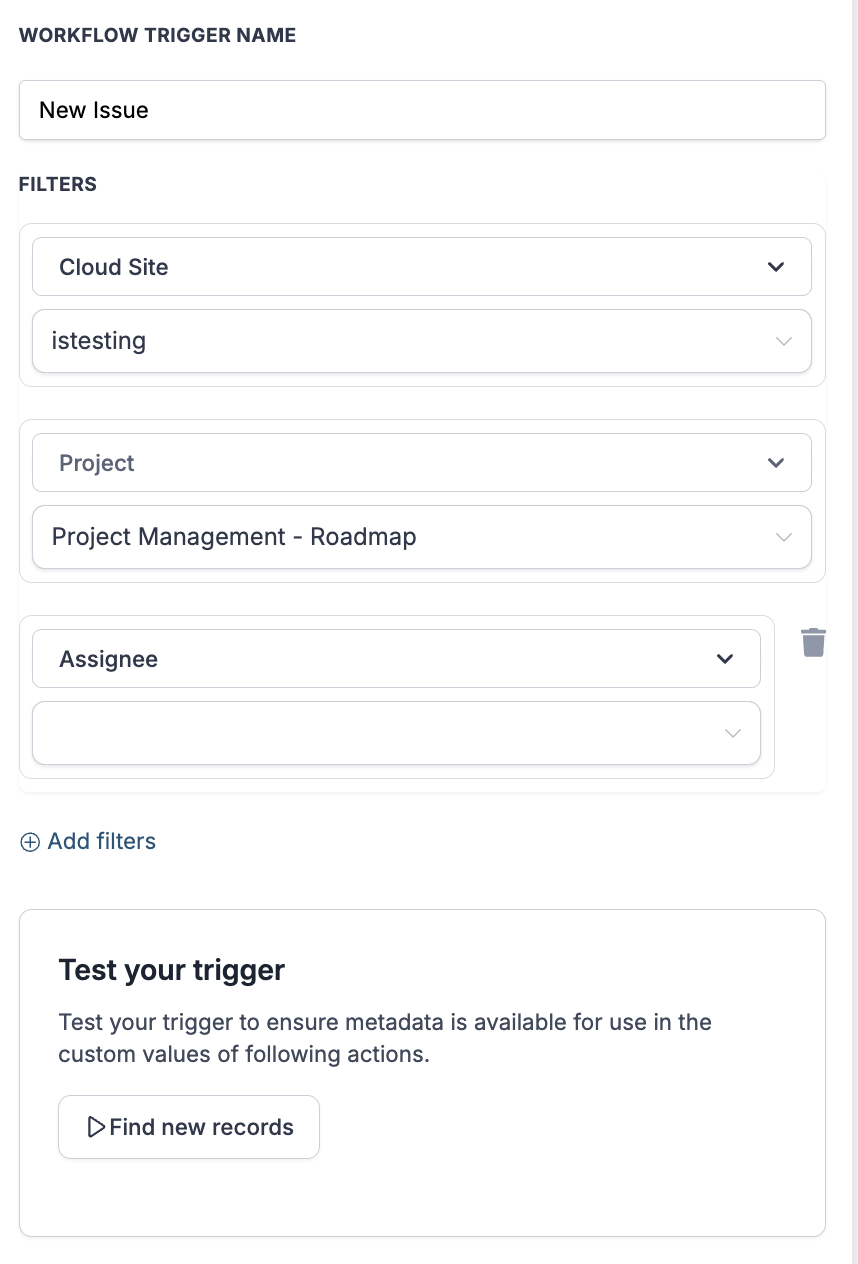
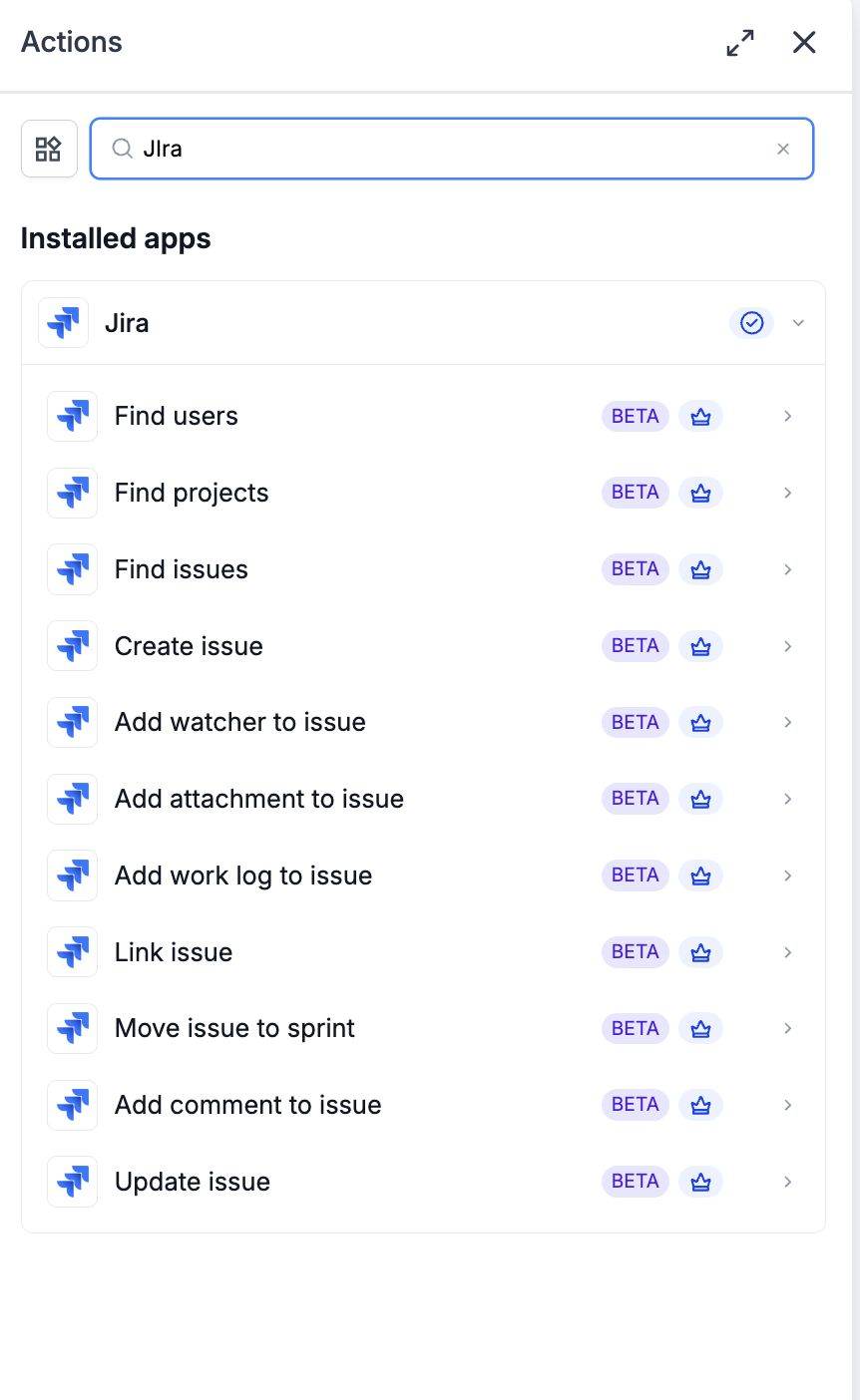
The integration comes with two triggers and eleven actions. Authentication is handled using OAuth, which is preceded by user-friendly Name and Email labels. Both actions and triggers include a Cloud Site selector, ensuring that a single linked Atlassian account can target the correct Jira Cloud site, even if the user has access to multiple sites.
Triggers (Jira → Workflows)
Actions (Workflows → Jira)
- Discovery
- Find users
- Find projects
- Find issues
- Issue creation and updates
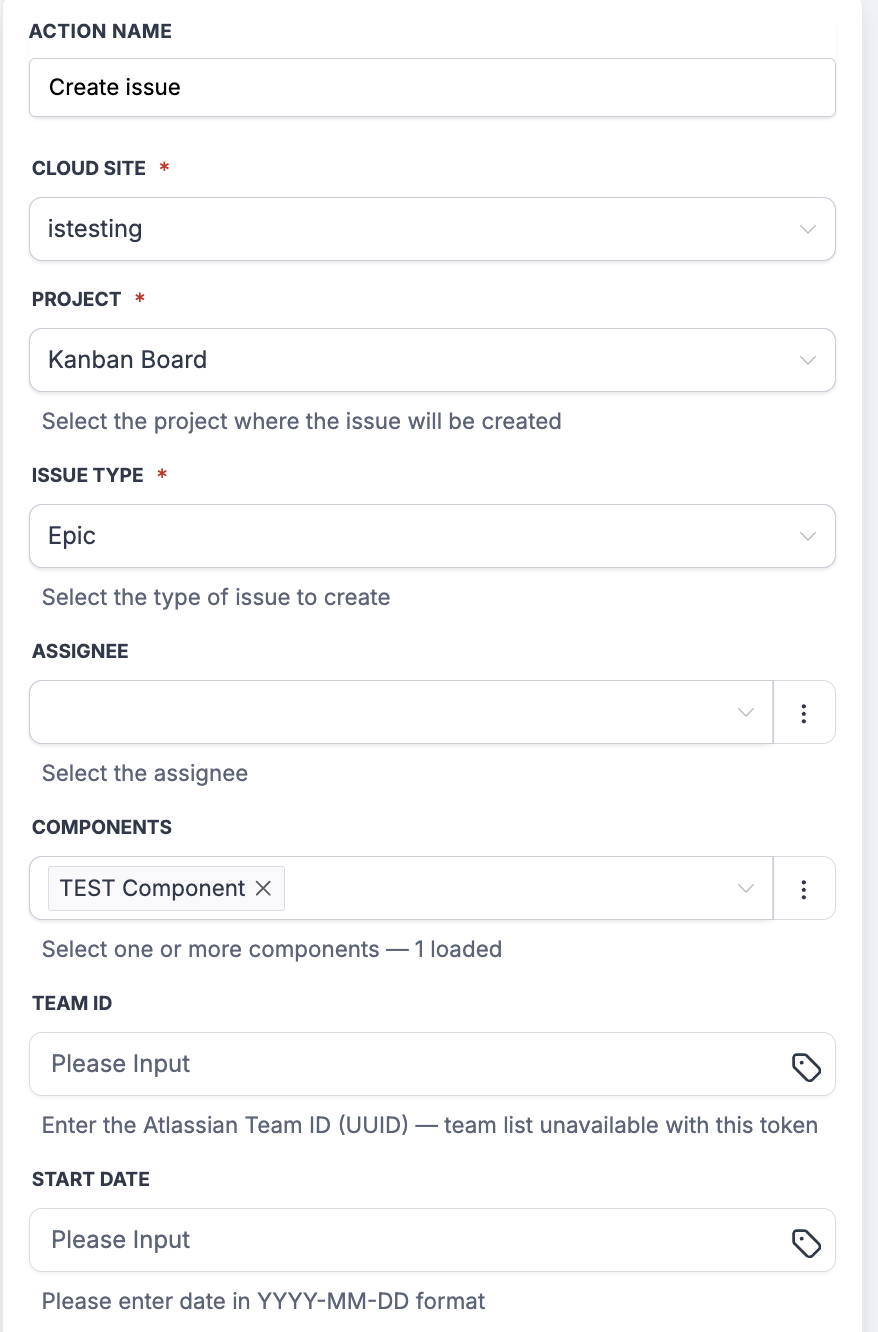
- Create issue
- Update issue
- Issue enrichment
- Add comment to issue
- Add watcher to issue
- Add attachment to issue
- Add work log to issue
- Issue relationships
- Link issue
- Move issue to sprint
Connect Jira once via OAuth to begin utilising the triggers and actions across all workflows.
- Open the Workflow Builder and add any Jira trigger or action.
- On the panel, click ‘Connect your account.’
- The External Authentication Configuration modal will open. Enter a friendly Name (e.g. ‘Engineering Jira’, ‘Support Jira’) and the Email associated with this Jira account. Click ‘Continue.’
- You will be redirected to Atlassian’s authorisation screen. Approve the requested Jira scopes.
- You will be returned to the Workflow Builder; the panel will update to show ‘Connected.’
- For any Jira trigger or action, choose the target Cloud Site that this step should read from or write to. This is required on ‘Create issue’ and acts as a filter on the triggers.
- Issue resolved → notify the customer
- Updated issue (status = Done) → Find contact → Send resolution message with the fix summary
- An engineer updates the issue to Done in Jira.
- Within 5 minutes, the workflow matches the issue back to the customer who reported it and sends a resolution notification with the fix summary.
- Cross-issue linking on shared reports
- New issue → Find issues (by shared reference) → Link issue (‘relates to’ or ‘duplicates’)
- When a new issue is created with a shared external reference (such as a support ticket ID or feature request ID), the workflow searches for existing Jira issues with the same reference and links them.
- This reduces duplicate work and ensures that related issues remain discoverable within Jira.
Sample screenshots