Invoices rebranded – Mobile Payments – v3.77.3
Latest Update to Invoices on Mobile App
We are excited to announce our latest update to Invoices on the mobile app – a brand new flow! Subaccount admins and users can now create invoices either from the dedicated Invoices section or from the Point-of-Sale section in a few easy steps. This update is available on Clixio, LeadConnector, and White-labelled (update needs to be requested) mobile apps.
Key Actions for Invoices
- Tap – Primary action for that invoice (E.g. edit invoice for a draft invoice)
- Long press – All the actions that can be performed for that invoice (E.g. Convert to template, Record payment, Edit, etc.)
- Left swipe – Reveal the two most significant actions along with more, an option to view all (E.g. For a due invoice, you will see options to record payment, edit, and more)
Steps to Create an Invoice
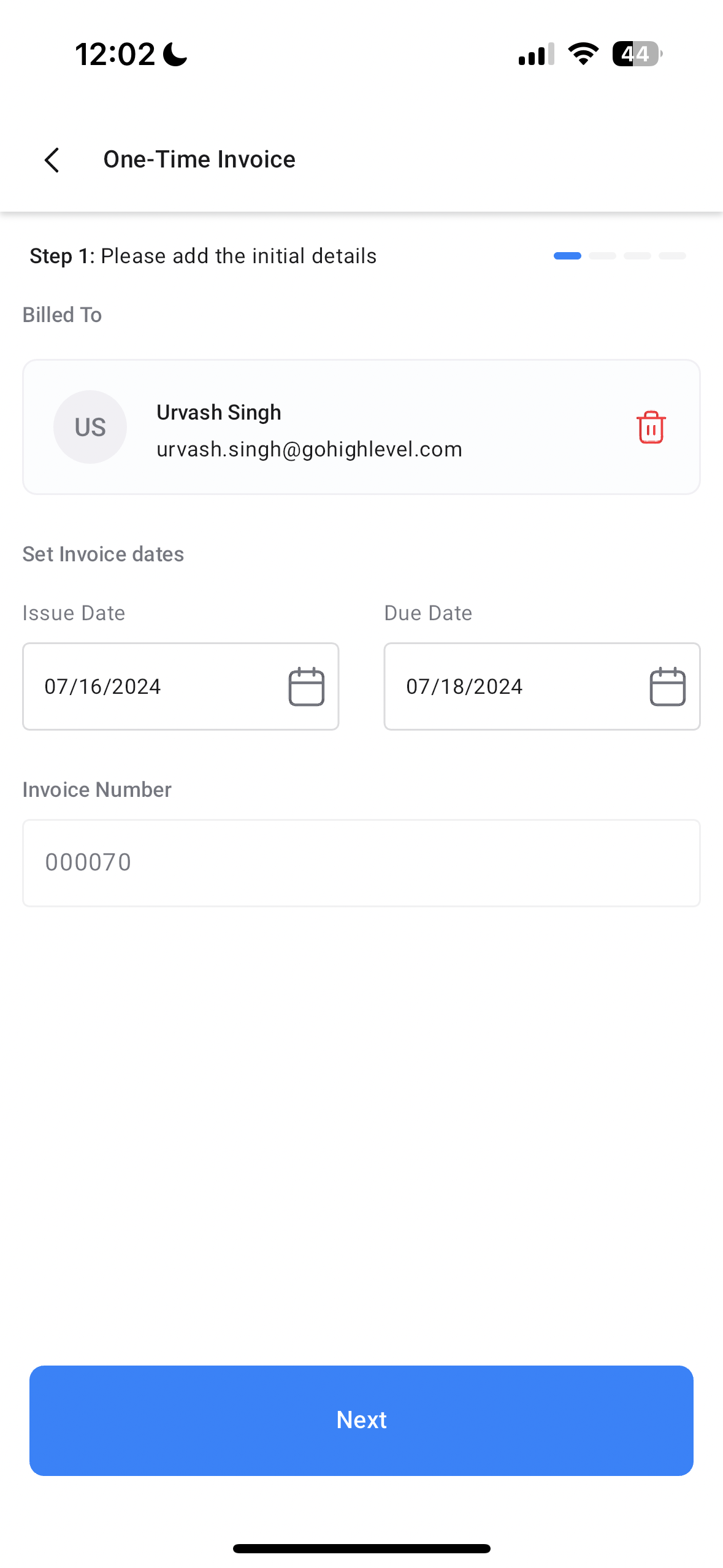
- Initial details – Invoice recipient, Start date, Due Date, and Frequency (applicable only for recurring invoices).
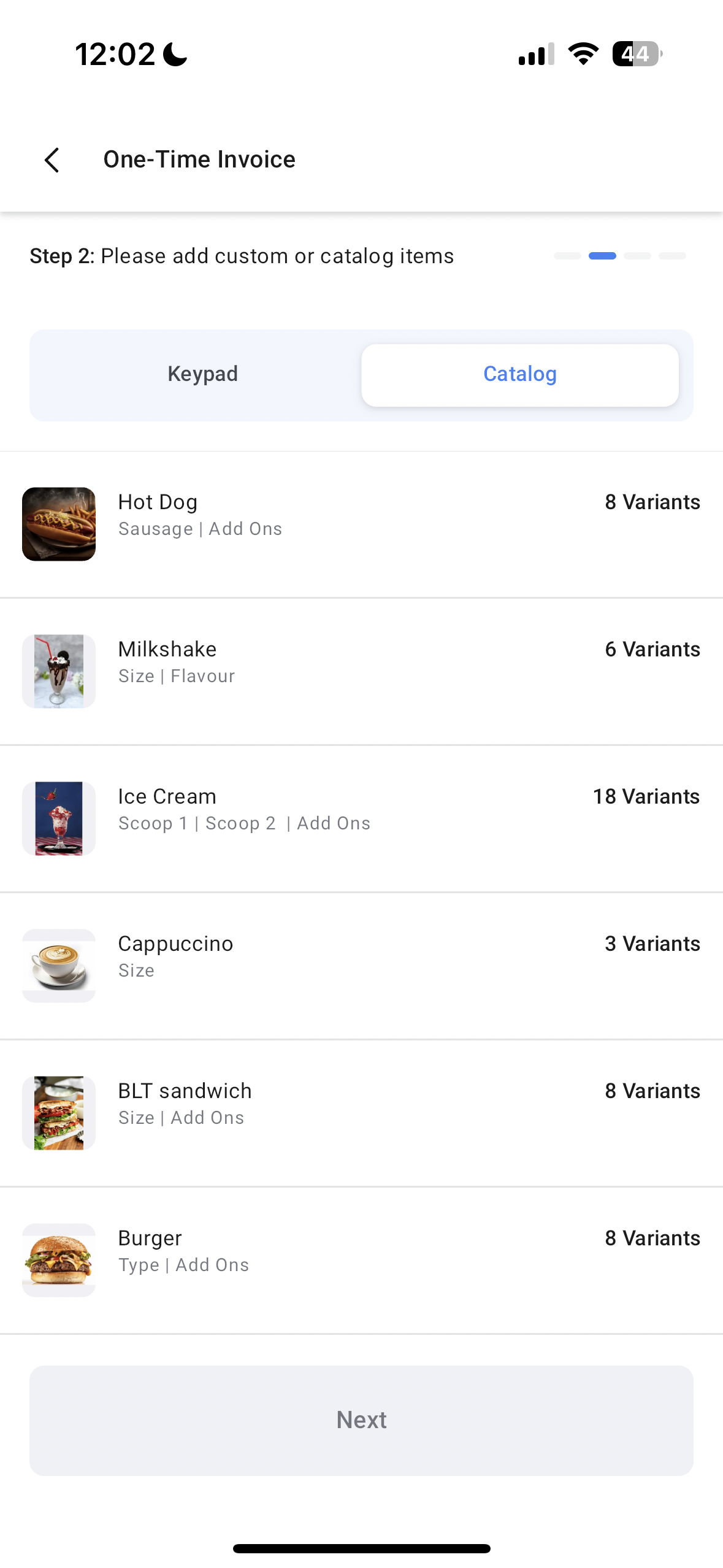
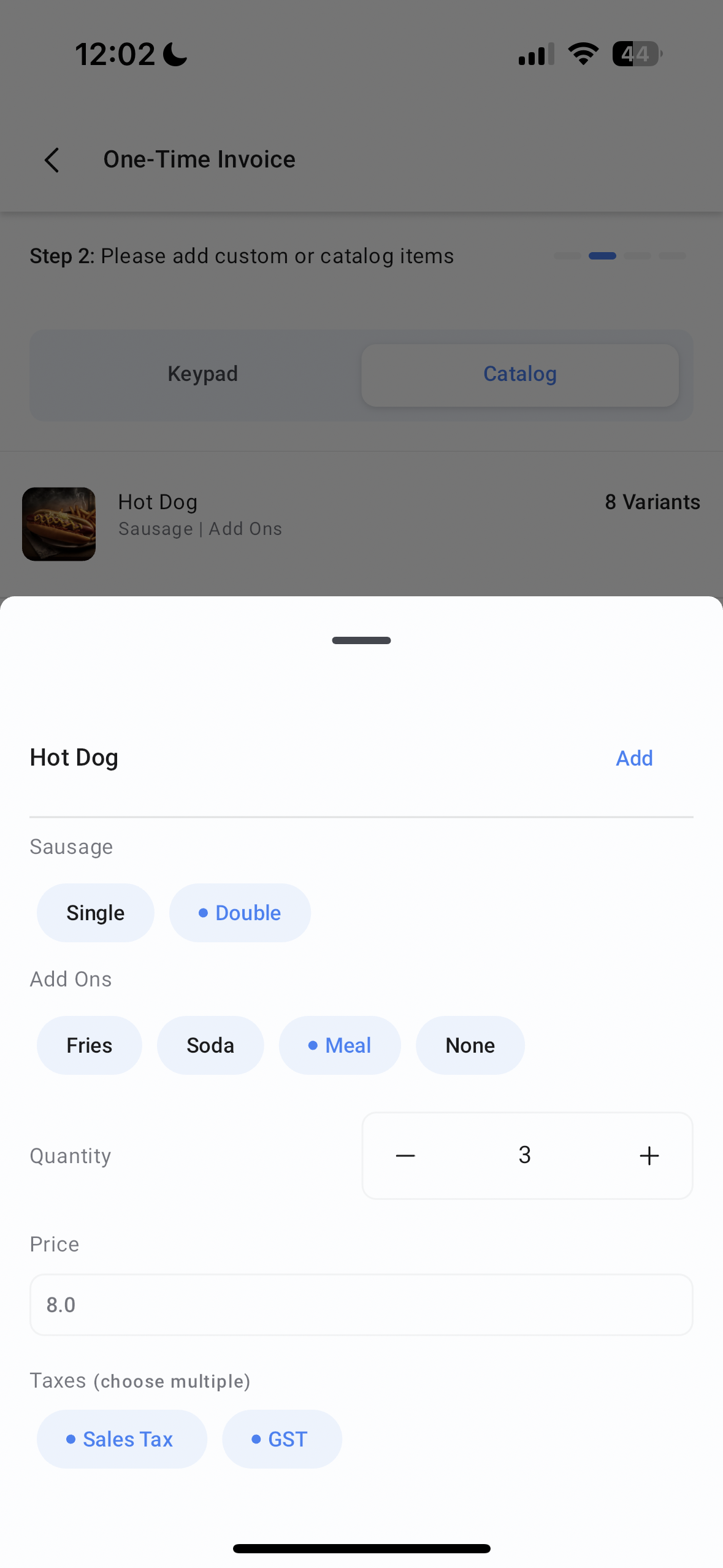
- Items – Catalog items, Custom items (using keypad).
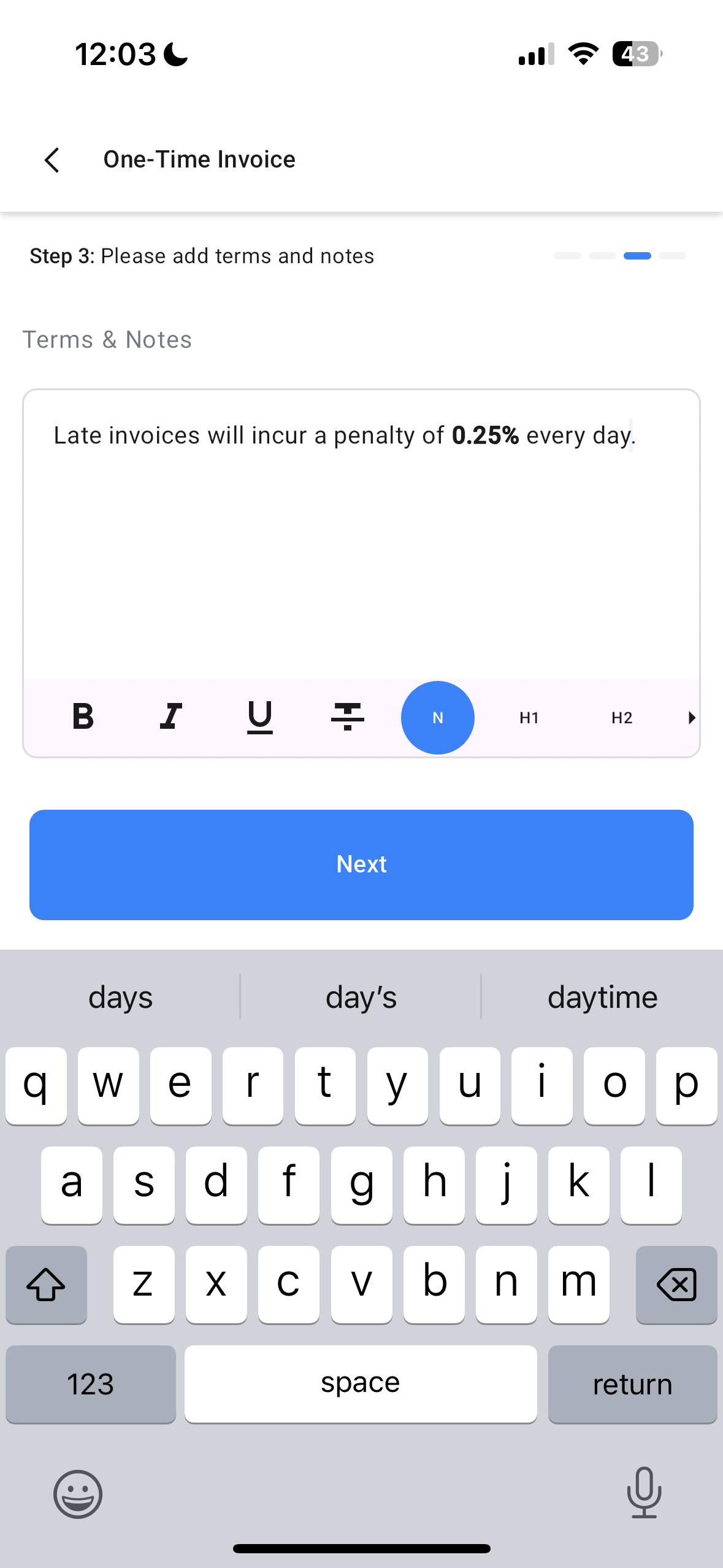
- Terms and Notes – Review your invoice terms.
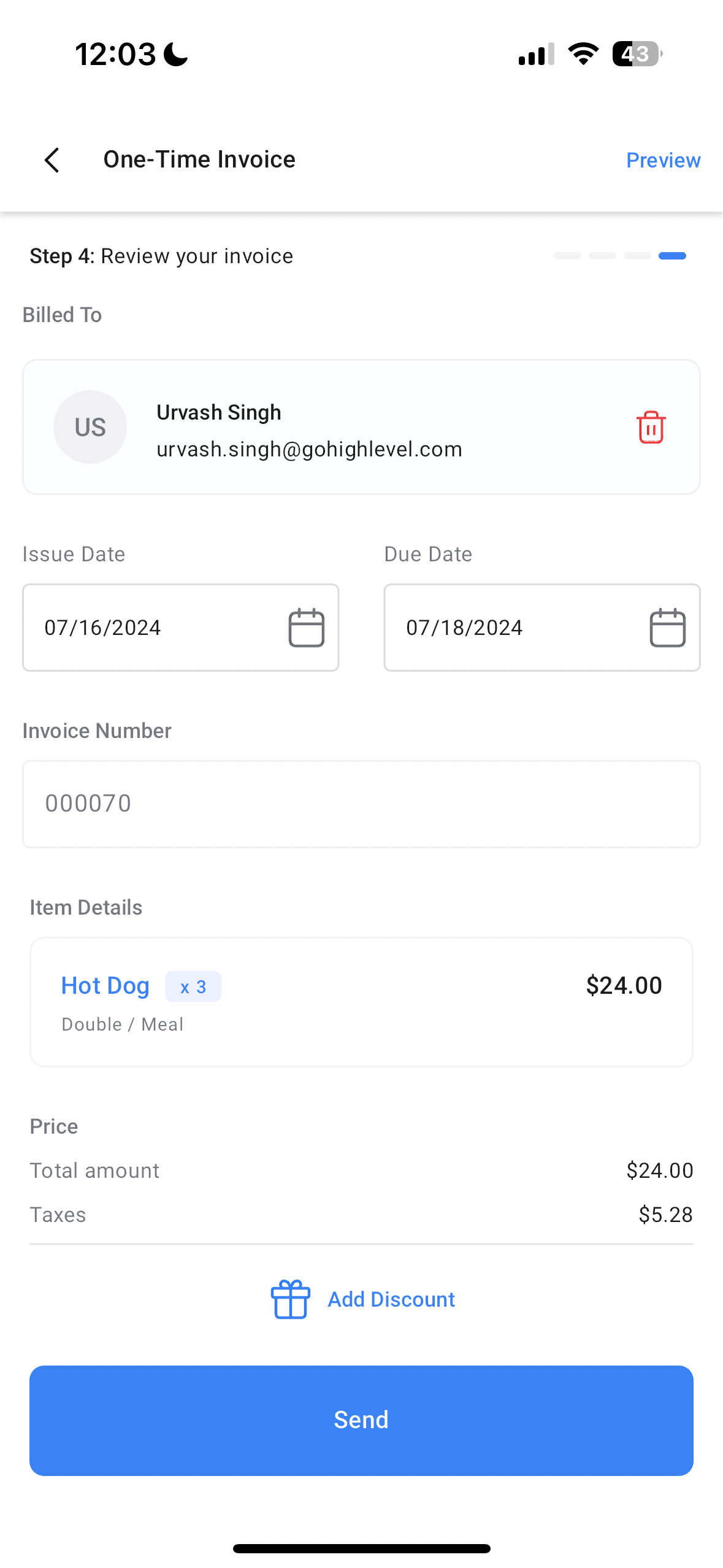
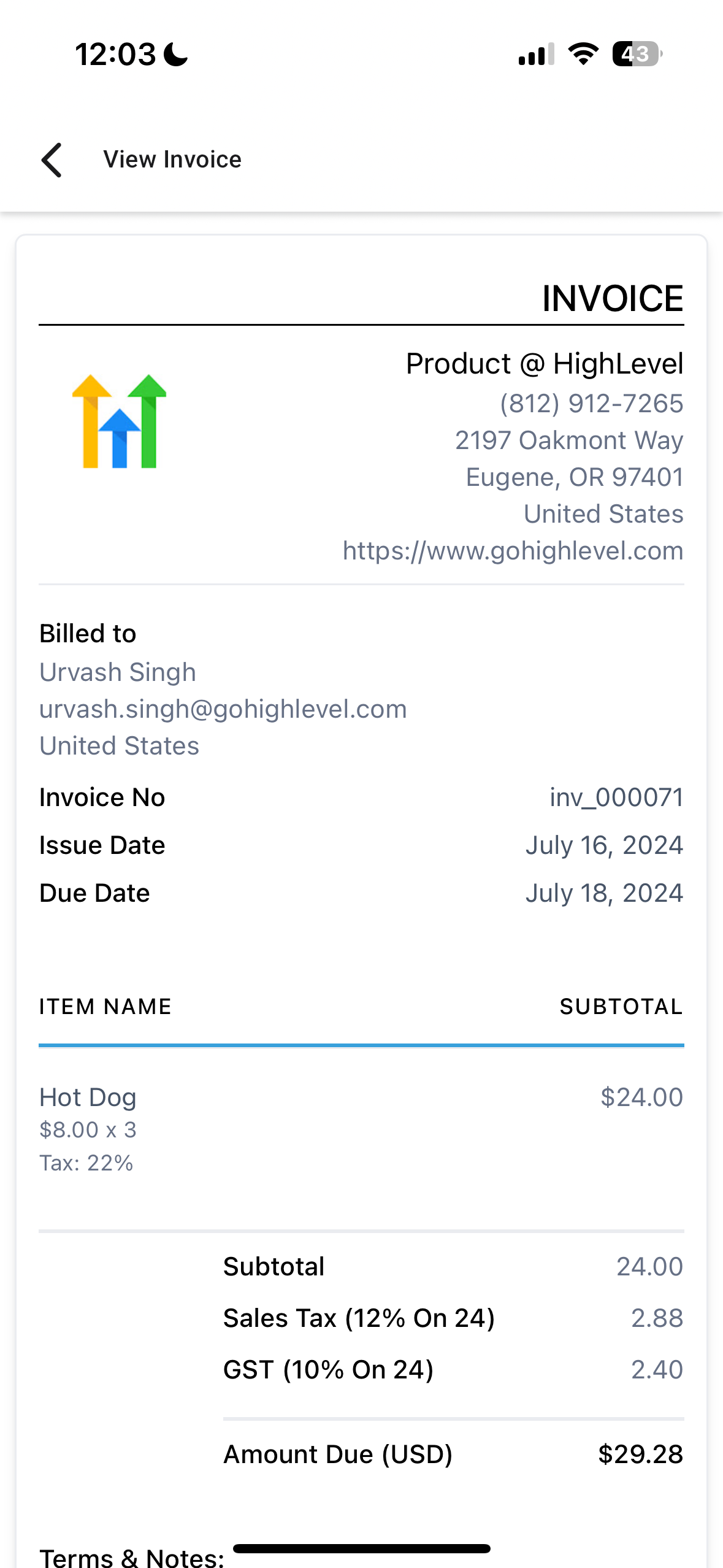
- Review and Send – Review your invoice with all the information on a single page. You can also add a discount here.
How It Works
- Open the mobile app and tap on the hamburger menu on the top left.
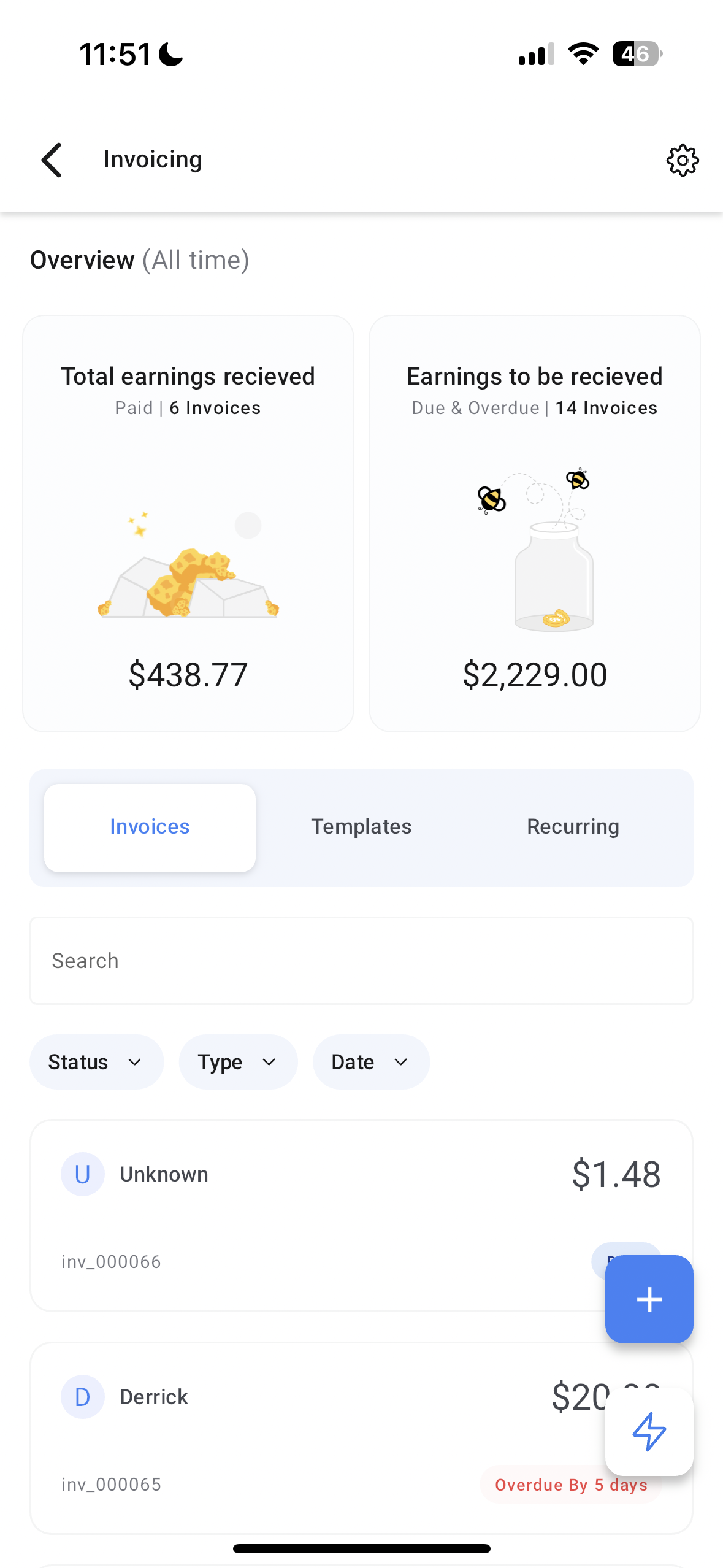
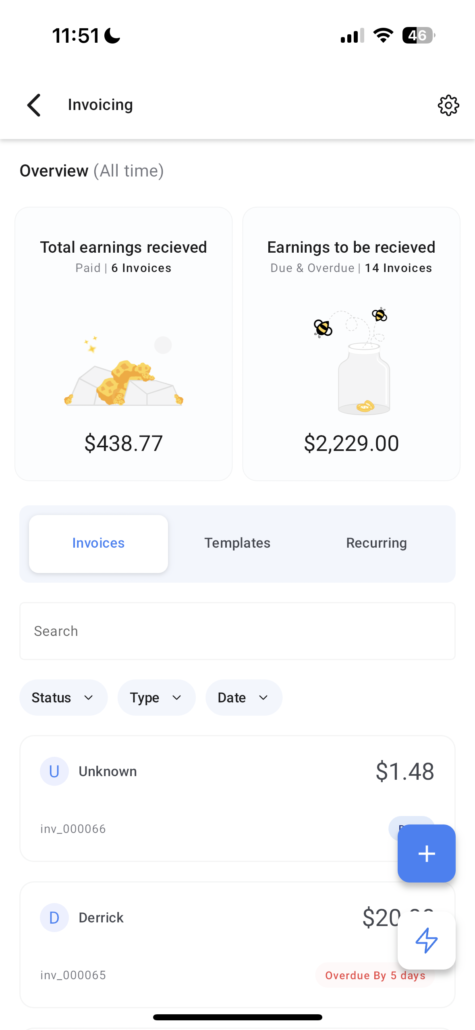
- Tap on Invoices. You will see 2 widgets depicting the amount you have collected from your invoices and the amount that is yet to be paid.
- To create a new invoice, tap on the floating + button on the bottom right of the screen.
- Fill out the initial details – Recipient of the Invoice, Start date, and Due date. In case you chose a recurring invoice, you will have the option to configure the frequency of payments.
- Add items to your invoice from your product catalog or add custom items with a note using the keypad section.
- Review your terms and notes, laying down the terms of the invoice.
- Review the invoice and make any adjustments required.
- Once ready, tap on Send. Select the channel to send your invoice (email, sms, or both).
- To record a payment for the invoice, head to the Invoice list, navigate to the relevant invoice card, left swipe, and tap on Record Payment.
This update brings a lot of new features available in invoices on the web in a simple and intuitive flow. Building an invoice has never been simpler before!
Images: