Import Contacts and Opportunities using a single CSV file
The “Import Contacts and Opportunities” feature allows users to efficiently import both contacts and opportunities from a single CSV file. This new enhancement introduces a seamless process for bulk creation and updating of records, enabling users to streamline data entry and reduce time spent on manual input. The feature includes smart field mapping, contact de-duplication, and progress monitoring for a smooth and error-free experience.
-
Simultaneous Import of Contacts and Opportunities:
Users can now import both objects in one go, saving time and ensuring data consistency across the system.
-
Automatic Contact De-duplication:
De-duplication settings are automatically applied for contacts from global settings, preventing duplicate contact entries without manual intervention.
-
Additional Email and Phone Support for Contacts:
Ability to import contacts with additional email addresses and phone numbers in one record.
-
Real-Time Import Monitoring and Error Logs:
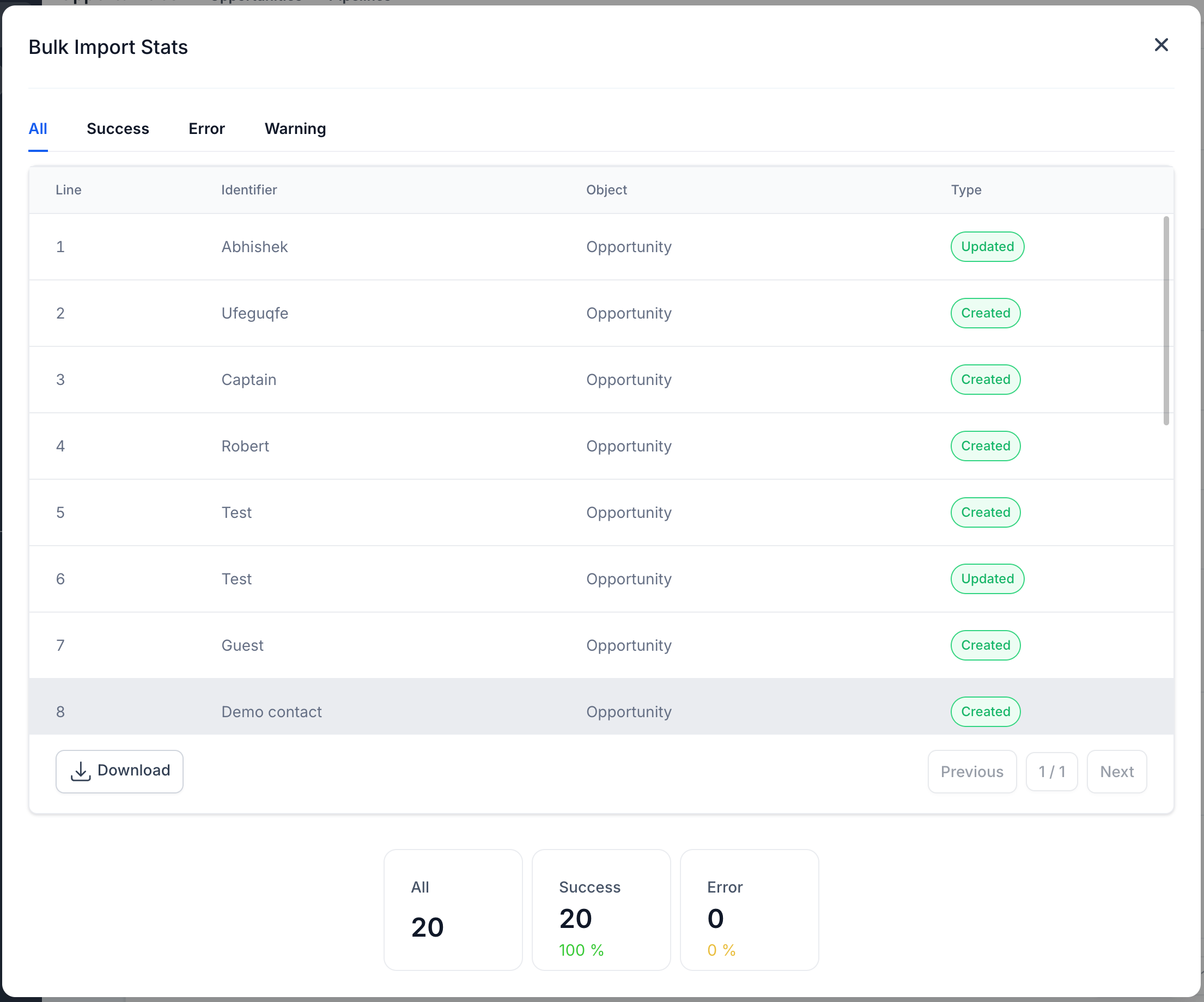
Users can track import status, view success rates, and download detailed error logs for troubleshooting.
-
Revamped and Upgraded UX:
A cleaner and easier to use full-screen UX for a smoother and error-free import
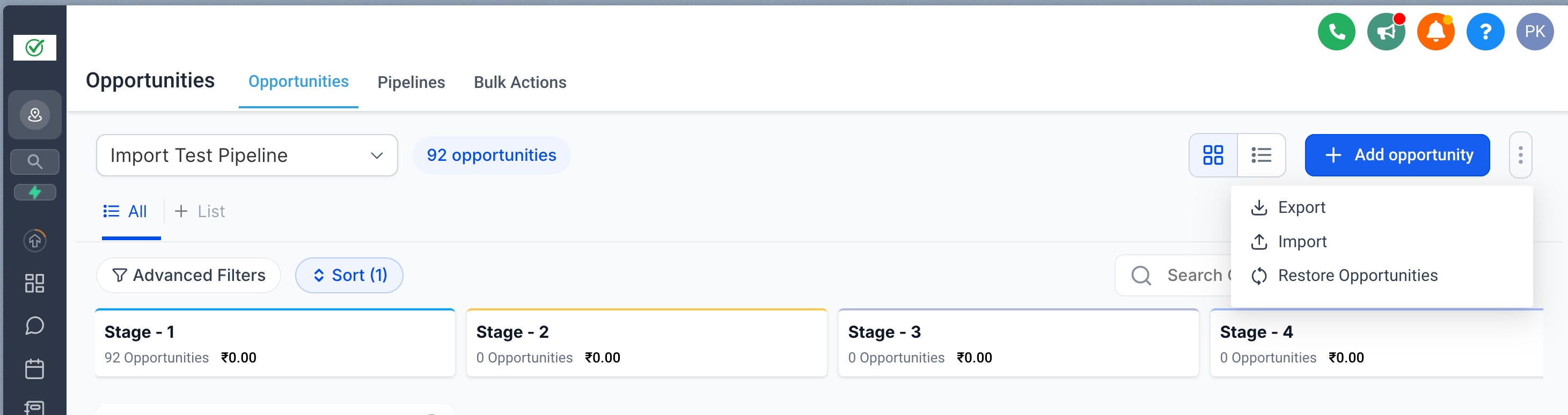
Step 1:
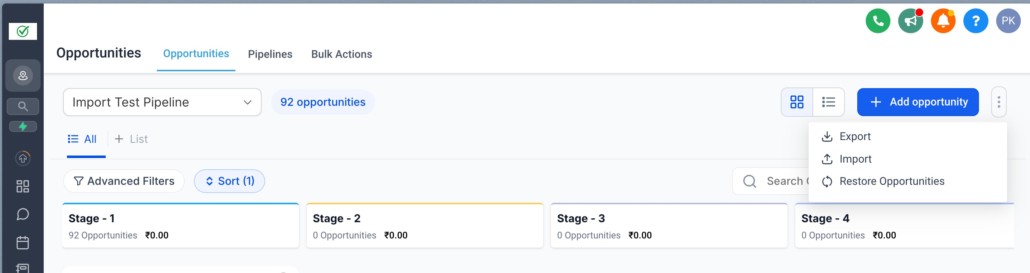
Navigate to the Opportunities section, click on the options menu (three dots), and select “Import.”
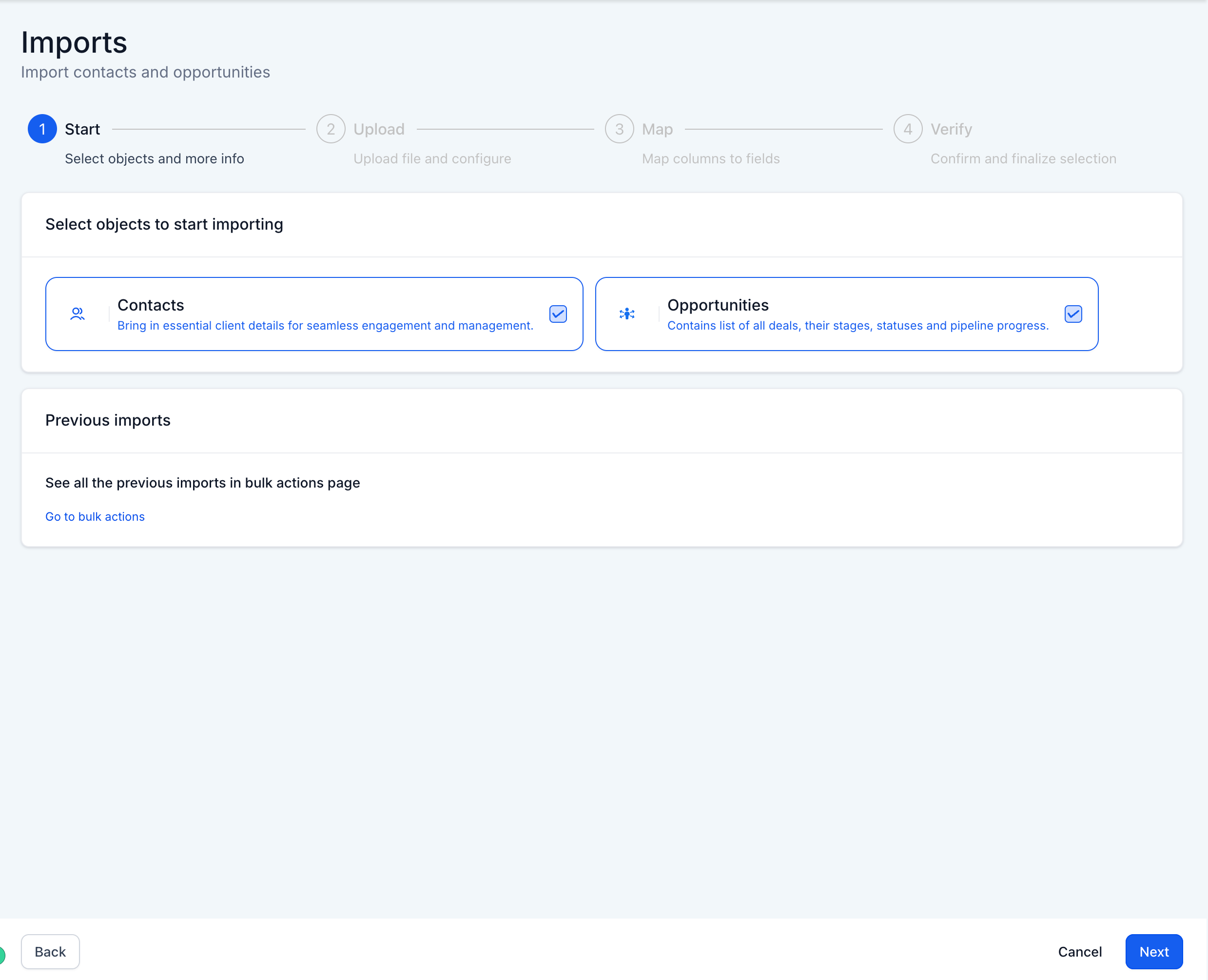
Step 2:
Choose both Contacts and Opportunities as the objects to import and proceed by uploading a CSV file.
Step 3:
Upload the corresponding CSV file and select whether you want to create new records, update existing ones, or do both
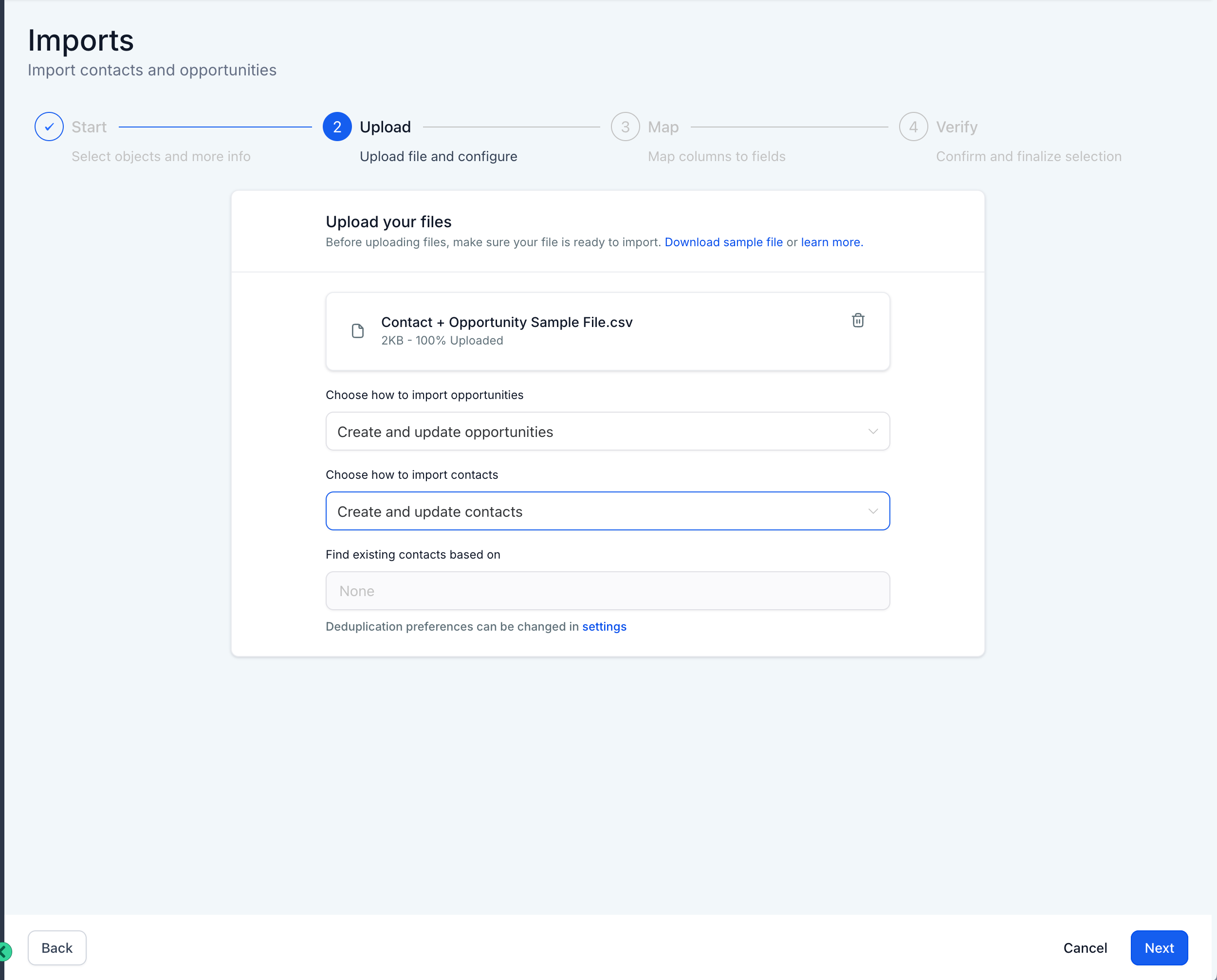
Step 4:
Map the CSV fields to the appropriate object fields (Contacts or Opportunities), ensuring accurate data entry.
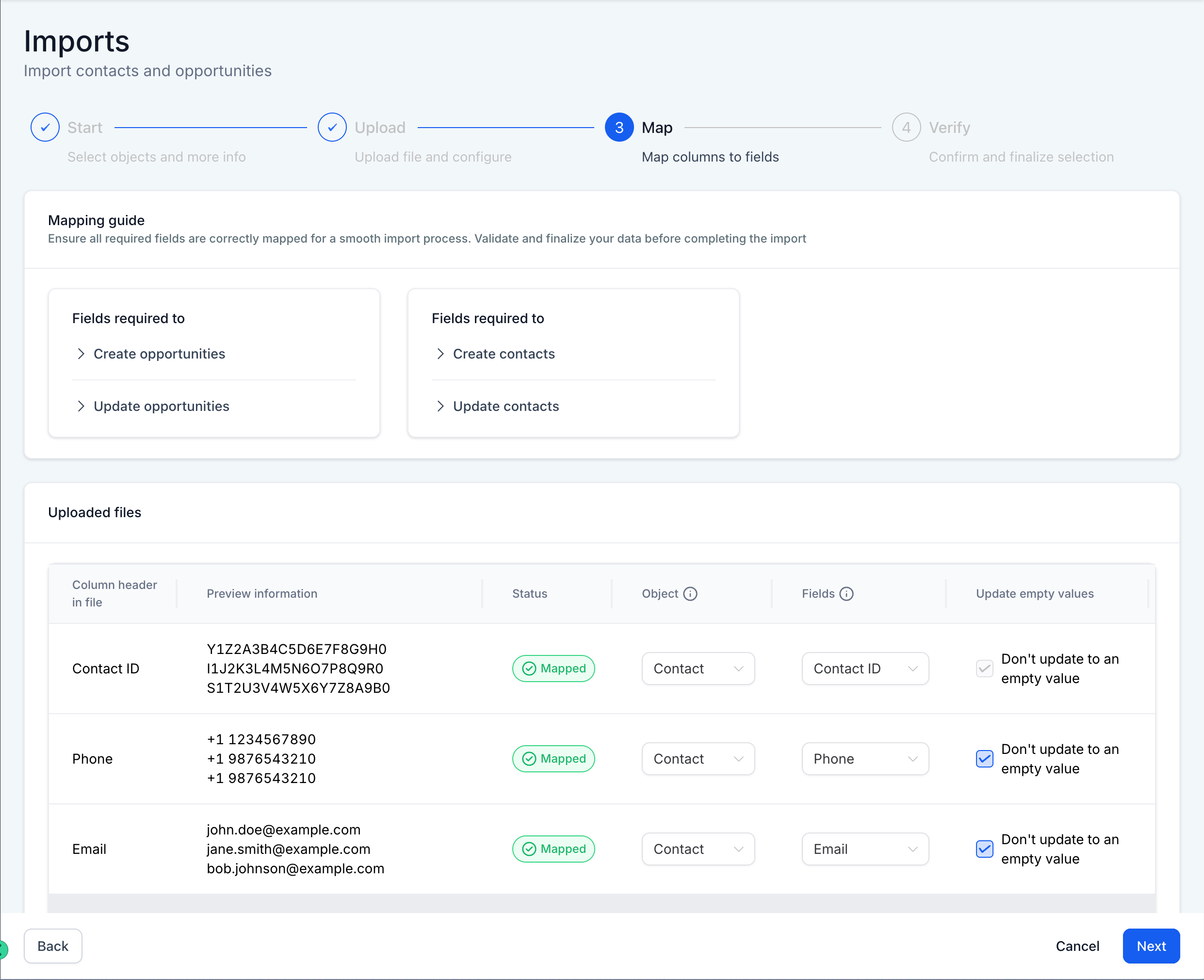
Step 5:
Review the mappings and confirm the import process. You can also add tags, workflows, or create smart lists during this step.
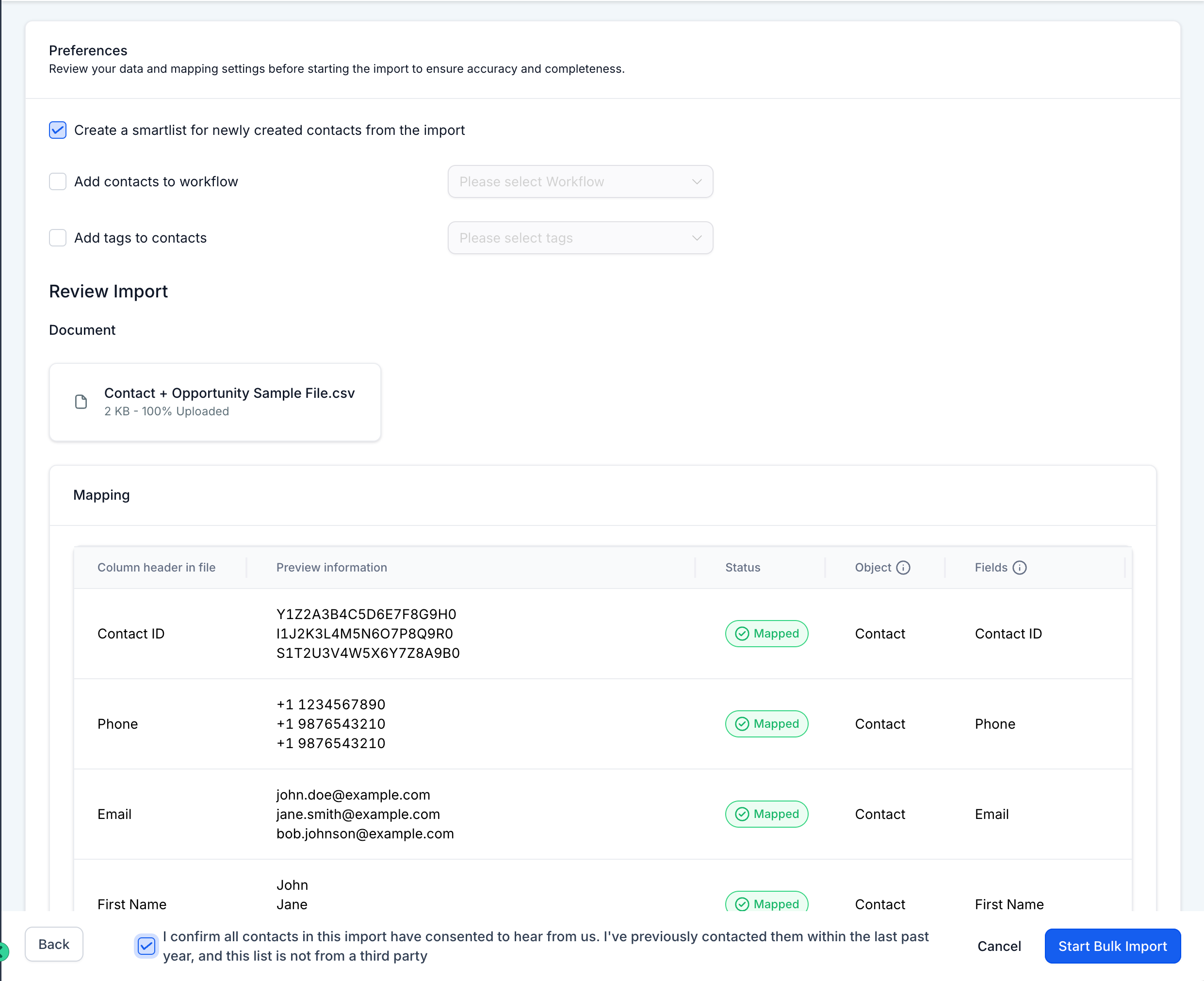
Step 6:
Monitor the import status under the Bulk Actions Pages, where you can check progress, download error logs, and troubleshoot as necessary.