🔗 Generate & Copy Reschedule Links Directly from Appointments
generate and copy an appointment’s reschedule link directly from the appointment
, making it easy to share whenever a customer needs it.
Meetings and Services
.
You can now generate a reschedule link on demand from an existing appointment.
- Generate a reschedule link directly from the appointment
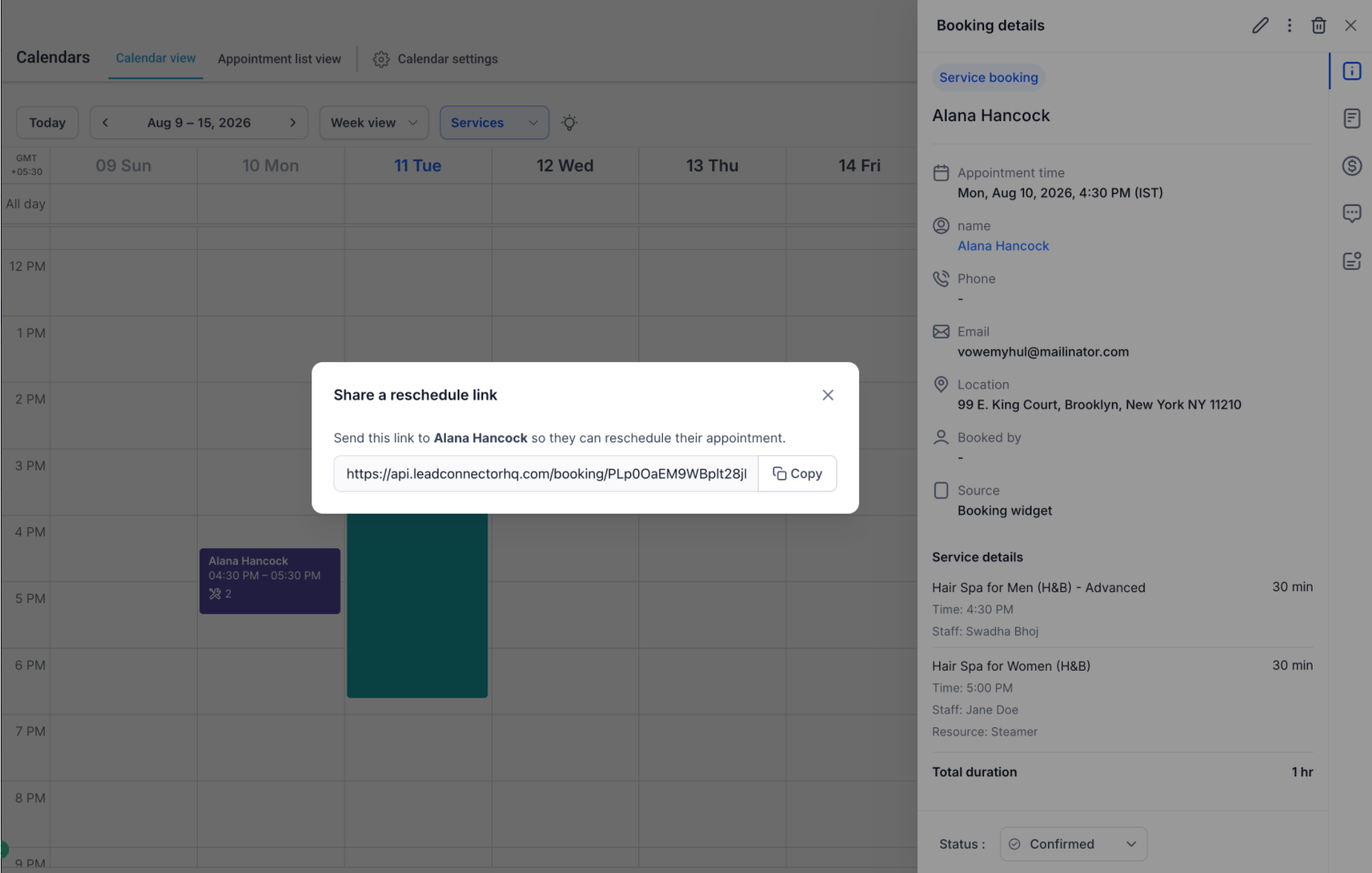
- View the generated link instantly
- Copy the link to your clipboard in one click
- Share it with the customer through whichever channel works best for you
Customers can open the shared link and reschedule their appointment without having to search through earlier emails or notifications for the reschedule link.
Contacts, Conversations, Appointments, or Opportunities
.
Then:
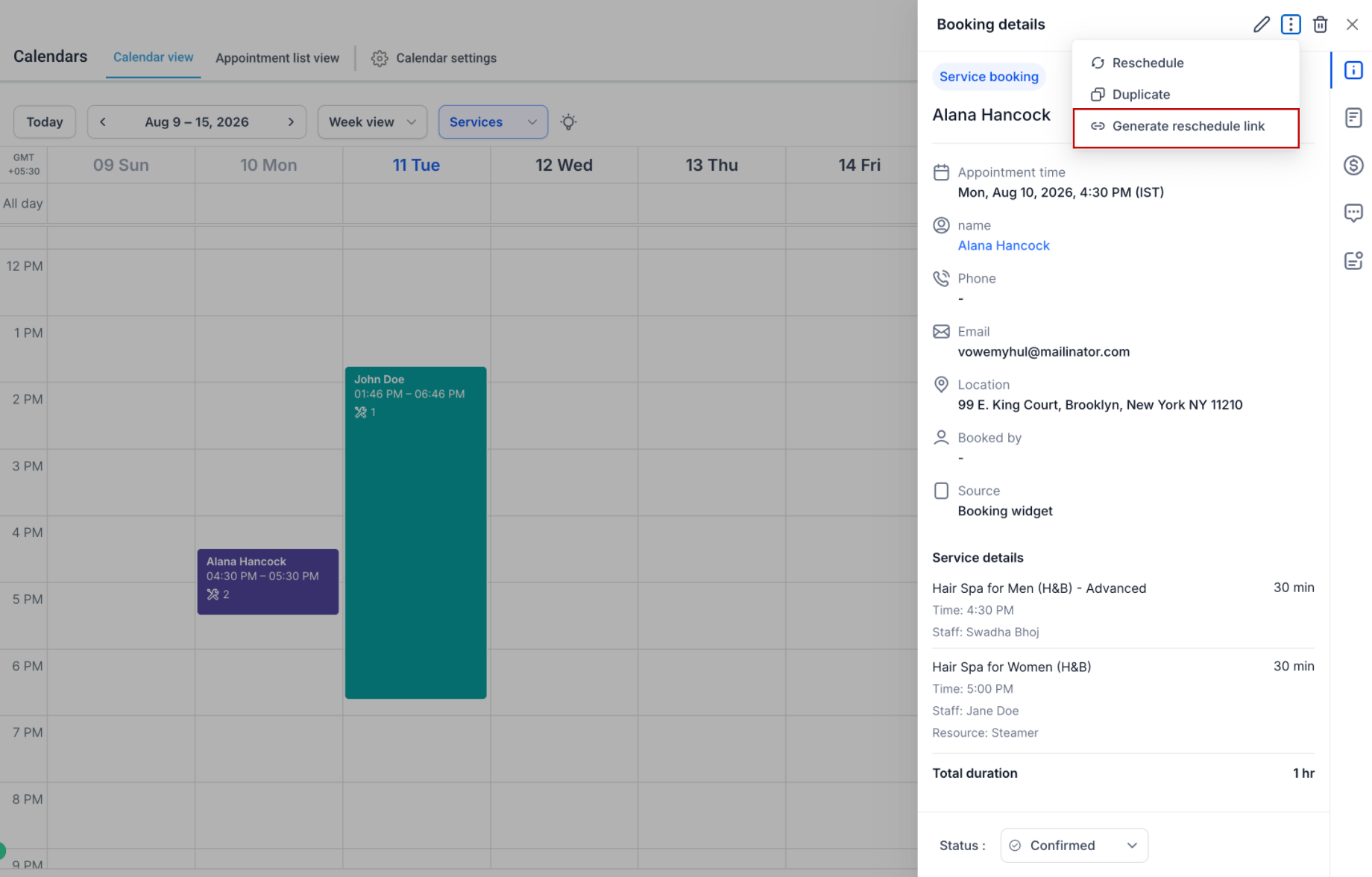
- Open the appointment.
- Click the
Appointment Actions
icon.
- Select
Generate Reschedule Link
.
- Once the link is generated, click
Copy Link
.
- Share the link with your customer.
That’s it! The customer can use the link to access the rescheduling flow and select a new time for their appointment.
Existing appointment permissions continue to apply.
Users without the required appointment management permissions will not be able to generate a reschedule link and will see the existing disabled state and permission guidance.