🗓️ Buffer Time is Now Visible in Calendar Day & Week Views
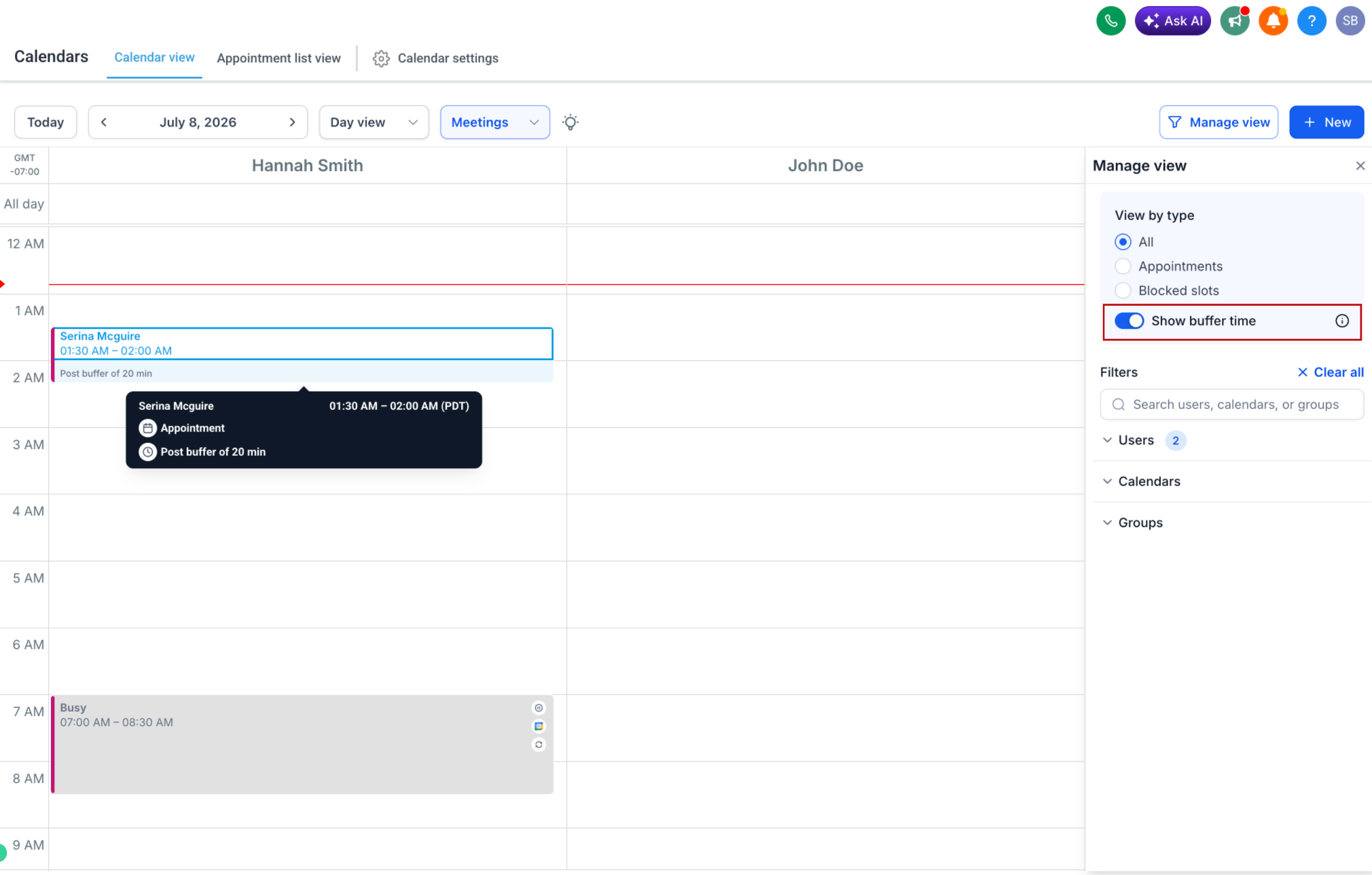
You can now visually see pre-buffer and post-buffer times directly in the Day and Week calendar views. Buffers are presented as informational blocks, making it easier to understand appointment spacing without compromising scheduling flexibility.
✨ What’s New
Before
- Buffer times were applied behind the scenes but were not visible in the calendar.
- Distinguishing between actual appointments and the surrounding buffer times was challenging.
Now
- Pre-buffer and post-buffer times are displayed in both Day and Week views.
- Buffers are visually distinct from appointments, making your schedule easier to interpret at a glance.
- Buffer visibility works across all calendar filters, including: Staff/User, Service/Calendar, Category/Group.
📍 How to Use It
- Go to Calendars.
- Switch to the Day or Week view.
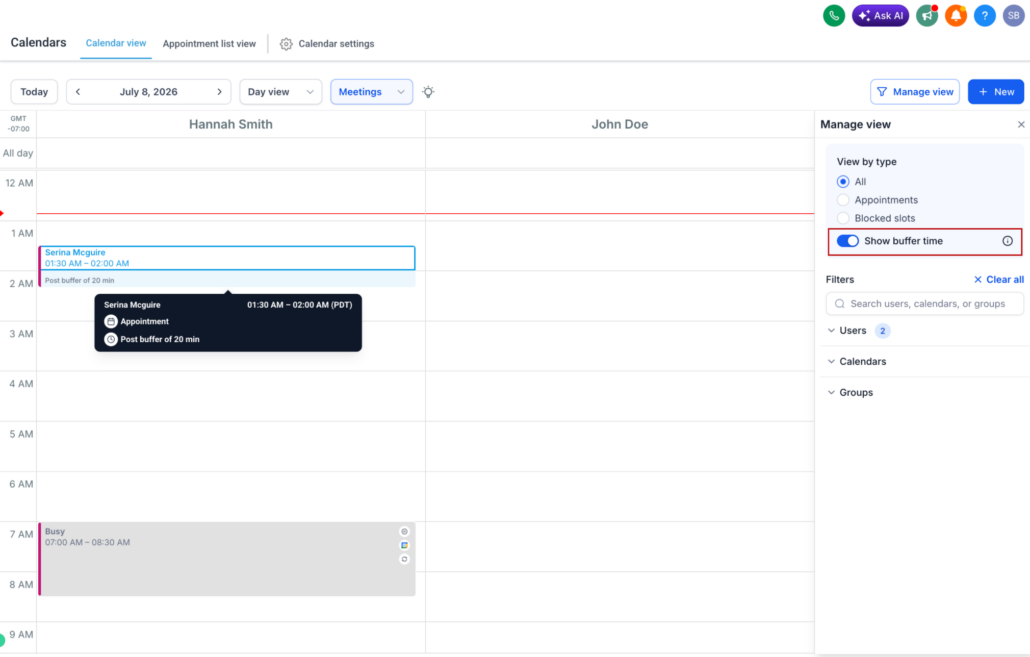
- Activate the Show buffer time toggle.
- Observe the highlighted buffer periods before and after appointments across all supported filters.
💡 Why This Matters
- Gain a clearer view of your schedule at a glance.
- Easily identify transition times between appointments.
- Plan your day more effectively while maintaining scheduling flexibility.
- Better understand buffer allocations without changing how appointments are booked.