Book Appointment Action: Now with Timezone Control
The Book Appointment Workflow Action Now Supports a Timezone Field
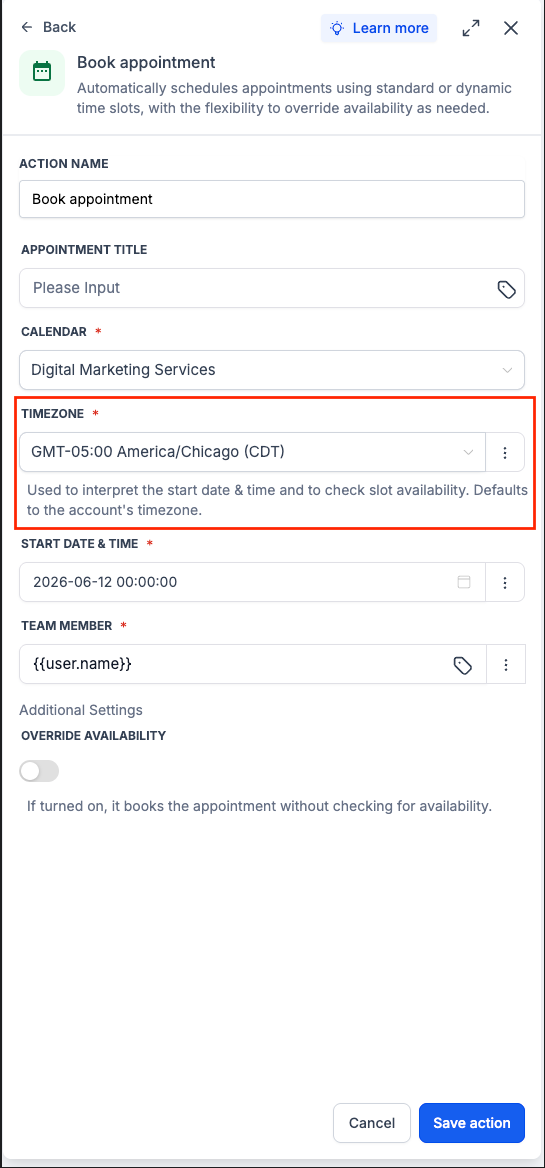
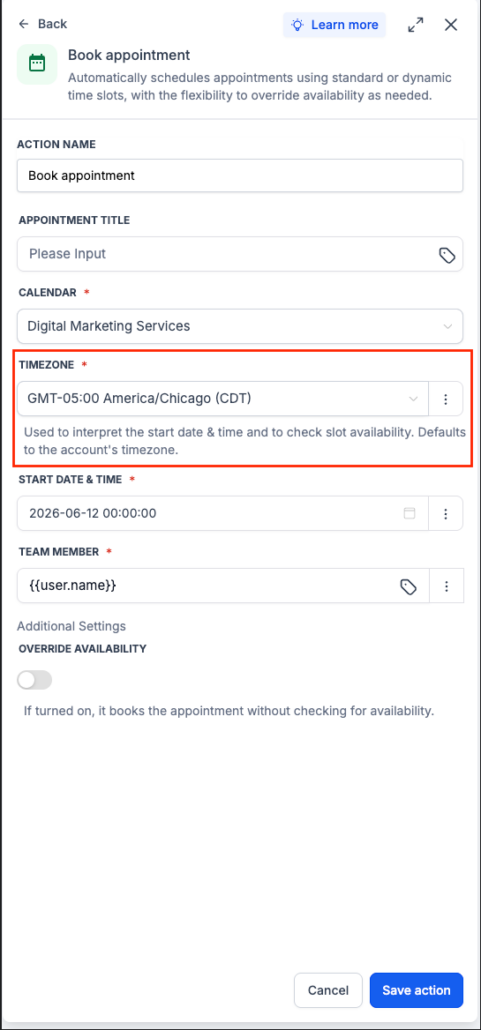
You can now choose a fixed timezone or utilise a dynamic value, which includes the contact’s timezone, when using the Book Appointment action.
When this action is executed, the Start Date & Time is determined based on the selected timezone, ensuring that the appointment is booked for the correct absolute time. If no timezone is selected, it defaults to the account’s timezone.
How to Set Up the Timezone
- Open the Book Appointment action in a workflow.
- Set the Start Date & Time, then choose either a fixed timezone or the Contact Timezone.
- Save the action.
Why This is Important
Dynamic appointment times may be misinterpreted if not set correctly, potentially resulting in bookings that are several hours off for contacts in different regions. This feature gives you direct control, ensuring that appointments are scheduled at the intended time.
Key Points to Note
- By default, the action uses the account timezone, but users can adjust it to a specific timezone.
- The selected timezone is applied to interpret the Start Date & Time and verify slot availability.
- If Override Availability is activated, the appointment is booked without considering calendar availability.
- This update is specific to the Book Appointment action only.