
Analytics & Discovery Sub Agent in AI Builder in Workflows
**AI Builder Enhancements**: Until now, AI Builder could only create or modify workflows, but it can now also address analytics and performance queries. Pose your questions in plain language and receive structured answers based on live data from your account. Additionally, you can request to locate any workflow within your account, providing you with a unified workspace for managing workflows.
<p>**Workflow Performance Insights**: Inquire about the performance of a workflow and receive data over any timeframe (showing increases or decreases compared to the previous period), a status breakdown (including completed, failed, waiting, or skipped), completion rates, conversions towards goals, and points where contacts drop off. You can also view trends by week, day, or hour, and observe the number of contacts at each step currently.</p>
<div class="line"><img alt="Workflow stats" loading="lazy" src="https://canny-assets.io/images/f3564b2f5d9dde6bcb04b1a6c0e3bbbf.png" class="tappable"/></div>

<p>**Delivery and Engagement Metrics**: Retrieve delivery and engagement statistics for any email or SMS step, including metrics such as delivered, opened, clicked, replied, bounced, unsubscribed, opted out, and more.</p>
<div class="line"><img alt="email open rate" loading="lazy" src="https://canny-assets.io/images/30bcc19ff3cb4d37d27b4a4748b1e32d.png" class="tappable"/></div>

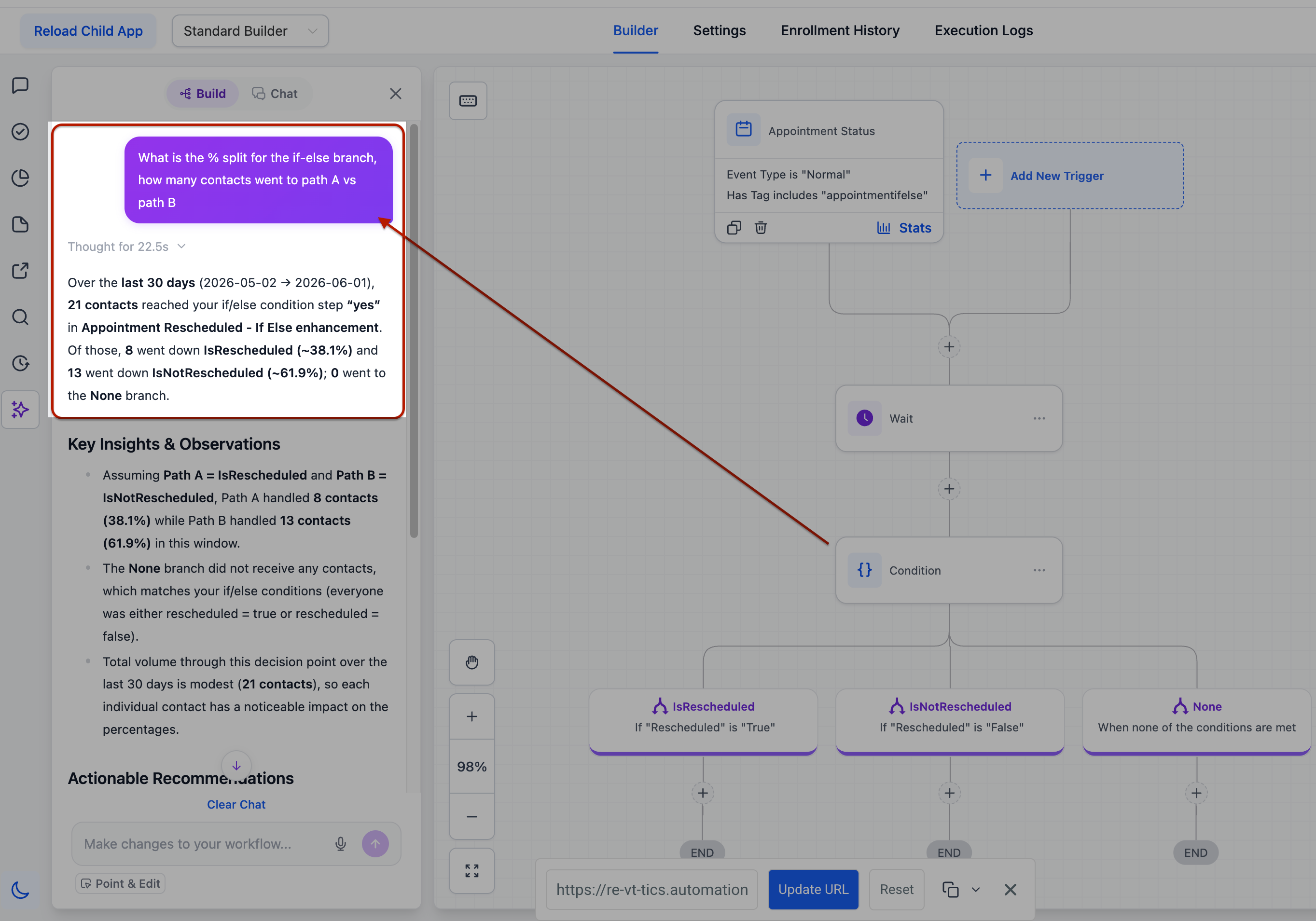
<p>**If/Else and Split Step Analysis**: For if/else and split steps, determine the percentage of contacts taking each branch.</p>
<div class="line"><img alt="if-else" loading="lazy" src="https://clixio.io/wp-content/uploads/2026/06/762099faa6e20fc5bfc2c83538db38ef.png" class="tappable"/></div>

<p>**Individual Contact Tracking**: Check whether a person completed their task, failed, or is still active, along with information regarding their entry time, duration, and current status. You can ask specific questions like "Who entered last week?" or "Which contacts failed at the SMS step?" to receive names and emails in return.</p>
<div class="line"><img alt="Contact" loading="lazy" src="https://canny-assets.io/images/61e5425dd5762a6e582c7fdcd99fcf97.png" class="tappable"/></div>

<p>**Trigger Analysis**: Investigate whether a trigger is firing, what percentage is qualifying, and the primary reasons contacts are being rejected. You can also inspect a single firing to compare the checked value against the expected value, revealing silent rejections that were previously unnoticed.</p>

<p>**Workflow Search**: Search every workflow by name, status, tags, triggers or actions it includes, or who last edited it. Ask specific questions like "Which workflows use a Wait step?" or "Which ones use the Invoice Paid tag?" to receive immediate answers.</p>
<div class="line"><img alt="Discovery" loading="lazy" src="https://canny-assets.io/images/df504408be6a9ff238f26b2e06381f09.png" class="tappable"/></div>

<p>**Version History**: Inquire about who last edited a workflow and the number of versions available.</p>

<p>**Using the AI Assistant**: You can activate the AI Assistant in any workflow and ask questions without any setup required. The Assistant only reads your workflows and does not alter them while providing answers. Time periods like "last 7 days" operate based on your local timezone. It won’t generate figures arbitrarily; if there’s no data available, it will inform you and advise you on what to check. Each answer starts with key figures, offers comparisons against the previous timeframe, and concludes with suggested next steps.</p>

<p>Answers that previously required sifting through execution logs are now returned within seconds, using clear language, based on live data. The Assistant bridges the gap between building workflows and understanding their performance—without the need to leave the canvas or learn a new interface.</p>