Zoom In on Product Images for Better Product Viewing
We’ve introduced Image Zoom Options on the Product Details Page, providing customers with an improved way to examine product images and observe finer details before making a purchase. Store owners can now regulate how product images respond to customer interactions.
-
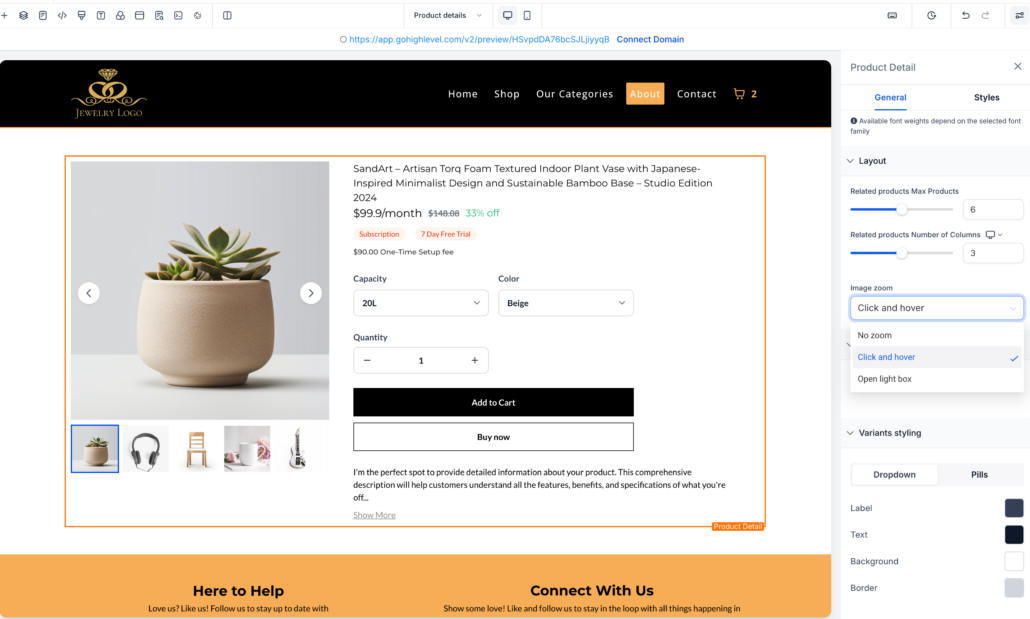
Image Zoom Settings
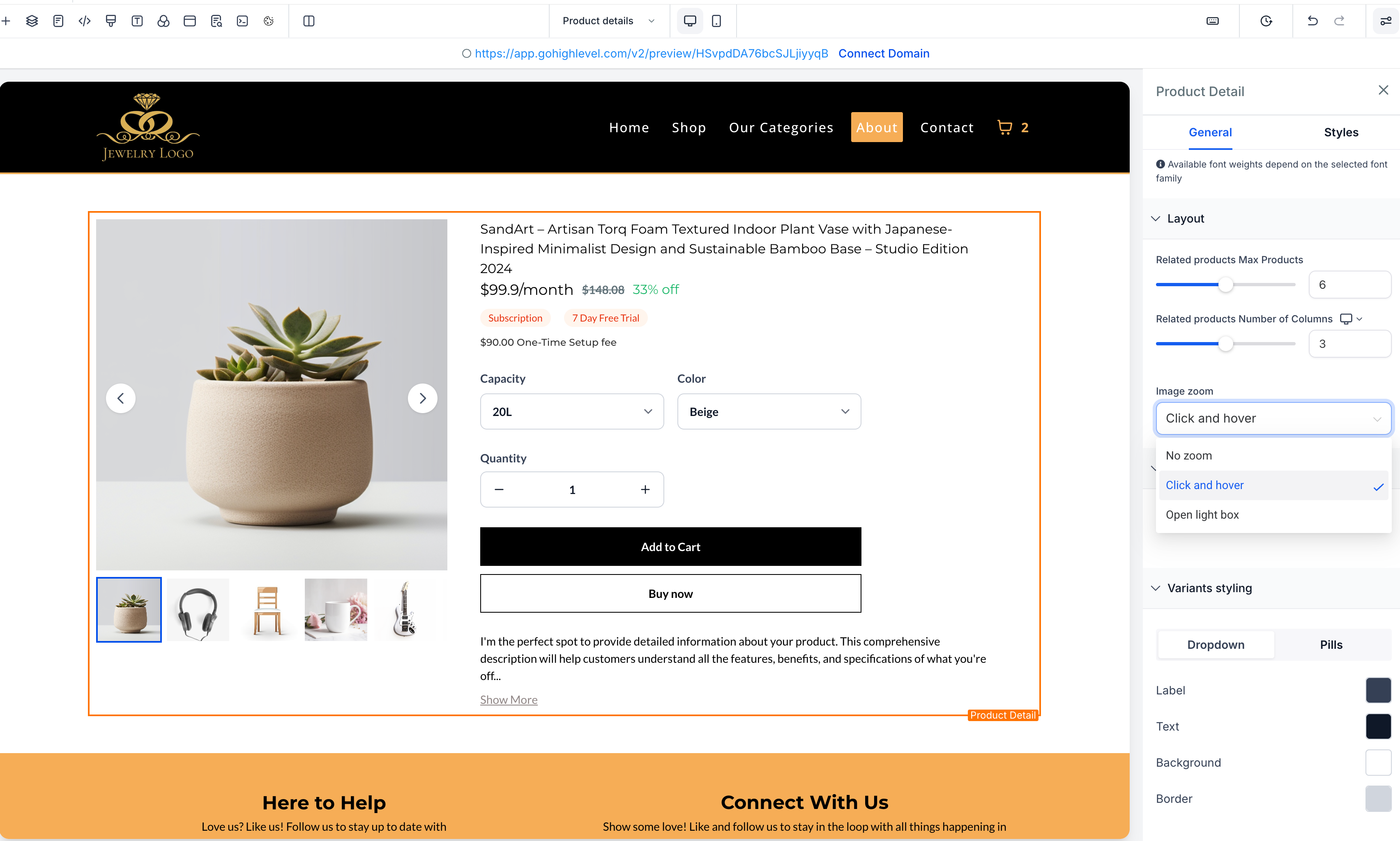
A new Image Zoom option is now available in the Product Details element settings. Store owners can select from three zoom behaviours:
-
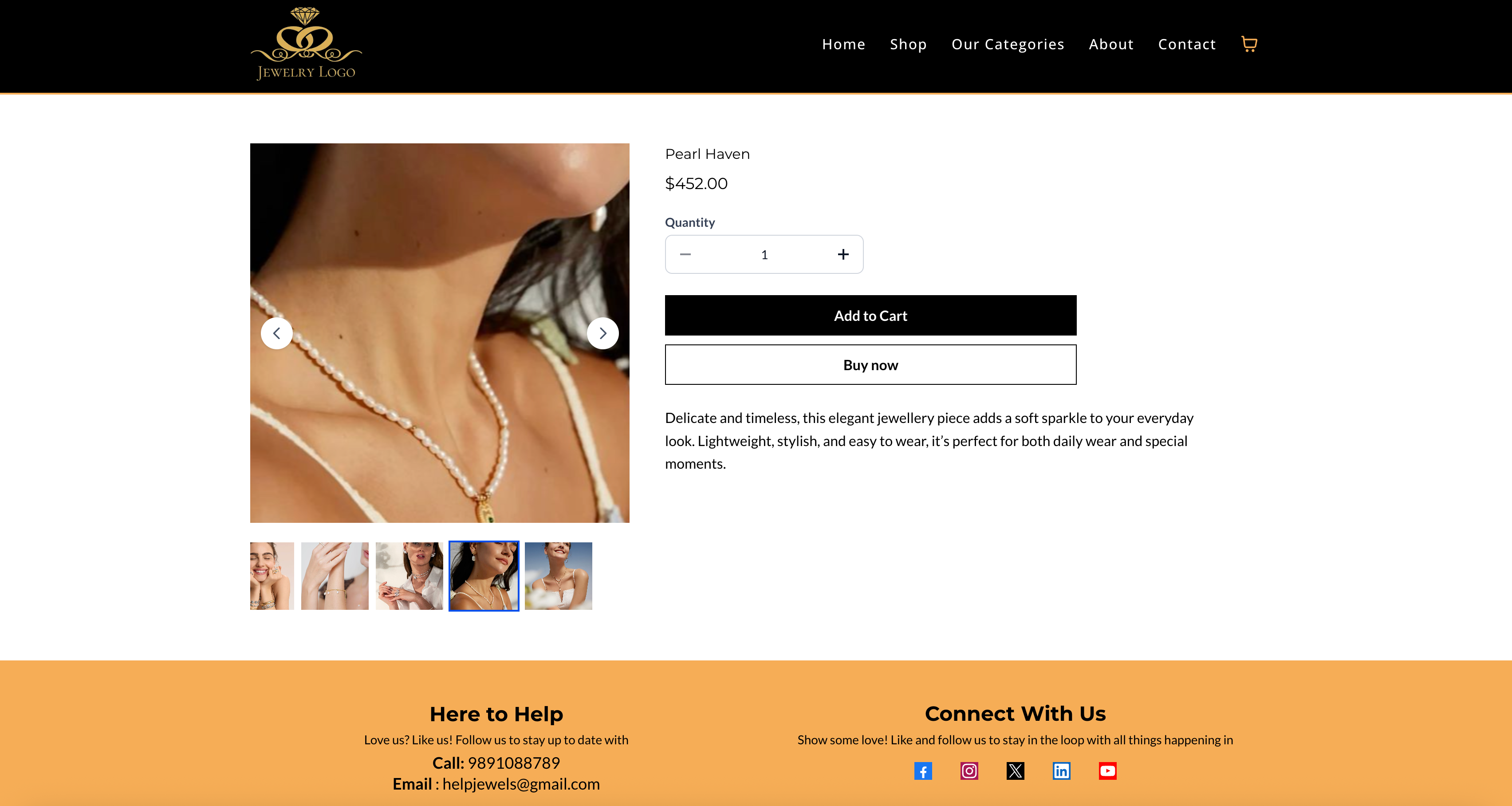
No Zoom – The default setting with no zoom interaction.
-
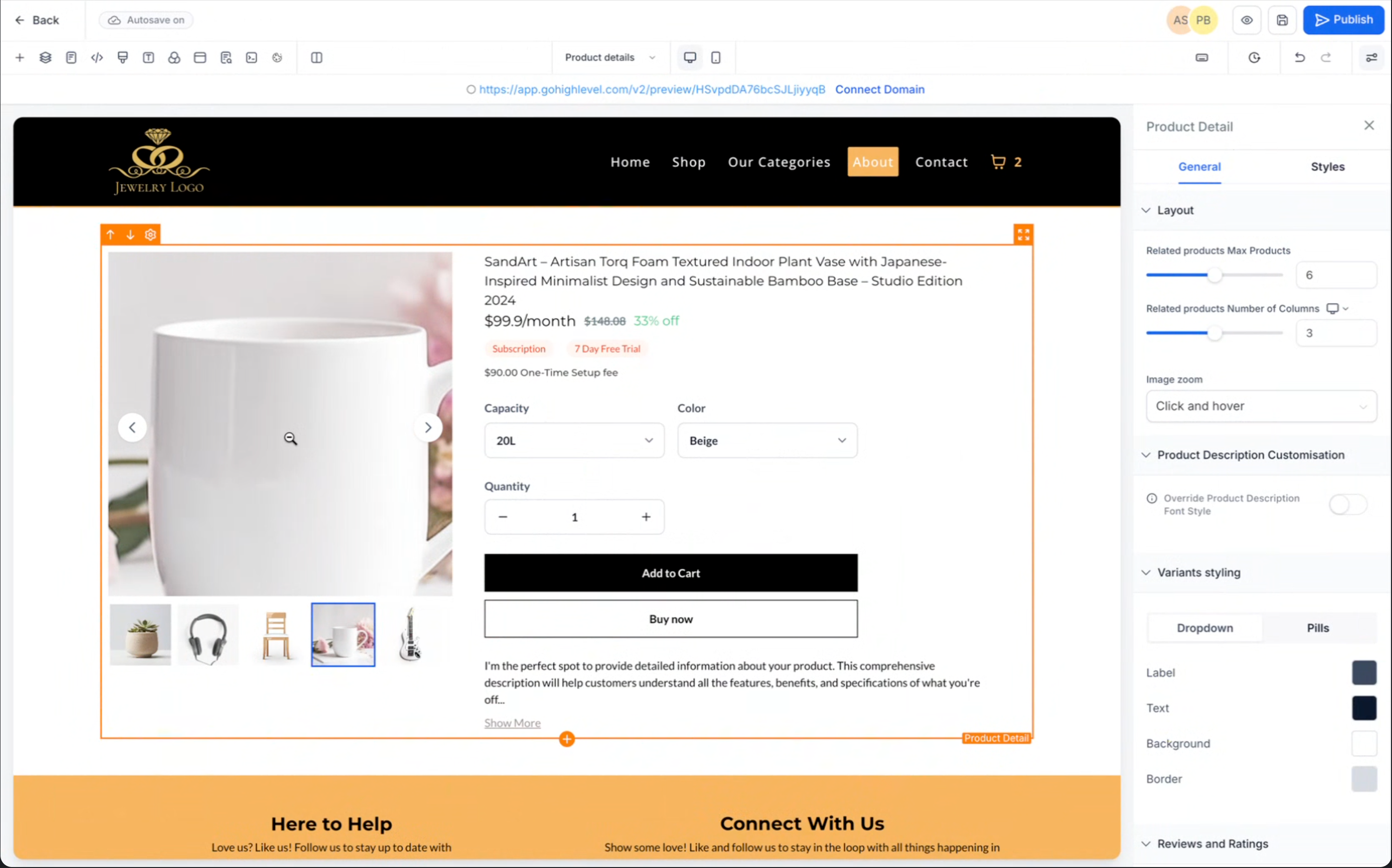
Click & Hover Zoom – Customers can click or hover over the image to zoom in on a specific area for a closer inspection.
-
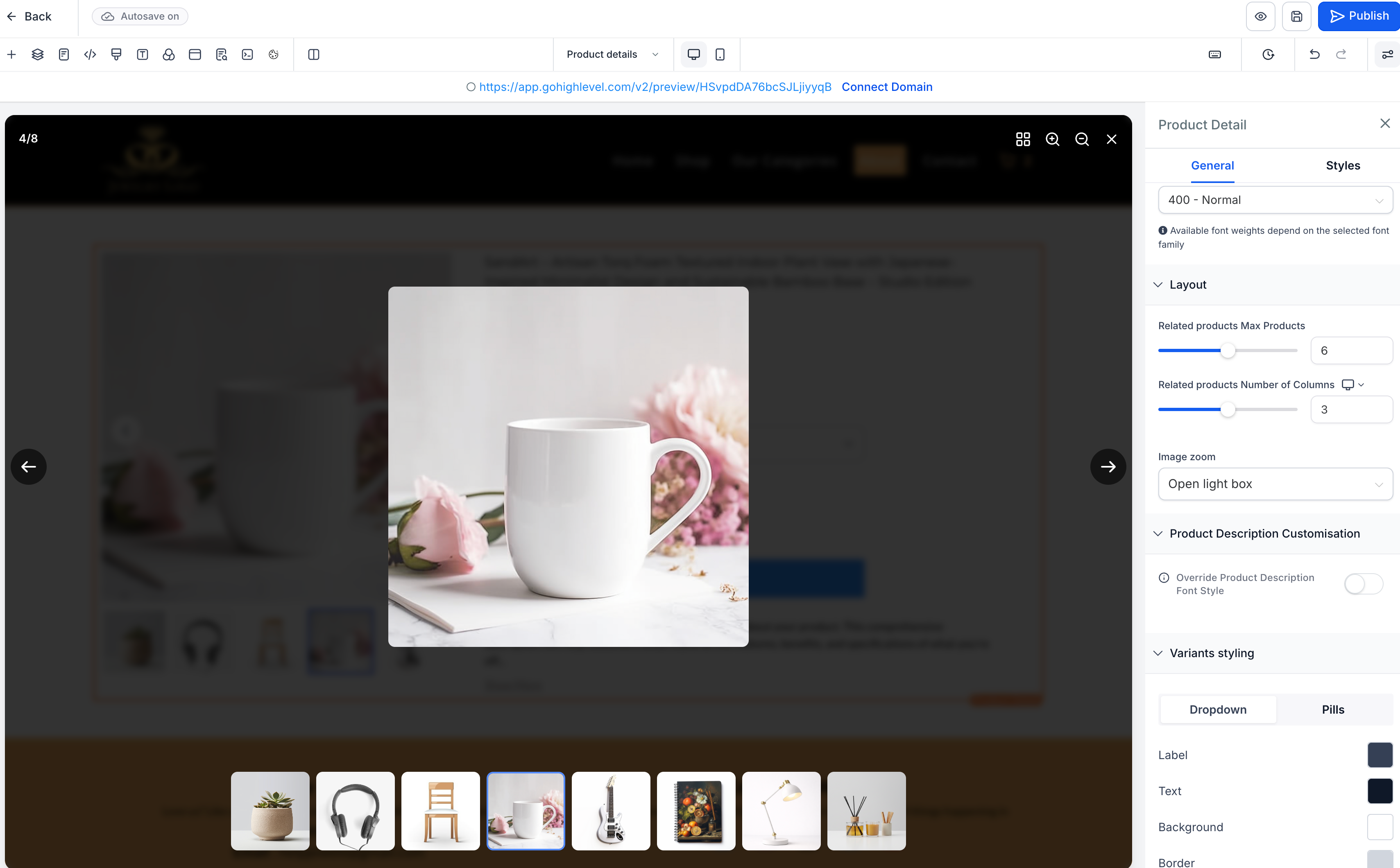
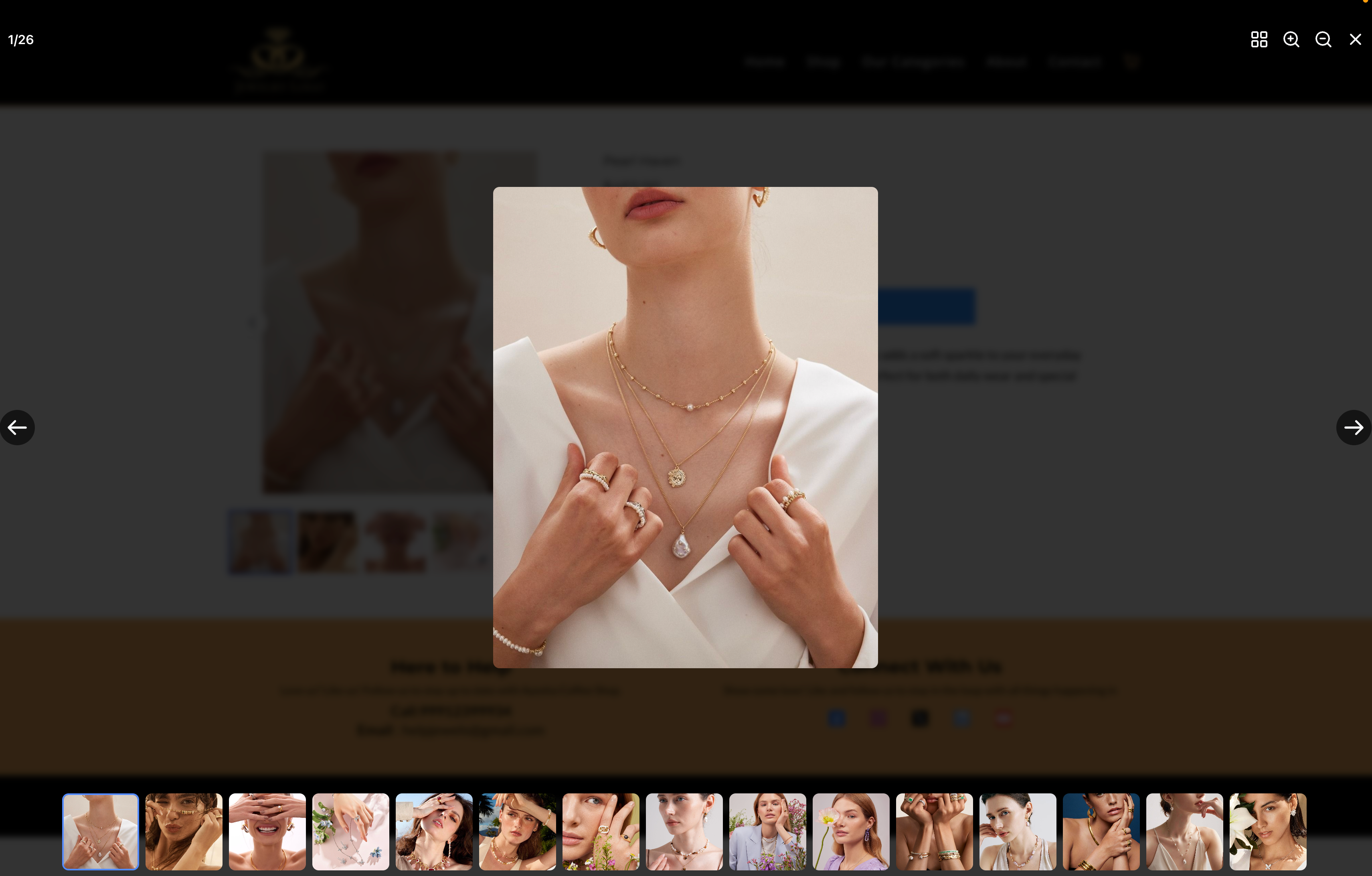
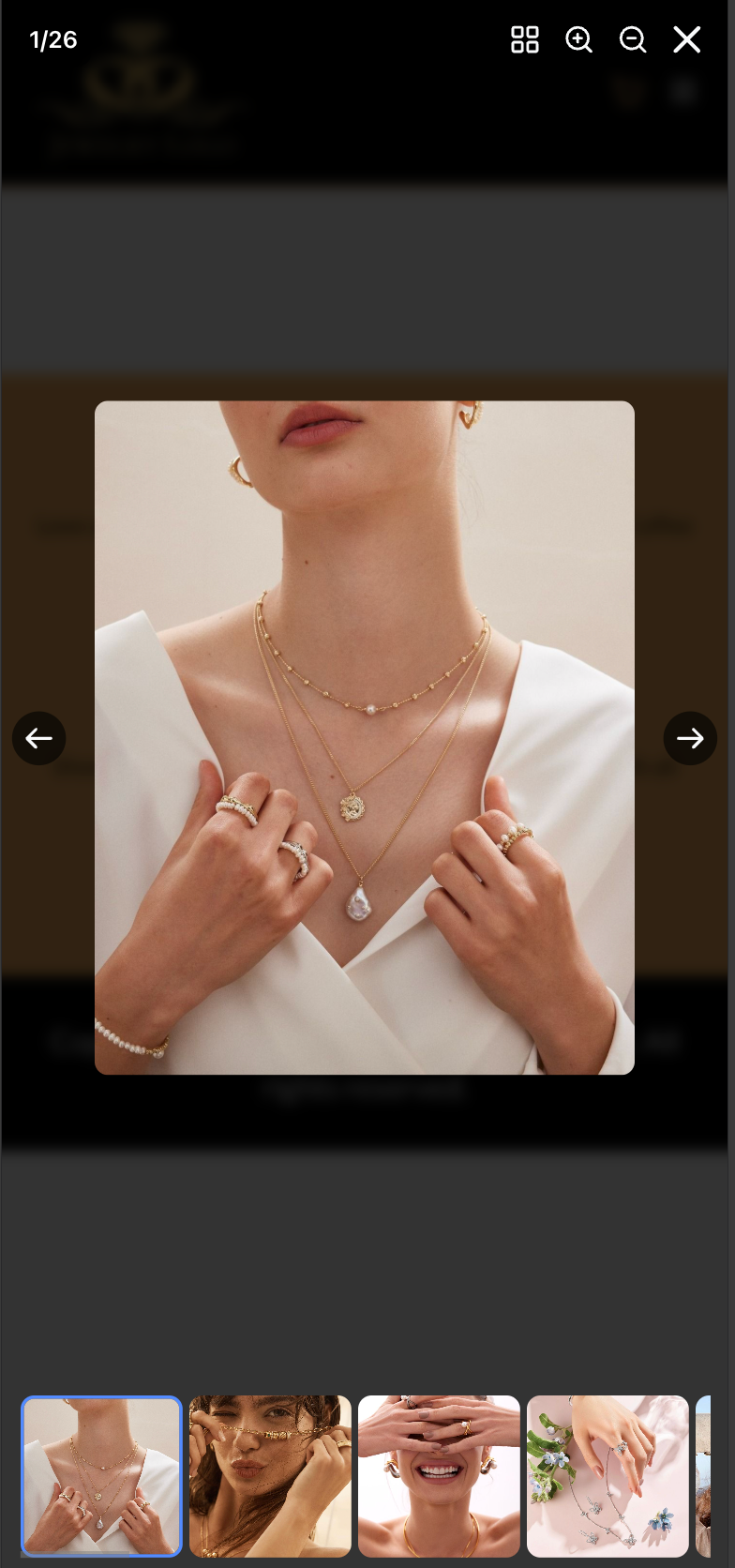
Open Lightbox Zoom – Clicking the product image opens a fullscreen lightbox with zoom controls and navigation options.
-
Lightbox Viewing Experience
Open Lightbox
is enabled, customers can:
- View images in a fullscreen popup
- Zoom in or out for a detailed inspection
- Navigate between images using previous/next controls
- Browse all images using a thumbnail strip
-
Works Across All Media Layouts
The zoom feature is fully compatible with all Product Media layouts:
- Stack Gallery
- Stack Carousel
- Two-Column Layout
This feature enhances product presentation and assists customers in evaluating products directly on the product page.
- Open your
Store
and edit the
Product Details Page
.
- Select the
Product Details element
.
- In the
Layout Settings
, locate the
Image Zoom
option.
- Choose your preferred zoom behaviour:
No Zoom, Click & Hover, or Open Lightbox
.
- Save and publish your changes.
- The zoom functionality applies only to
product images
; videos are excluded from the zoom behaviour.
-
Click & Hover
Zoom works best for desktop interactions.
- On mobile devices, interactions adapt to touch behaviour for a seamless experience.