
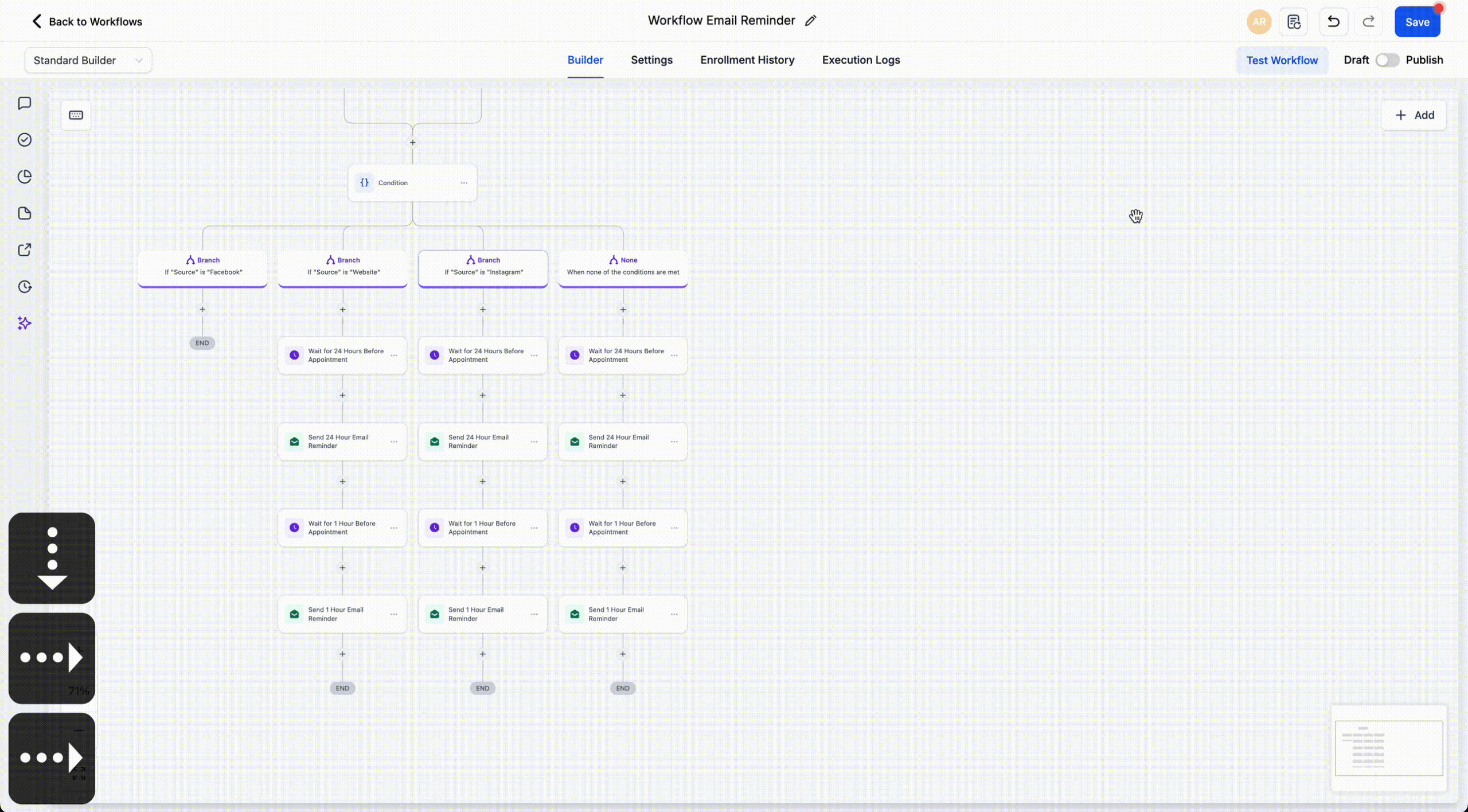
Standard Builder: Now with Keyboard Navigation & Shortcuts!
We have introduced keyboard shortcuts to the standard workflow builder, enabling you to build, edit, and navigate workflows more quickly using just the keyboard. These shortcuts cover node movement, selection, copying and pasting, deleting actions, zoom controls, panel access, and saving.
<p>Within the standard builder, shortcuts are organised into five categories: **Essential**, **Edit**, **View**, **Navigation**, and **Tools**. Depending on the action, shortcuts may affect the selected node, all actions from the selected node onwards, or the current builder view.</p>

<ul>
  <li>Open a workflow in the standard builder.</li>
  <li>Select a node when needed, then use the corresponding shortcut.</li>
  <li>Save your workflow and continue building without having to revert to mouse clicks.</li>
</ul>

<p>Building workflows often involves repeating the same actions. These shortcuts reduce repetitive clicks, speed up edits, and simplify the process of managing larger workflows.</p>

<div class="line">
  <p>**List of Keyboard Shortcuts**</p>
</div>

<ul>
  <li>Move Selected Node(s) — ⌘ + X / Ctrl + X</li>
  <li>Copy Selected Node(s) — ⌘ + C / Ctrl + C</li>
  <li>Paste Node(s) — ⌘ + V / Ctrl + V</li>
  <li>Copy All Actions From Selected Node Onward — ⌘ + Shift + C / Ctrl + Shift + C</li>
  <li>Move All Actions From Selected Node Onward — ⌘ + Shift + X / Ctrl + Shift + X</li>
</ul>

<ul>
  <li>Zoom In — +</li>
  <li>Zoom Out — -</li>
  <li>Zoom to 100% — 0</li>
  <li>Fit View — 1</li>
</ul>

<ul>
  <li>Select All Nodes — ⌘ + A / Ctrl + A</li>
  <li>Select All Actions — ⌘ + Shift + A / Ctrl + Shift + A</li>
  <li>Select All Triggers — ⌘ + ⌥ + A / Ctrl + Alt + A</li>
  <li>Move to Next Node — ↓</li>
  <li>Move to Previous Node — ↑</li>
  <li>Move to Right Sibling Node — →</li>
  <li>Move to Left Sibling Node — ←</li>
  <li>Select Upstream Nodes — Shift + ↑</li>
  <li>Select Downstream Nodes — Shift + ↓</li>
</ul>

<ul>
  <li>Delete Selected Node(s) — Del</li>
  <li>Delete All Actions From Selected Node Onward — ⌘ + Del / Ctrl + Del</li>
  <li>Open Trigger Panel — Shift + Tab</li>
  <li>Open Action Panel — Tab</li>
  <li>Save Workflow — ⌘ + S / Ctrl + S</li>
</ul>

<ul>
  <li>Some shortcuts only function after you have selected a node first.</li>
  <li>Some shortcuts are listed in multiple sections because they are applicable to various workflow tasks.</li>
</ul>

<div class="line">
  <p>**Example of Keyboard Shortcuts in Use with Key Bindings**</p>
</div>

<div class="line">
  <img alt="Kapture 2026-03-24 at 19" loading="lazy" src="https://canny-assets.io/images/99141ee44c3a4dbb0285fc7dd0cce77c.gif" class="tappable"/>
</div>