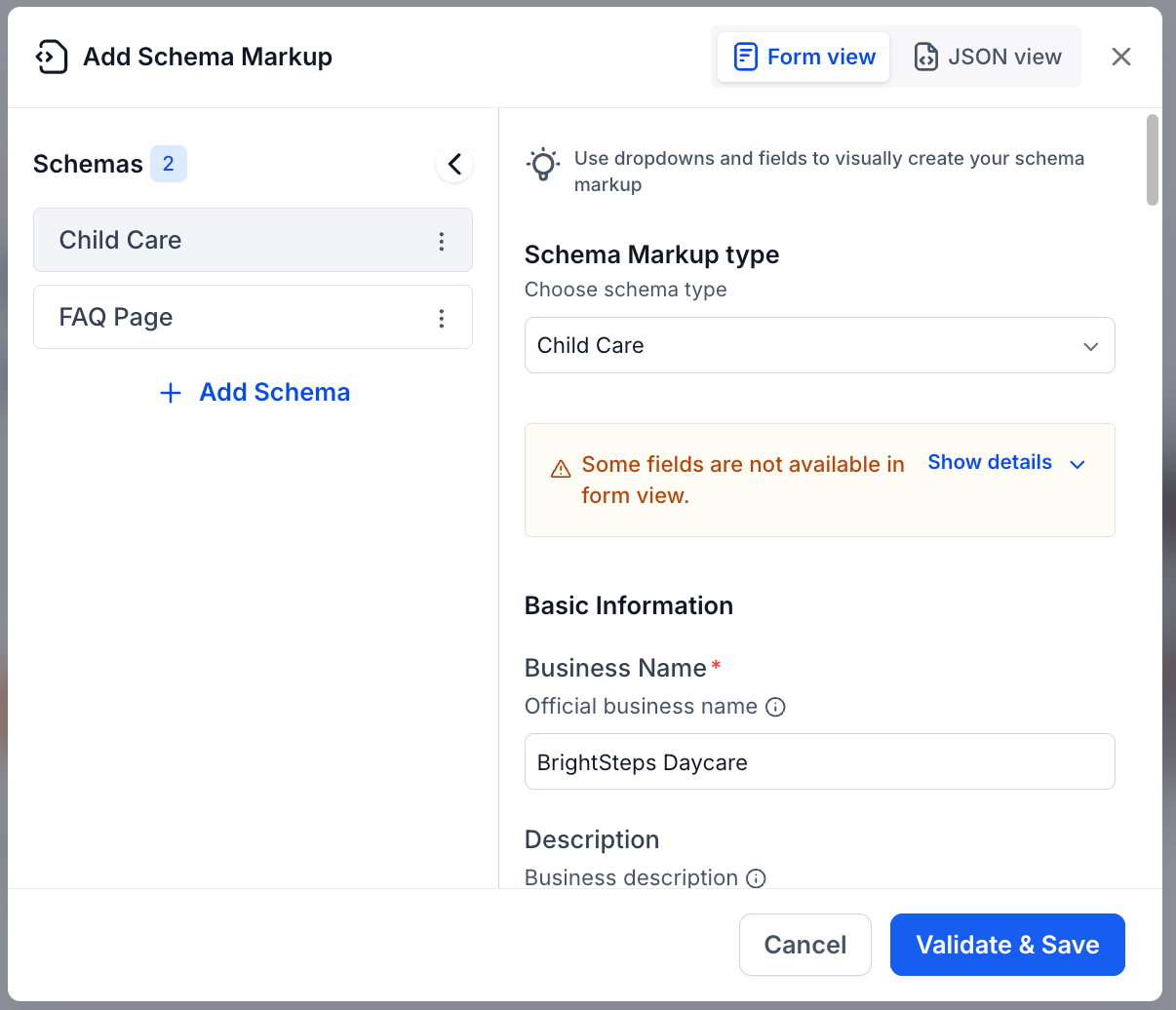
Schema Form View: Missing Fields Visibility
When AI generates schema markup, the form view only displays fields for which it has user interface definitions — any unsupported fields are quietly omitted. Consequently, users may encounter an incomplete schema without any indication of missing fields or guidance on how to access them.
We have introduced a contextual warning banner in the form view that appears when a schema contains fields that cannot be rendered.
The warning is displayed for each schema, but only if there are unmapped fields present.
- The “View details” option expands to reveal the exact field names (using dot notation for nested fields, e.g., estimatedCost.value).
- The first five fields are shown, with a “+X more” indicator if the list is lengthy.
- There is a clickable “JSON view” link that allows users to switch directly to full editing mode.
- The warning recalibrates dynamically — if fields are mapped in future updates or the user removes them, the banner will automatically disappear.
- Transparency: Users can now see exactly which fields exist but are hidden in the form view.
- Guidance: Clear instructions are provided to switch to JSON view for full editing.
- No disruption: Fully mapped schemas remain entirely unaffected.
- Add schema using AI or a JSON script, then load the form view.
- If there are unmapped fields, an amber warning banner will appear below the schema type.
- Click “View details” to see which fields are missing from the form view.
- Click “JSON view” in the banner to switch and edit all fields.