
Mistral AI: Workflow Actions | Clixio Changelog
AI is most effective when integrated with your automation processes, rather than functioning as a separate manual task. The Mistral AI integration allows your workflows to utilise Mistral language models, generate embeddings for semantic search, and analyse images — all using your own Mistral API key. The response is then available as a workflow variable for any subsequent steps.
This integration means that workflows can respond to customers in their preferred language, find the closest match in a knowledge base, or extract structured data from an uploaded receipt — all without directing users to a third-party tool.
Mistral AI is a French AI lab dedicated to developing open-weight and frontier language models. The integration includes three key actions:
- Create Chat Completion — generating text across the Mistral Large, Medium, Small, Ministral, and Magistral families.
- Create Embeddings — converting any text into a 1024-dimensional vector for semantic search, classification, or clustering.
- Analyze Image (Vision) — submitting an image along with a prompt to a vision-capable Mistral model to receive a structured natural-language response.
All three actions are premium features.
Key Benefits of Mistral AI in Workflows
- Robust multilingual support — Mistral models are trained natively in over 40 languages, excelling in European languages, which is particularly useful when your contacts are not predominantly English speakers.
- Native image understanding — receipts, IDs, charts, screenshots, and product photos can be processed within a workflow without needing to integrate with a separate OCR provider.
- On-demand reasoning models — for complex multi-step logic problems, utilise Magistral, allowing the model to think through the steps before providing a response.
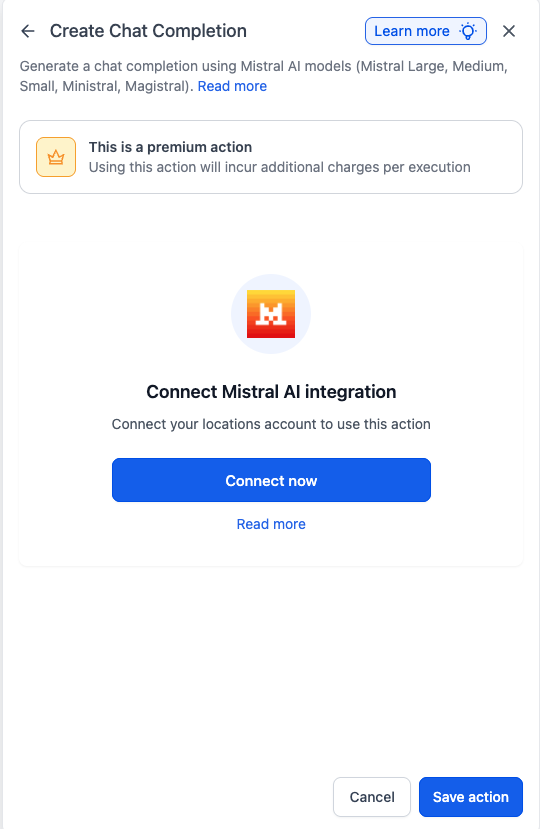
Before any Mistral AI action can be executed, the integration must be connected. This connection enables your workflows to securely access Mistral using your API key.
Connect via the Workflow Builder (recommended)
- Open Automation → Workflows and select (or create) a workflow.
- In the builder, click Add to insert a new step.
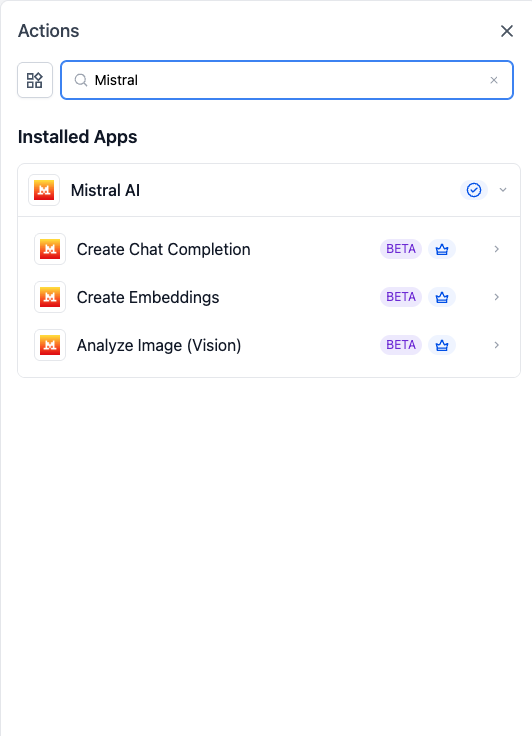
- Open the Apps tab and search for Mistral AI.
- Choose any Mistral AI action — Create Chat Completion, Create Embeddings, or Analyze Image.
- Click Connect Now on the action card.
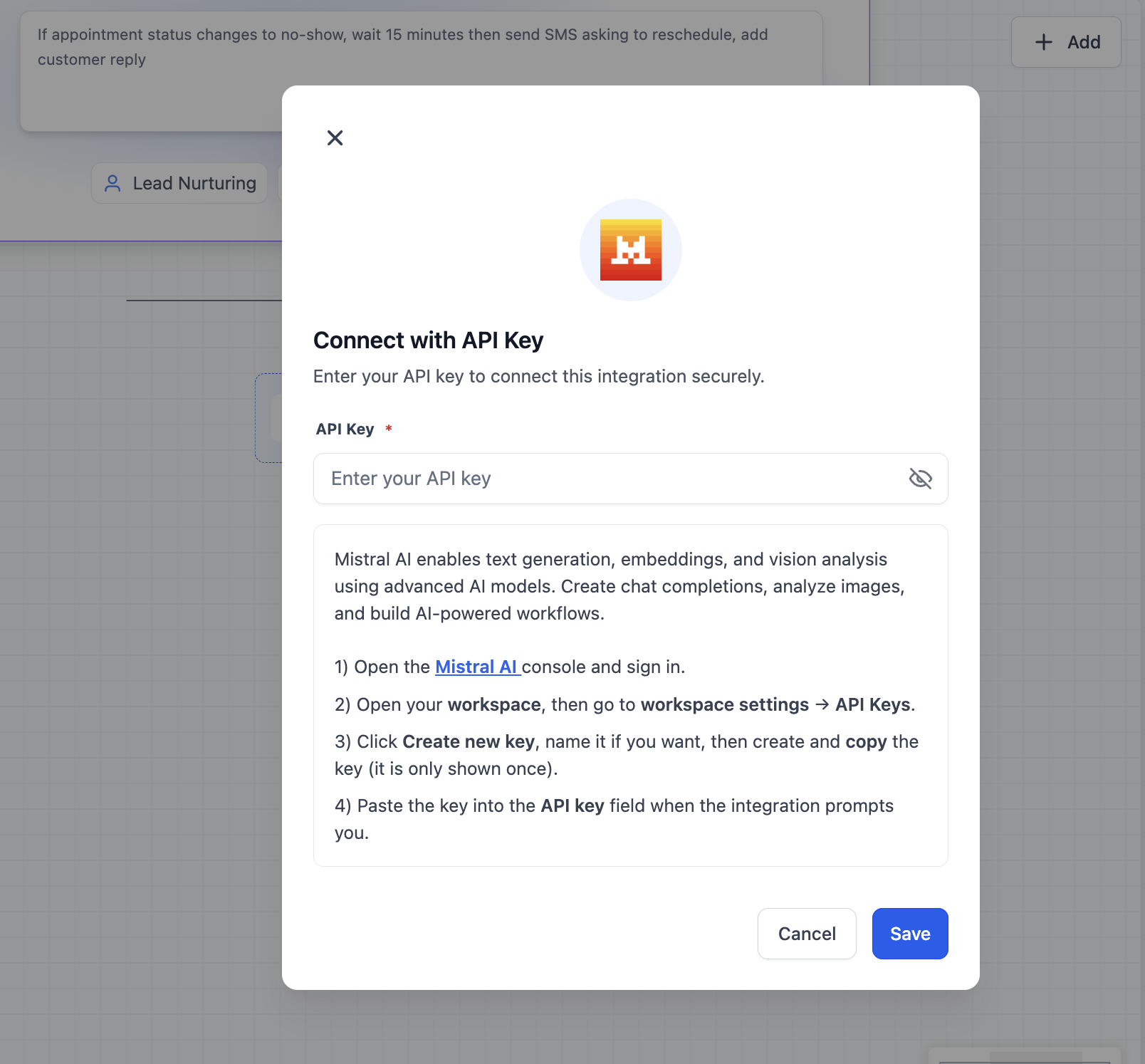
- Paste your Mistral API key. To generate one, log in to console.mistral.ai, go to API Keys, click Create new key, assign it a recognizable name, and then copy the key.
- Click Save to complete the connection.
Connect via Settings (alternative path)
- Navigate to Settings → Integrations.
- Find Mistral AI in the integrations list and click Connect.
- Paste your Mistral API key and click Save.
- Create Chat Completion – Submit a prompt (and optional system prompt) to a Mistral language model and receive a generated text response.
- Create Embeddings – Transform input text into a 1024-dimensional vector for semantic search, RAG, classification, or clustering.
- Analyze Image (Vision) – Provide an image URL and a prompt to a vision-capable Mistral model to obtain a natural-language response about the image.
Currently, there are no Mistral AI triggers available. Mistral AI operates as an action-only feature — workflows can invoke Mistral models from any step, but cannot be initiated by a Mistral event. Trigger support may be introduced in a future release.
Example: Setting Up an Action (Create Chat Completion)
This walkthrough guides you through creating an automated multilingual reply. The workflow listens for an incoming message, requests Mistral to draft a friendly response in the contact’s language, and sends it back via email.
Open or create a workflow. Click Add to include a new step.
- In the right panel, switch to the Apps tab.
- Locate Mistral AI and click to expand its actions.
- Select Create Chat Completion.
Step 2: Configure the action
- The configuration panel presents the standard prompt and model fields:
- Action Name — Assign the step a meaningful label such as ‘Draft Multilingual Reply’.
- System Prompt (optional) — Specify the AI’s persona. Example: ‘You are a friendly support agent. Always reply in the contact’s preferred language. Keep responses under 80 words.’
- Prompt (required) — Provide the actual instruction with workflow variables included. Example: ‘Reply to this message from {{contact.first_name}}: {{trigger.message_body}}. Their preferred language is {{contact.language}}.’
- Model (required) — Select a Mistral model. Use Mistral Large for the highest quality multilingual output; alternatively, opt for Mistral Small or Ministral for quicker, budget-friendly runs.
- Optional tuning — Adjust temperature for creativity, max tokens for length, and other parameters as available through the action.
Step 3: Save and use the output
- Click Save Action. The generated response becomes a workflow output variable that can be inserted into a Send Email step, recorded in a custom field, or evaluated by a condition.
Example: Setting Up Analyze Image (Vision)
This example illustrates how to extract structured data from an uploaded receipt and write it to the contact record.
- Add a step and select the Analyze Image (Vision) action under Mistral AI.
- Set the Action Name to ‘Parse Receipt Image’.
- In the Image URL field, insert the workflow variable that contains the uploaded image — for instance, the file URL from a Form Submission step or a Media Storage entry.
- Set the System Prompt to: ‘You are a receipt parser. Always respond with valid JSON only.’
- Set the Prompt to: ‘Extract vendor_name, total_amount, currency, and purchase_date from this receipt. Return a JSON object with exactly those four keys.’
- Choose a vision-capable model from the dropdown.
- Run Test Action with a sample receipt URL to ensure the JSON response is properly structured, then save.
- In the following steps, parse the JSON output and use the extracted values to update contact custom fields, create an Opportunity, or send an internal Slack notification.
- Multilingual customer reply generation
Inbound message → Mistral AI Create Chat Completion → Send Email/SMS
- Trigger when a contact replies in any supported language (native French, English, Spanish, German, Italian, Portuguese, along with broad coverage in Dutch, Japanese, Korean, Chinese, Arabic, and more).
- Use Mistral Large for high-quality, native multilingual responses.
- Maintain brand tone via the System Prompt and personalise using contact variables.
2. Semantic FAQ matching for inbound questions
Inbound email/customer reply → Create Embeddings → Vector lookup → Send templated reply
- Embed the inbound question and compare it against pre-embedded FAQ entries to respond with the closest match.
- Handles paraphrased questions effectively without relying on rigid keyword matching.
- Use the same embedding action once as a setup step to index your FAQ content.
3. Receipt and document extraction from images
Inbound webhook → Image upload (form / inbound MMS) → Analyze Image (Vision) → Update contact → Create opportunity
- Send a receipt, ID, or photo to Pixtral Large with a structured prompt (e.g. “return JSON with vendor, date, total”).
- Automatically populate custom fields without requiring manual data entry.
- Applicable for damage photos, IDs, business cards, and various image-based intake processes.
Frequently Asked Questions
Q: What is Mistral AI?
Mistral AI is an AI lab focused on developing open-weight and frontier language and vision models. The integration offers workflows direct, governed access to these models via your own API key.
Q: Which Mistral models are available in the model dropdown?
Models from the Mistral Large, Medium, Small, Ministral, and Magistral families are available. The list is updated regularly as Mistral phases out older versions and introduces new ones.
Q: Do I need a separate Mistral account?
Q: Are Mistral AI actions premium workflow actions?
Yes, all three actions consume premium action credits at the standard automation rate, in addition to Mistral usage charges.
Q: Can I use workflow variables inside prompts?
Yes, both the System Prompt and the Prompt support inline variables — including contact fields, custom fields, trigger payload values, and outputs from prior workflow steps.
Q: Where is the AI-generated response stored?
It is exposed as a workflow output variable within the action. You can use it in messages, store it in custom fields, or pass it to subsequent steps. By default, it is not saved as a separate record.
Q: What happens if Mistral returns an error or times out?
The action will display the error in the workflow execution log, and the workflow will continue based on its configured branching. It is essential to test the action before publishing and to include a fallback branch if reliability is a concern.
Q: Can the generated response be utilised in SMS or email messages?
Yes, the output variable can be inserted into Send SMS, Send Email, internal notifications, and other messaging actions.
Q: What is the embedding output dimension?
1024 dimensions. The vector is compatible for direct use with major vector databases. Pass it to a webhook action that writes to your vector store.
Q: What image formats does Analyze Image accept?
Standard PNG and JPEG formats via direct URL, including images stored in Media Storage referred to by file URL. Images are processed at native resolution by the underlying vision model.
Q: Are these actions production-ready?
All three actions are currently released in Beta. They are safe to use in live workflows; however, expect incremental user experience changes — for instance, additional models being added to the dropdown — as the integration moves out of Beta.