
Linear: Workflow Actions & Triggers
Linear is the issue tracker used by engineering and product teams to plan, ship, and report on their work. The Linear integration brings Linear directly into the Workflow Builder, enabling customer support, sales, and marketing automations to react to engineering events—and vice versa. Twelve instant triggers and thirteen actions cover the entire Linear data model: issues, projects, customers, customer needs, initiatives, and documents. This ensures that a customer-reported bug becomes a properly tagged Linear issue with full context attached—and the same customer gets notified the moment the issue is resolved. No need for webhook plumbing, Zapier hand-offs, or third-party glue.
The Integration Overview consists of two components:
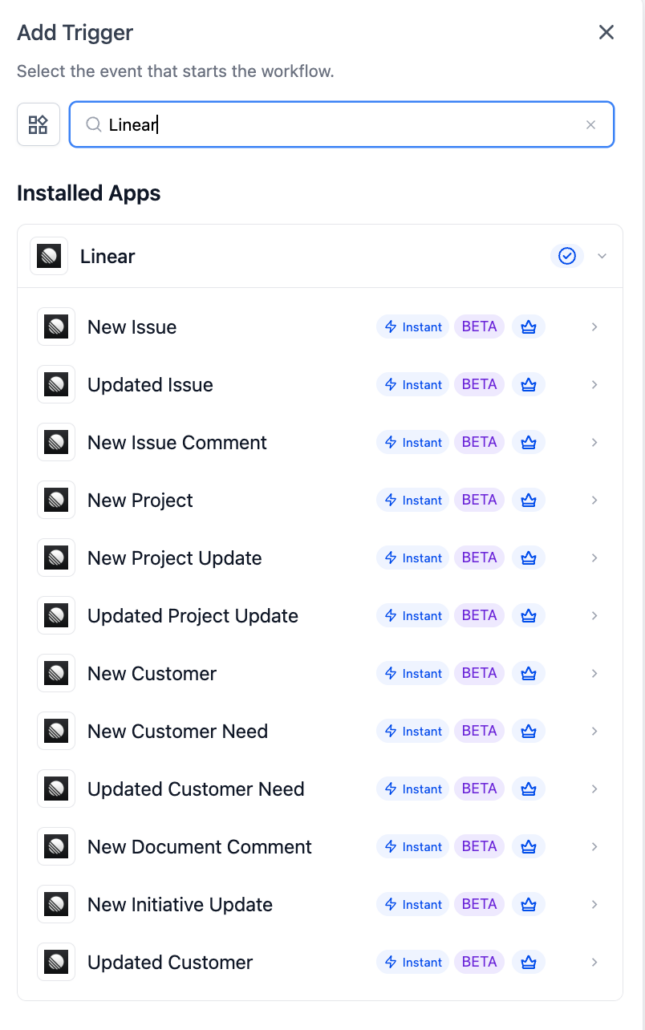
- Triggers (Linear → Workflows): Twelve instant, webhook-backed triggers that activate when something changes in Linear—such as a new issue, status update, new project, new customer, new customer need, project update, document comment, or initiative update.
- Actions (Workflows → Linear): Thirteen actions that allow workflows to create and update Linear records—issues, comments, attachments, labels, projects, customers, and customer needs.
Every trigger and action is marked as a premium workflow component—premium action credits apply at the standard automation rate.
Key Benefits of Linear in Workflows
- Closed-loop customer feedback: Capture bugs and feature requests as customer-attributed Linear records, then notify the original reporter when the work is completed.
- Revenue-weighted product prioritisation: Customer Need entries linked to Linear customer records enable product teams to see request volume by tier and revenue, not just by who is the loudest.
- Real-time engineering visibility: Project and initiative updates flow into customer communications, status pages, or sales digests automatically.
- Two-way linking: Create Issue Attachment links a CRM record to a Linear issue and back; engineers can navigate to the customer context with one click.
- Instant triggers: Webhook-backed delivery ensures no polling lag.
- Native, governed connection: OAuth-based, with workspace and team scoping—no long-lived API tokens to manage.
Before any Linear trigger or action can run, the integration needs to be connected. This connection allows your workflows to securely read from and write to your Linear workspace.
Connect via the Workflow Builder (recommended)
- Open Automation → Workflows and select (or create) a workflow.
- Add a Linear trigger or action—search for Linear in the Apps tab.
- Select any Linear trigger or action.
- On the action card, click Connect Now.
- Sign in to your Linear account when prompted; authorise the workspace and team(s) you want to expose.
- Click Save to complete the connection.
Connect via Settings (alternative path)
- Go to Settings → Integrations.
- Locate Linear in the integrations list and click Connect.
- Authenticate via OAuth and authorise the workspace.
All triggers are Instant—they are powered by Linear webhooks and activate within seconds of the underlying change:
- New Issue: Fires when a new issue is created. Filterable by team.
- Updated Issue: Fires when an issue’s status, priority, assignee, labels, or other fields change.
- New Issue Comment: Fires when a new comment is added to any issue.
- New Project: Fires when a new project is created in Linear.
- New Project Update: Fires when a project update is posted (with health status).
- Updated Project Update: Fires when an existing project update is edited.
- New Customer: Fires when a new customer record is created in Linear.
- Updated Customer: Fires when an existing customer record is edited.
- New Customer Need: Fires when a new customer need (feature request) is captured.
- Updated Customer Need: Fires when a customer need’s status, priority, or linked work changes.
- New Document Comment: Fires when a new comment is added to a Linear document (PRD, spec, proposal).
- New Initiative Update: Fires when an update is posted on a Linear initiative.
Actions:
- Create Issue: Creates a new issue in Linear with a title, description, team, project, priority, assignee, labels, and due date.
- Update Issue: Updates fields on an existing issue. Only fields explicitly set are sent.
- Get Issue: Fetches the latest state of a single issue by ID.
- Find Issues: Searches Linear issues by team, project, label, status, assignee, or text.
- Create Comment: Adds a comment (markdown supported) to an existing issue.
- Create Issue Attachment: Attaches a URL to an issue with two-way linking back to the source record.
- Add Label To Issue: Adds a label to an existing issue.
- Remove Label From Issue: Removes a label from an existing issue.
- Create Project: Creates a new Linear project with a name, description, lead, and target date.
- Find Project: Looks up a Linear project by name or filter.
- Create Customer: Creates a customer record in Linear (name, domain, tier, revenue).
- Find Customer: Finds a Linear customer by name or domain.
- Create Customer Need: Creates a customer need linked to a customer record, which can be linked to an issue or project.
Example: Setting Up a Trigger (New Issue)
This walkthrough connects a workflow that activates every time a new issue is created in a specific Linear team—such as your customer-facing engineering team—and uses the issue payload as the source of all subsequent actions.
- Step 1: Add the trigger
- Open the workflow and click Add Trigger.
- Switch to the Apps tab and search for Linear.
- Select New Issue from the Linear trigger list.
- Step 2: Configure the trigger
- Workflow Trigger Name: Give the trigger a meaningful label such as ‘New Engineering Issue’.
- Filters → Team: Select the Linear team to monitor. The dropdown lists every team your authorised OAuth connection can see.
- Add filters (optional): Add label, project, priority, or status filters so only the relevant issues are included in this workflow.
- Step 3: Test the trigger
- Click Find New Records inside the Test Your Trigger panel. The system fetches the most recent matching issues from Linear.
- In the Records — Select Mapping Reference dropdown, choose one of the returned records. This locks the payload schema so every downstream step can map fields cleanly.
- Click Save Trigger to finish.
Example: Setting Up an Action (Create Issue)
This walkthrough transforms an inbound customer form into a properly contextualised Linear issue.
- Step 1: Add the action
- Inside the workflow, click Add to insert a new step.
- Open the Apps tab and select Linear.
- Choose Create Issue from the action list.
- Step 2: Connect (first time only)
- If the integration is not yet connected, click Connect Now on the action card.
- Sign in to Linear via OAuth and authorise the workspace.
- Step 3: Configure the action
- Action Name: Use ‘Create Customer Bug Issue’ or a similar label.
- Team (required): Select the Linear team that should own the issue.
- Title (required): Use inline workflow variables, e.g. ‘[Customer Bug] {{trigger.subject}} — {{contact.full_name}}’.
- Description: Include the form payload, contact context, and CRM record URL using markdown.
- Priority: Optionally branch by tier; map enterprise tier to High.
- Project: Optional. Pin the issue to a specific project.
- Assignee: Optional. Set a triage owner or rotate via a workflow variable.
- Labels: Add a source label (‘from-customer-support’) plus any tier or area labels.
- Due Date: Optional, for issues with SLAs.
- Step 4: Save and chain
- Click Save Action. The new issue’s ID and URL are exposed as workflow output variables. Chain a Create Issue Attachment step immediately after to attach the CRM contact URL—this provides engineers with a one-click path back to the customer context inside Linear.
How to Test the Trigger and Action
Always test before publishing. Testing locks the payload schema and provides downstream steps with a real record to map against.
- Test the trigger:
- Inside the trigger panel, click Find New Records.
- Select a recent record from the dropdown to use as the mapping reference.
- Confirm the payload preview matches the fields you plan to use downstream.
- Test the action:
- Inside the action panel, click Test Action.
- The action runs against the live Linear workspace using sample values from the latest test trigger.
- Verify the issue (or comment, or customer need) appears in Linear as expected.
- If the result is not correct, refine the field mapping or filters and re-test. Once satisfied, click Save Action, then run a full Test Workflow before publishing.
Use Case Scenarios
Use Case 1: Customer-Reported Bug → Linear Issue with Context
Goal: Capture every customer-reported bug as a properly tagged, attributed Linear issue.
Workflow Setup:
- Trigger: Form Submission (or inbound conversation)
- Action: Find Customer in Linear (by domain)
- Action: Create Issue (with source label, contact context, CRM link in description)
- Action: Create Issue Attachment (CRM record URL)
- Action: Create Customer Need (linked to the new issue and the Linear customer)
Example: A user submits a bug report on the support form. The workflow finds the corresponding Linear customer, creates a tagged issue with the conversation context, attaches the CRM contact URL, and logs a customer need against the customer record so the product team can prioritise based on revenue.
Use Case 2: Linear Issue Resolved → Notify the Customer
Goal: Automatically notify the original reporter the moment their bug is resolved.
Workflow Setup:
- Trigger: Updated Issue (filter on status = Done and label = from-customer-support)
- Action: Get Issue (refresh to capture the final state)
- Action: AI summarise the resolution into customer-friendly language
- Action: Send Email or SMS to the original reporter
Example: When engineering resolves a bug that originated from a customer, the workflow detects the status change, summarises the fix in plain language, and emails the reporter without requiring a Customer Success Manager to intervene.
Use Case 3: Engineering Project Update → Customer Communications
Goal: Convert engineering project updates into customer-ready release notes or stakeholder digests.
Workflow Setup:
- Trigger: New Project Update
- Action: AI rewrite the update body for a non-technical audience
- Action: Update Custom Field on the corresponding opportunity, or send to a digest mailing list
Example: A weekly project update posted by engineering becomes a softened, customer-facing status snippet on the corresponding opportunity record—eliminating double work for the project lead.
Use Case 4: CRM ↔ Linear Customer Sync
Goal: Keep customer records in sync across both systems so that revenue-weighted prioritisation operates effectively.
Workflow Setup:
- Trigger A: New Customer in CRM → Action: Create Customer in Linear
- Trigger B: Updated Customer in Linear → Action: Update CRM record (tier, owner, revenue)
Example: Whenever a deal closes in the CRM, the company appears as a Linear customer with the correct tier and revenue tag—thereby making every subsequent customer need prioritisable.
Use Case 5: Sales Conversation → Customer Need
Goal: Transform Account Executive call insights into structured product feedback without manual logging.
Workflow Setup:
- Trigger: Call recording transcript ready
- Action: AI extract feature requests from the transcript
- Action: Find Customer in Linear
- Action: Create Customer Need (one per extracted request)
Example: Following a sales call, an AI step extracts every concrete request from the transcript. Each becomes a customer need attached to the correct Linear customer—providing the product team with a clear, attributed list to triage instead of random free-text notes scattered across the CRM.
Best Practices
- Always set the Team filter on triggers—Linear workspaces typically span many teams, and unfiltered triggers will activate for unrelated activity.
- Tag every workflow-created issue with a clear source label (‘from-customer-support’, ‘from-sales-call’)—this simplifies engineering reporting and allows you to filter notify-on-resolution flows downstream.
- Pair Find Customer with Create Customer Need instead of calling Create Customer Need cold—this prevents duplicate customer records when the same domain contacts you multiple times.
- Use Create Issue Attachment for every workflow-created issue. The two-way link is crucial for providing engineers with full customer context instead of requiring them to switch into the CRM.
- For multi-team workspaces, maintain one workflow per Linear team rather than a single workflow with branching logic—this makes failures and changes easier to manage.
- Utilise Update Issue for status changes instead of performing a Create Issue + delete dance. Update allows partial updates, meaning unrelated fields remain untouched.
- Test the trigger first to lock in the mapping reference, then design downstream actions against it. The Records — Select Mapping Reference field is essential for clean field mapping.
Frequently Asked Questions
- Q: What is Linear?
Linear is a modern issue tracker utilised by engineering and product teams to plan and ship work. It models issues, projects, customers, customer needs (feature requests), and initiatives. - Q: Which Linear plan do I need?
Most triggers and actions work on Linear’s standard plans. The Customer and Customer Need entities necessitate Linear’s Customer Requests feature, which is gated behind specific Linear plan tiers—check Linear’s pricing for current details. - Q: Are Linear actions premium workflow actions?
Yes. All Linear triggers and actions are classified as premium and consume premium action credits at the standard automation rate. - Q: Are these triggers Instant or polled?
All twelve triggers are Instant, powered by Linear webhooks, ensuring that the workflow activates within seconds of a change. - Q: Can I filter triggers by team?
Yes. Triggers such as New Issue, Updated Issue, and New Issue Comment offer a Team filter. Additional granular filters can be applied using the Add Filters control. - Q: Does Update Issue overwrite fields I do not set?
No. Update Issue operates as a partial-update action—only fields explicitly set are sent. Unrelated values remain unchanged in Linear. - Q: Can I use workflow variables in action fields?
Yes. Inline variables can be used in title, description, labels, priority, project, and assignee fields, and they resolve per execution. - Q: What happens if the issue I am trying to update no longer exists?
The action surfaces an error to the workflow execution log, and the workflow continues based on its branching. Consider adding a fallback branch if subsequent steps rely on the update succeeding. - Q: How do I attach a CRM record URL to a Linear issue?
Chain Create Issue → Create Issue Attachment, passing the issue ID from the first step. The attached URL becomes a two-way linked attachment within Linear. - Q: Can the workflow create a Linear customer if an existing one is not found?
Yes. Use Find Customer first; if the lookup returns nothing, branch to Create Customer, then proceed to Create Customer Need. - Q: Can I disconnect Linear without breaking my workflows?
Disconnecting will pause every workflow that relies on Linear triggers or actions. The workflows themselves remain intact and will resume as soon as the integration is reconnected. - Q: Are these actions production-ready?
All triggers and actions are released as Beta. They are safe to use in live workflows; expect incremental UX changes—such as additional filters and fields—as the integration evolves out of Beta.