Advanced Builder: Set Default Path for Workflow Branches
You can now change the Default Path in Advanced Builder workflows. In workflows with multiple parallel branches, this feature allows you to choose which branch contacts will enter by default when they come from another workflow or when you conduct a workflow test.
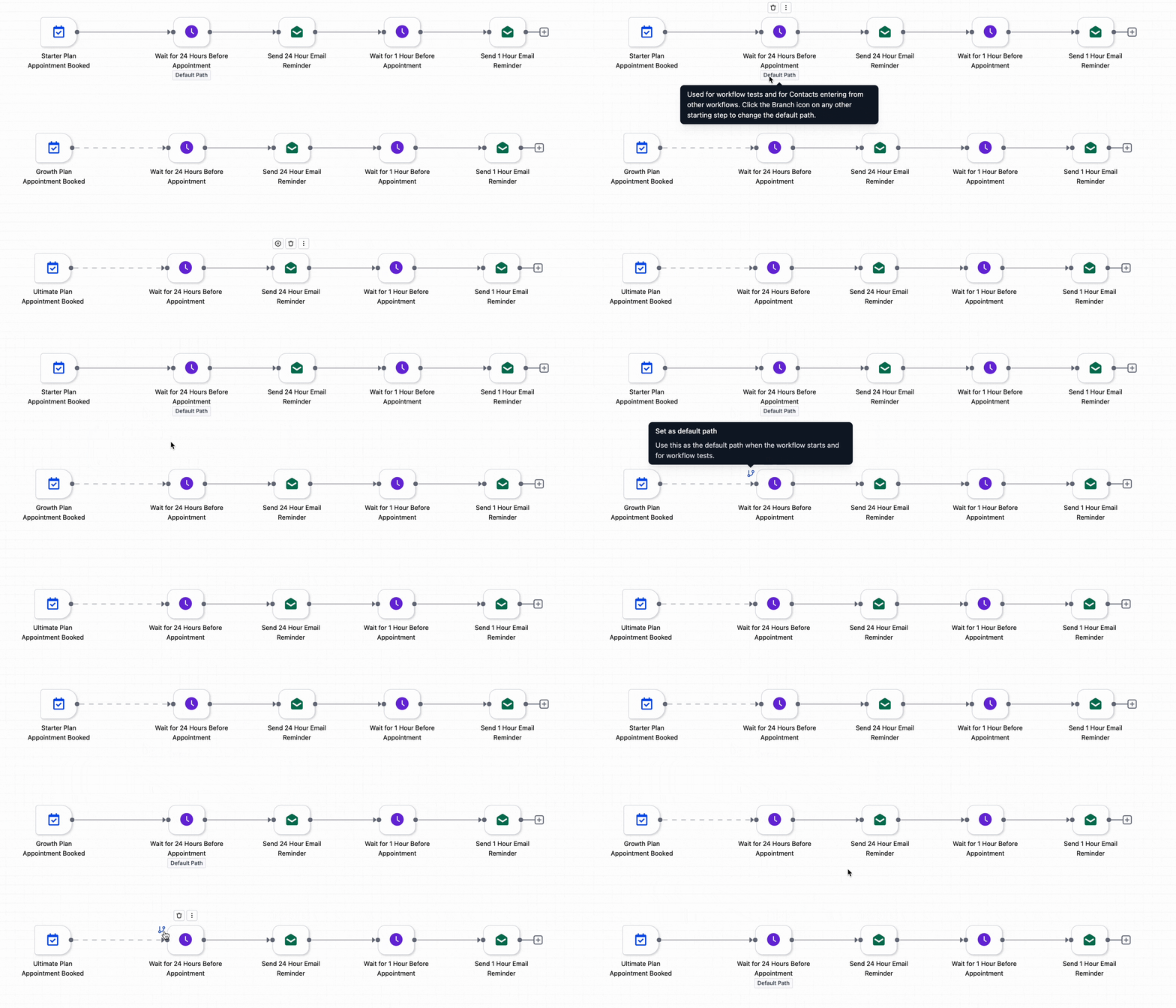
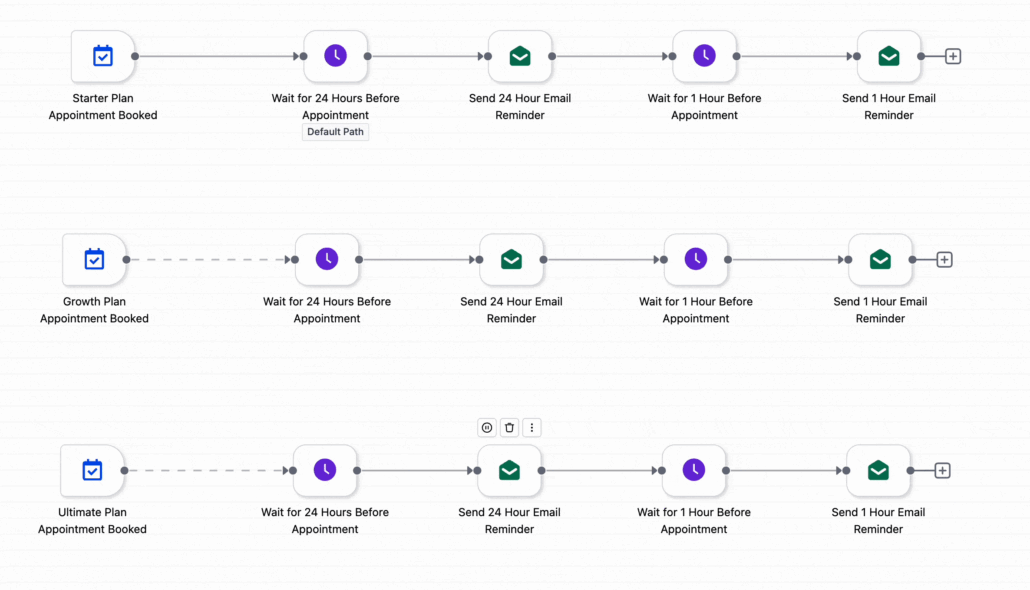
The root node is now labelled Default Path. On the first action of each branch, you can click the branch icon to set that branch as the default path. Once selected, workflow tests and contacts entering from other workflows will follow that branch.
- Open a workflow with multiple parallel branches in Advanced Builder.
- Click the branch icon on the first action of the branch you want to use.
- Set that branch as the Default Path and run your test or enrolment.
Testing and configuring workflows with parallel branches was more challenging when only one root path managed workflow tests and cross-workflow entries. This update provides you with greater control, simplifies branch-level testing, and helps you validate each path without rearranging your workflow.
When testing a workflow with multiple reminder branches, you can designate one branch as the Default Path, ensuring that your test contact enters that specific branch first.
- The root node is now referred to as Default Path in Advanced Builder workflows with multiple parallel branches.
- You can set the default path from the first action of any branch using the branch icon, complete with tooltips to clarify the function.
- The default path is utilised for workflow tests as well as for contacts entering from another workflow.
- A solid trigger connector indicates that the branch is the Default Path. A dashed trigger connector signifies that the branch is reached via a Go To connector and is not the default path.