Add Task Action: Now with Flexible Due Dates & Rich Text!
We’ve enhanced the Add Task workflow action, allowing you to set due dates with significantly more flexibility. You can now configure task due dates using days, weeks, months, or years, add a specific due time, view a live preview of the calculated due date, and create task descriptions with rich text formatting.
Improved Due Date Configuration
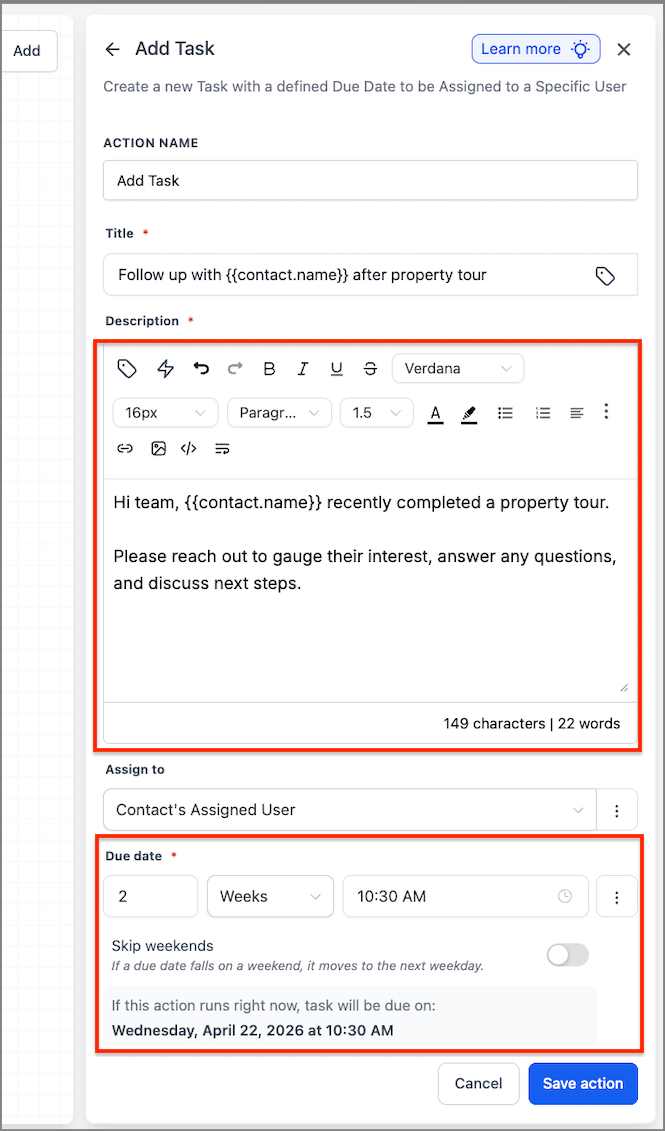
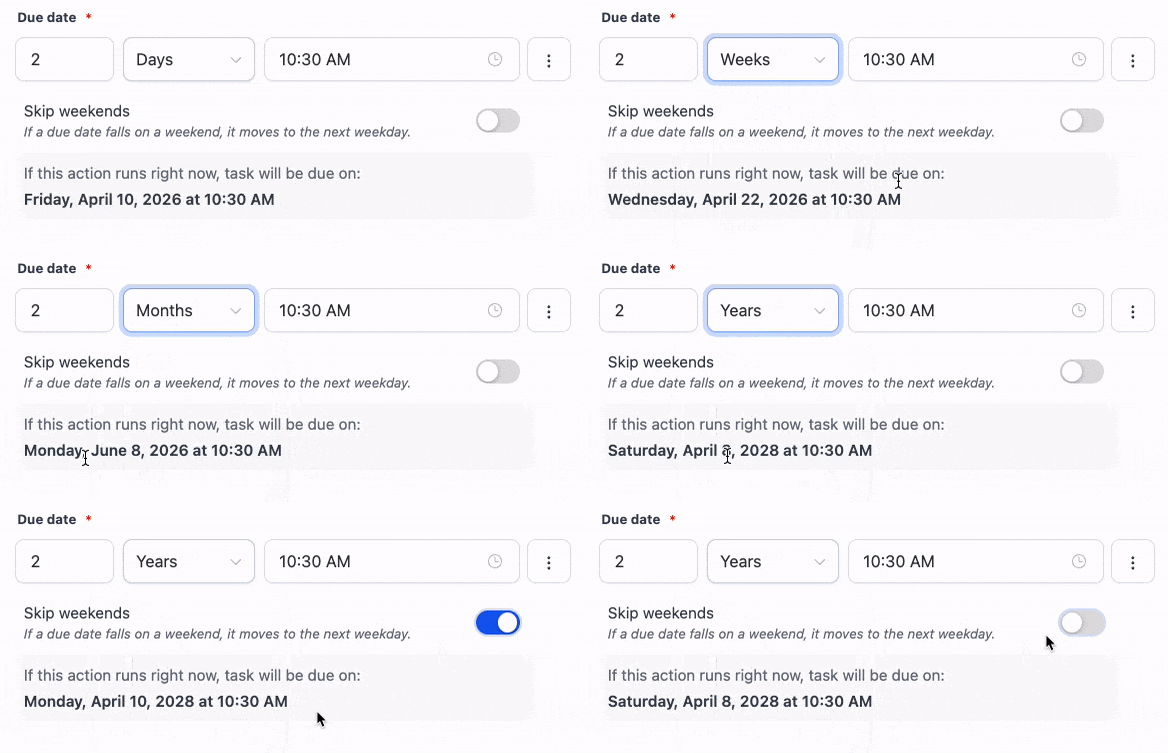
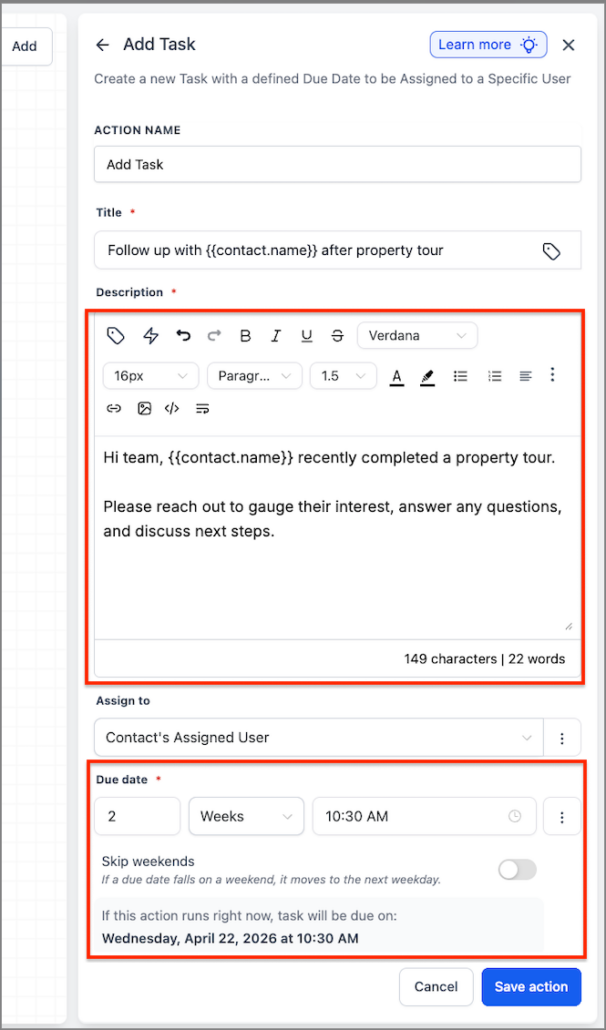
In the Add Task action, the due date is now set through a Due In input, which requires a numeric value and time unit. You also have the option to set a specific time, and the action provides a live preview of the final due date and time, as it would appear if the workflow were executed right now. Task descriptions now support rich text and retain their formatting when saved and displayed in Tasks.
- In Add Task, enter a value in Due In and select days, weeks, months, or years.
- Optionally, choose a due time and enable Exclude Weekends if necessary.
- Add a rich text description, and review the live due date preview before saving.
Greater Control Over Task Planning
Previously, the task action was constrained to a very short window for due dates, making it challenging to plan follow-up work beyond 5 days or to assign tasks for a specific time of day. This update provides you with more control over long-term task planning and assists in creating clearer, more detailed tasks directly from workflows.
- For example, a real estate team can now create a task due in 2 weeks at 10:30 AM for a follow-up call after a property tour.
Compatibility with Existing Workflows
- Existing workflows that utilise the current day-based due date setup will continue to function as before.
- If Exclude Weekends is enabled, weekends will be excluded when calculating the due date, and the live preview will apply the same logic as the final task creation.
- Rich text formatting is preserved when the task is saved and displayed across various task surfaces.