
Workflow Switcher: Jump Between Workflows Instantly
Introducing the Workflow Switcher: Designed for users managing multiple automations, the Workflow Switcher allows you to effortlessly navigate between workflows without leaving the builder. You can easily compare, edit, or reuse steps across workflows.
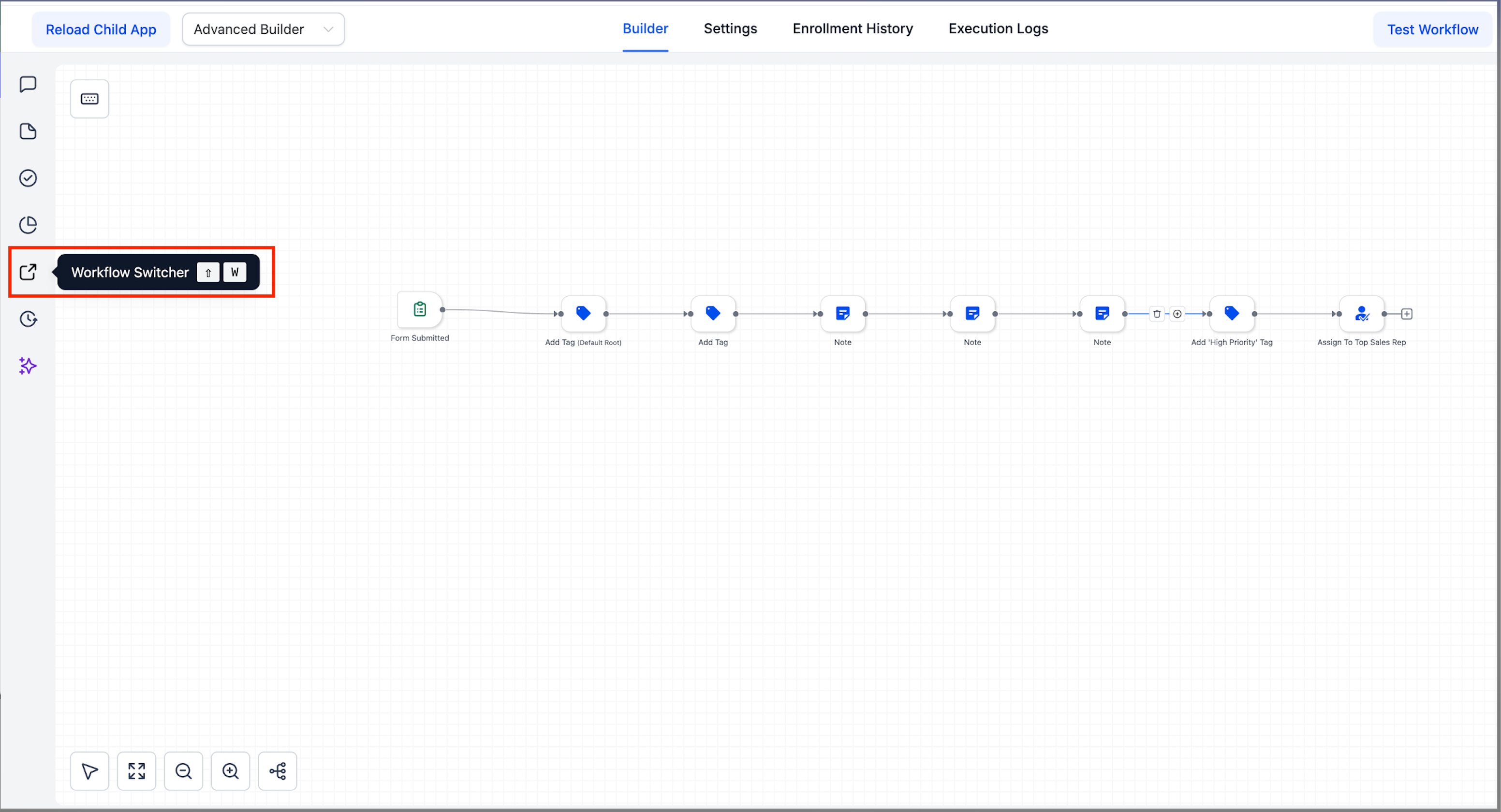
In the Advanced Builder, simply click the Workflow Switcher button located in the left sidebar (or use Shift + W).
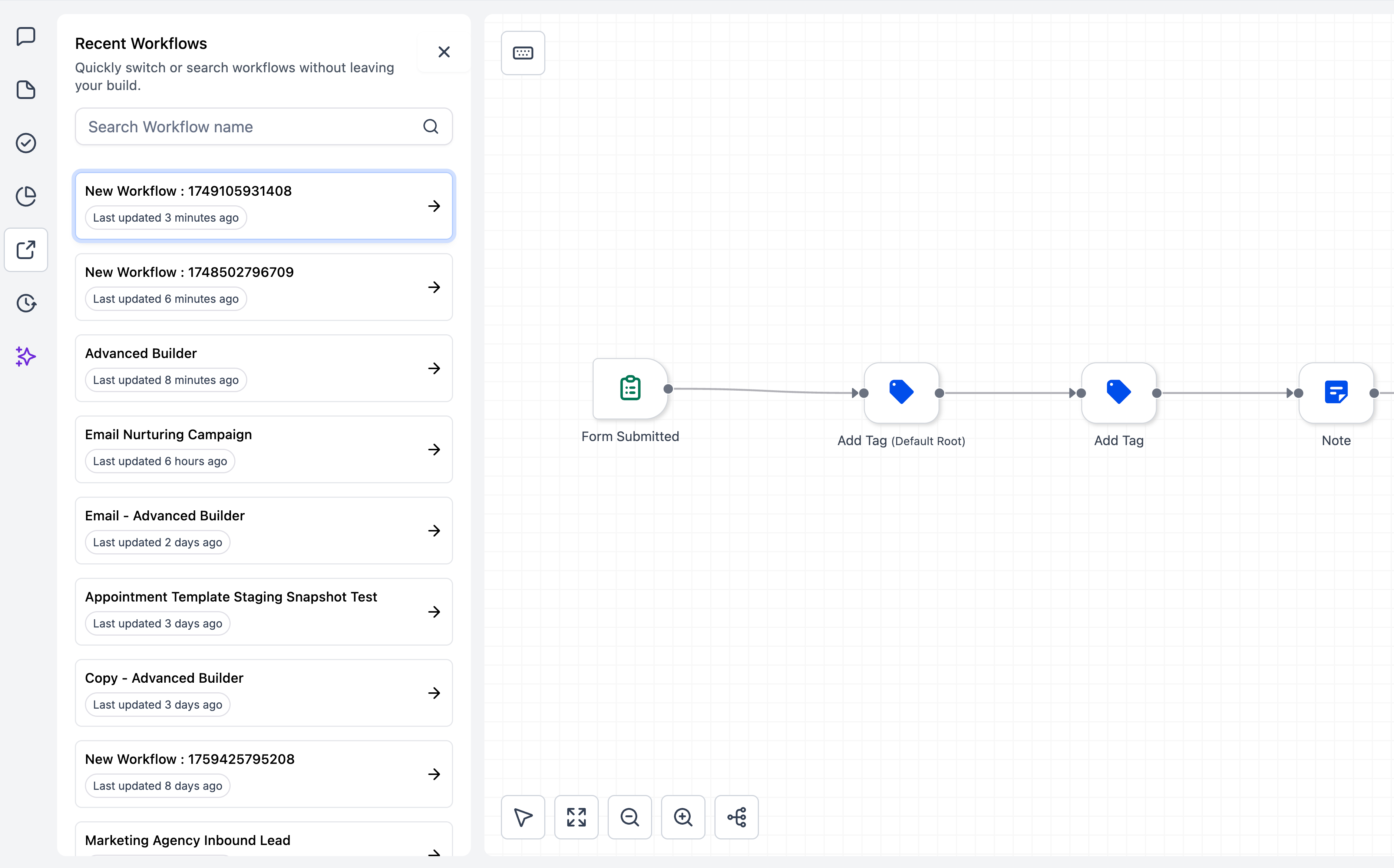
A side panel will open, displaying your most recent workflows along with a search feature.
Quick Search:
You can search by workflow name, with recent items listed for quick access.
Selecting a workflow will open it in a new browser tab, ensuring your current canvas remains intact.
Tip: Combine the Workflow Switcher with copy/paste across workflows to reuse branches and expedite your build time.
- In the Advanced Builder, click the Workflow Switcher button in the left sidebar.
- You can either search or scroll to select another workflow.
- Switch instantly—edits are saved automatically.
-
Advanced Builder only:
The Workflow Switcher is available in the Advanced Builder sidebar at launch. This feature will be introduced in the standard builder soon.
-
Tab Behaviour:
Each selection opens a new tab, while your current builder remains open.
Previously, switching between workflows meant exiting the builder, locating the next one, and waiting for it to reload. Now, you can navigate seamlessly between automations with just one click, saving you time and helping you stay focused.