
Advanced Builder: Keyboard Shortcuts | Clixio Changelog
Work Faster with Keyboard Shortcuts in the Workflow Builder using a comprehensive set of shortcuts for editing, navigation, and view controls—plus an in-app shortcuts toolbar that you can open anytime.
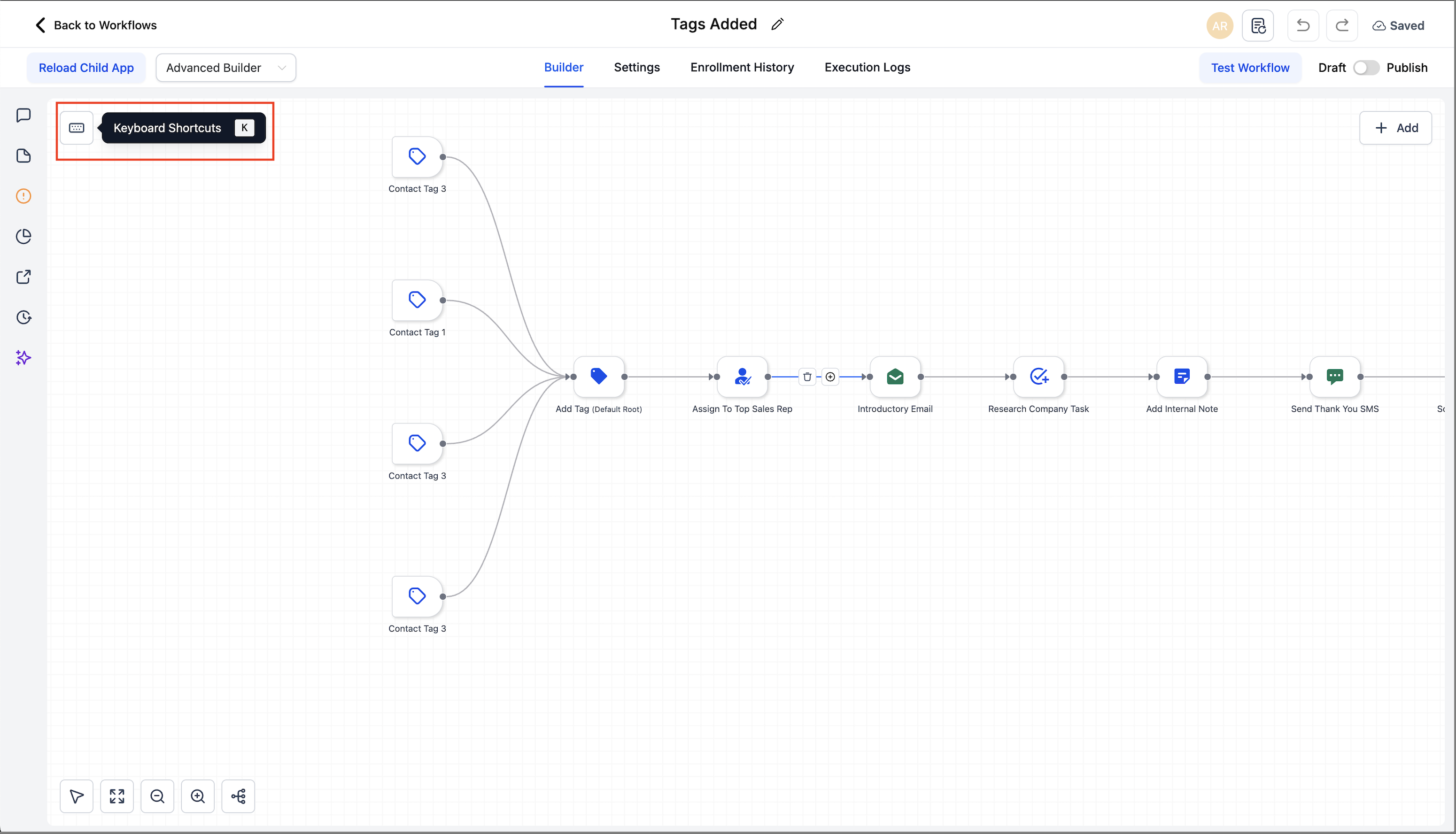
- Speed through builds without needing to reach for the mouse.
- Copy and paste whole branches, zoom and re-centre instantly, and jump between nodes using the arrow keys.
- The overlay organises commands into tabs to help you learn the essentials quickly.
- In the Advanced Builder, click on the Keyboard Shortcuts pill (or press K) to access the overlay.
- Shortcuts are grouped by tabs: Essential, Edit, View, Navigation, and Tools.
- On a Mac, use ⌘; on Windows/Linux, use Ctrl.
Keyboard Shortcuts (Highlights)
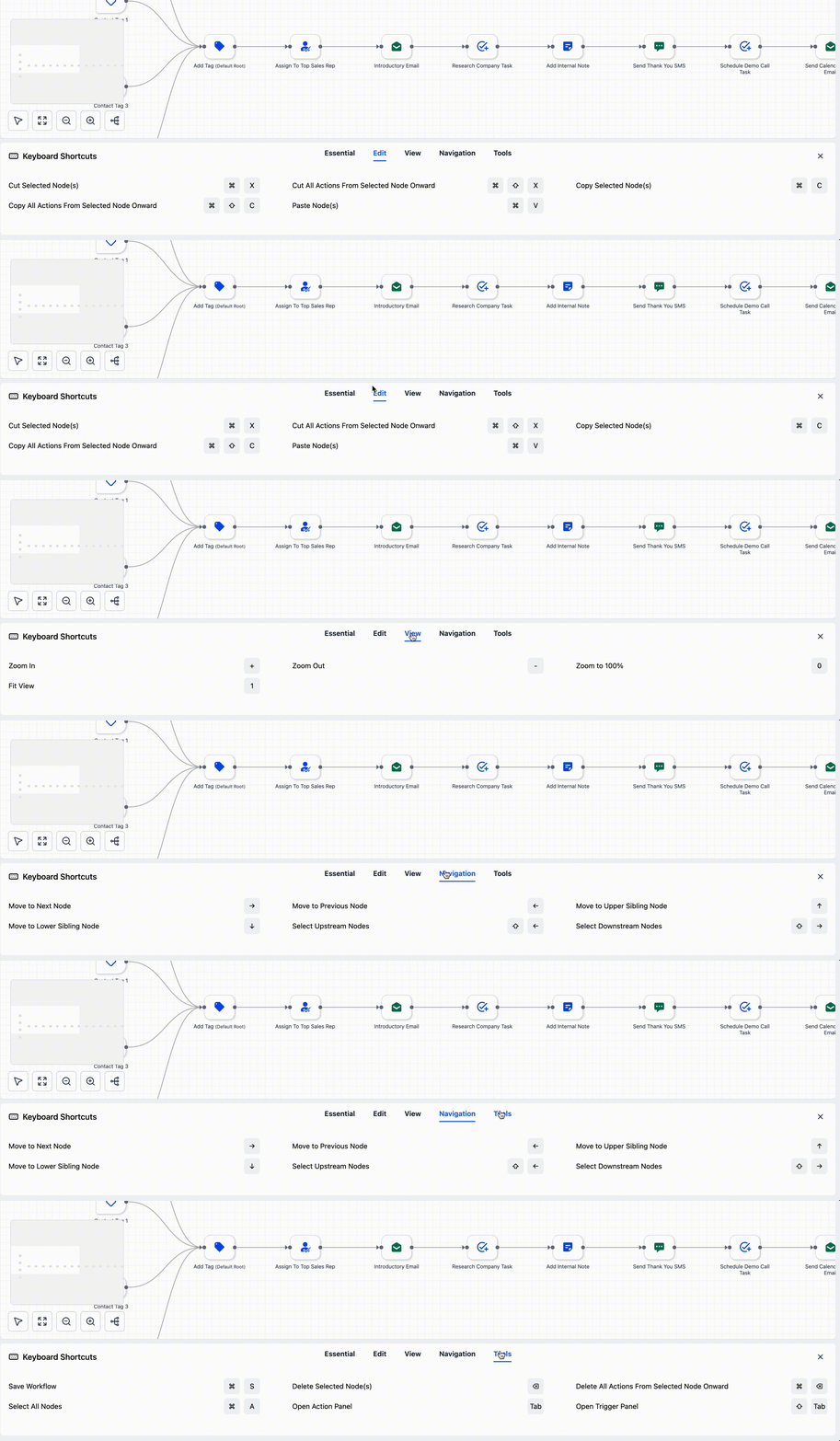
- Cut Selected Node(s): ⌘/Ctrl + X
- Copy Selected Node(s): ⌘/Ctrl + C
- Paste Node(s): ⌘/Ctrl + V
- Copy All Actions From Selected Node Onward: ⌘/Ctrl + Shift + C
- Cut All Actions From Selected Node Onward: ⌘/Ctrl + Shift + X
- Zoom In / Out: + / –
- Zoom to 100%: 0
- Fit View: 1
- Move to Next / Previous Node: → / ←
- Move to Upper / Lower Sibling: ↑ / ↓
- Select Upstream / Downstream Nodes: Shift + ← / Shift + →
- Save Workflow: ⌘/Ctrl + S
- Select All Nodes: ⌘/Ctrl + A
- Delete Selected Node(s): Delete/Backspace
- Delete All Actions From Selected Node Onward: ⌘/Ctrl + Delete
- Open Action Panel: Tab
- Open Trigger Panel: Shift + Tab
Pro Tip: Copy and paste branches across workflows (open the other workflow in a new tab via Workflow Switcher) to quickly reuse logic.
- Open a workflow in the Advanced Builder.
- Press K (or click the Keyboard Shortcuts pill) to view commands.
- Use Edit shortcuts to copy, cut, or paste nodes or entire branches.
- Utilise Navigation to jump between nodes, View to zoom or fit, and Tools to save, select, or open panels.
- This feature is available in the Advanced Builder at launch and will soon be introduced in the Standard Builder as well.
- Shortcut keys may vary slightly based on keyboard layout and operating system.