Zipcode Filter Selection for Shipping Zones
What’s New?
Store owners can now limit shipping zones by specific ZIP/postcodes, allowing for precise delivery control. This feature enables businesses to facilitate hyper-local deliveries or easily exclude certain areas.
Key Highlights:
- Limit Shipping by Zipcode
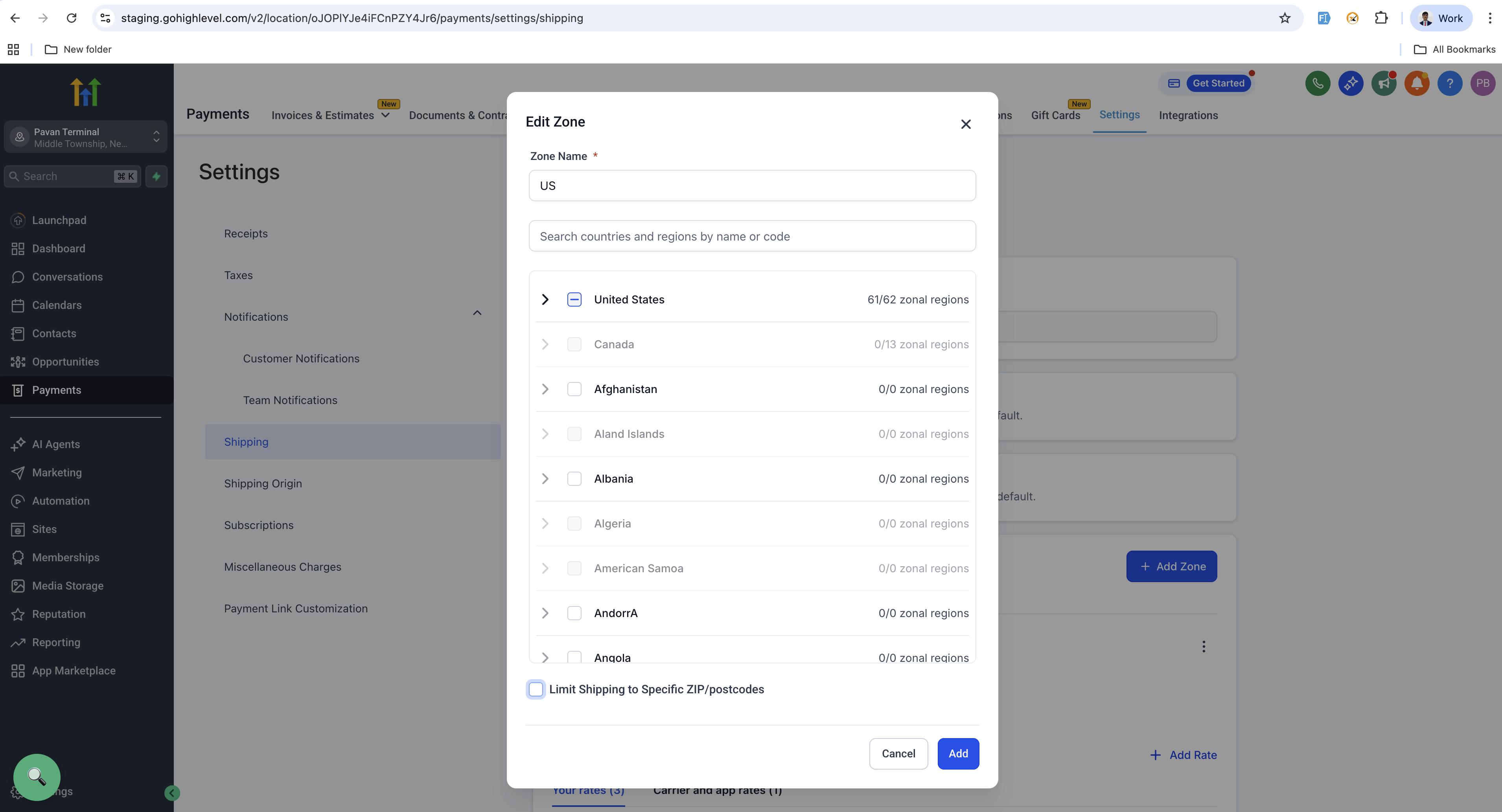
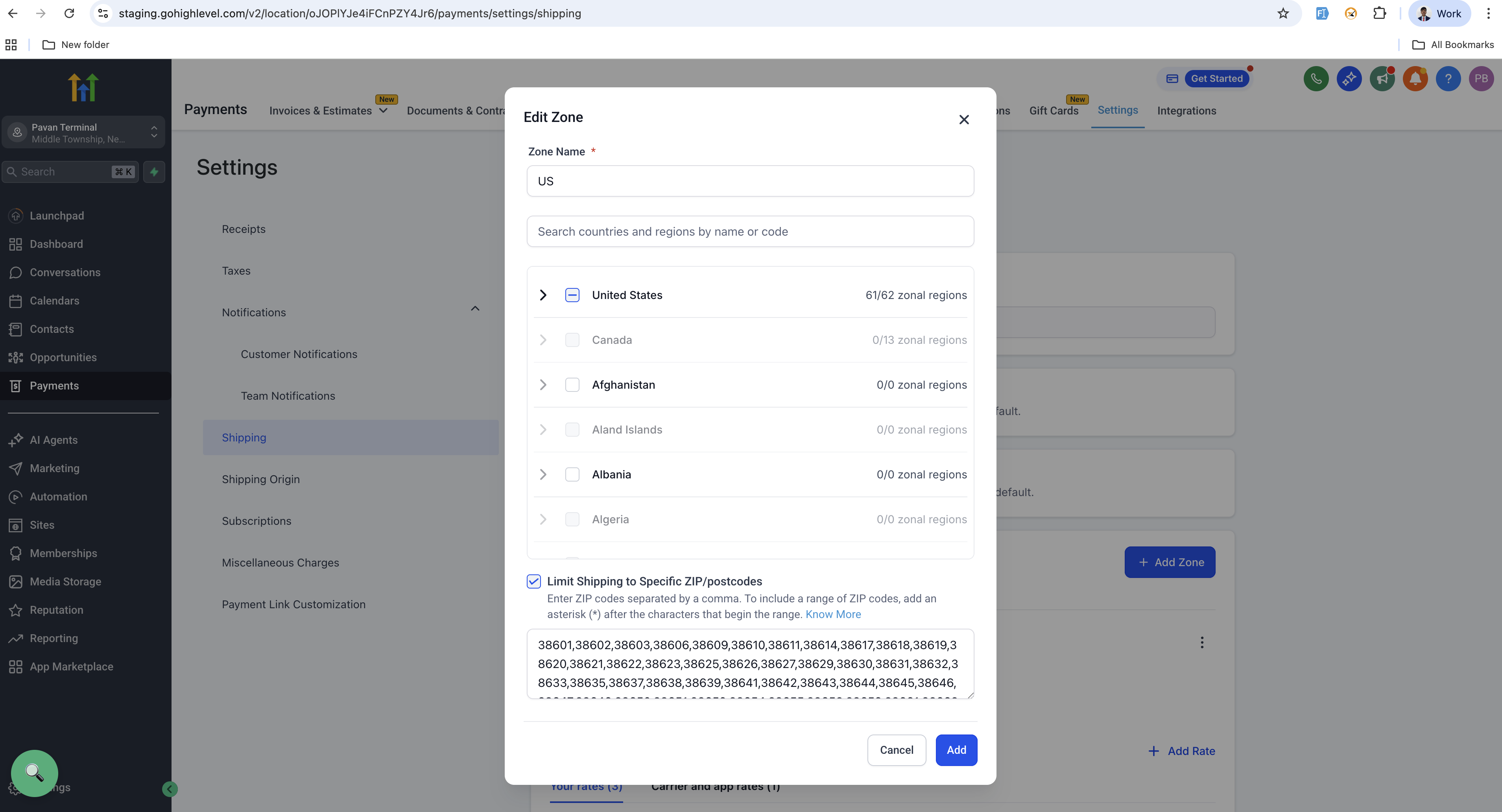
- A new checkbox, “Limit Shipping to Specific ZIP/Postcodes,” is available when creating or editing a shipping zone.
- Once enabled, you can enter ZIPs directly using single codes, comma-separated codes, or wildcard patterns.
- Validation & Smart Feedback
- Real-time validation detects invalid or duplicate ZIPs.
- Only alphanumeric entries and a trailing asterisk (*) for wildcards are supported.
- Invalid characters, empty fields, and improper wildcard placement are not allowed.
- Checkout Logic
- During checkout, orders are automatically matched with zones based on the entered ZIP or wildcard patterns.
- Enhanced Visibility
- The Shipping Zones overview now displays all included/excluded ZIPs below each zone for quick reference.
- Wildcard entries are clearly indicated (e.g., 46*).
How to Use It?
- Navigate to Payments → Settings → Shipping & Delivery → General/Custom Profile → Shipping Zones.
- Create or edit a zone and enable “Limit Shipping to Specific ZIP/Postcodes”.
- Enter ZIPs, multiple entries, or wildcards as required.
- Save your changes — your zone is now active only for matching postcodes.
Important Notes:
- Wildcards (*) can only be used at the end of a valid entry (e.g., 56*).
- Duplicate or invalid entries are not permitted.
- If no valid ZIPs are entered after enabling the restriction, the zone cannot be saved.
- If the entered ZIP doesn’t match any configured zone, shipping for that zone will not apply, but shipping won’t be blocked in that case.
- For detailed setup guidance, please visit the Help Article.
Images: