Support for BBPOS WisePOS E and Stripe S700 Internet Readers on Mobile POS
We are excited to announce our latest update for mobile POS payments, featuring support for Stripe’s internet-connected readers: BBPOS WisePOS E and Stripe S700! You can now register either device within Clixio, LeadConnector, or your Whitelabelled mobile app to accept secure in-person payments directly through the POS. This functionality is available in version v3.103.4 of the mobile apps.
- Connect your Stripe account by navigating to Payments → Integrations on the Clixio web platform.
- Ensure that both the mobile device (or iPad) and the Stripe reader are connected to the same Wi-Fi network during registration and checkout.
- Enrol your device in the Clixio or LeadConnector public beta programme (available on the App Store / Google Play).
How to use this feature
-
Connect Stripe: On the web, go to Payments → Integrations and link your Stripe account.
-
Prepare the reader: Power on the BBPOS WisePOS E or Stripe S700 and connect it to the same network as your phone or iPad.
-
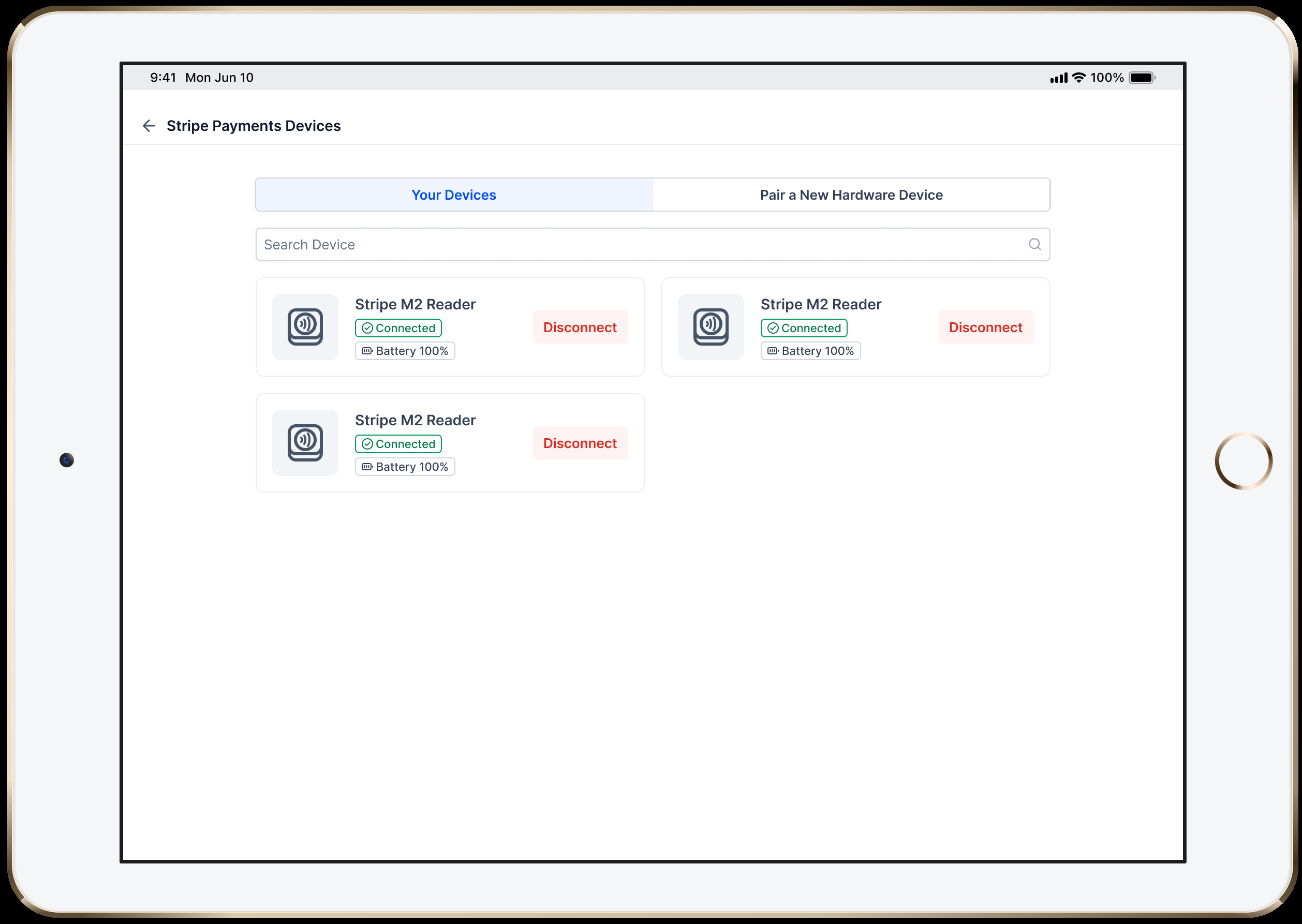
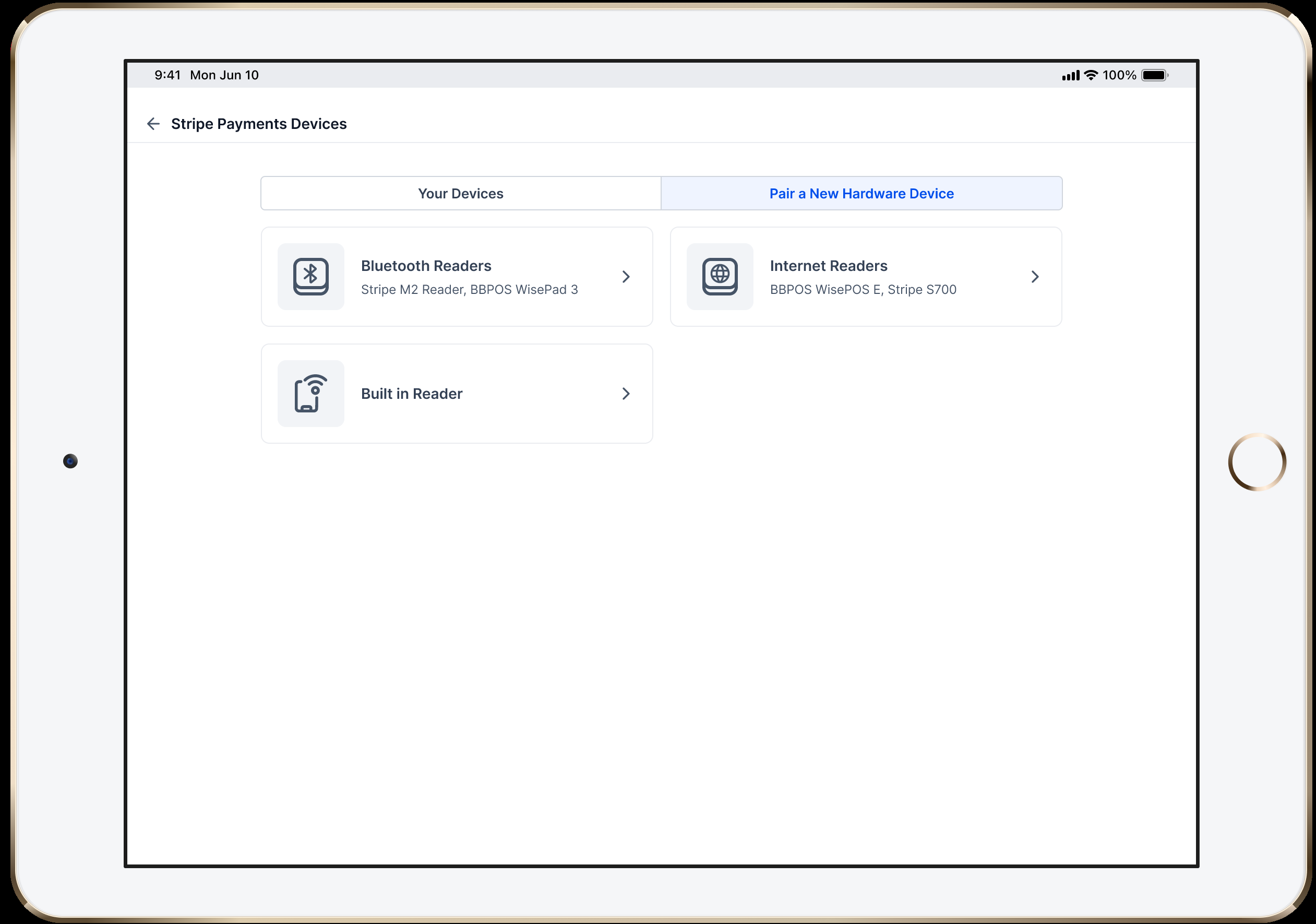
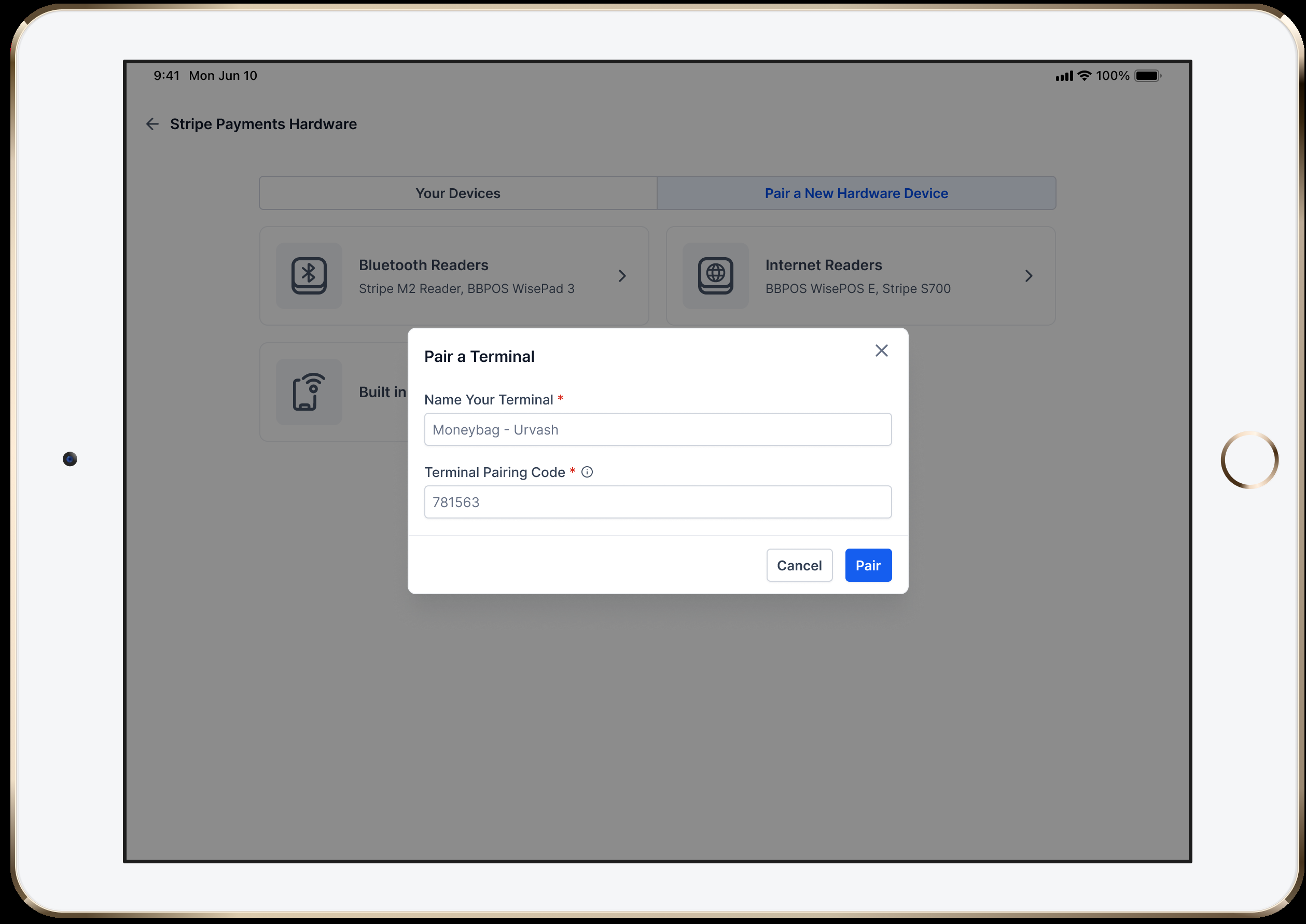
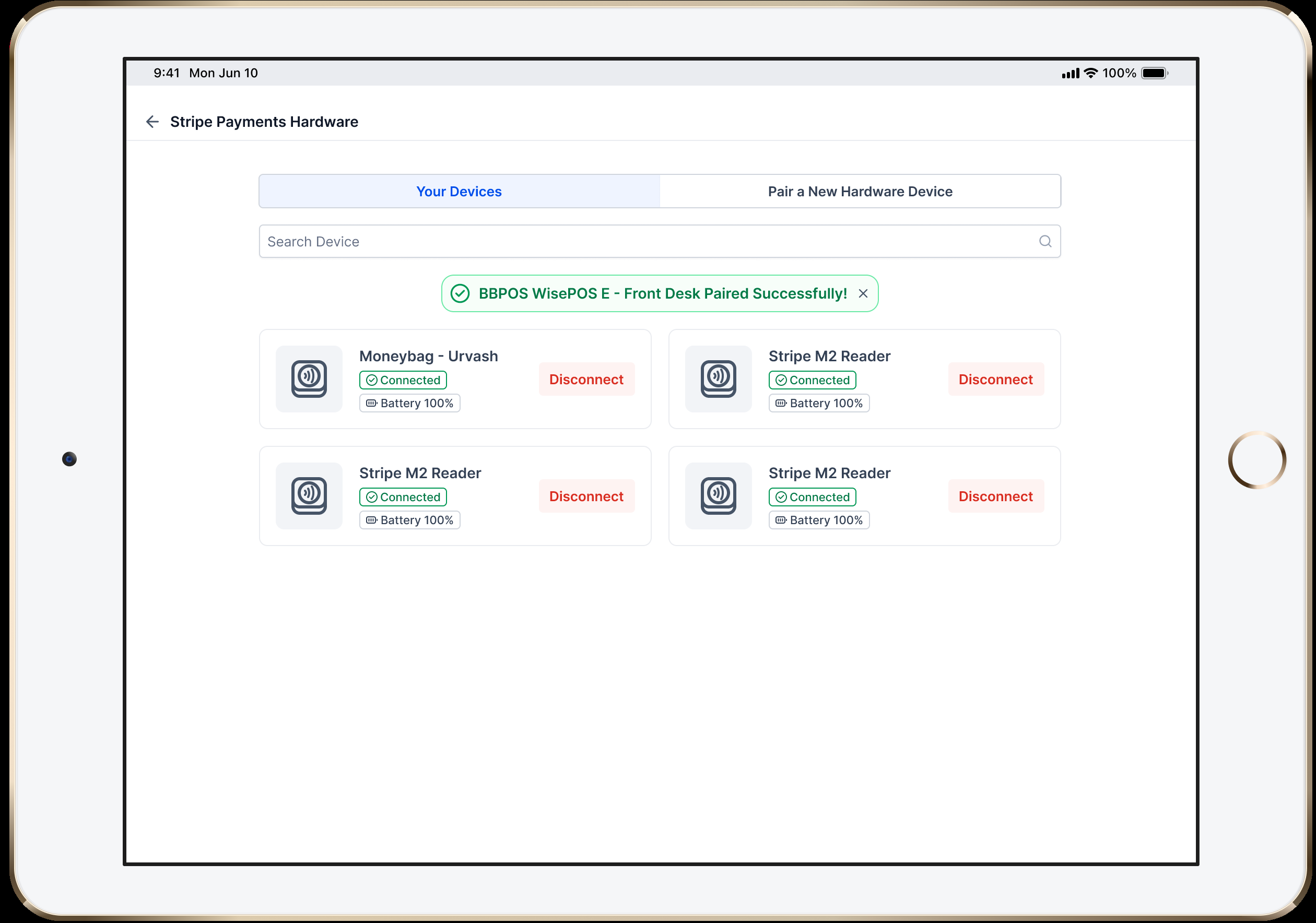
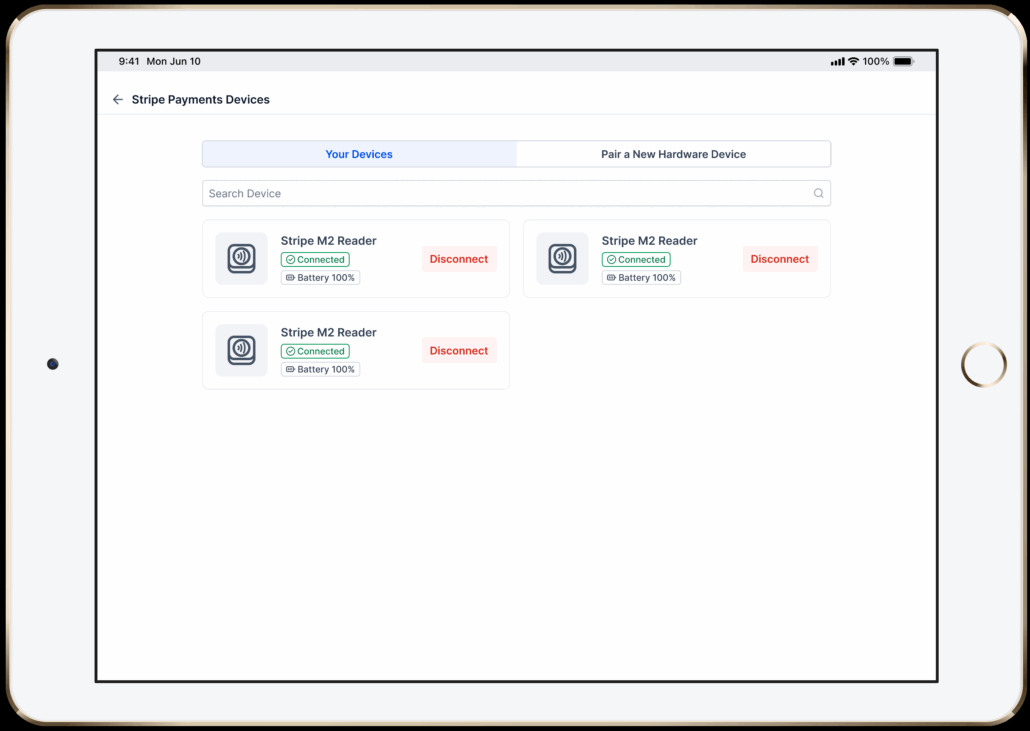
Register the reader:
-
Collect payment:
- Begin a sale in the POS.
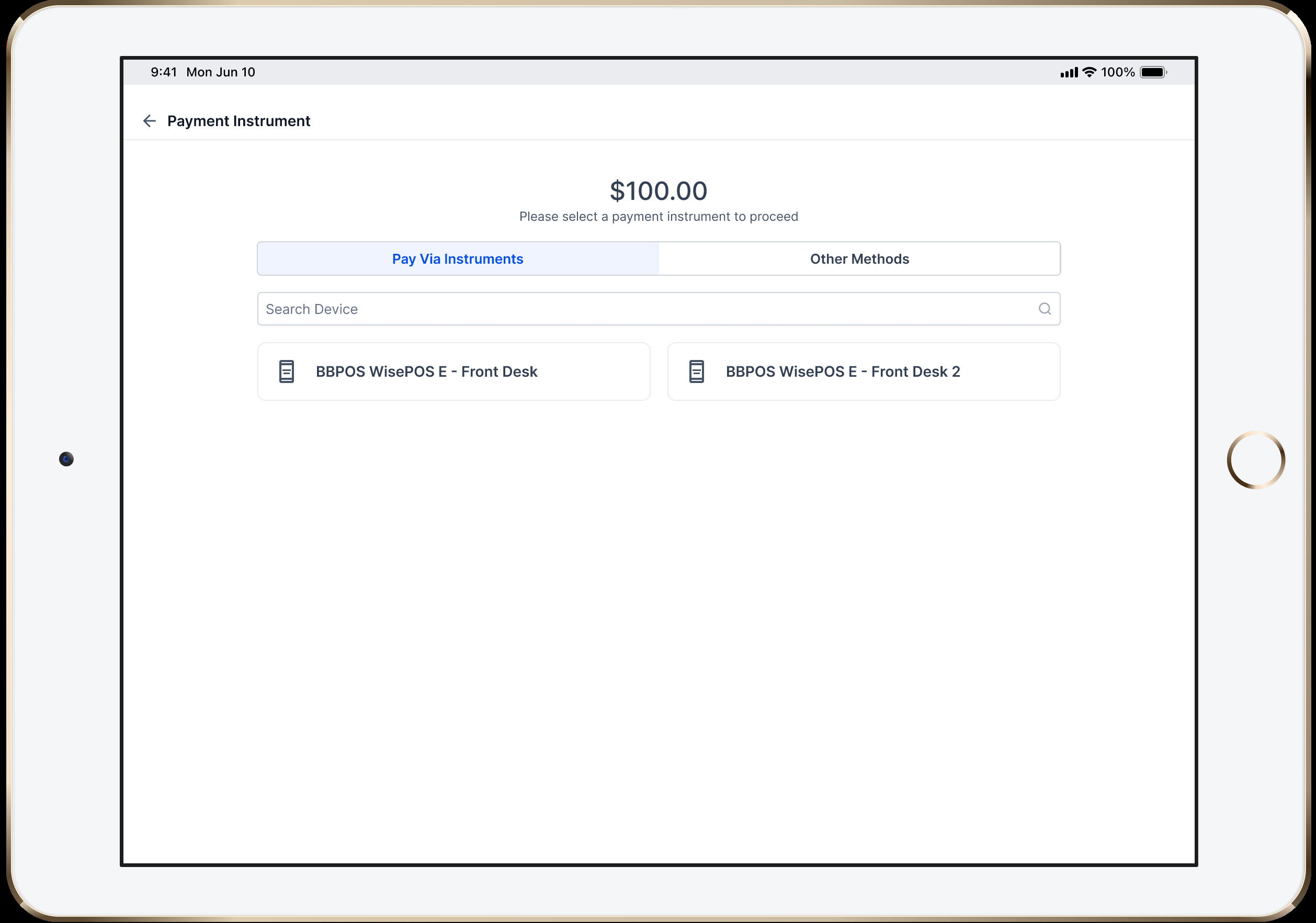
- On the Payment Instruments screen, select the reader you wish to use (all powered-on, registered readers connected to the same network and within range will be displayed).
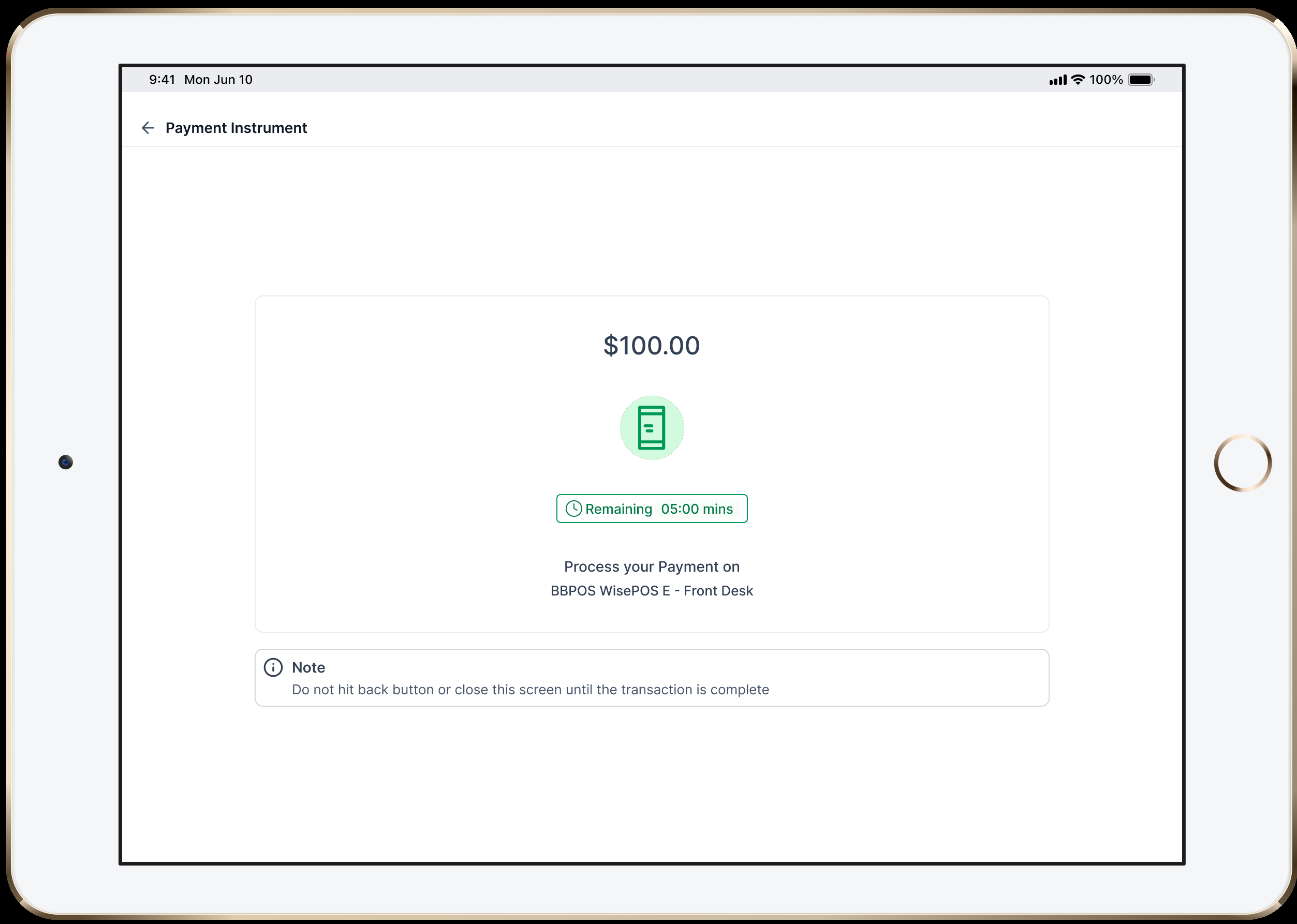
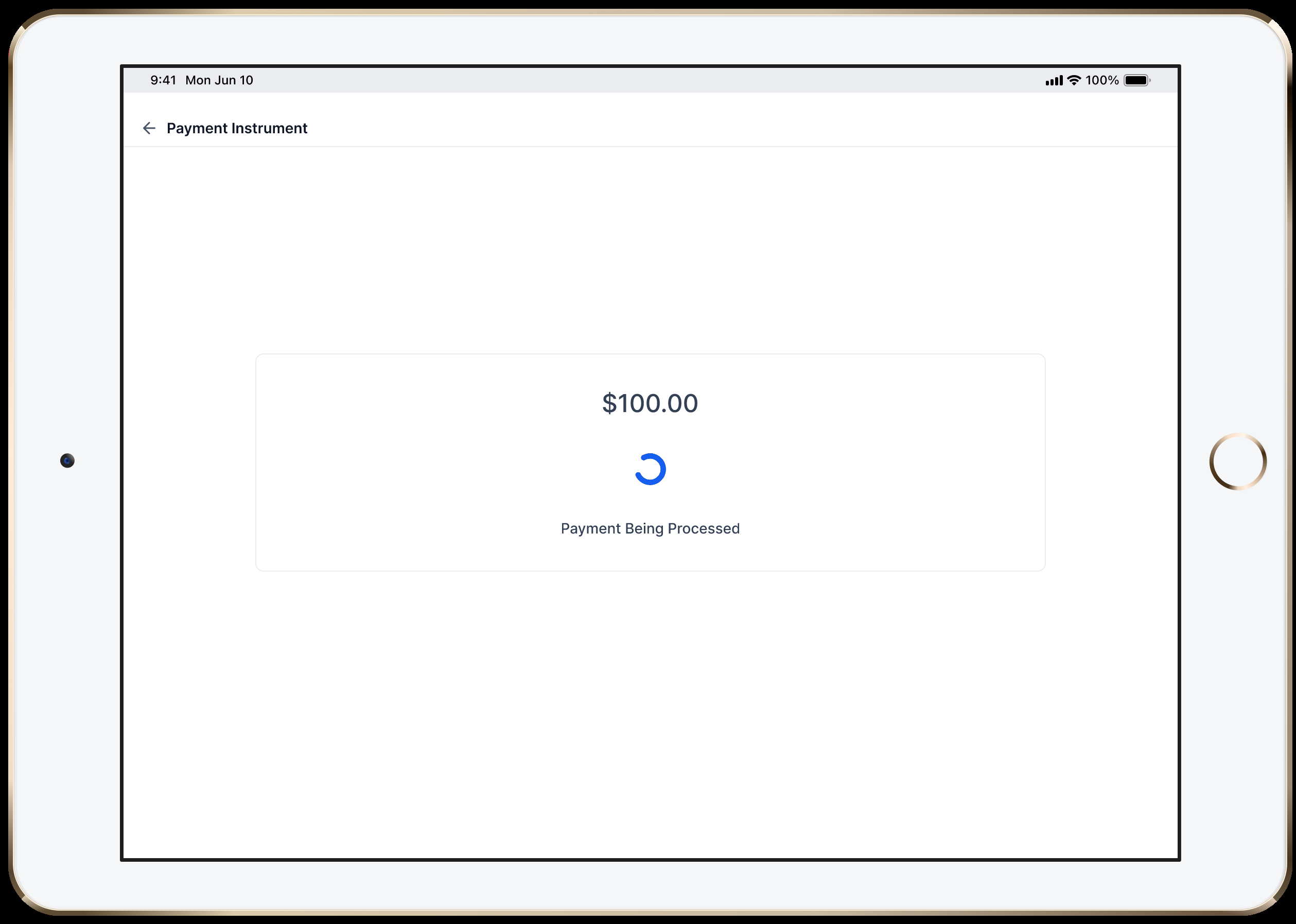
- Present the reader to the customer for them to tap, insert, or swipe. Please note, there will be a 5-minute timer for the payment to be completed, after which the payment will expire.
-
Verify the sale: After the transaction, head to the Transaction History tab on the POS to confirm your transaction.
That’s it! You are now ready to accept secure, Stripe-powered in-person payments with the BBPOS WisePOS E and Stripe S700 readers directly through the Clixio mobile POS.
- Clixio v3.103.4
- LeadConnector v3.103.4
- Whitelabelled Mobile Apps (Update needs to be requested)