Social Planner – Enhancement to Recurring Post 😎
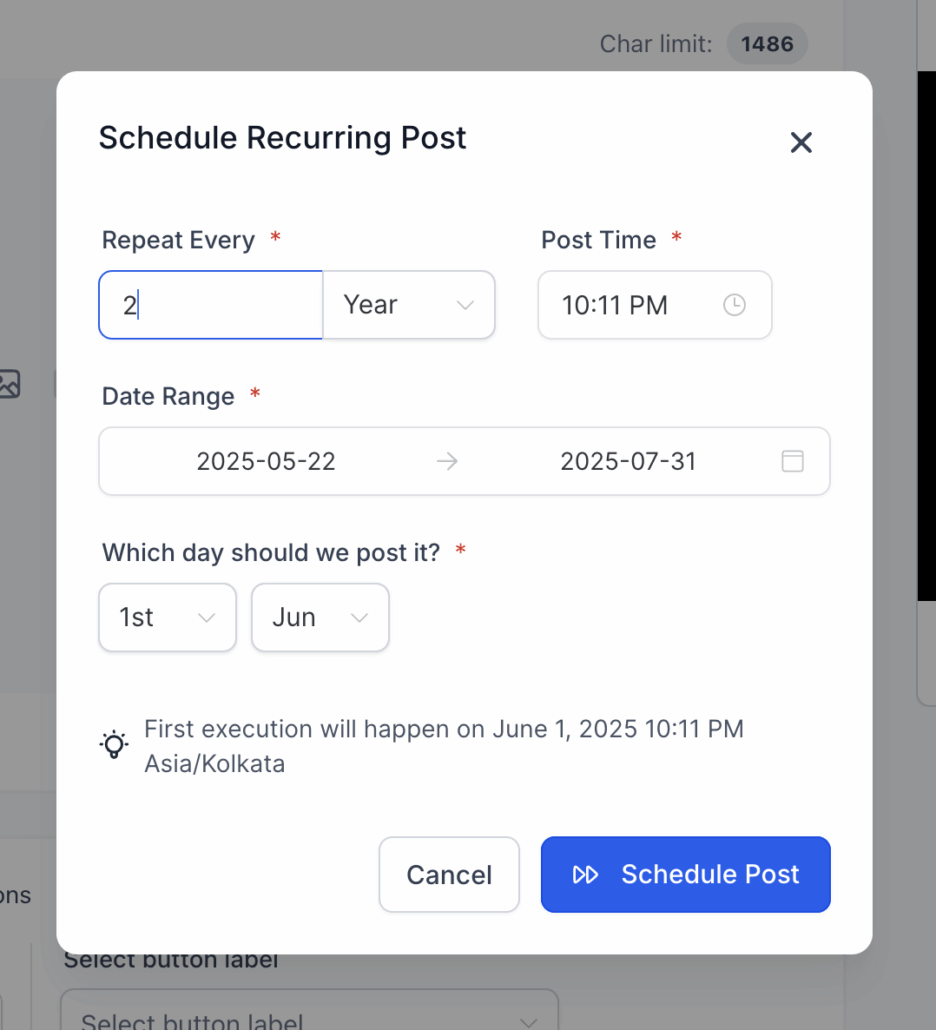
over the day and month you wish to schedule a recurring post.
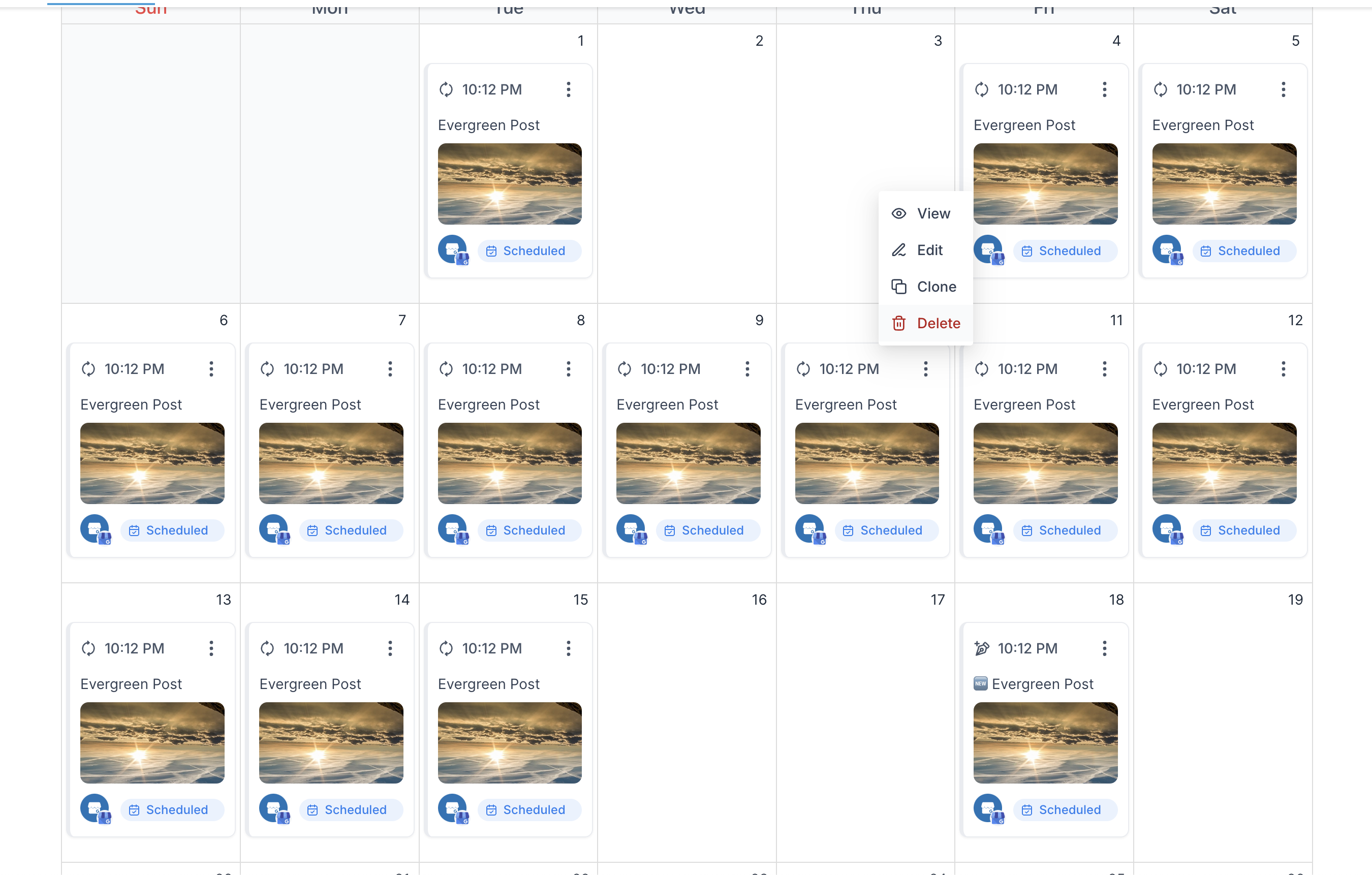
To improve the user experience, the functionality of recurring posts in Planner and Calendar views has been enhanced, particularly concerning the editing and deletion of specific iterations.
Many users attempted to delete/edit a child recurring post, assuming only that instance would be removed. However, behaviour varied:
- In Planner View, deleting/editing an instance affected the scheduled post.
- In Calendar View, deleting/editing an instance could remove/update the entire recurring series.
This inconsistency has now been resolved — Users can edit or delete a specific iteration in both views without impacting the entire recurring series.
In Calendar View, users can now drag and drop an individual recurring post to reschedule it.
Steps to Schedule a Recurring Post
- Navigate to Marketing > Social Planner
- Add your socials to Social Planner
- Click on Create New Post
- Add socials, caption, media, hashtags, and first-time comments
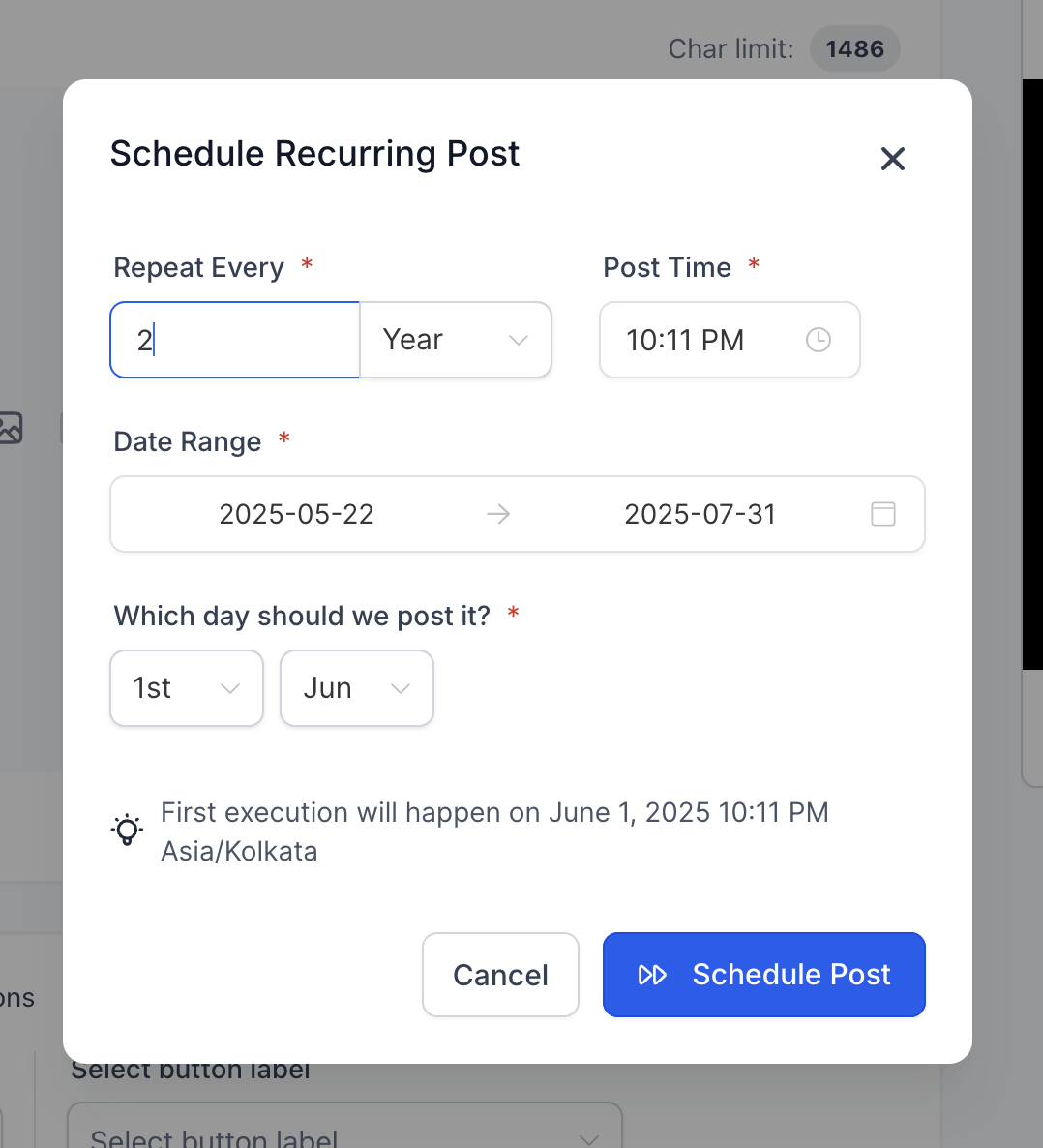
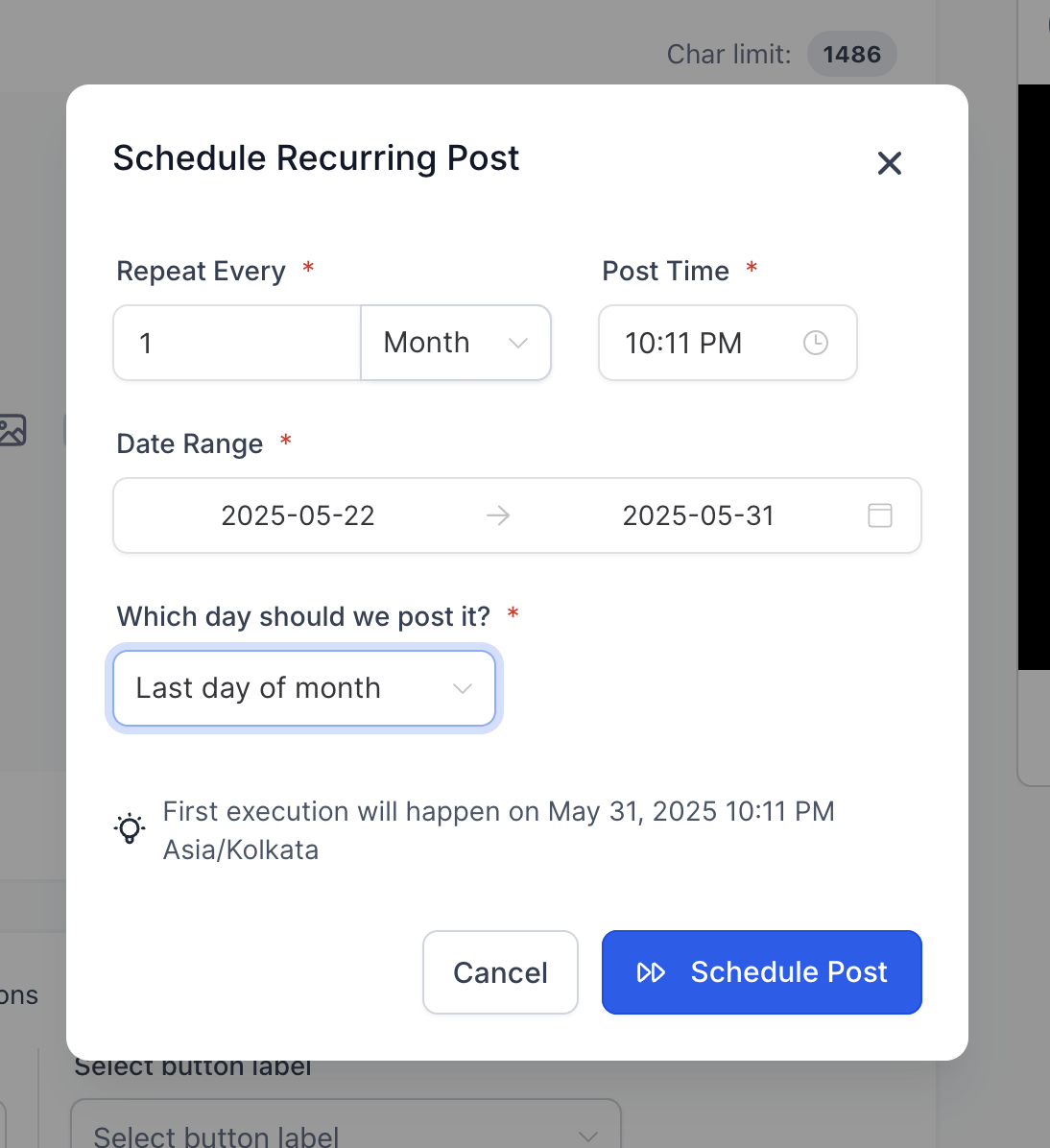
- Click on Post and choose Recurring Post Schedule [Note – you can schedule evergreen content to post daily, weekly, monthly, or yearly].
- For monthly schedules, select the exact date of the month for publication. For yearly schedules, select both the month and the date for publication.
You will see the first post date and time for enhanced clarity of the schedule.
📖 Note:
- If you edit any individual post, it becomes a standalone post with ‘Post Composer’ as the source and will no longer follow the recurring schedule.
- In Planner View, only the upcoming iterations of a recurring post are visible.
- This enhancement is currently not available in the Social Planner mobile app.