Order Upsell in Forms and Surveys
What’s New
You can now add an upsell directly in your funnel forms without needing an extra page or re-entering details. This feature helps increase your average order value while ensuring a smooth and quick checkout process.
What You Can Do
- Add an extra product offer in the same or next funnel step.
- Allow customers to accept the offer with just one click.
- Use upsells alongside both Normal Sell and Bump Products.
- Integrate seamlessly with Forms and Surveys added as native elements in funnels.
How It Works
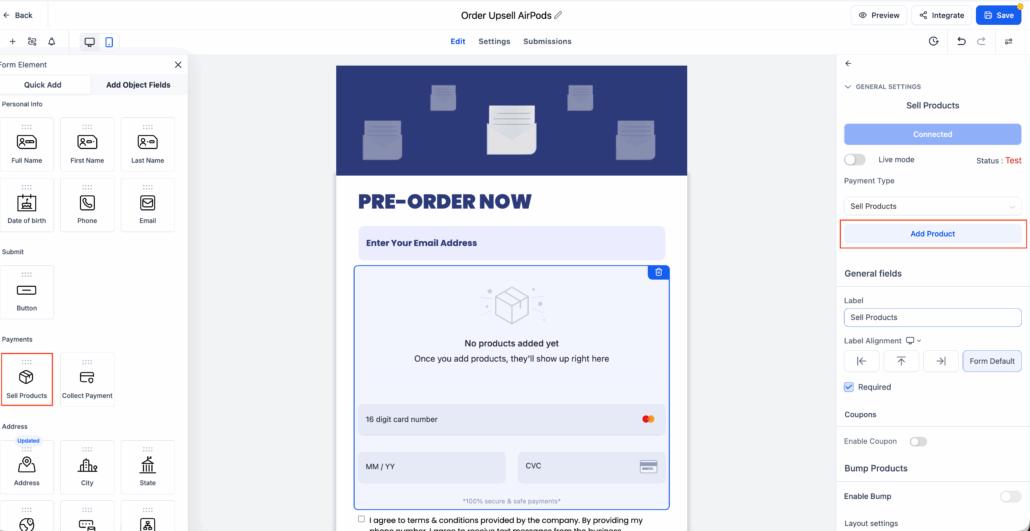
1. Build the Form
- Open the Form or Survey Builder.
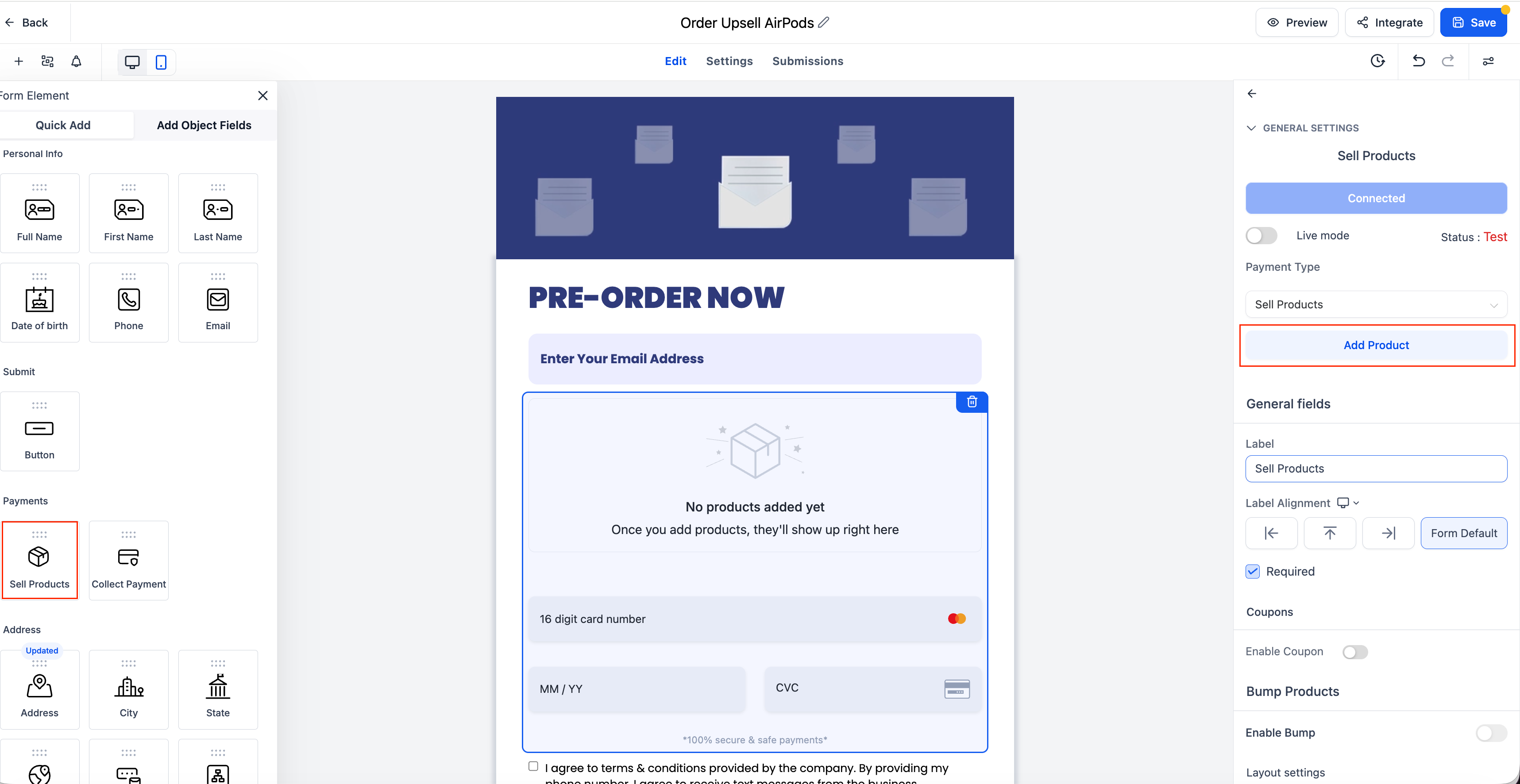
- Drag and drop a Sell Product element.
- Configure the product details (price, product ID, etc.).
- Save the form.
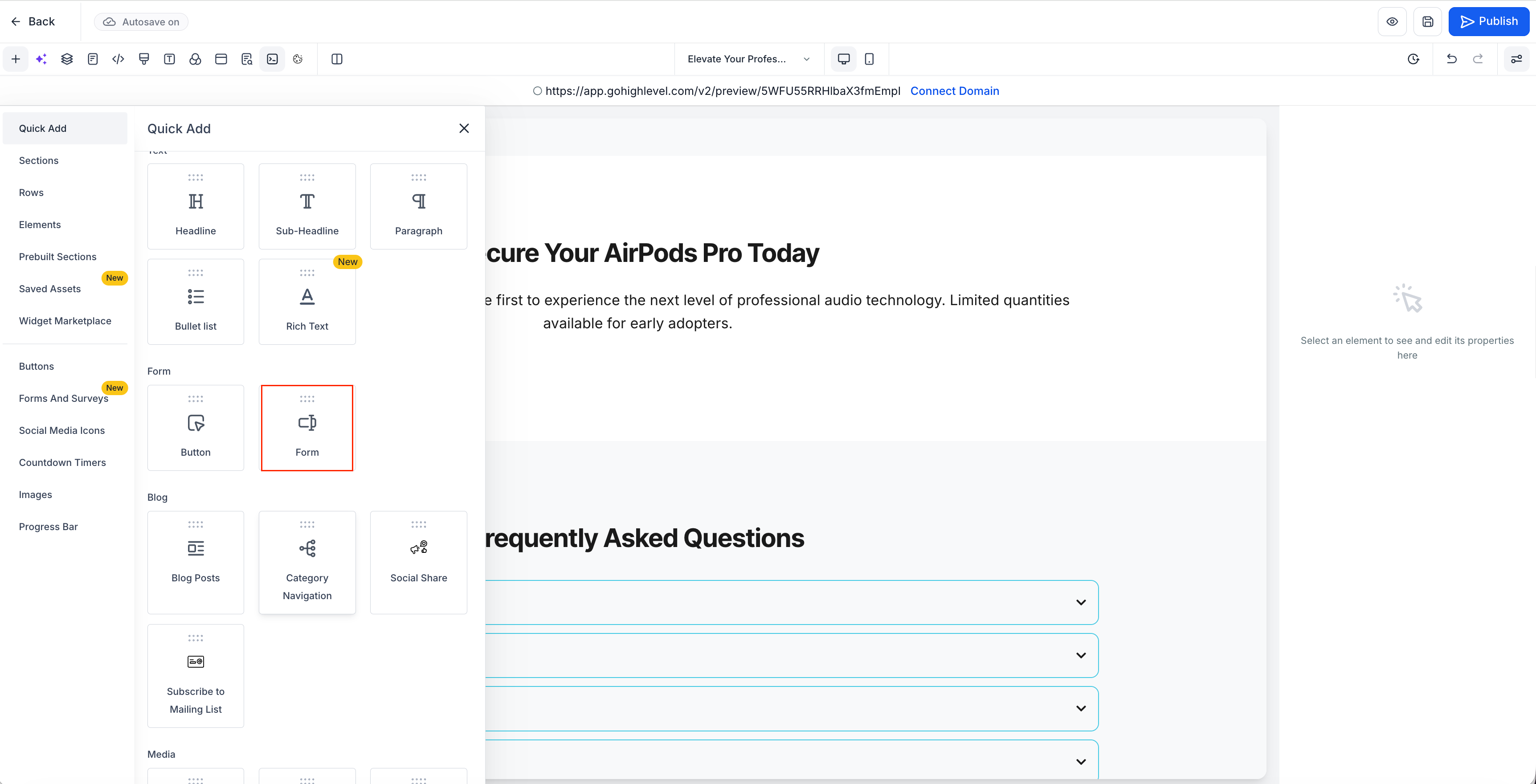
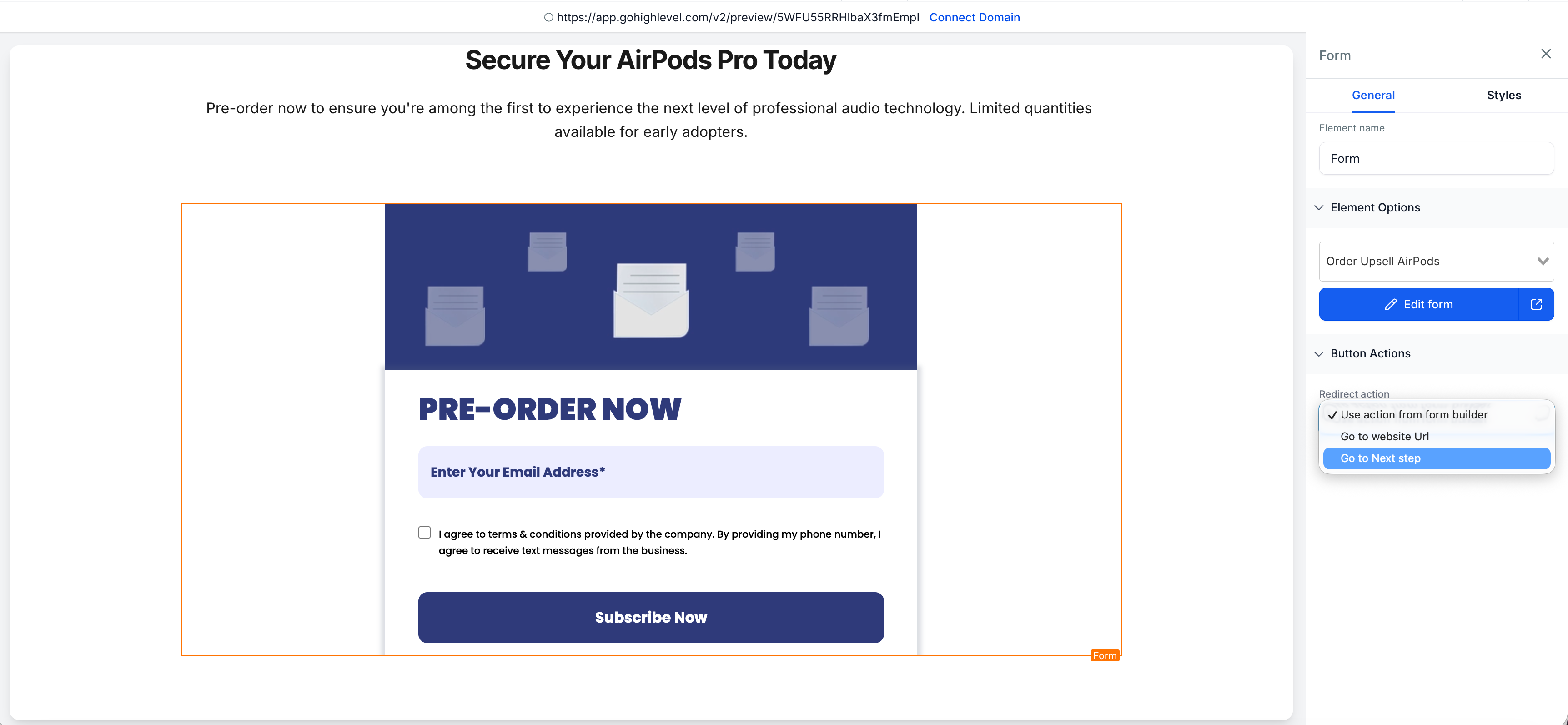
2. Funnel Integration
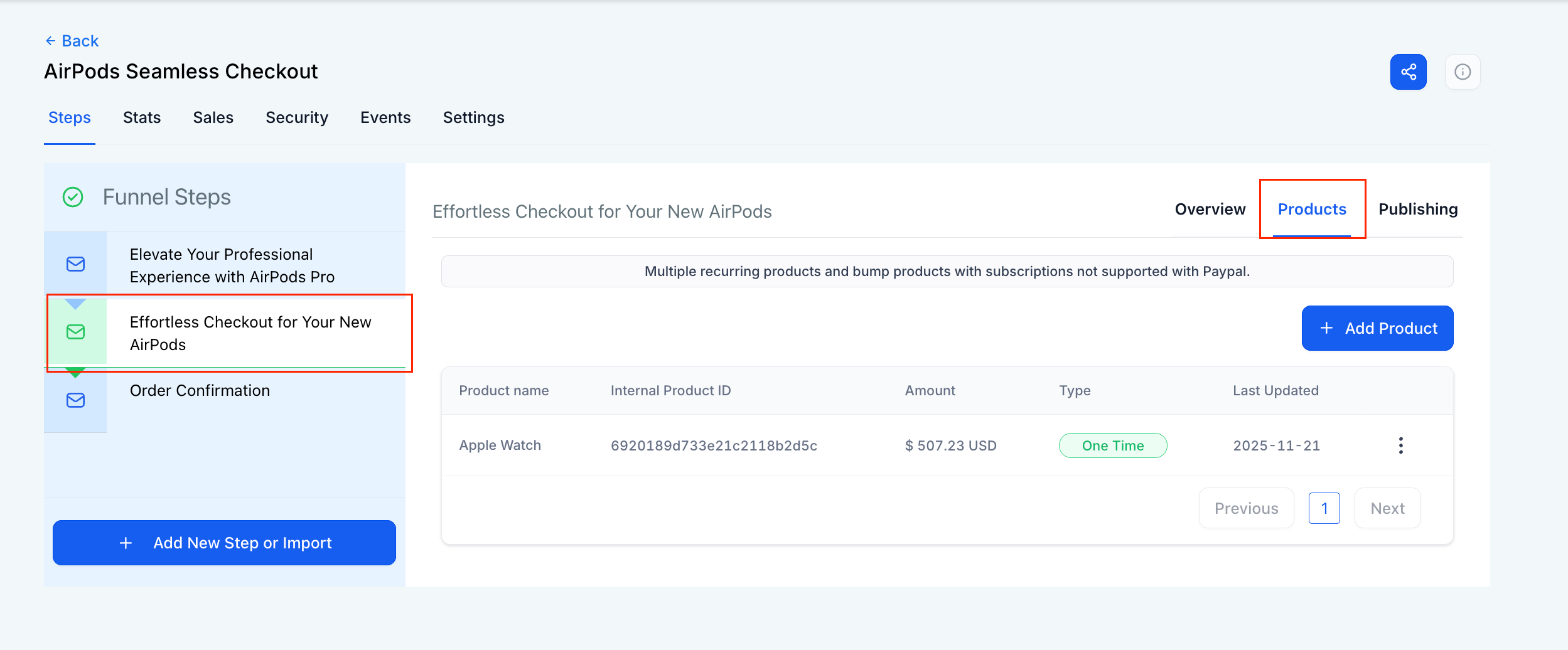
- Open or create a Funnel.
- Go to the desired Funnel Step.
- Add the saved Form as a Native Form element (not embedded).
3. Add the Upsell Button
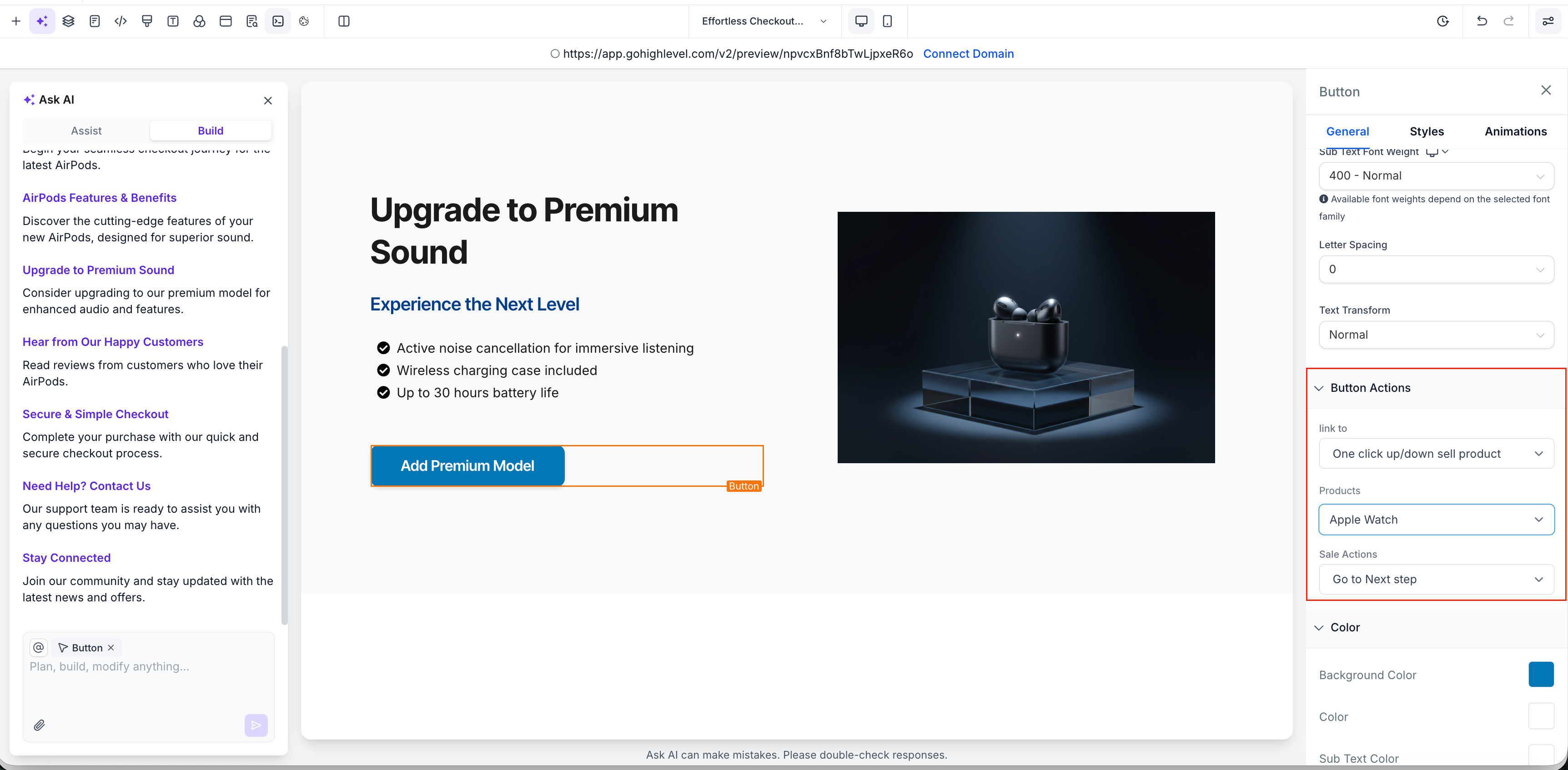
- In the following Funnel Step, drag a Button element.
- Set the button action to “Upsell Product”.
- Select the Upsell Product you wish to offer.
4. Order Summary
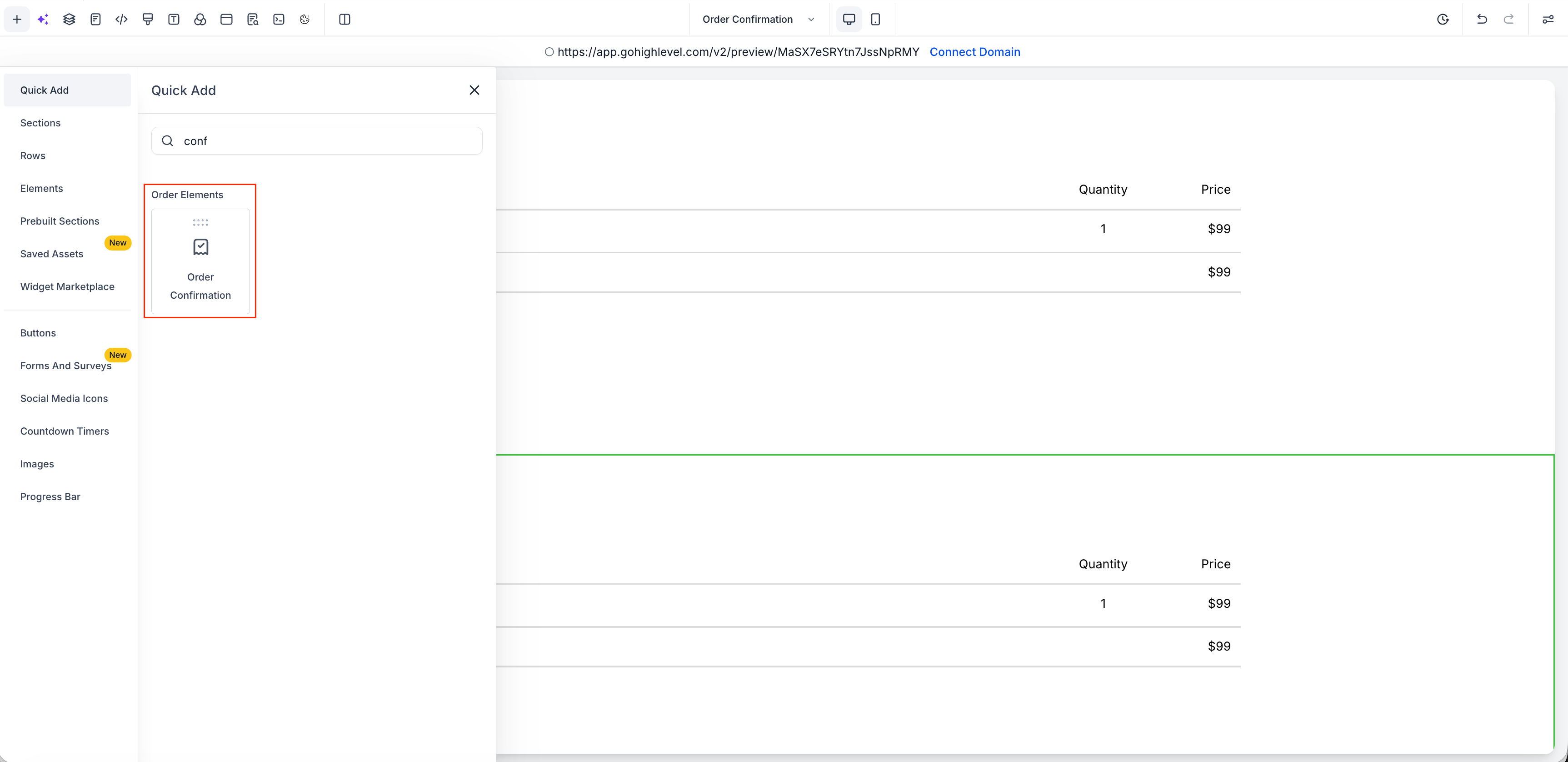
- Ensure the Funnel contains an Order Summary element to reflect:
- The initial product from the form
- The additional Upsell product (if accepted)
Why It Matters
- This update helps you sell more without complicating the checkout process.
- Customers can complete their upsell purchases with just one click. No new page and no repeated form filling required. It’s a straightforward way to boost revenue and enhance the purchasing experience.