Mobile App – Auto-Payments for recurring invoices
Introducing Auto-Payments for recurring invoices and POS transactions — the quickest way to collect payments without the hassle of chasing clients every billing cycle. Capture the first payment immediately, set your schedule, and let the system do the rest. No follow-ups, no manual charges, and no missed payments.
What’s New (and Why You’ll Love It)
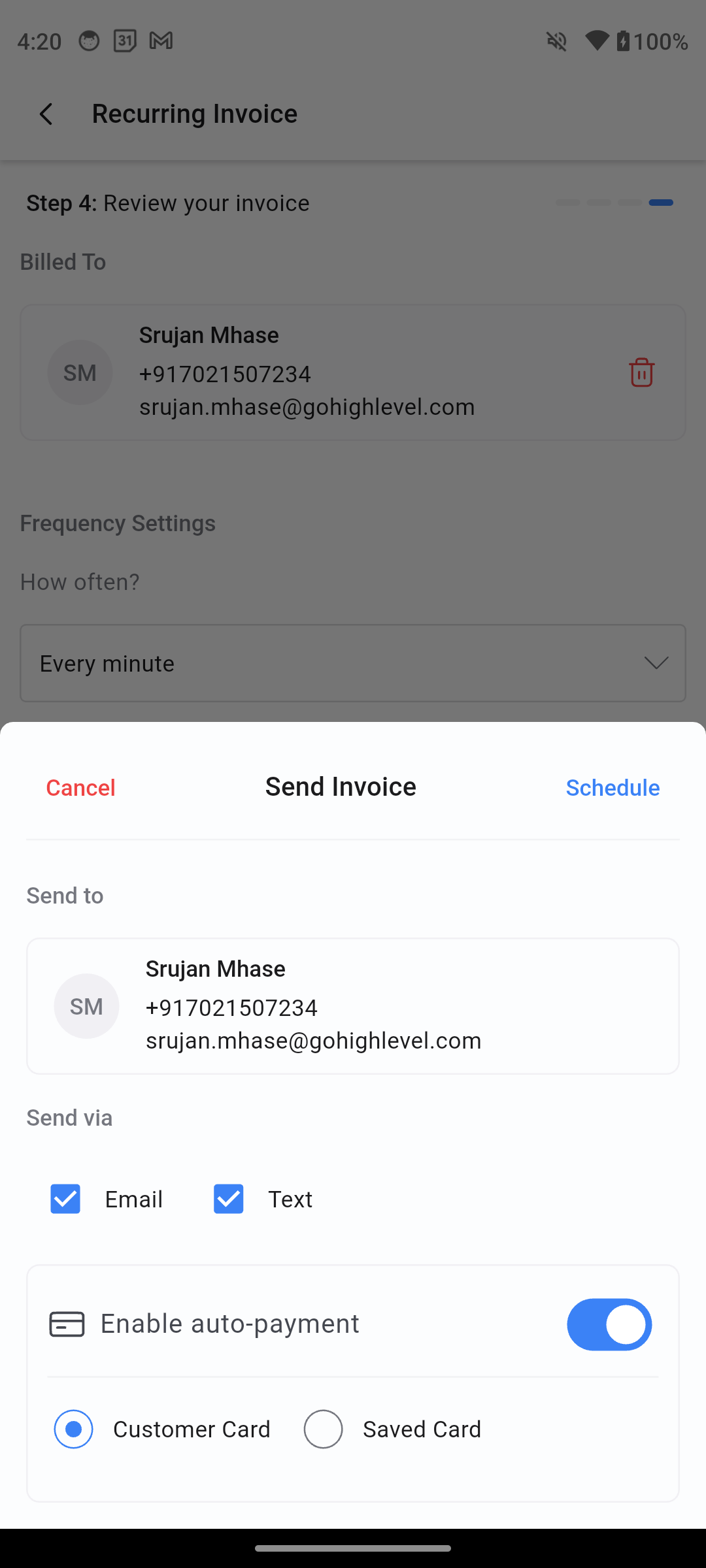
Set it and forget it – Activate Auto-Payment when scheduling a recurring invoice and watch the payments flow in automatically.
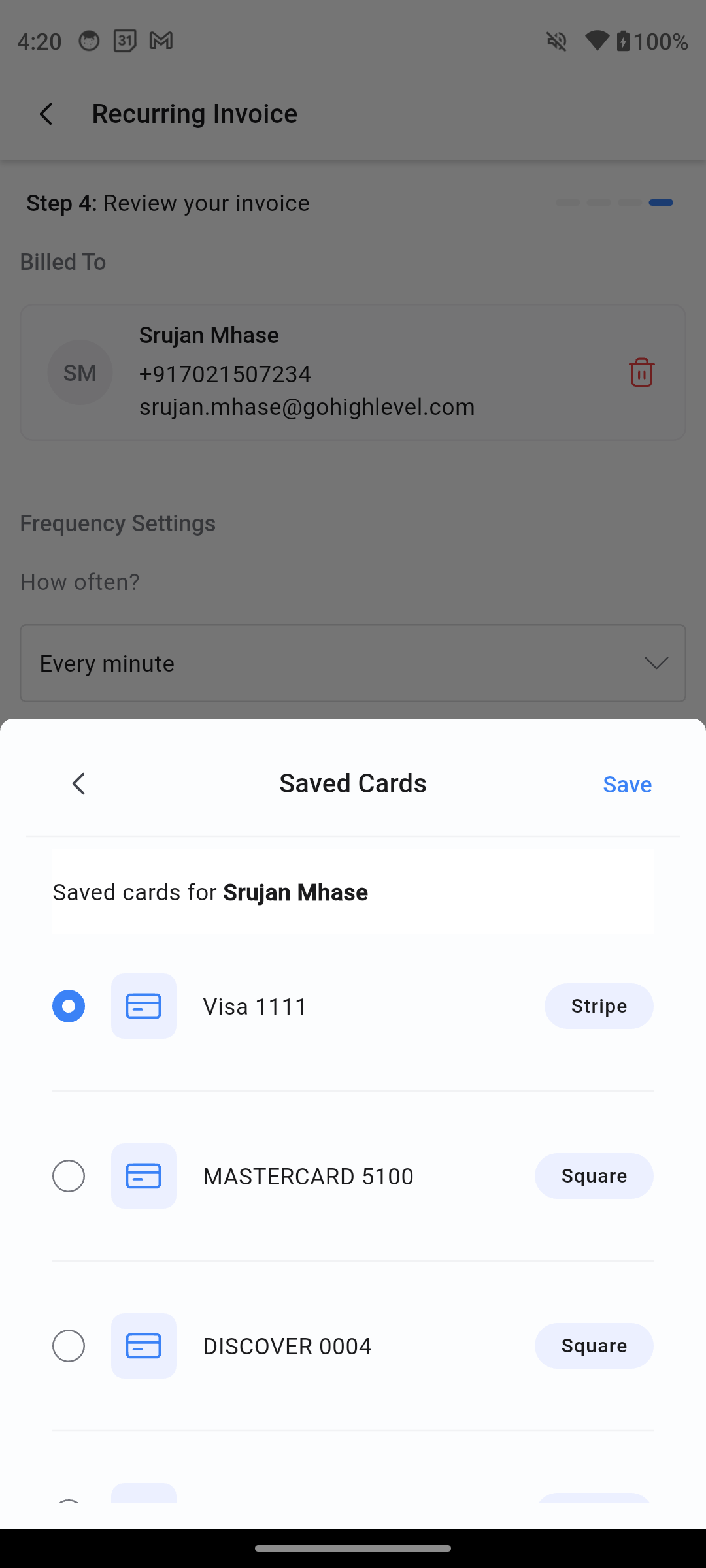
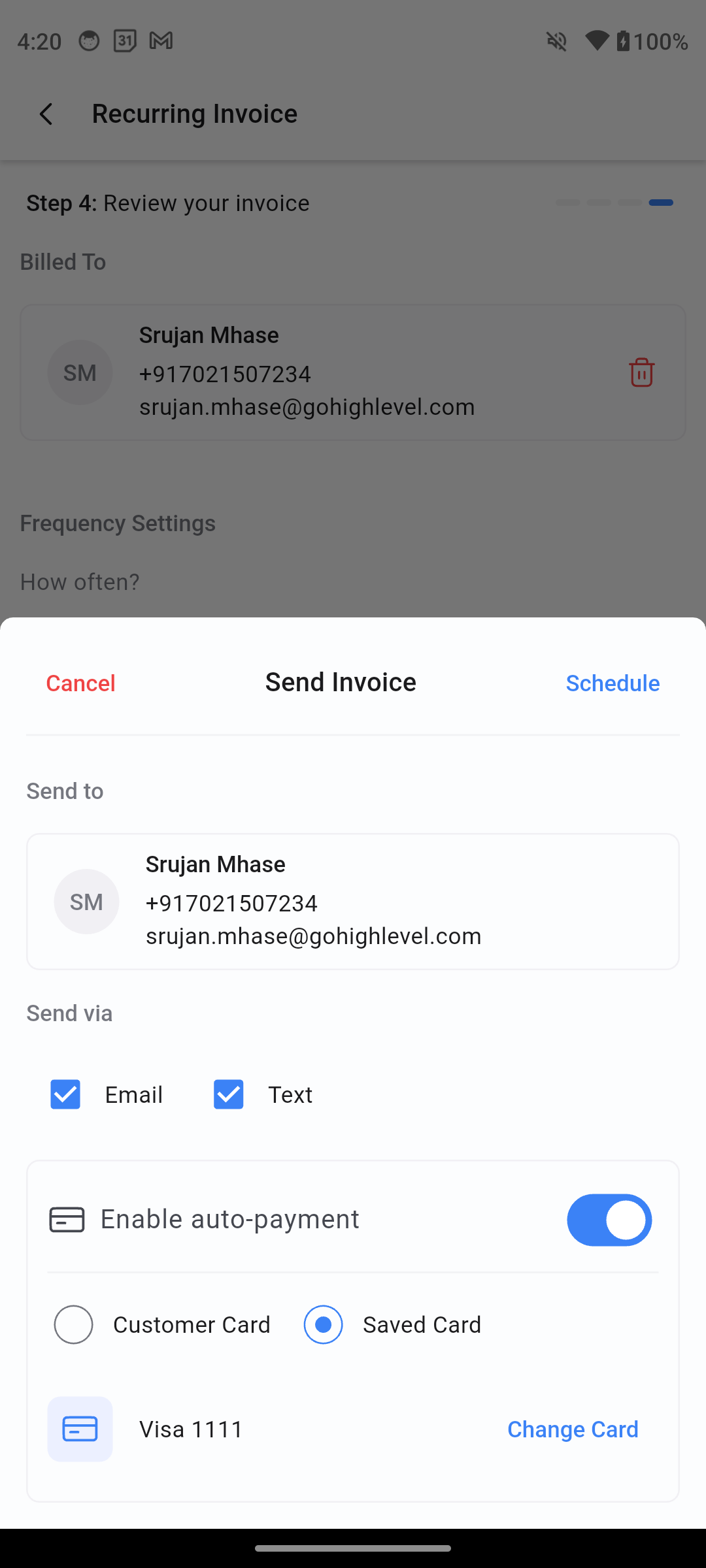
Multiple Payment Sources – Choose to charge from:
Saved Card – Select from any stored cards for that customer.
Customer Card – Use the card captured via Tap to Pay, Card on File, or online checkout.
Frictionless Checkout – No extra steps for your customer after the first payment.
Stay in Control – Toggle Auto-Payment on or off before sending.
Works Wherever You Work – Available for Recurring Invoices.
Why This Changes Everything
No More Chasing – Every payment is collected automatically on the due date, without awkward reminders.
More Cash Flow Confidence – Predictable payment timelines mean steadier revenue.
Delight Your Clients – A smooth, “one and done” checkout experience.
Save Hours of Admin Work – Set it up once and let automation take care of the rest.
:arrows_anticlockwise: Already Sending Recurring Invoices? Here’s the Upgrade
Instant Enablement – Activate Auto-Payment right from your invoice scheduling flow.
Smarter Workflows – Your card selection is remembered if you toggle Auto-Payment off and on again.
More Payment Flexibility – Access any saved payment methods for your contact.
Seamless POS Integration – When using PoS, add recurring products to the cart & select “convert to invoice”, then set it up while scheduling it.
Prerequisites
Recurring invoice created via the Invoices or POS module.
Customer payment method on file (Card on File, or online card capture).
Payments must be via card — Auto-Payment is not available for cash or manual entry.
How to Use This Feature (Quick Start)
Create – Go to Invoices or POS and start a recurring invoice.
Add Details – Select a customer, items, and billing frequency.
Enable Auto-Payment – On the scheduling sheet, toggle Enable Auto-Payment.
Select Payment Method:
Saved Card – Choose from saved payment methods.
Customer Card – Use the payment card captured via Tap to Pay or online checkout.
Send – Confirm and send the recurring invoice or POS schedule.
Sit Back – Payments will be automatically processed on each billing date.
Always confirm the correct payment method before sending.
Keep cards on file updated to avoid payment failures.