
[Labs] Highlighting & Resolving Errors in a Workflow
- The Error Highlight and Error Resolution using AI feature helps you quickly identify, understand, and resolve errors within your workflows using AI.
- This feature provides visual cues, actionable insights, and clear guidance for troubleshooting errors directly from the Error Tab in the side panel.
- Improves Workflow Reliability: Quickly highlights and helps resolve errors, ensuring your workflows run smoothly.
- Saves Time: Eliminates guesswork by providing direct explanations and suggested fixes for errors.
- Increases User Confidence: Makes it easier for users to troubleshoot complex workflows without requiring external support.
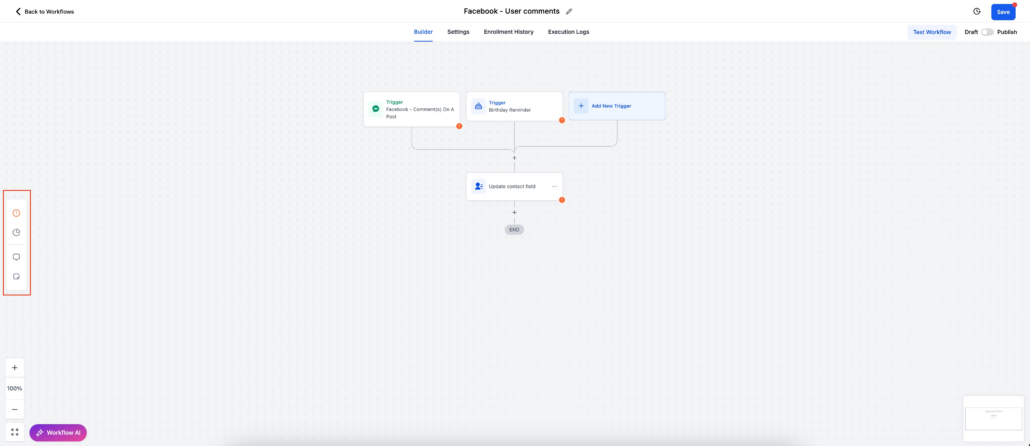
1. Error Button in Side Panel:
- Located on the left side panel within the Workflow Builder.
- On clicking the button Error panel will open which clearly displays a list of all errors detected.
- Divided into two categories:
- Integration Issues: Errors related to integrations
- Missing Mandatory Fields: Errors caused by missing critical data in any action or trigger.
2. Visual Error Highlighting:
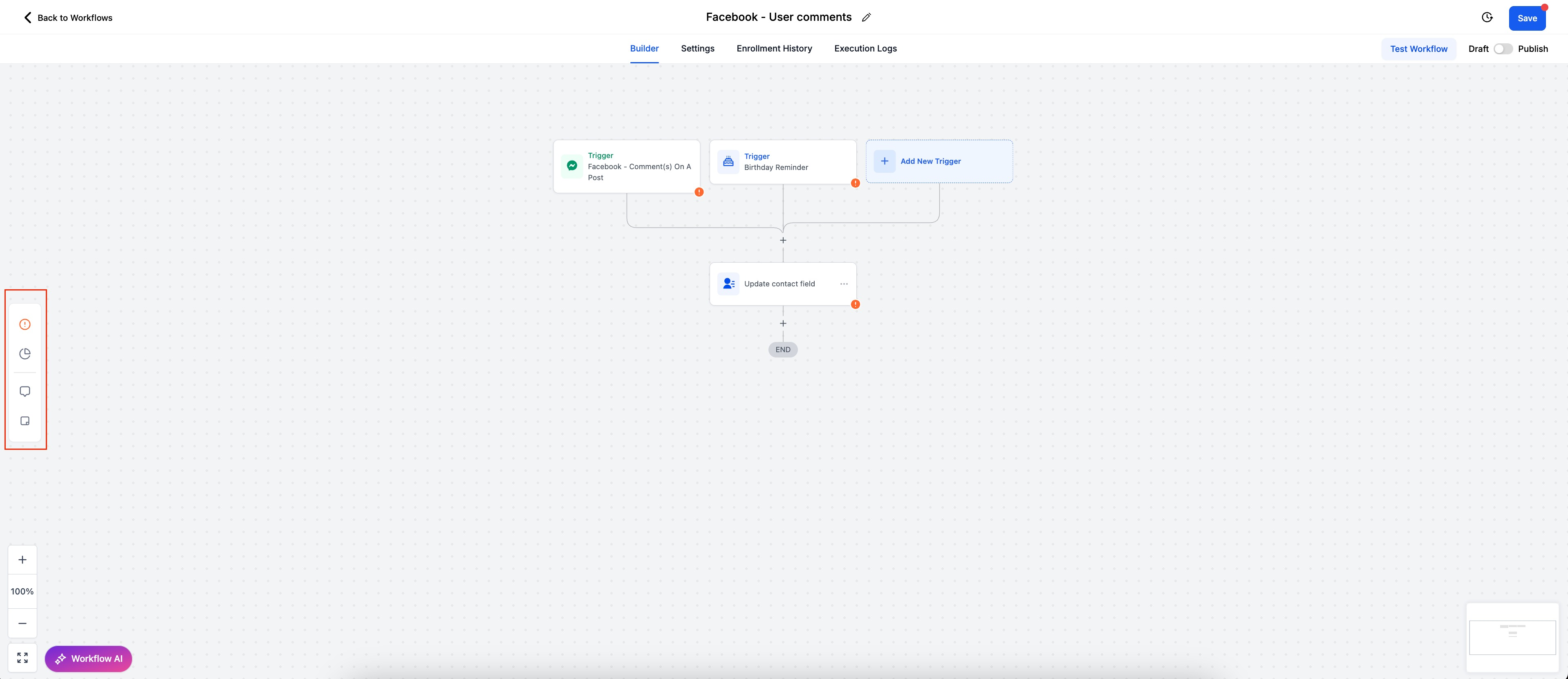
- Error icons appear next to actions and triggers (bottom right corner).
- Errors are highlighted for easy identification within the workflow builder.
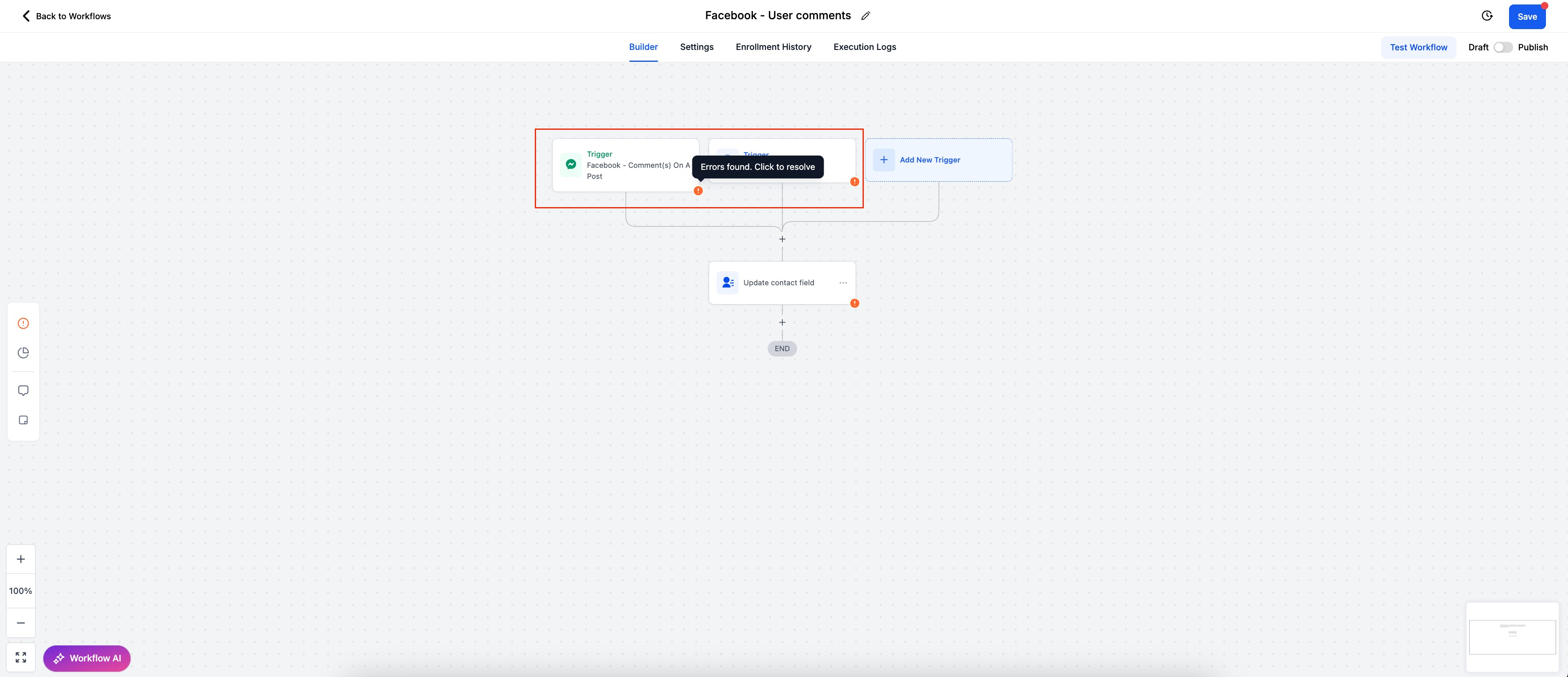
- A new side panel is introduced
- You can check all the errors related a workflow in a single panel
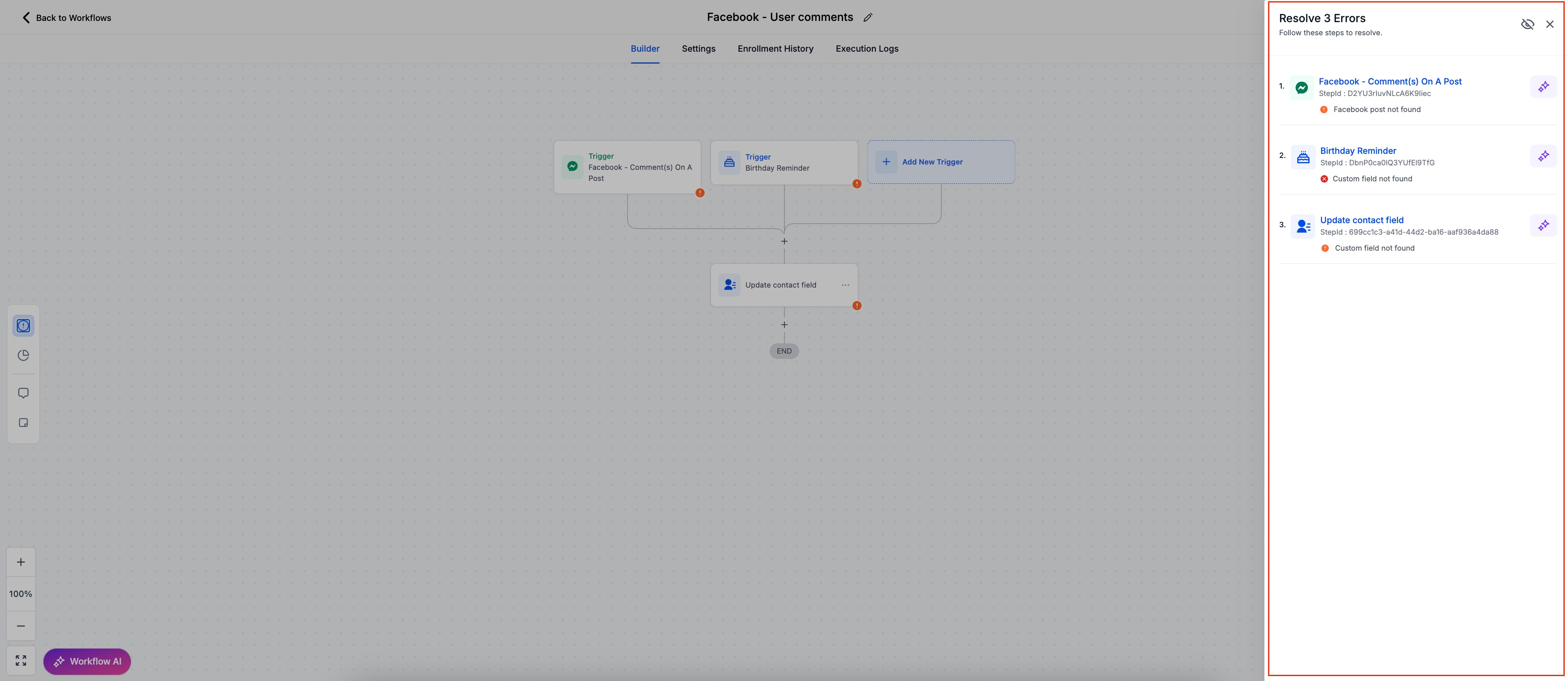
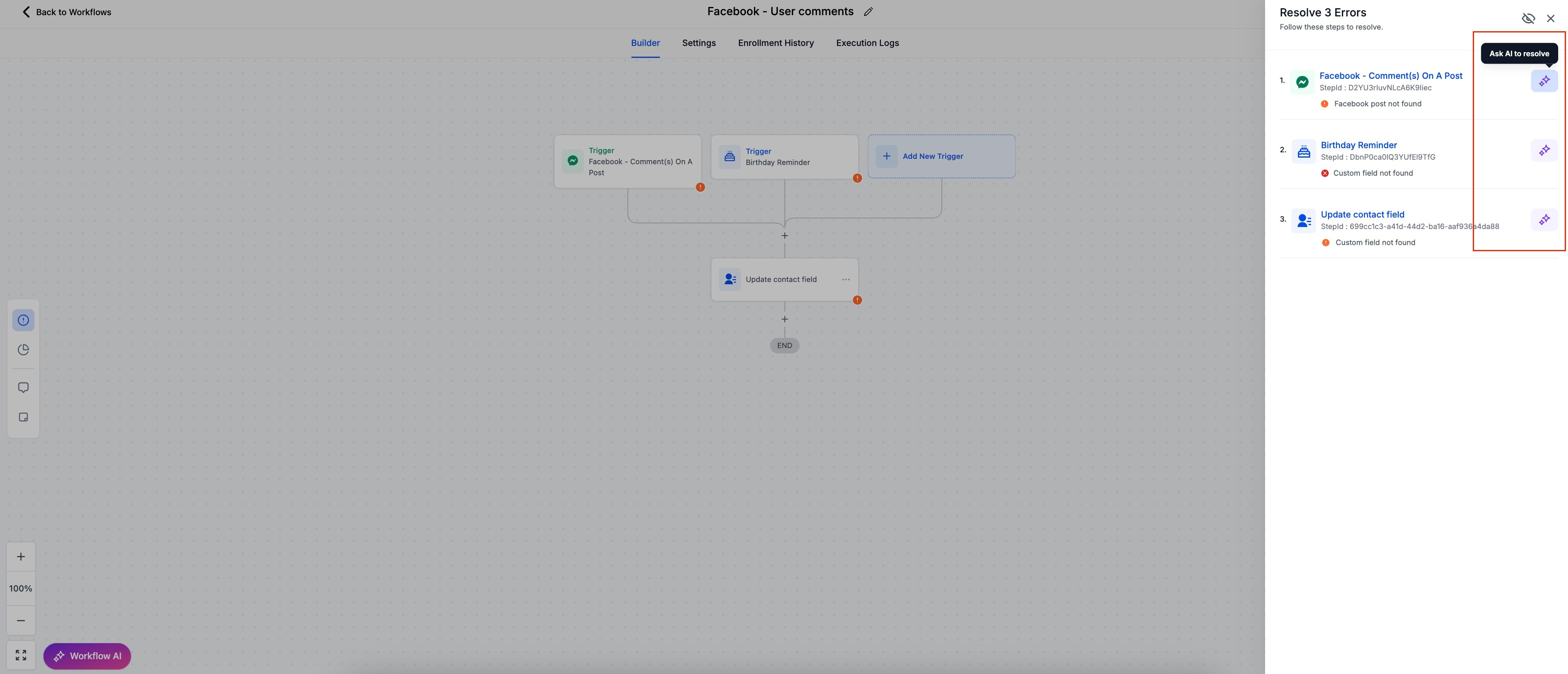
4. AI-Powered Error Resolution:
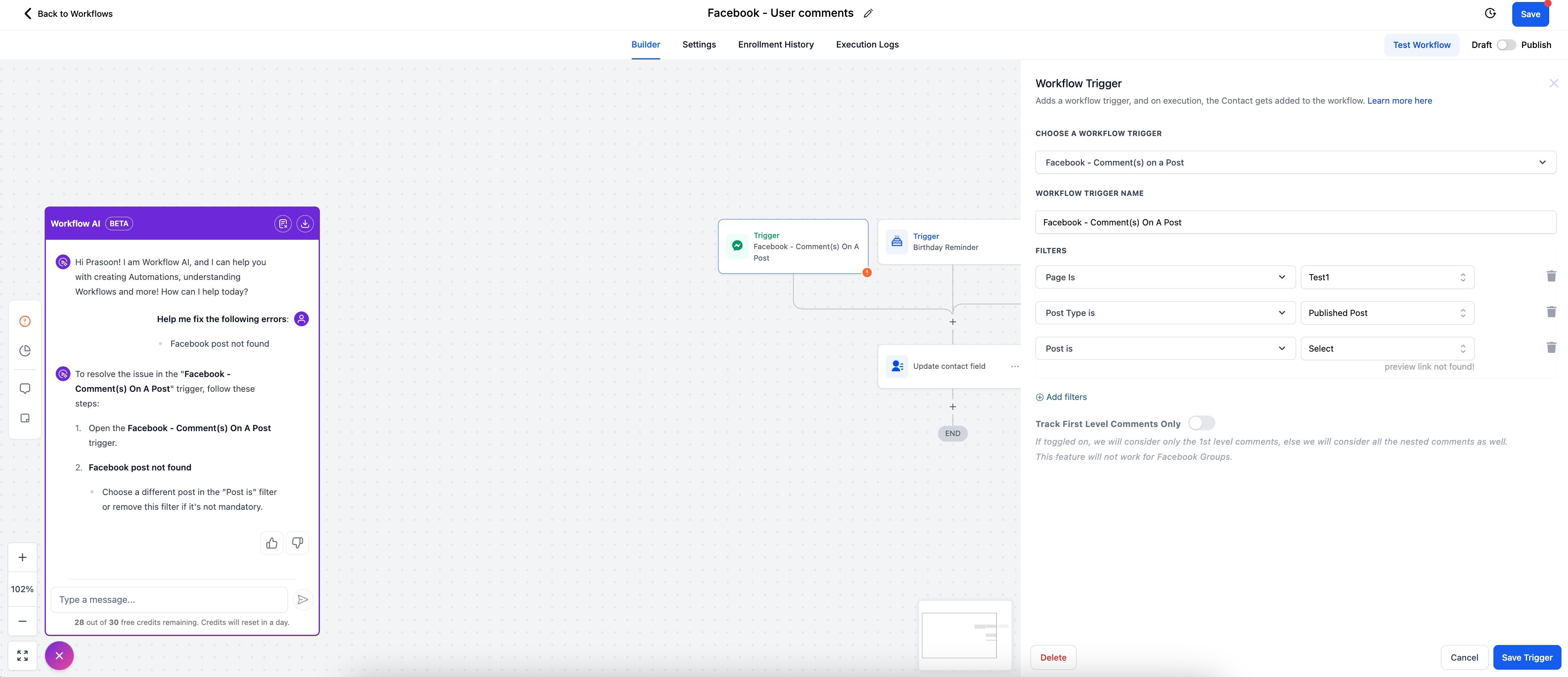
- The AI Assistant provides detailed explanations of errors and suggests actionable steps to resolve them.
- Users can view recommendations and apply fixes directly from the AI Assistant.
- Provides a dedicated “Resolve through AI” button for immediate troubleshooting.
- When clicked on the button the AI Assistant will share the resolution steps and the action/trigger side bar will open for configuration.
5. Disabling Error Tab Visibility:
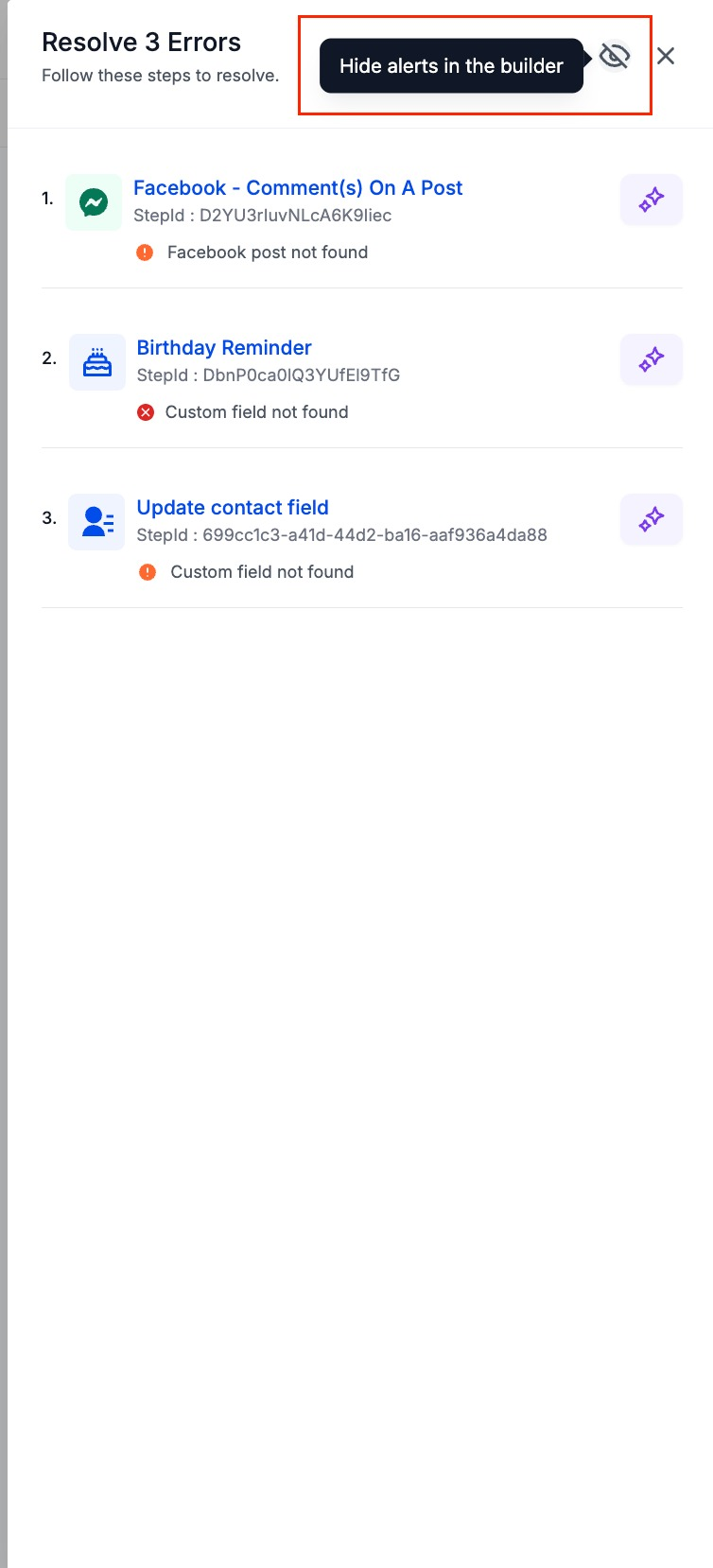
- Users can hide the Error Tab if they don’t want it visible at all times.
- A toggle button is available in the side panel settings allowing users to disable or re-enable the tab as per their preference.
Using Error Resolution AI (Step-by-Step Guide)
Step 1: Identifying Errors
- Errors are highlighted in the Workflow Builder with a ⚠️ Error Icon.
- Click on the Error Tab in the side panel to view a complete list of errors.
Step 2: Using the AI Assistant to Resolve Errors
- Click on the “Resolve through AI” button next to the relevant error.
- The AI Assistant will open in the left panel and provide:
- Error Explanation: What caused the error.
- Suggested Fixes: Actionable steps to resolve the issue.
- Users can apply the suggested fixes in the action/trigger sidebar.
- If the fix involves external integrations, the AI will guide users to the appropriate configuration settings.
Step 4: Confirmation and Continuation
- Once the error is resolved, the Error Icon (⚠️) will disappear, confirming the issue has been fixed.
- Errors are automatically cleared from the side panel list once addressed.
Error
: Integration with Facebook failed due to incorrect authentication.
Resolution
:The AI Assistant prompts you to reconnect or re-authenticate the integration.
2: Missing Mandatory Fields
Error
: Snapshot import is missing required fields (e.g., Appointment Date, Custom Fields, etc.).
Resolution
: The AI Assistant lists the missing fields and provides options to either map them or create new ones.
Q. Can I hide the Error Icons permanently?
A. Yes, you can toggle it off from the side panel settings.
Q. Will my Published workflow move to Draft stage if an error is found?
A. No, the workflow will not move to Draft stage