Google Contacts – New Actions & Triggers in Workflows
You can now automate Google Contacts directly within Workflows — no more manual syncing between Google Contacts and your CRM.
Triggers (events in Google Contacts that initiate a workflow in Clixio):
- New Contact – Triggers a workflow when a new contact is added to Google Contacts.
- New Group – Triggers a workflow when a new contact group is created in Google Contacts.
- Actions (steps you can execute in Google Contacts from a Clixio workflow):
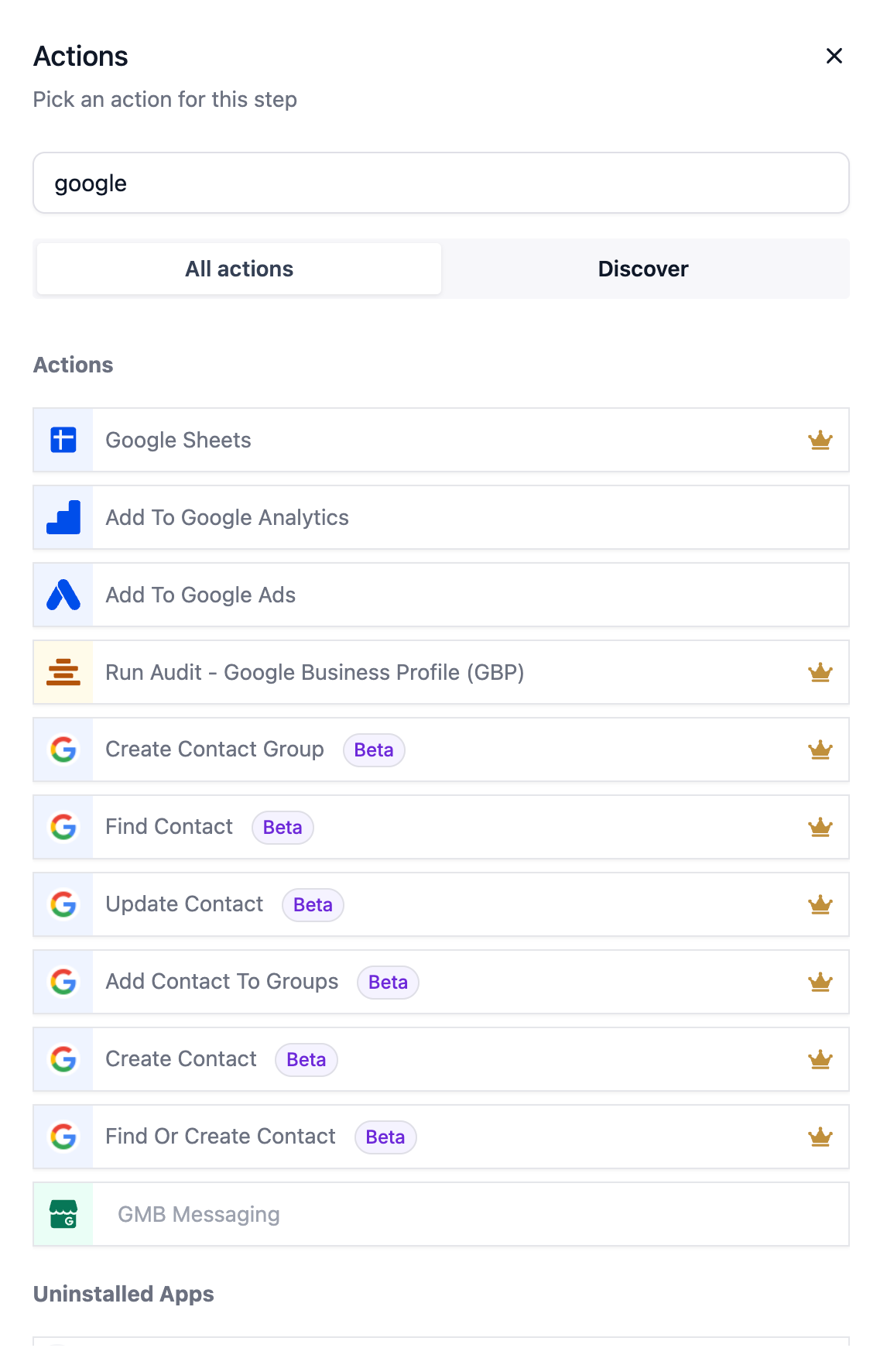
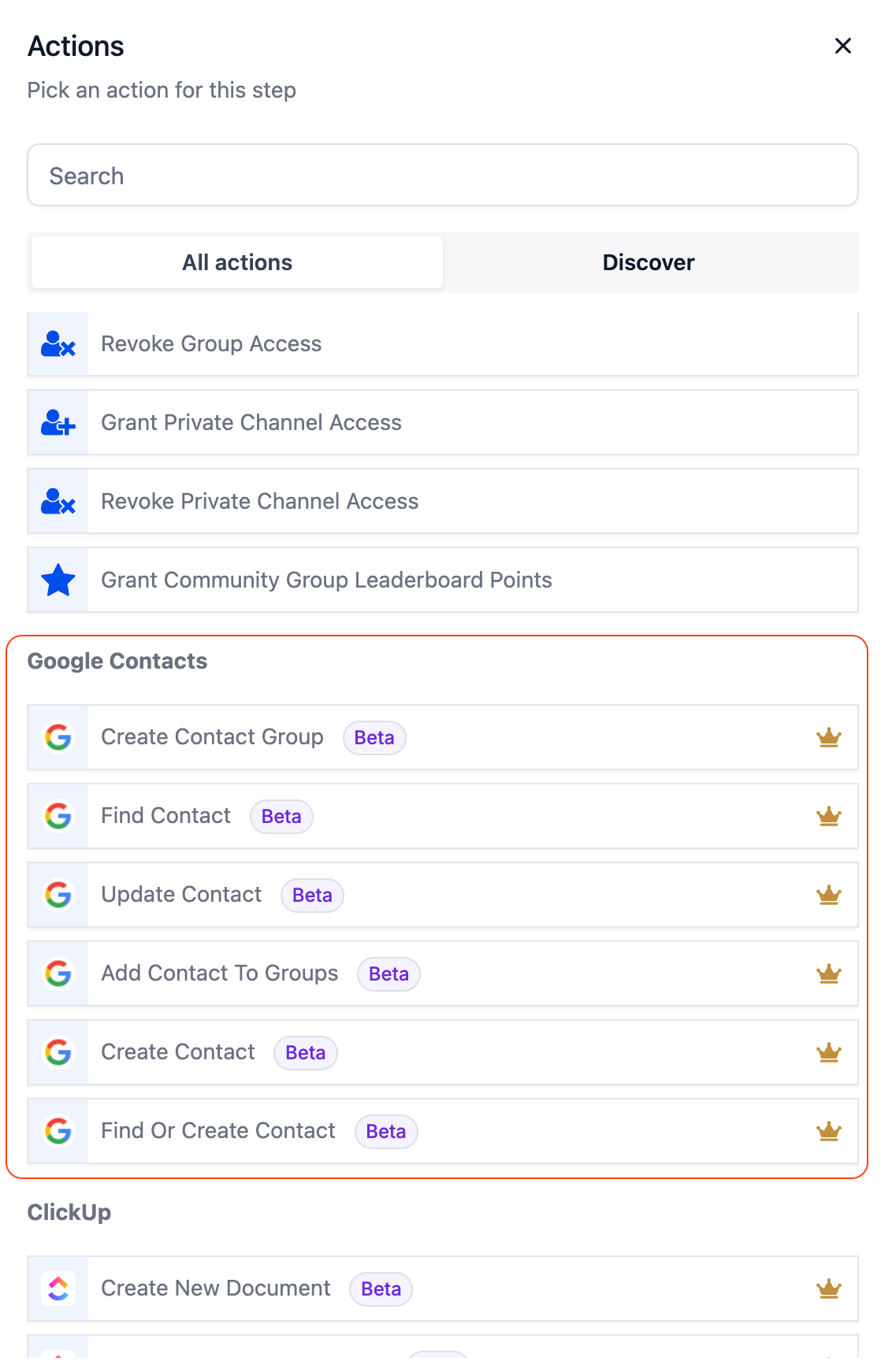
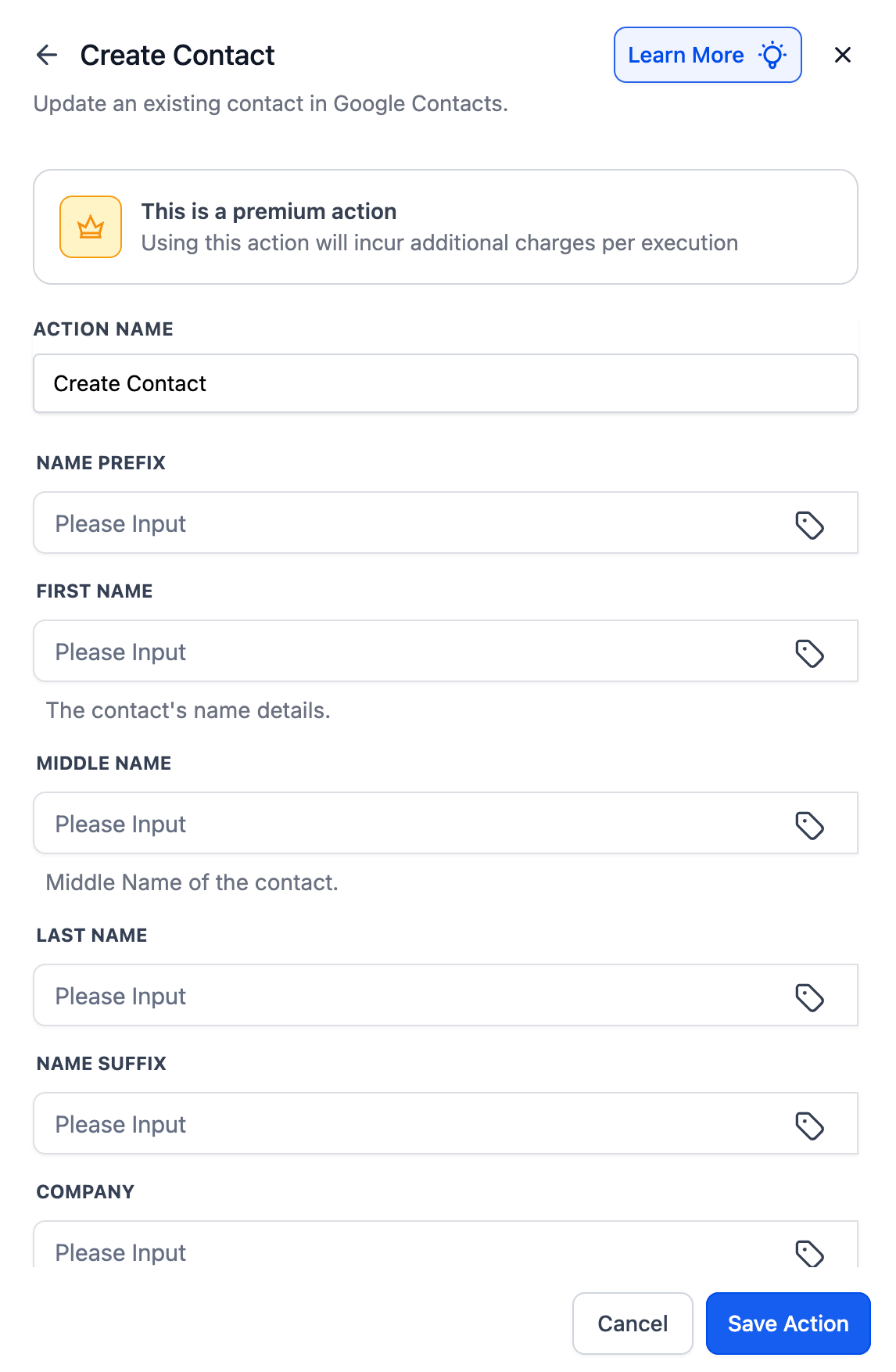
- Create Contact – Instantly add a new contact to Google Contacts.
- Update Contact – Ensure contact details (phone, email, etc.) are up to date.
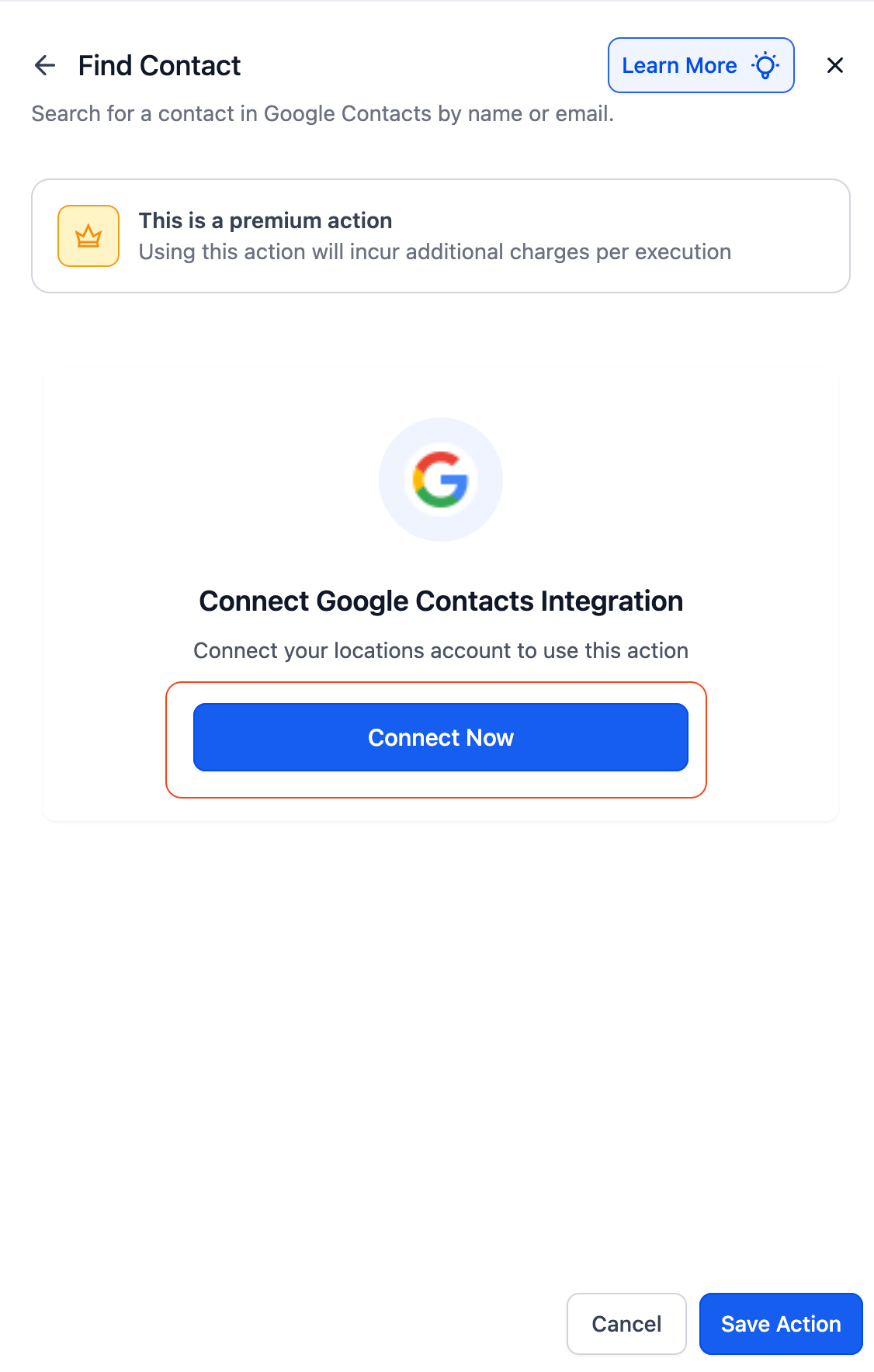
- Find Contact – Search Google Contacts by name, email, or phone number.
- Find or Create Contact – If the contact exists, update it; if not, create a new one.
- Create Group – Organise contacts into a new Google group.
- Add Contact to Groups – Automatically place a contact into one or more groups.
With Google Contacts actions and triggers, you can:
- Keep your CRM and Google Contacts synchronised — no more duplicates or outdated records.
- Ensure that every new lead, booking, or form submission is instantly reflected in Google Contacts.
- Create Google Groups that mirror your CRM segments for improved targeting in Calendar and other Google services.
Appointments → Contacts
When a new appointment is scheduled in Clixio, a contact is created in Google and added to a “Consult Calls” group.
Forms → Contacts
A lead form submission on your website triggers a “Find or Create Contact” action in Google — updating the contact if they already exist, or creating a new one if they do not.
Notion → Contacts
- When a new record is added to your Notion onboarding database, a Google Contact is automatically created for the new client.
Dynamic Segmentation
- When a pipeline stage changes (e.g., “Won”), update the Google Contact and add them to a “Customers” group.
- Open the Workflow Builder and search for “Google Contacts” actions or triggers.
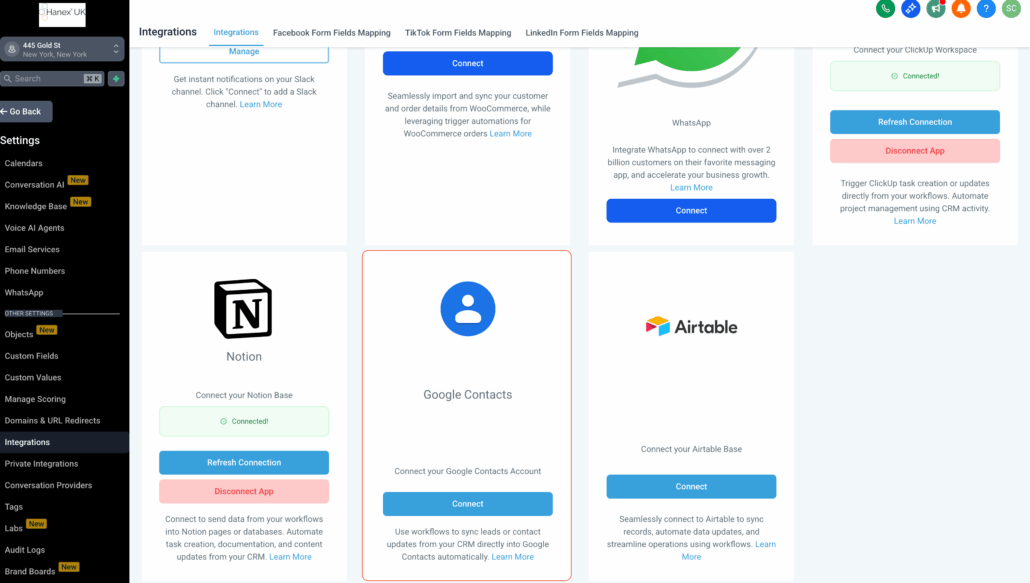
- Click on Connect Now when prompted and log in with your Google account.
- Once connected, you’ll be able to add Google Contacts steps into your workflows.
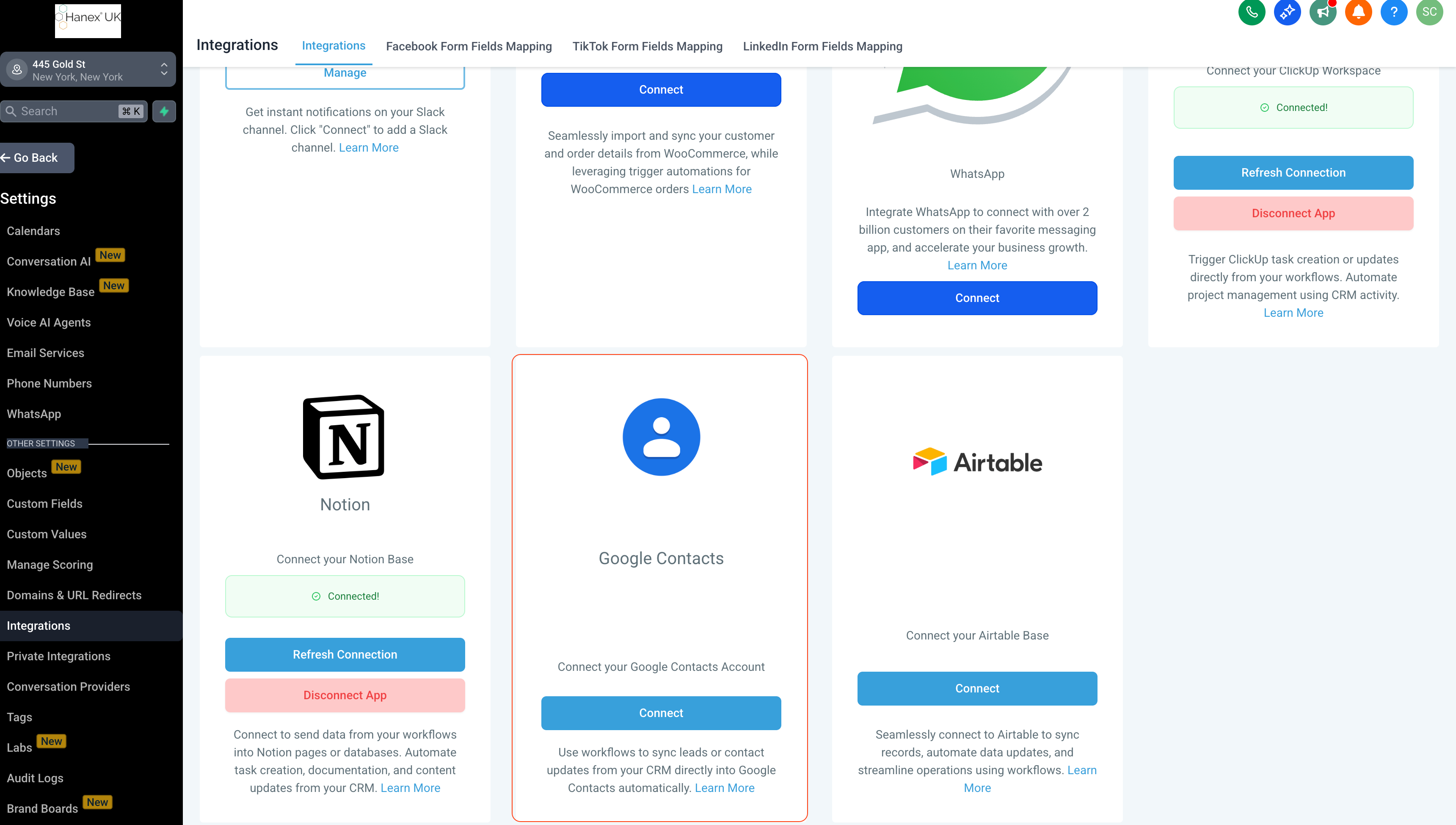
- Alternatively, navigate to Settings → Integrations → Google Contacts to connect your account beforehand.
Polling Interval: Google Contacts triggers check for new contacts or groups every 5 minutes.
- Compatible with any Google Contacts or Google Workspace account.
- Contact grouping can be dynamic (e.g., based on tags or pipeline stages).