Documents & Contracts: Staff Selection in Templates
Introduction
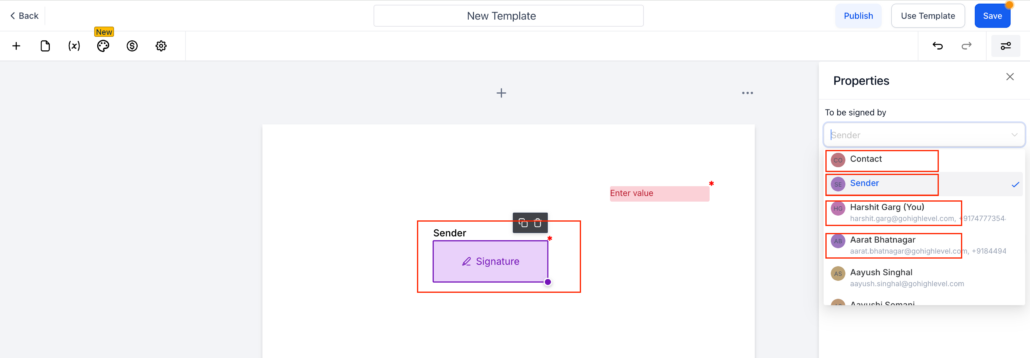
Previously, when creating a template, Admins were limited in assigning signature fields. They could assign them only to:
If you were working with a business and wished to allocate the business-side signature to a specific staff member, this was not feasible.
Now, Admins can easily access and assign signature fields to the entire staff list directly within templates.
You can select any team member from the staff list when configuring the “To be signed by” section.
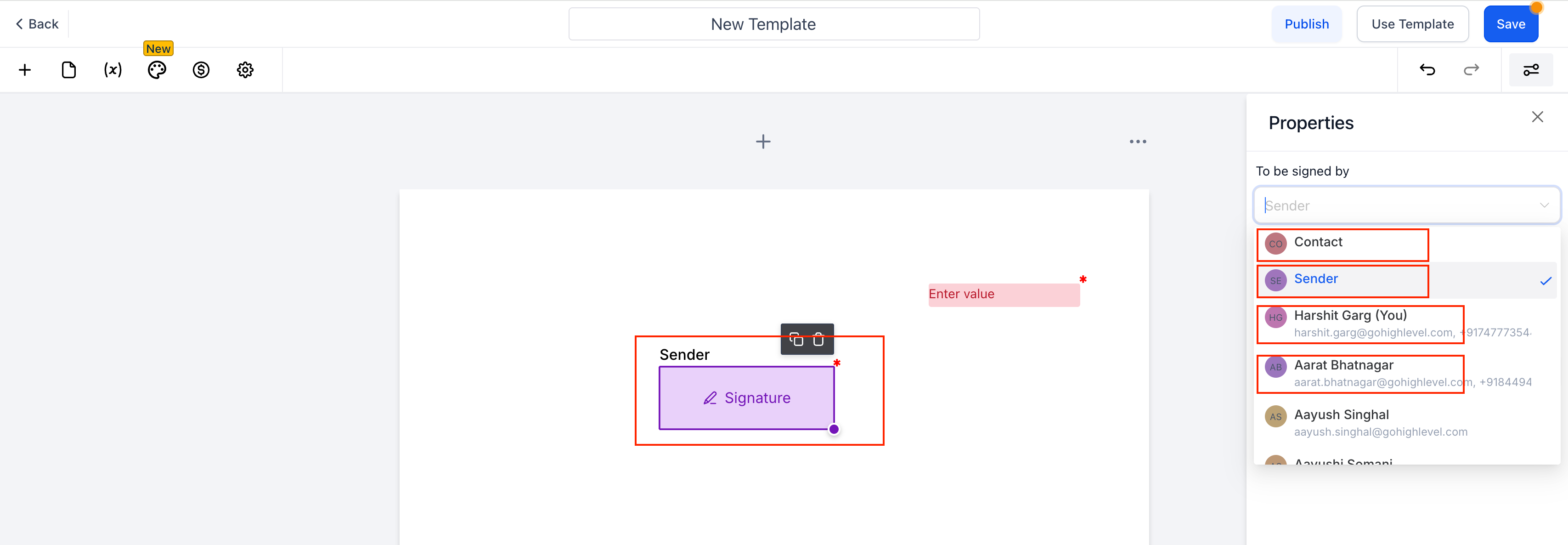
- Navigate to Templates and create or edit a template.
- Add a Signature or any other fillable field.
- In the right-side Properties panel, click on “To be signed by”.
- You will now see the complete list of staff.
- Select the desired team member and save the template.
The chosen staff member will be assigned the signature role when the document is utilised.
- To support agencies working with multiple businesses.
- To allow the assignment of business-side signatories to the appropriate staff member.
- To eliminate the dependency on only the “Sender” or “Contact”.
- To enhance document workflows, making them more flexible and scalable for teams.
This update provides Admins with improved control and enhances multi-user document management.