Conversation AI – Human Handover
What’s New?
Human Handover for Conversation AI
Your AI bot can now automatically transfer conversations to a human when it recognises that it is no longer the best option for assistance. Whether due to a complex question, repeated failures, or a direct request such as “Can I speak to a human?”, the bot ensures your customers are not left feeling frustrated.
This feature is released via labs.
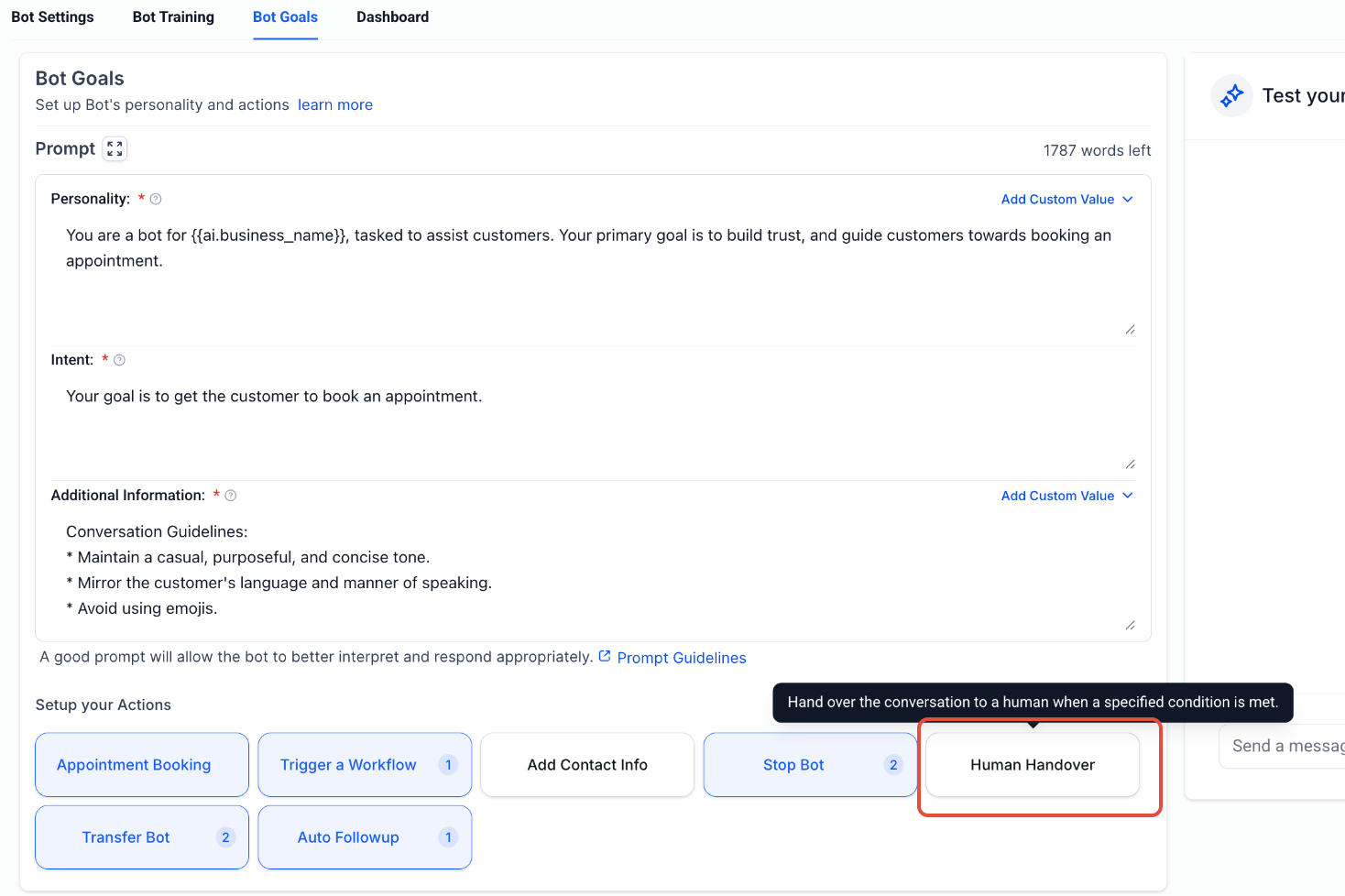
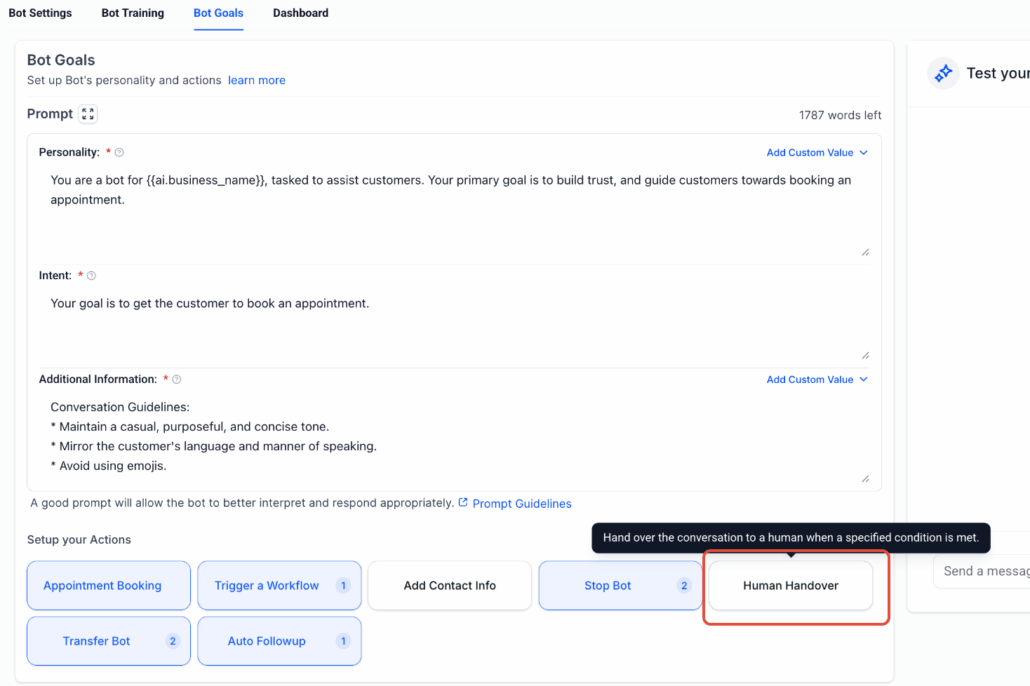
- Navigate to Bot Goals.
- Select Human Handover and toggle it ON to start configuring.
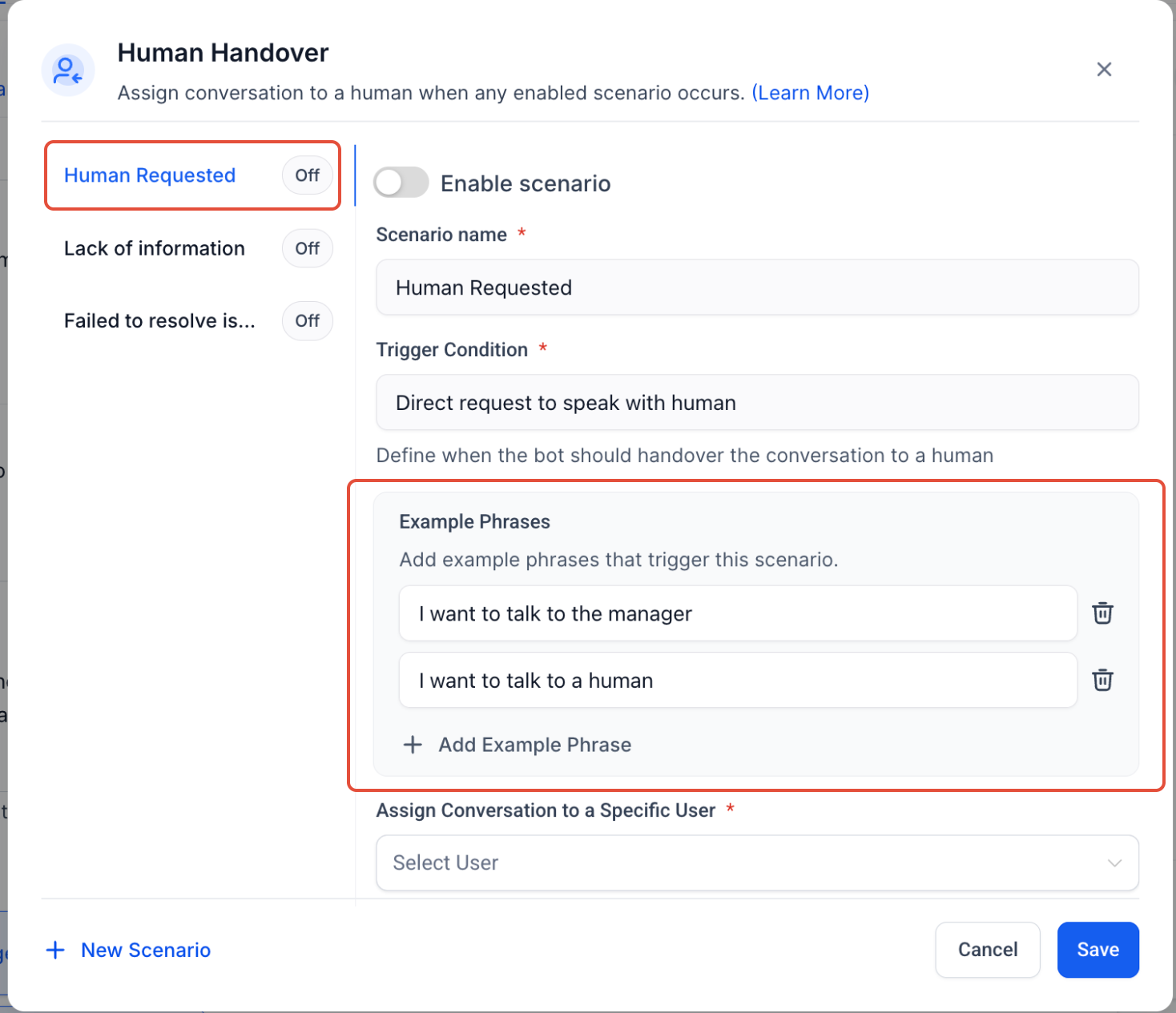
2. Choose a Scenario to Trigger the Handover
Select from predefined handover triggers:
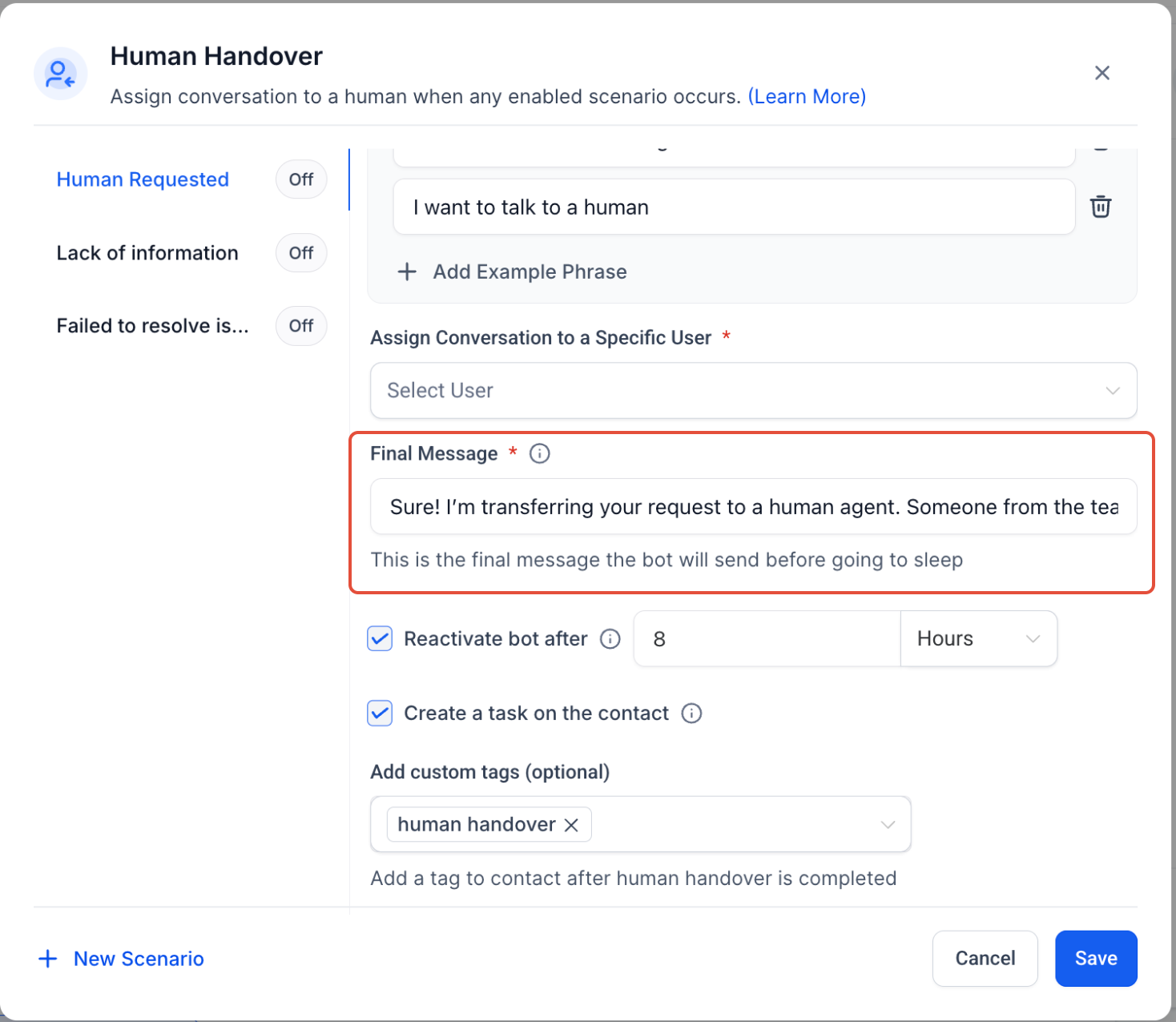
- Contact Request: When the user asks for a human.
- Example: “I want to talk to a human”, “Can someone real help me?”
- Lack of Information: When the AI does not have the answer.
- Failed to Resolve Issue: Triggered after two unsuccessful attempts by the AI to assist.
3. Configure What Happens Next
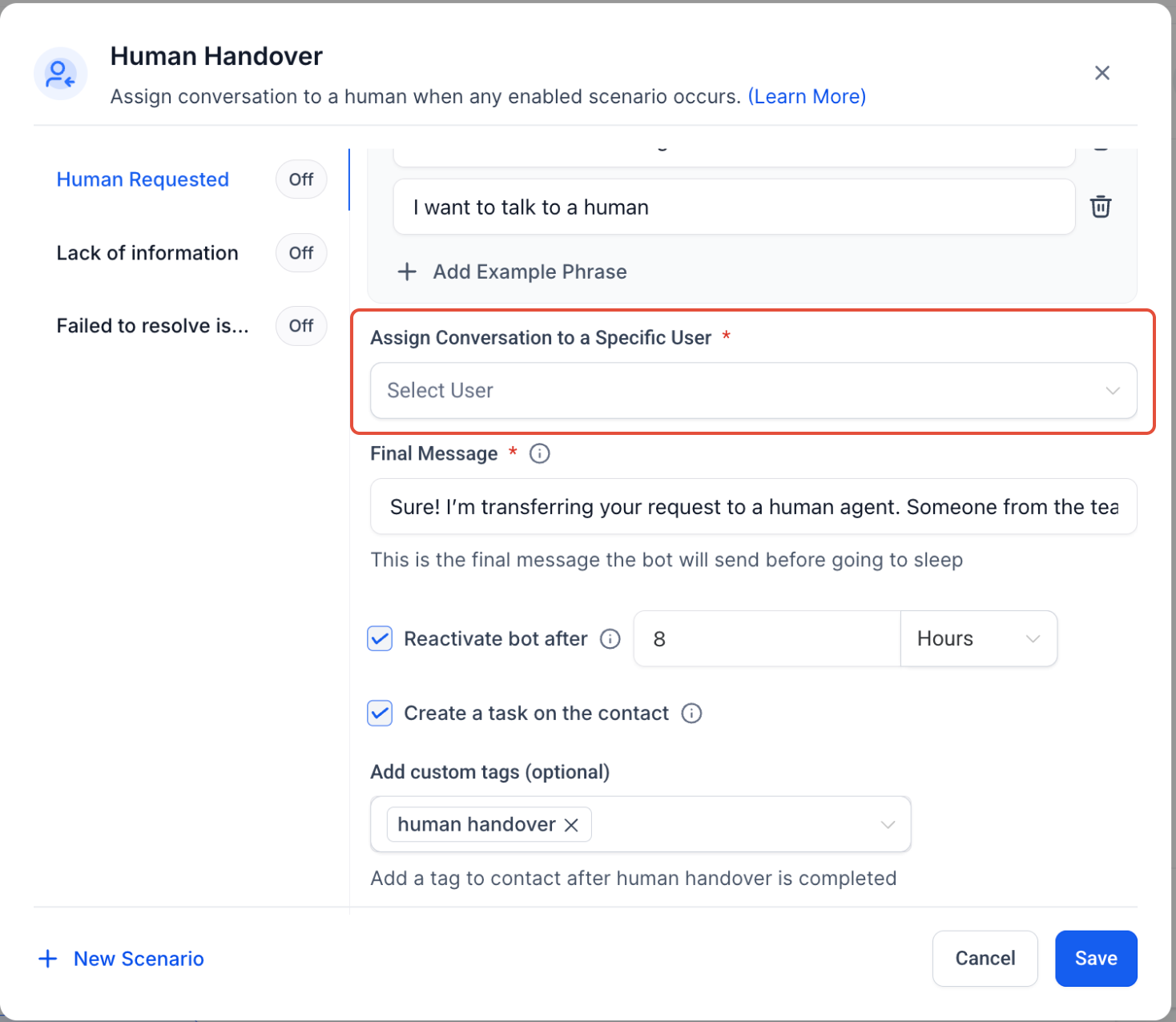
- Customise the handover workflow:
- Assign the conversation to a user.
- Choose a staff member or auto-assign based on existing assignments.
- Checkbox to auto-create a task.
- Default description: “will be created by AI”, due in 24 hours.
5. Send a Closing Message
- Default message: “Thank you! Someone from the team will get back to you.”
- Temporarily disable AI messages for a specific period.
- Default tag: human_handover.
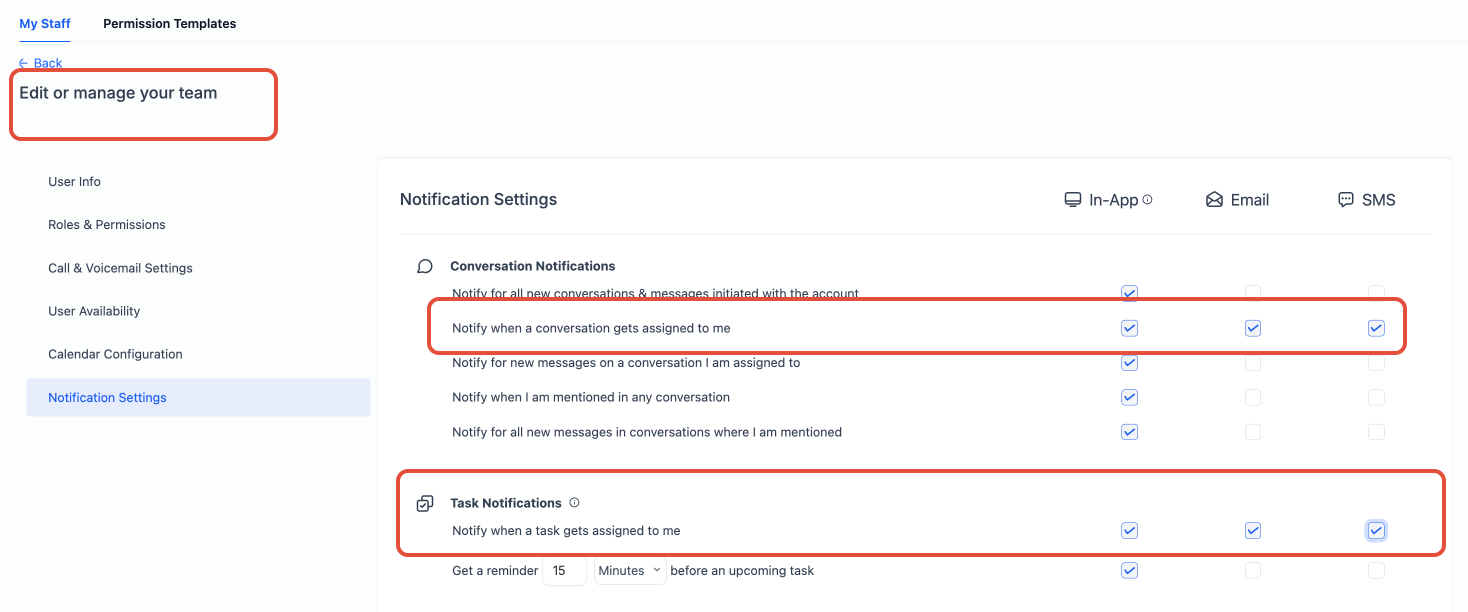
8. Manage Notifications for Human Agents
- Ensure staff are notified when they are assigned:
- Go to Settings > My Staff.
- Select the user.
Enable these in Notification Settings:
✅ When a conversation is assigned to me
✅ When a task is assigned to me
📝 Notes
A maximum of six handover actions per bot can be configured.