Clickup – New Actions & Triggers in Workflows
You can now connect ClickUp directly within Workflows, transforming CRM events into tasks, documents, and projects without the need for manual setup or webhooks.
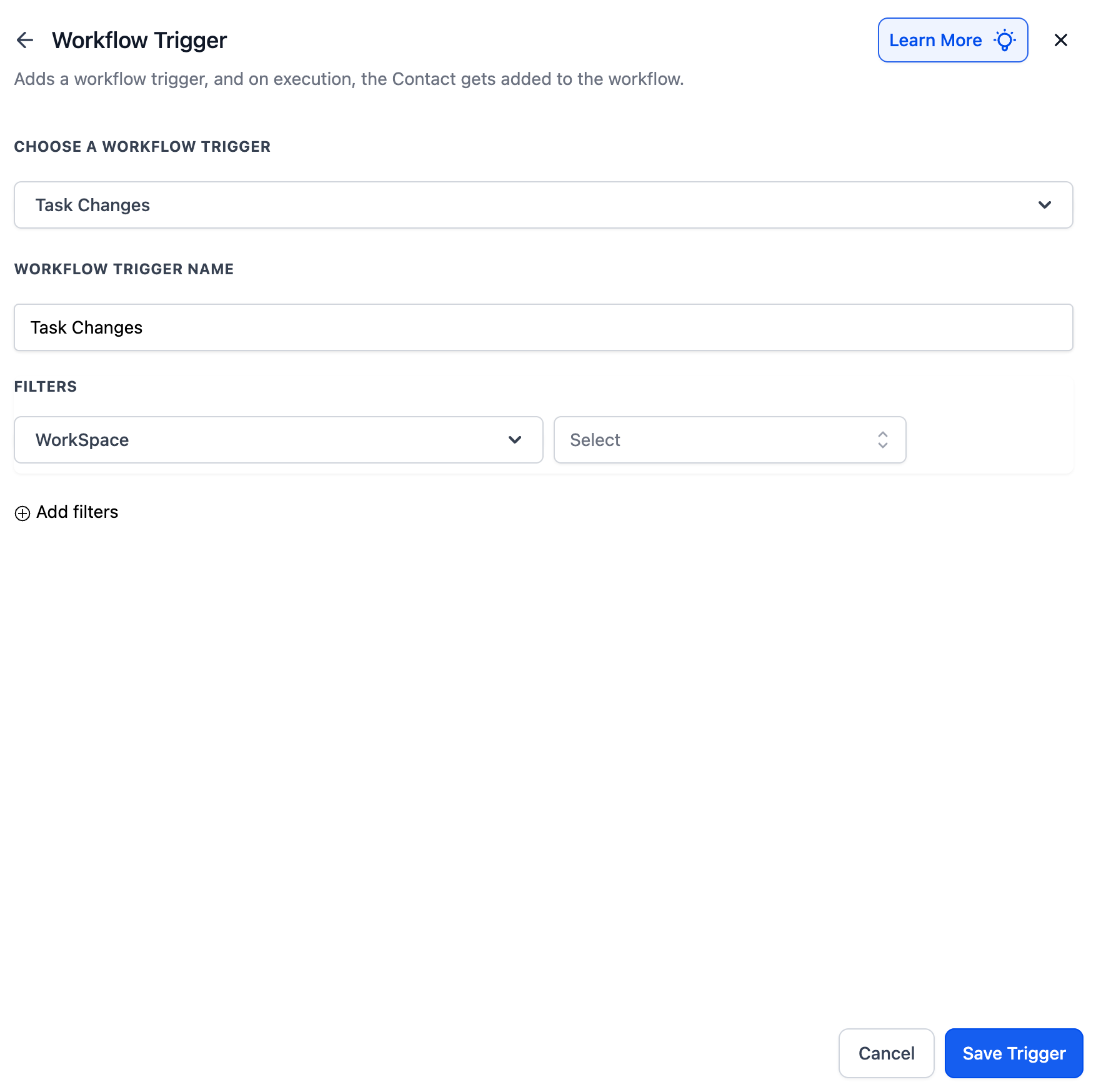
Triggers (from ClickUp → Clixio):
- New Task – Triggered when a new task is created.
- Task Changes – Triggered when task details change, such as status, due date, or priority.
- New List – Triggered when a new task list is created.
- New Folder – Triggered when a new folder is created.
- New Comment on a Task – Triggered when someone comments on a task.
- New Attachment on Task – Triggered when a file is added to a task.
- New Reaction on Task Comment – Triggered when a reaction is added to a task comment.
- New Reaction on Chat Message – Triggered when someone reacts to a public chat message.
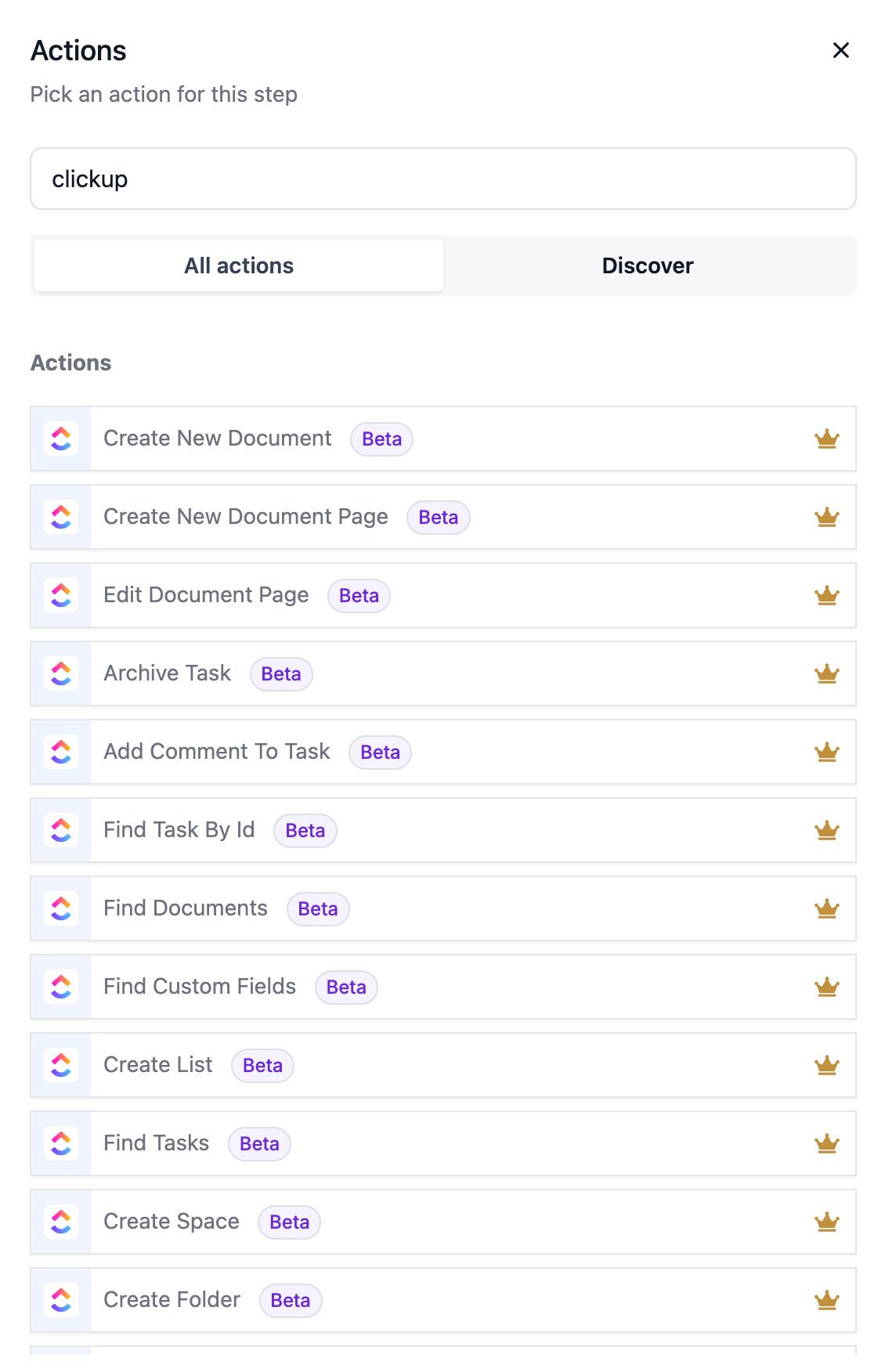
Actions (from Clixio → ClickUp):
- Create Task – Generate a task with an assignee, due date, and priority.
- Update Task – Change the details of an existing task.
- Archive / Delete Task – Remove tasks that are no longer needed.
- Create Space / Folder / List – Quickly build new project structures.
- Post Task Comment / Attachment – Add notes or files directly to tasks.
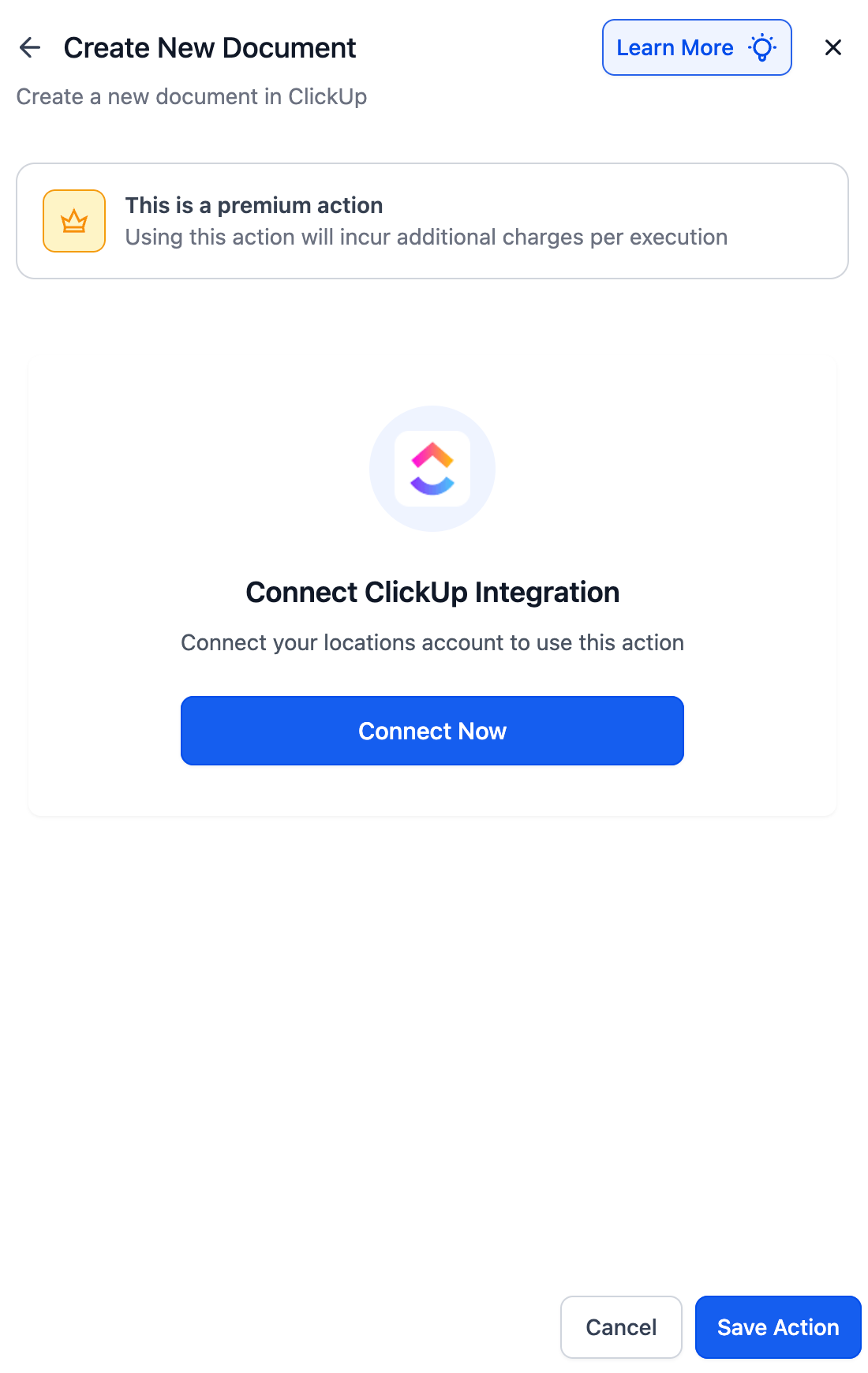
- Create New Document – Save proposals, briefs, or notes in ClickUp Docs.
- Edit / Create Document Pages – Update or add pages in existing documents.
- Create / Update Custom Fields – Add or update data fields on tasks.
- Find Tasks, Documents, Custom Fields, Users – Search for what you need for automation.
Managing delivery in ClickUp alongside CRM in Clixio often resulted in duplicated effort. Now, everything stays in sync: leads and sales activity in Clixio can automatically generate tasks, documents, and project structures in ClickUp.
Onboarding Forms → Tasks
- A client completes an onboarding form in Clixio.
- A new task is created in the “Client Setup” list in ClickUp with their details.
Deals → AI Proposals
- When an opportunity moves to the “Proposal” stage in Clixio,
- GPT generates a personalised proposal.
- A new document is saved in ClickUp under “Sales Docs.”
Contracts → Projects
- When a deal is marked “Contract Signed,”
- A new Space is created in ClickUp (e.g., SEO, Ads, or Landing Page).
- Lists and tasks are added automatically, and internal notifications are sent to the appropriate team.
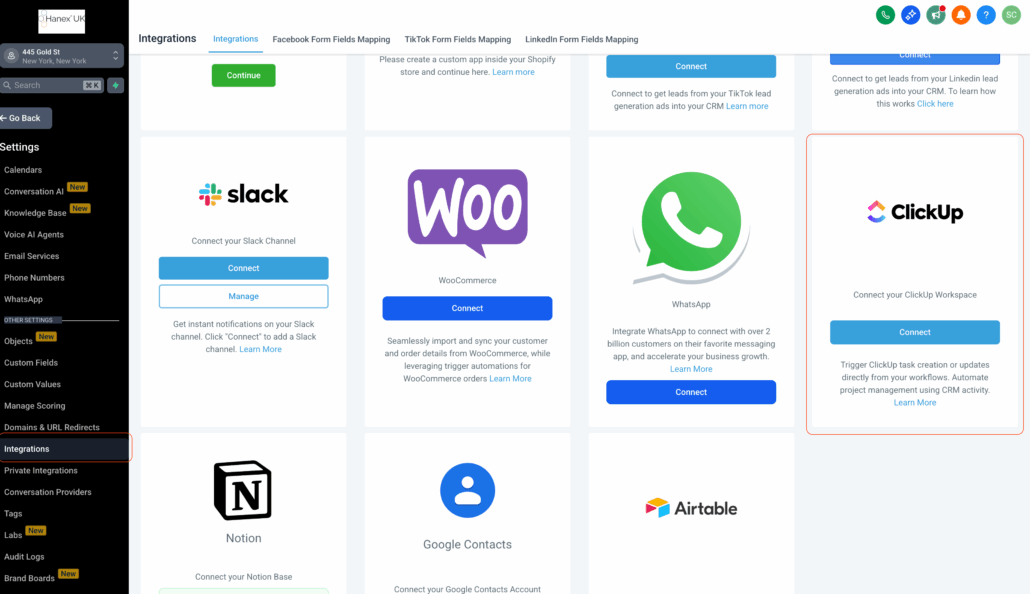
- Open Workflows and search for ClickUp triggers or actions.
- Select a step → click Connect Now → log in to your ClickUp account.
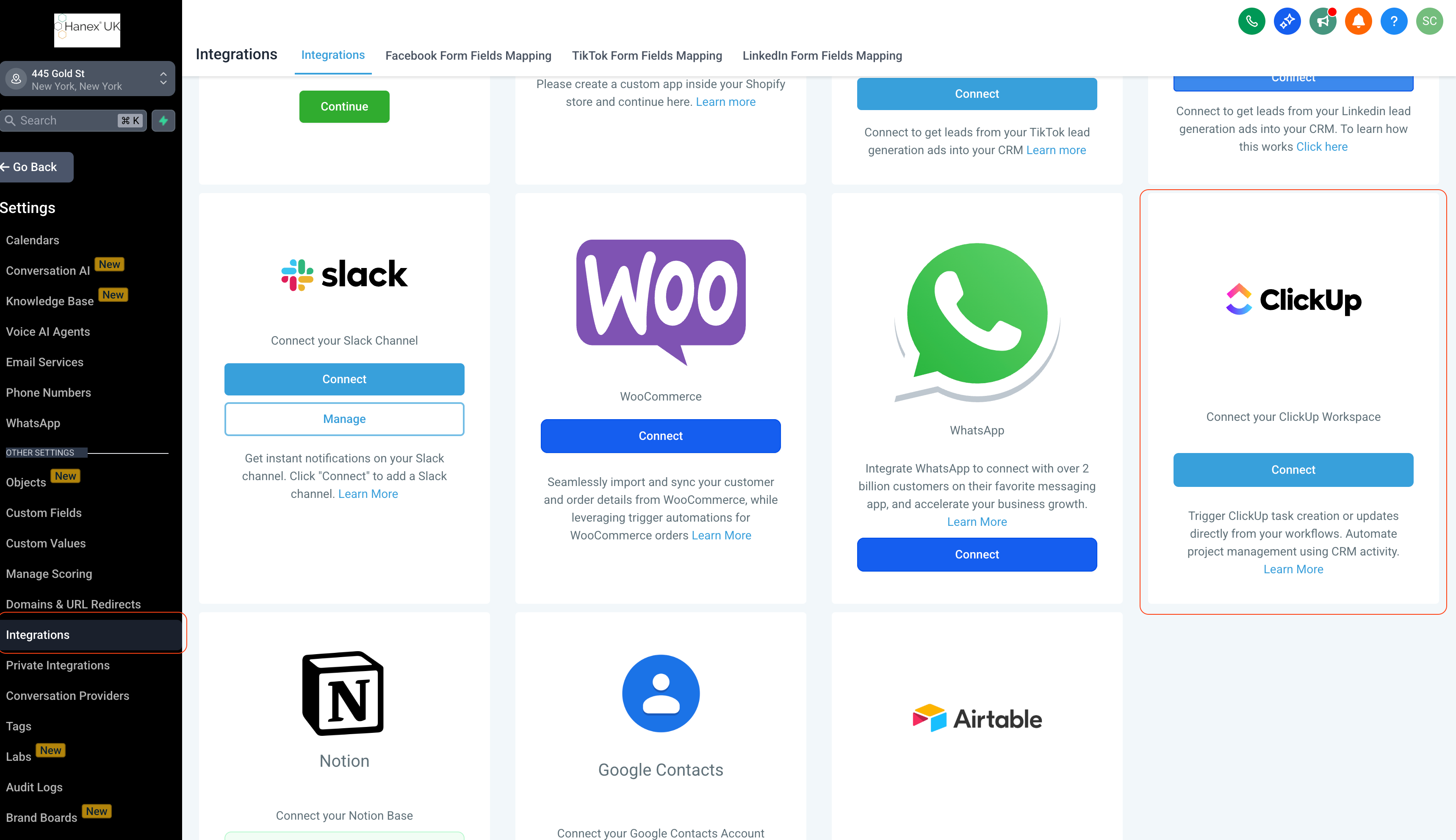
- Alternatively, connect through Settings → Integrations → ClickUp.
Real-time triggers: ClickUp events activate instantly via webhooks.
This integration works with both free and paid ClickUp plans (note that advanced features like time tracking and custom fields require a paid plan).