Canva Integration In Media Storage
You can now connect Canva directly within Media Storage to:
- Browse Canva designs
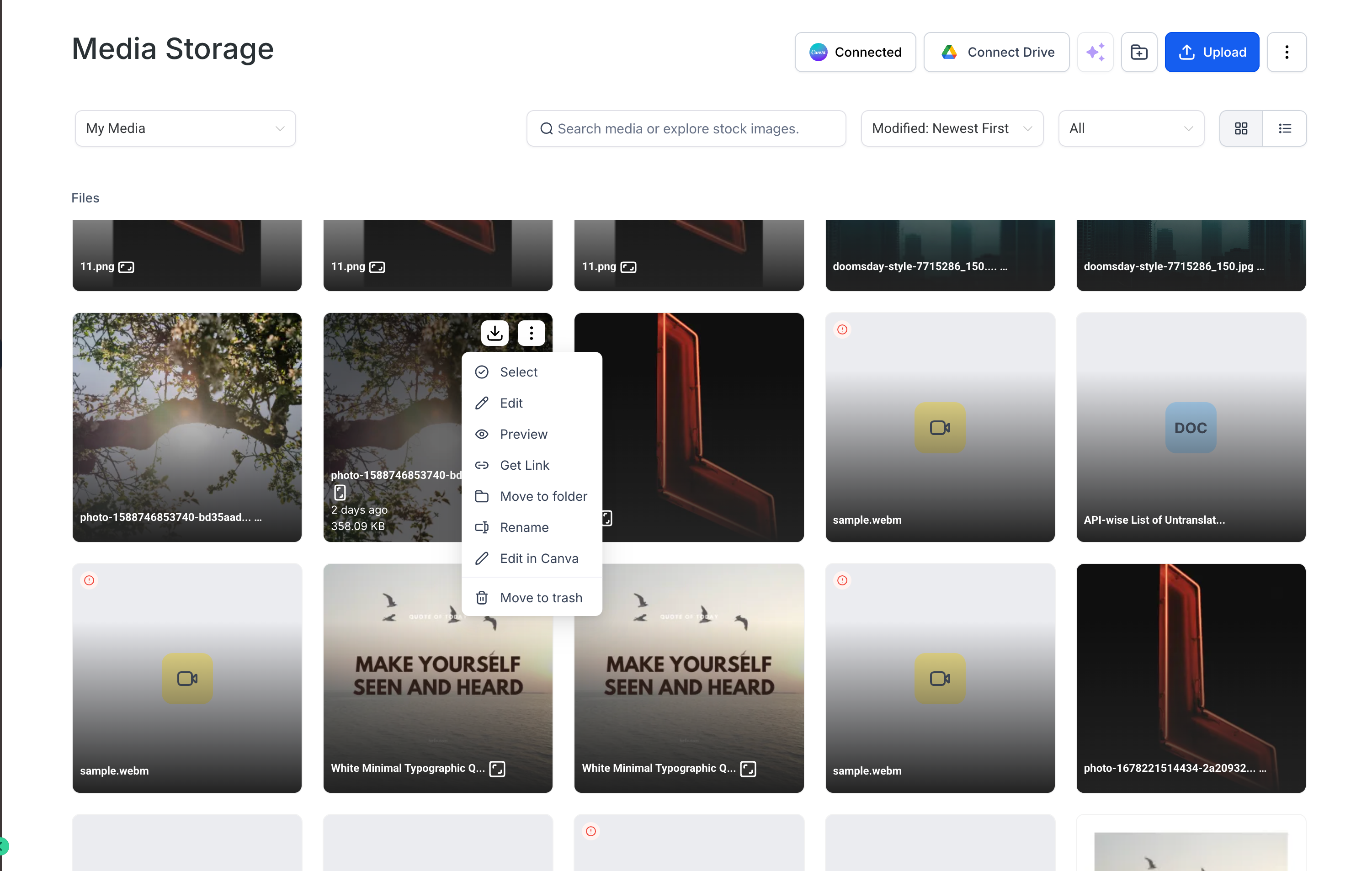
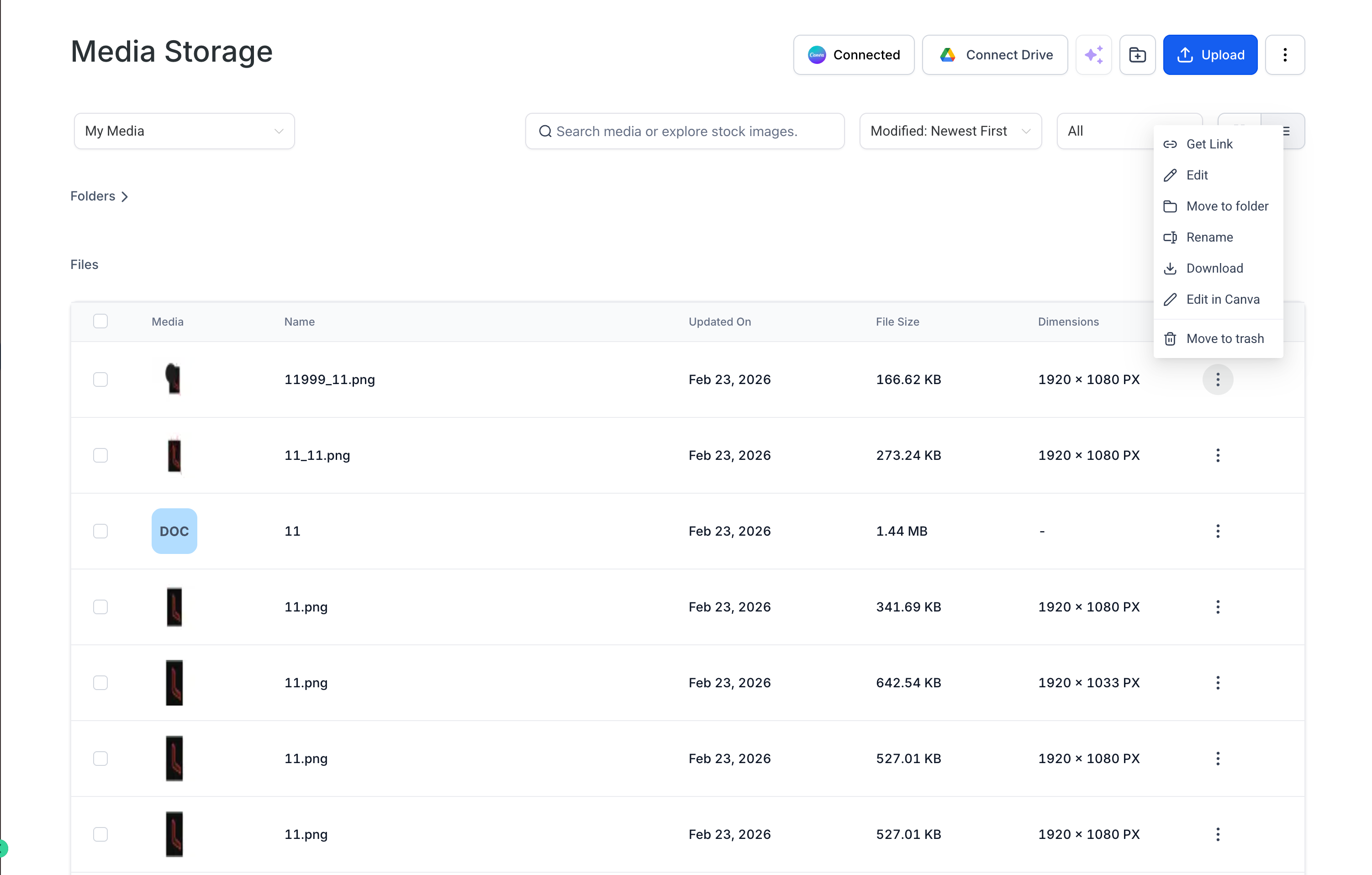
- Edit in Canva
- Download files
- Import designs into My Media
No more tab switching. No manual downloads. No version confusion.
This functionality is similar to Google Drive integration, with access limitations set by Canva Marketplace rules.
Canva is connected at the location (sub-account) level:
- Only one Canva account per location
- All users in that location can view assets
- Proxy (“Login As”) users do not have access
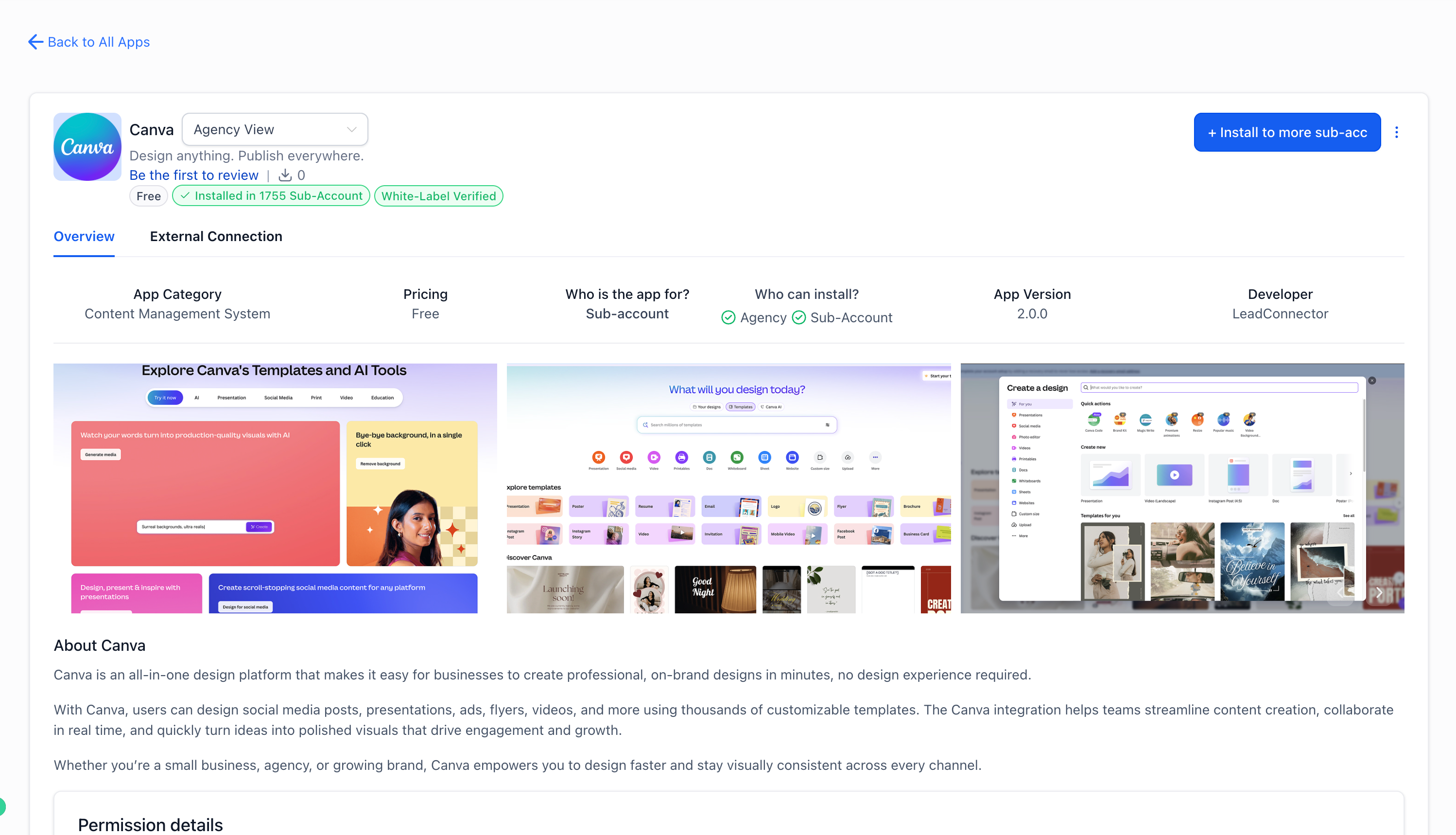
Connect Canva
- Media Storage → Canva Tab → Connect
- App Marketplace → Install Canva
- Complete OAuth → Designs will appear in Media Storage
Edit from Canva Tab
- 3-dot menu → Edit in Canva → Import updated version
Edit from My Media (PNG/JPG/JPEG only)
- Click Edit in Canva → Re-import updated version
Marketers frequently switch between Canva and Media Storage to design and upload assets.
This integration:
- Reduces friction
- Prevents duplicate uploads
- Centralises asset management
- Speeds up creative workflows
Permissions
- Installer: Full edit access
- Other users: View, search, download, import
- Only one OAuth connection is permitted per installation
If a non-installer attempts to edit:
“You have view-only access to this media. To make changes, import it into your own storage or contact your admin for access.”
Smart Design Tracking
- Prevents duplicate Canva copies when editing from My Media
Disconnecting
- Uninstall via App Marketplace
- Previously imported files will remain
Good to Know
- One Canva account per location
- Must import before using in funnels/emails
- Private Canva files cannot be edited