Call Dispositions: Set and choose Call outcome and trigger workflows
3rd of December, 2025
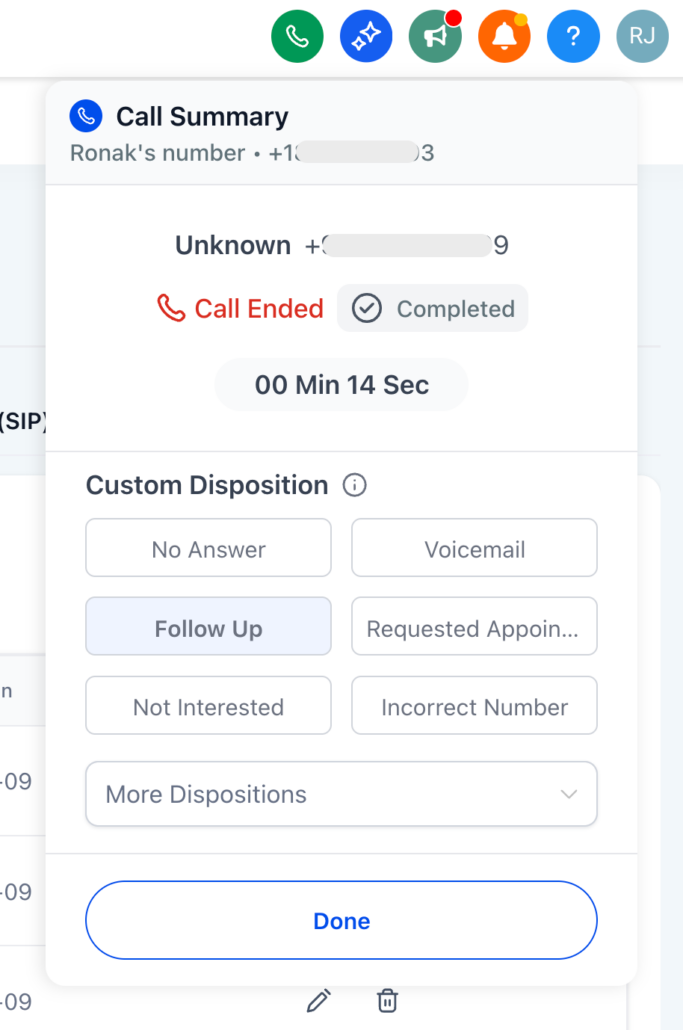
Custom Dispositions: Choose an outcome for your call and use it to trigger workflows.
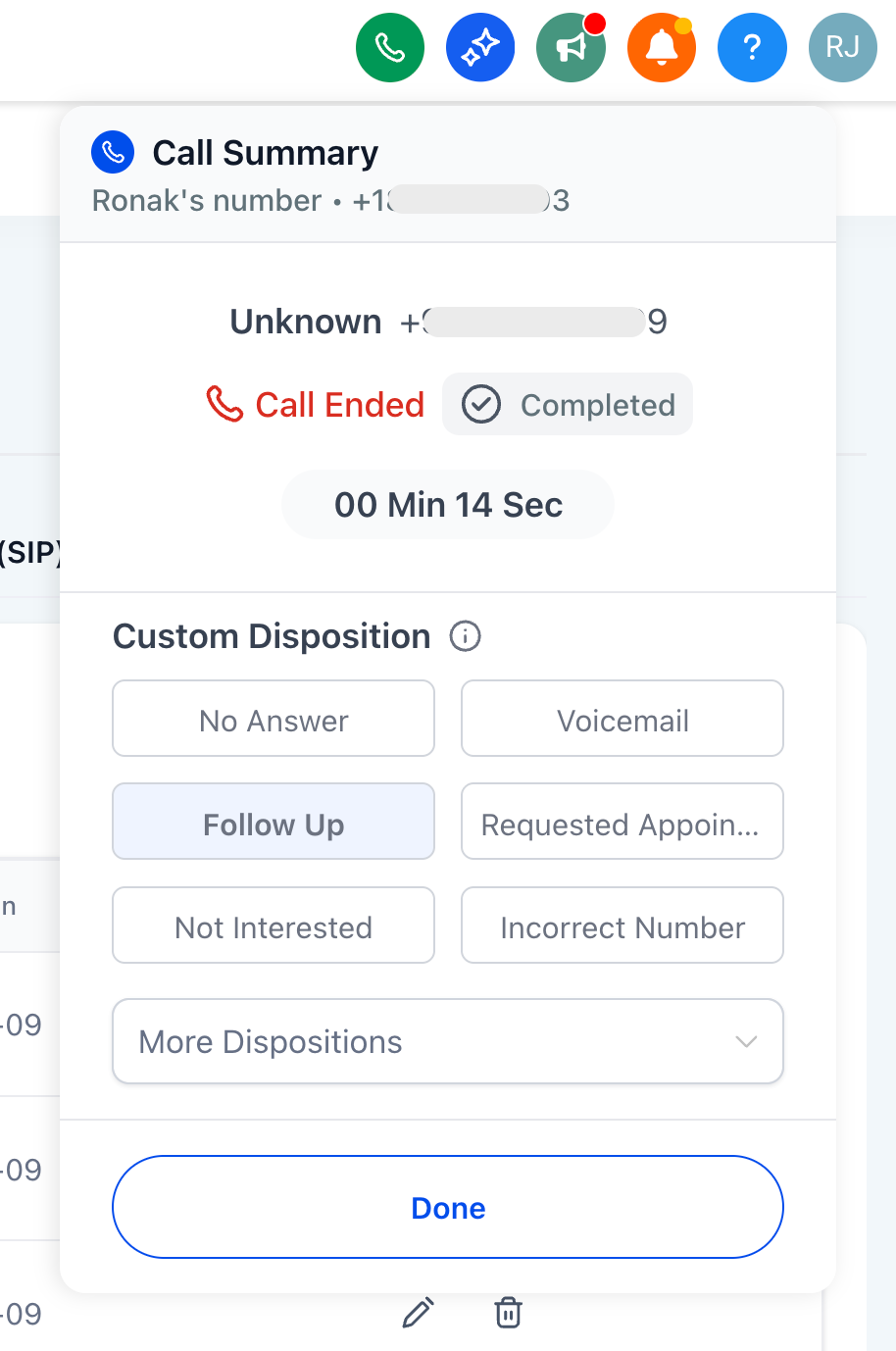
- Post-call picker in the Web Dialer: select one disposition (e.g. Follow Up).
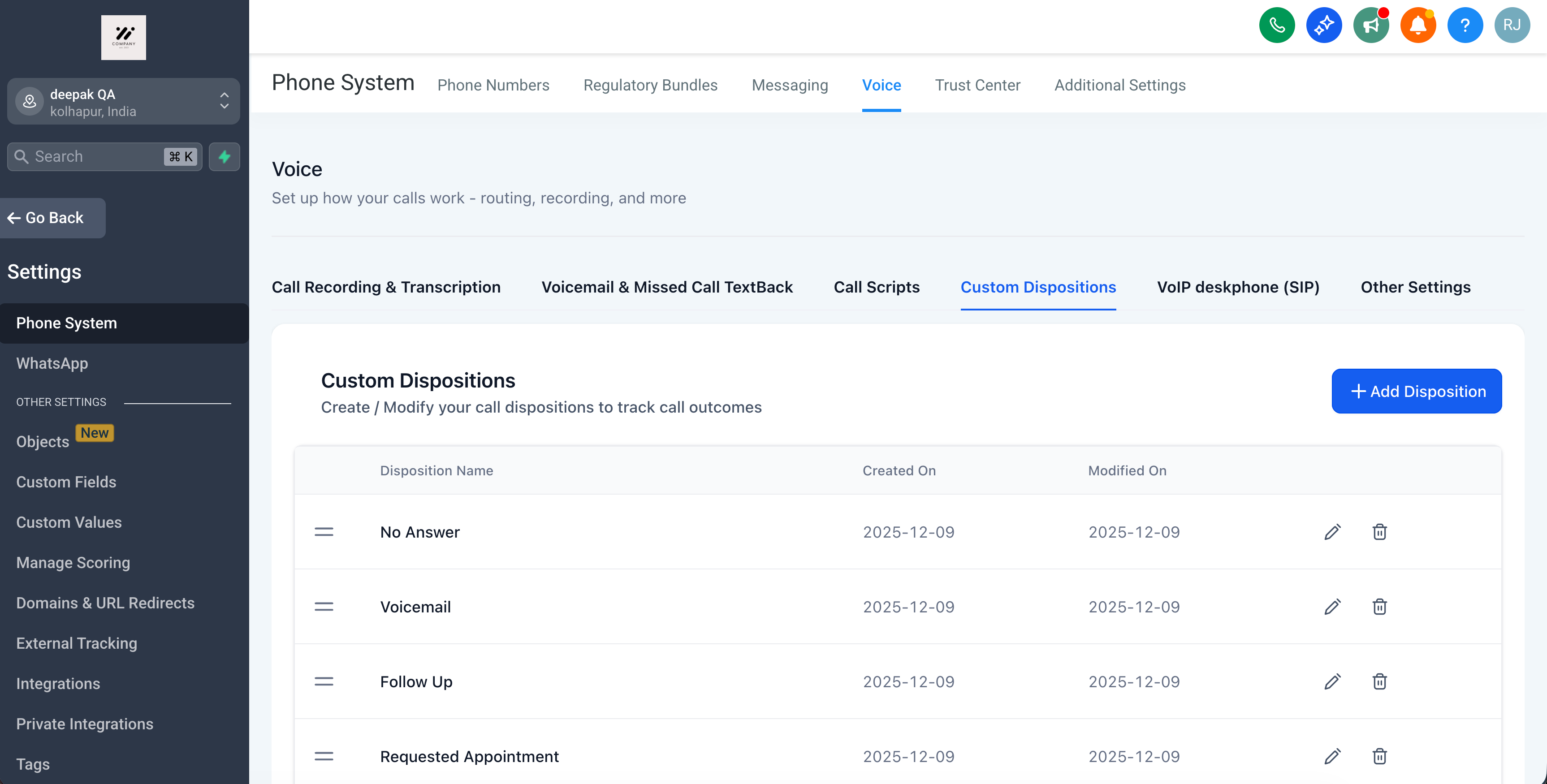
- Customisable: sub-account admins can create, edit, and delete dispositions.
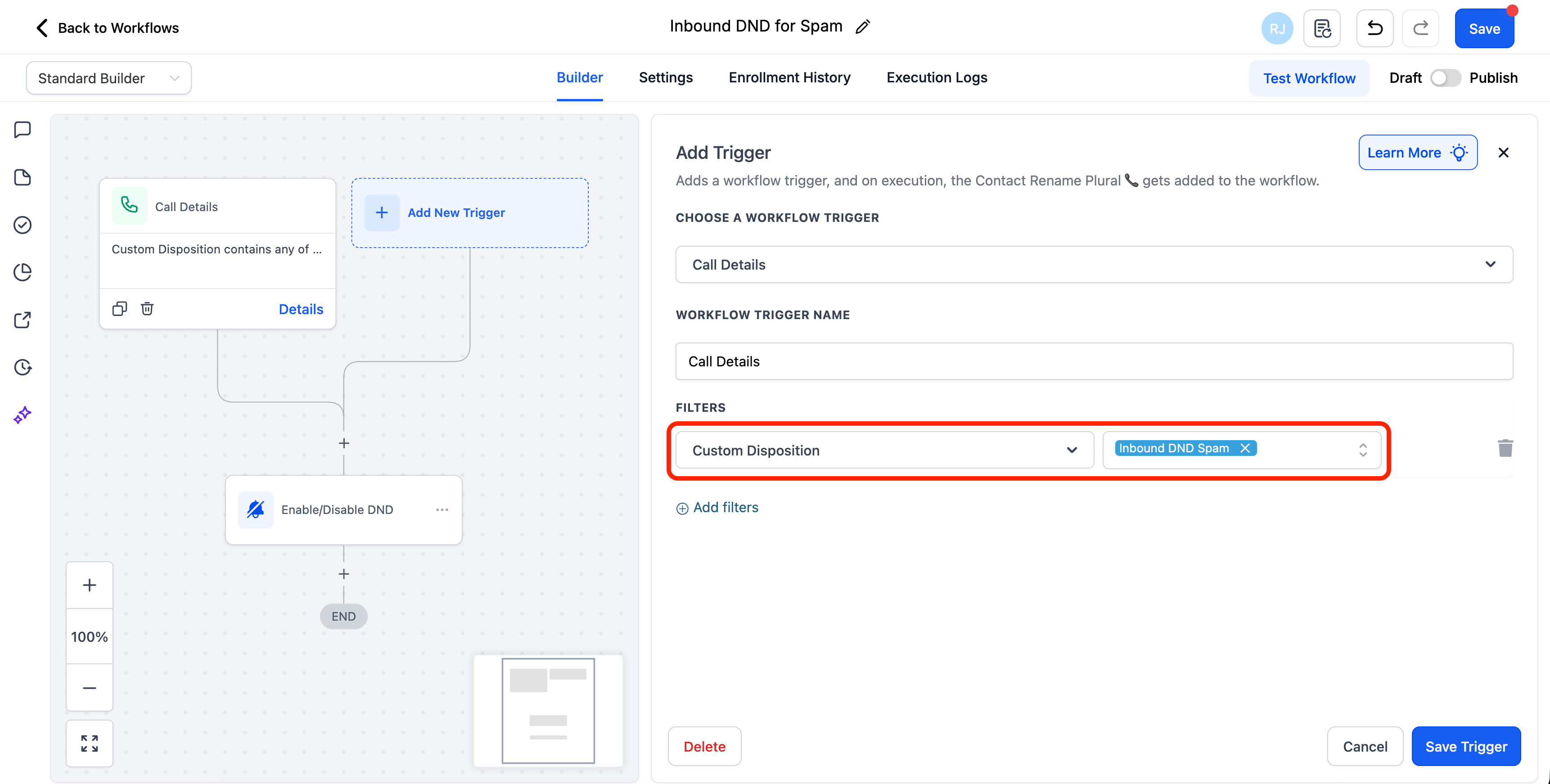
- Automation-ready: a new Workflow filter under “Call Details” called “Custom Disposition” for follow-ups (send messages, tag, re-enqueue in Power Dialer, etc.).
- Saved to the record: disposition appears in the Call Reporting table and filters (coming soon).
- Faster wrap-up → more calls per day.
- Cleaner automation → triggers based on the representative’s selection, not just system status.
- Better visibility → consistent outcomes you can query and audit (reporting coming soon).
1) Complete a call.
2) Select one disposition.
3) Workflows activate immediately when the chosen disposition matches your automation rules.
1) Navigate to Settings → Phone System → Voice → Call Dispositions.
2) Review the defaults and add or edit up to 10 dispositions in total.
3) In Workflows, use the Custom Disposition filter to define follow-ups.
- Requested Appointment → send SMS with booking link and create a follow-up task.
- Follow Up → re-enqueue into Power Dialer in 2 days.
- Not Interested → add a “Do not nurture – called” tag and remove from a campaign.
Important for Existing Automations
- If you use Call Status to drive workflows, Call Dispositions may work better for you.
- Renaming a disposition: existing workflows will continue to function with the new name.
- Deleting a disposition: workflows referencing it will stop firing; update them first.
PS: Mobile app support for Dispositions is coming in a few weeks.