Assign User Action: Now Assign to IVR Responder with Custom Variables
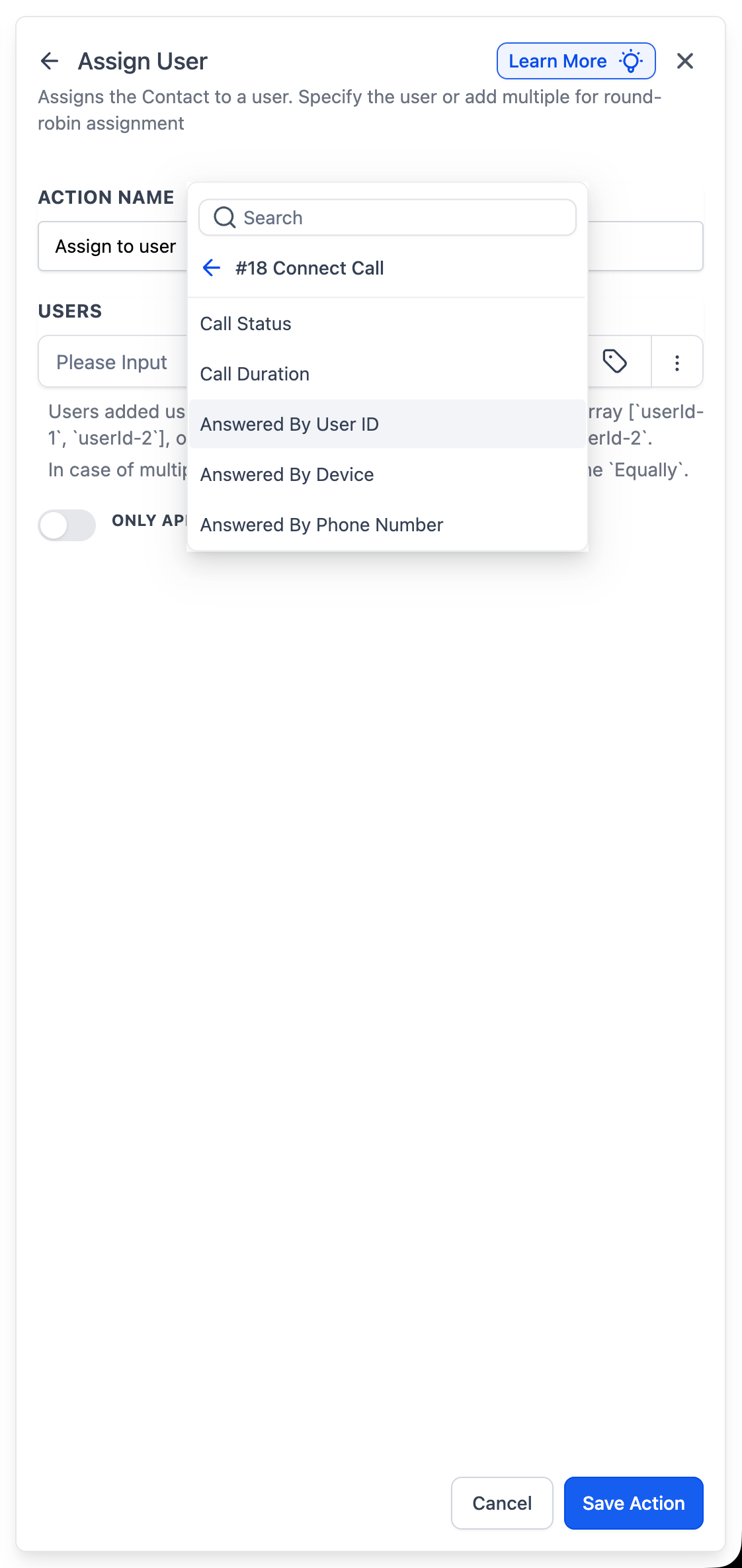
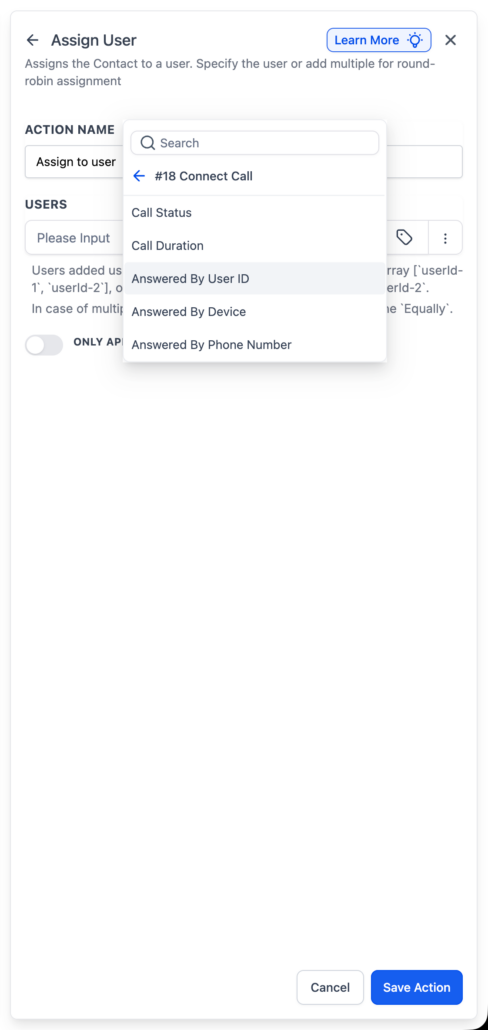
IVR Connect Call now exposes new variables: ‘Answered By User ID’, ‘Answered By Device’, and ‘Answered By Phone Number’.
You can use Answered By User ID within the Assign User action to automatically assign the contact to the person who answered the call. These variables are also available in the custom variable picker, allowing for their reference in other workflow actions such as Notes, SMS, Email, and more.
When a call reaches your IVR and is routed through Connect Call, the system captures who answered. You can reference these values dynamically in workflows, commonly passing Answered By User ID into Assign User to establish ownership, or including the other variables in messages and notes.
- Add an Assign User action after your IVR → Connect Call step.
- In the Users field, switch to Dynamic and select Connect Call → Answered By User ID.
- Save and publish the workflow.
Previously, contact ownership needed to be set manually or assigned to a fixed user. Now, ownership automatically aligns with the individual who spoke to the lead, ensuring that follow-ups, tasks, and reporting remain accurate.
For example, a lead calls your IVR, and the call is routed through Connect Call. John answers the phone. The workflow uses Answered By User ID from the Connect Call step, and the contact is automatically assigned to John.
- This function works for both single and multiple users configured in Connect Call.
- Assignment occurs only if the call is successfully answered.
- The first connected user is used as the owner.
- Assign User will not function if the Connect Call routes to a Custom Phone Number (which has no associated user ID).
- To assign dynamically, you must use Answered By User ID (not device or phone number).