Advanced builder – Build Faster with Auto-Connecting Steps
Drag and Drop Triggers and Actions
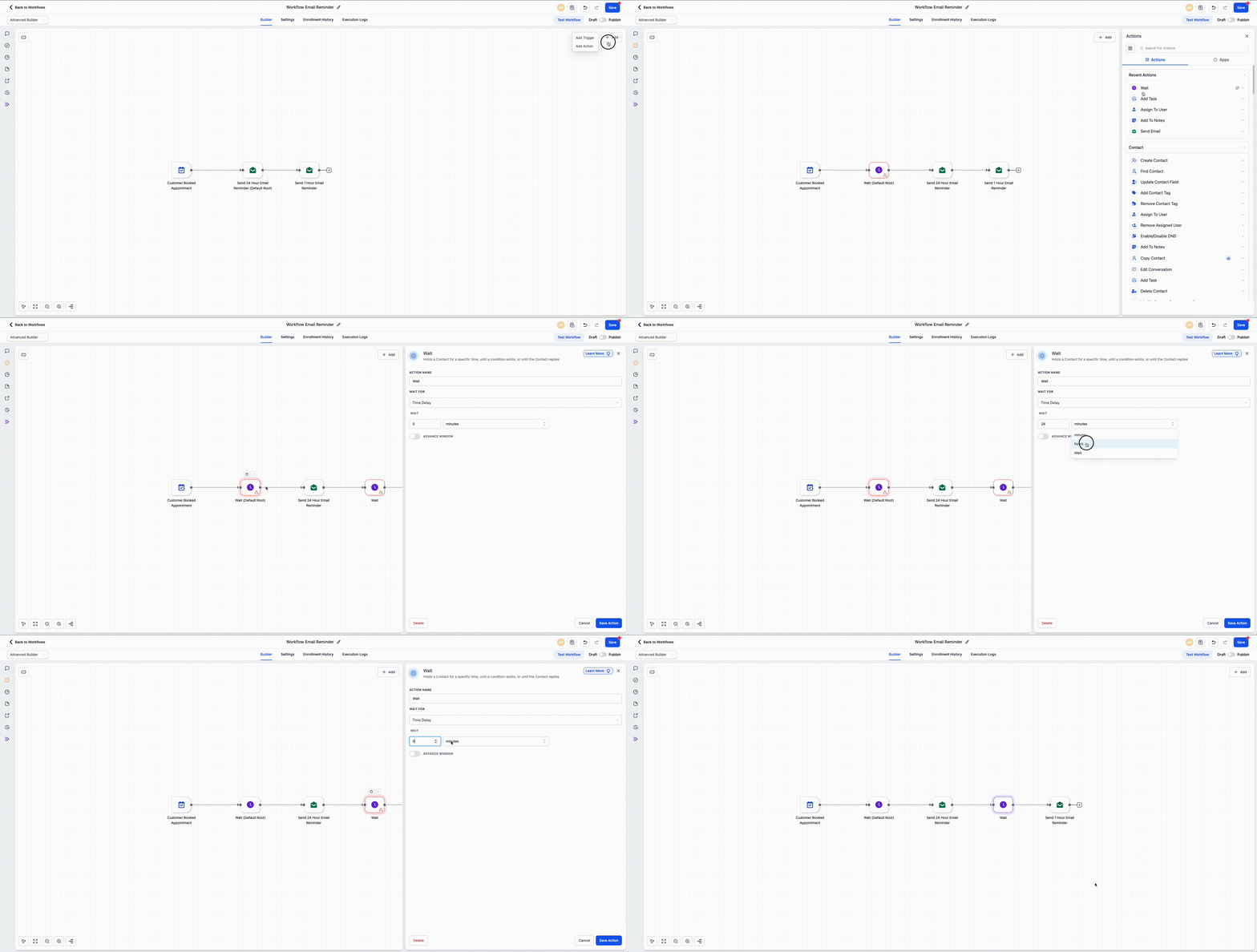
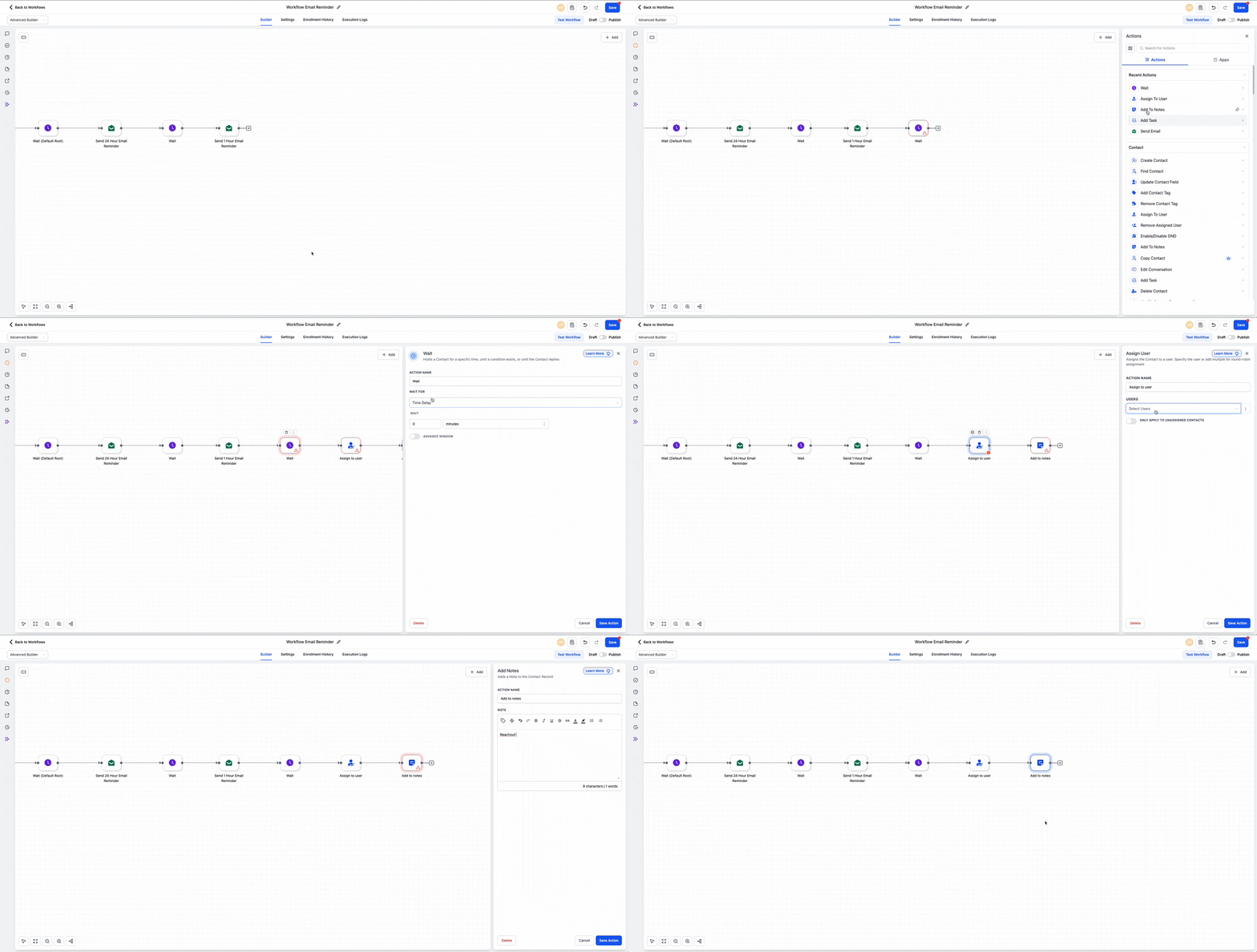
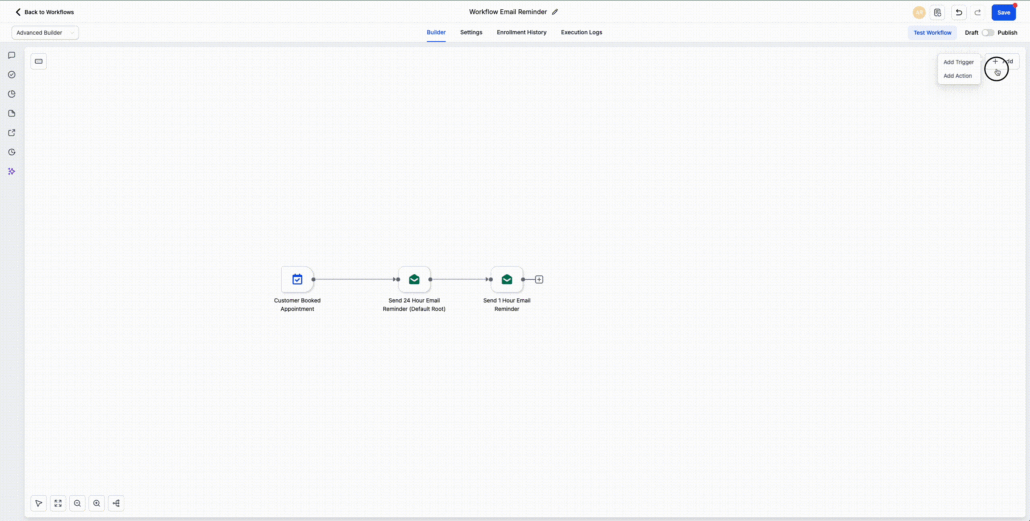
You can now drag and drop triggers and actions directly onto the workflow canvas in the Advanced Builder. Simply open the Triggers/Actions sidebar, select what you need, and drop it precisely where it belongs—either at the end of a branch or between existing steps. The steps will connect automatically.
From the sidebar, drag a trigger or action onto the canvas. You can drop it on the last node to extend a branch or between two nodes to insert it into the middle of your workflow. Once placed, it will automatically connect in the correct position and be ready for configuration.
- Open the Triggers/Actions sidebar in the Workflow Builder.
- Drag your desired trigger or action onto the canvas.
- Drop it in place, then configure and save it.
Streamlined Workflow Building
Building workflows should be both visual and efficient. This update eliminates the hassle of adding steps one by one, allowing you to outline your entire automation before configuring each detail.
- You can drop actions at the end of a branch or between two existing nodes.
- Dropped actions must be configured before they can run.
- The workflow will not execute incomplete (unconfigured) actions.