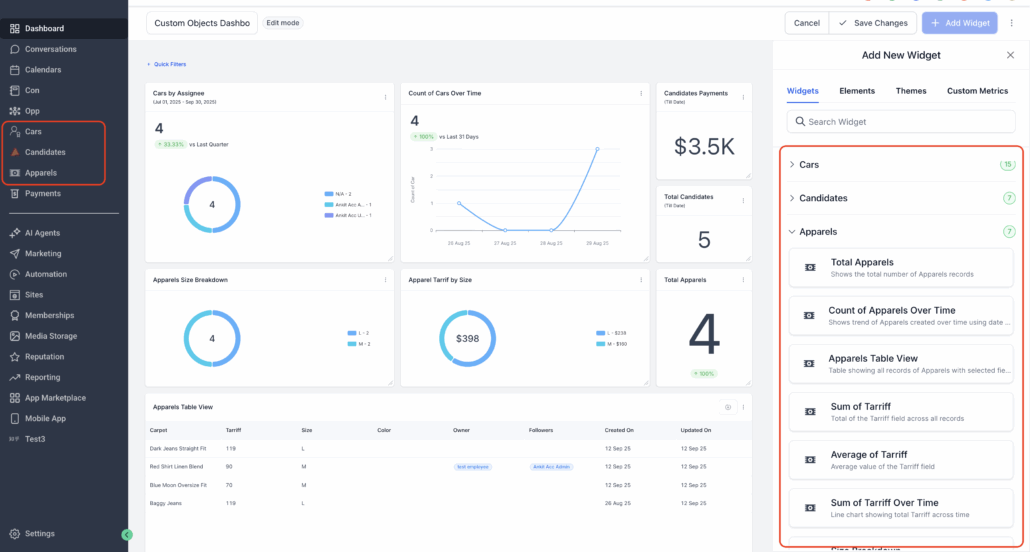
Account Dashboard and Reporting : Create widget using Custom Objects
Custom Objects Widget Creation Now Live in Dashboards! This new feature enables users to create object-specific widgets, allowing for customised data association and improved insights. If your business needs to manage relationships or processes that extend beyond standard CRM objects, you can create custom objects using custom fields.
With custom object metrics, users can track counts, sums, and averages effectively.
Step 1: Create Custom Object
- Go to Subaccount > Settings > Objects
- Click on “Add Custom Object”
Step 2: Add Details about Custom Object
- Provide the singular name of the object, e.g., Pet
- Include the plural name of the object, e.g., Pets
- An internal name for the object and primary field is created by default; it can be edited by clicking on the “>” icon and updating the internal name.
- Add a name for the primary display field, e.g., Pet Name, Pet Identification Number
Add an icon to help identify the custom object easily.
You can also add a description to clarify the significance of the object.
- Click on “Create Custom Object”
😇
How to Add Custom Object Widgets Inside Dashboard?
- Open your Dashboard
- Click Edit and select Add Widget
- Scroll to Custom Objects and choose the widget you need
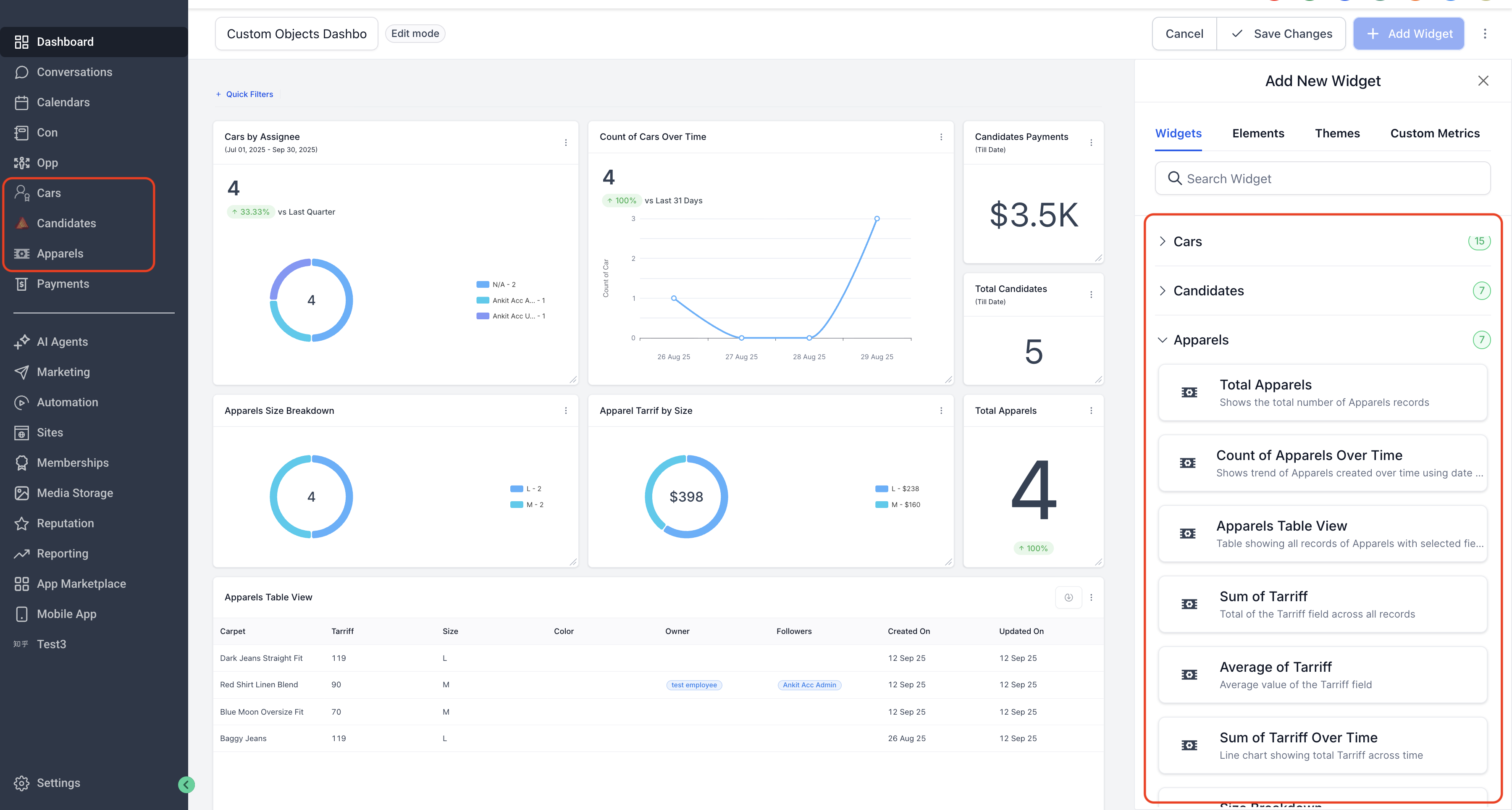
- Customise filters, switch chart types, and apply themes
- Click Save to update your dashboard